
In Batch Mode, a channel records a Batch List of predefined “In- and Outpoints” from a VTR Device. The Batch Mode requires a valid VTR Device (RS-422) connection.
Usage
Make sure to have at least one valid Naming,- Capture- and Destination Preset created in the Just Control Configuration panel and at last one Channel connected to the Channel Viewer area. Open the Inspector and switch the Channel to “Batch” Mode.
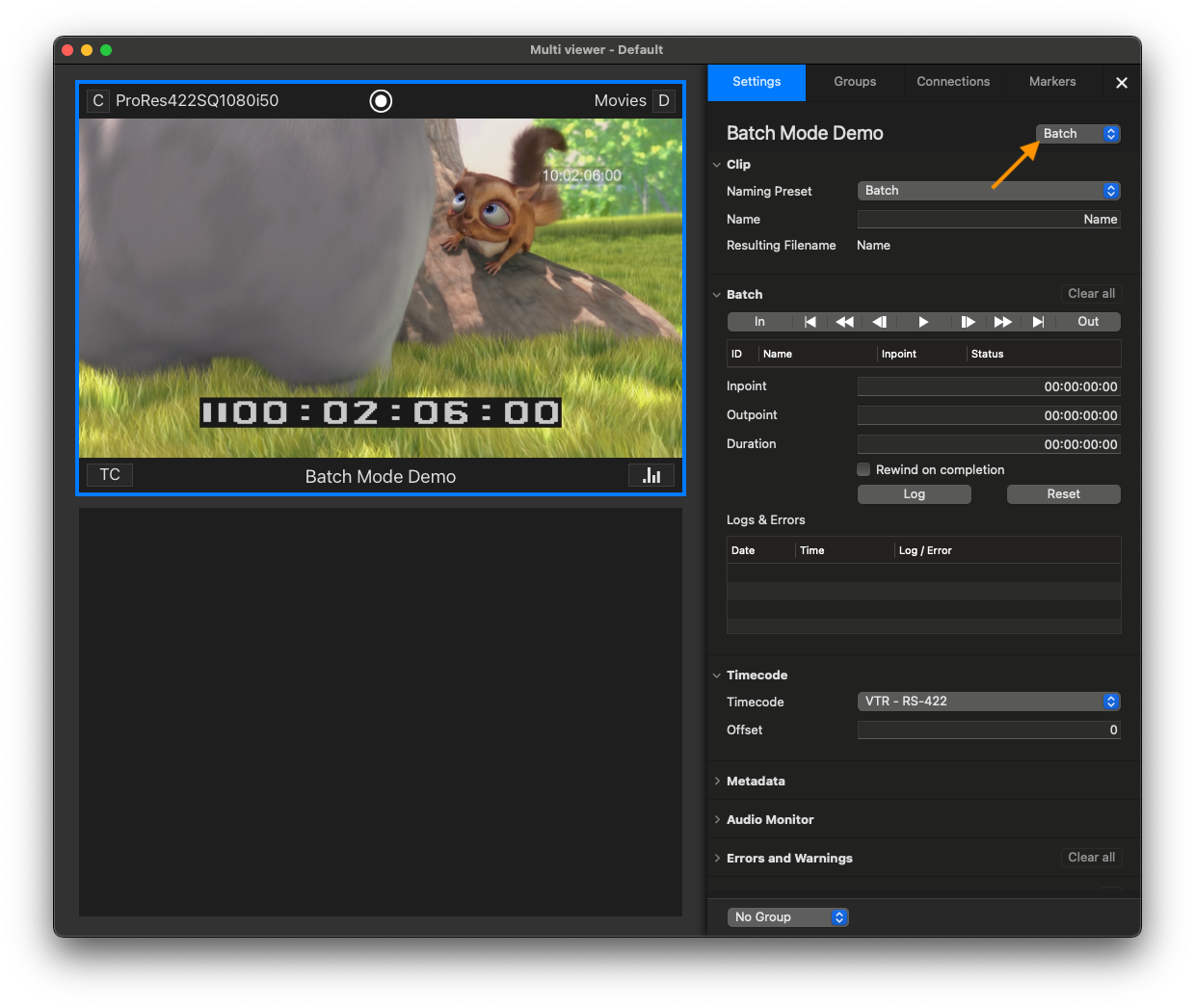
Select a Naming Preset and define a clip name for the first Batch Entry. Then check if the correct Timecode Source is selected as well (VTR - RS-422). Start with defining your Batch List by entering an “Inpoint”, “Outpoint”, and/or “Duration”.

Press the “Log” button to add the chosen data as a Log Entry. You can now start recording, or you can add further Log Entries by repeating the above steps.
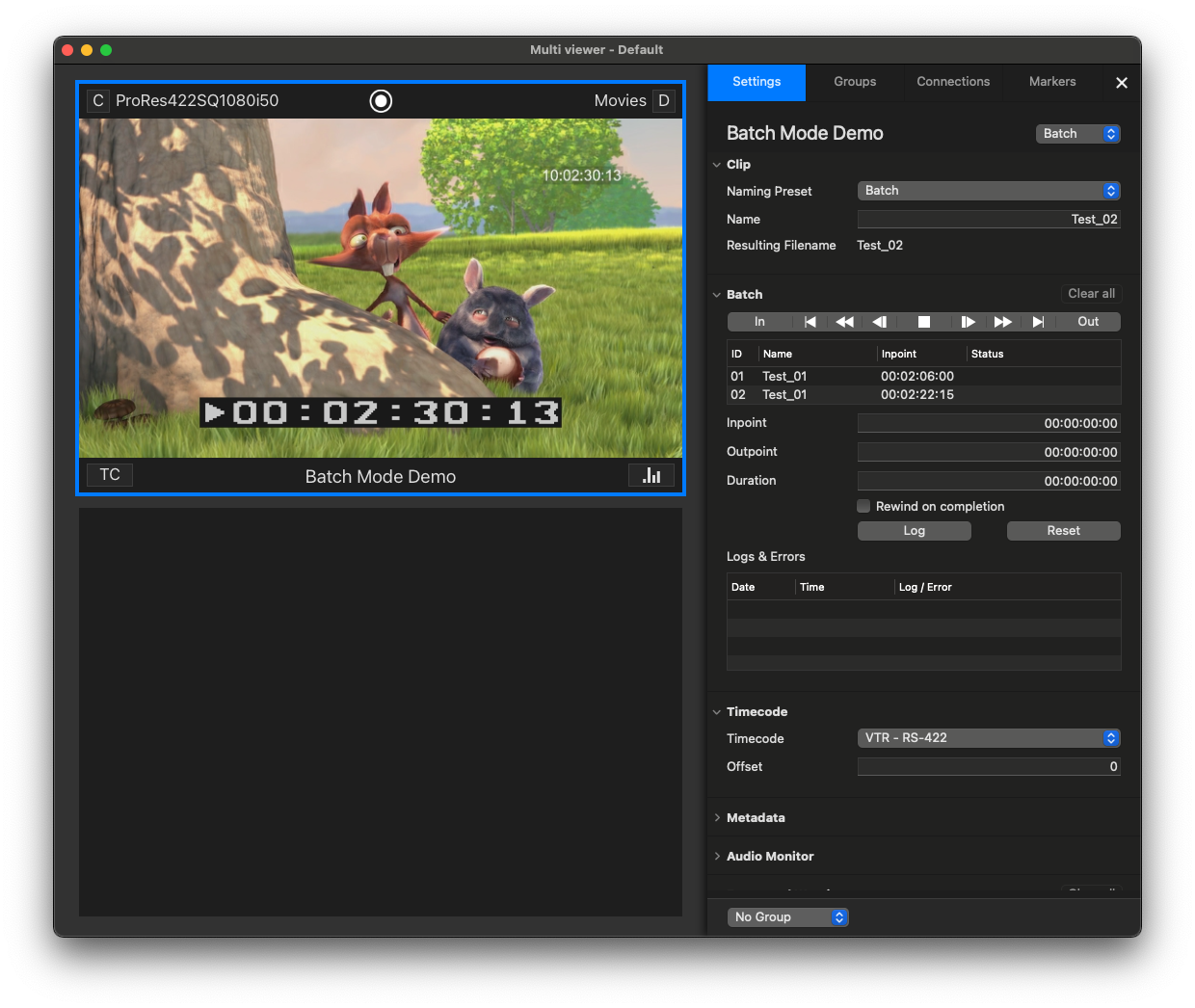
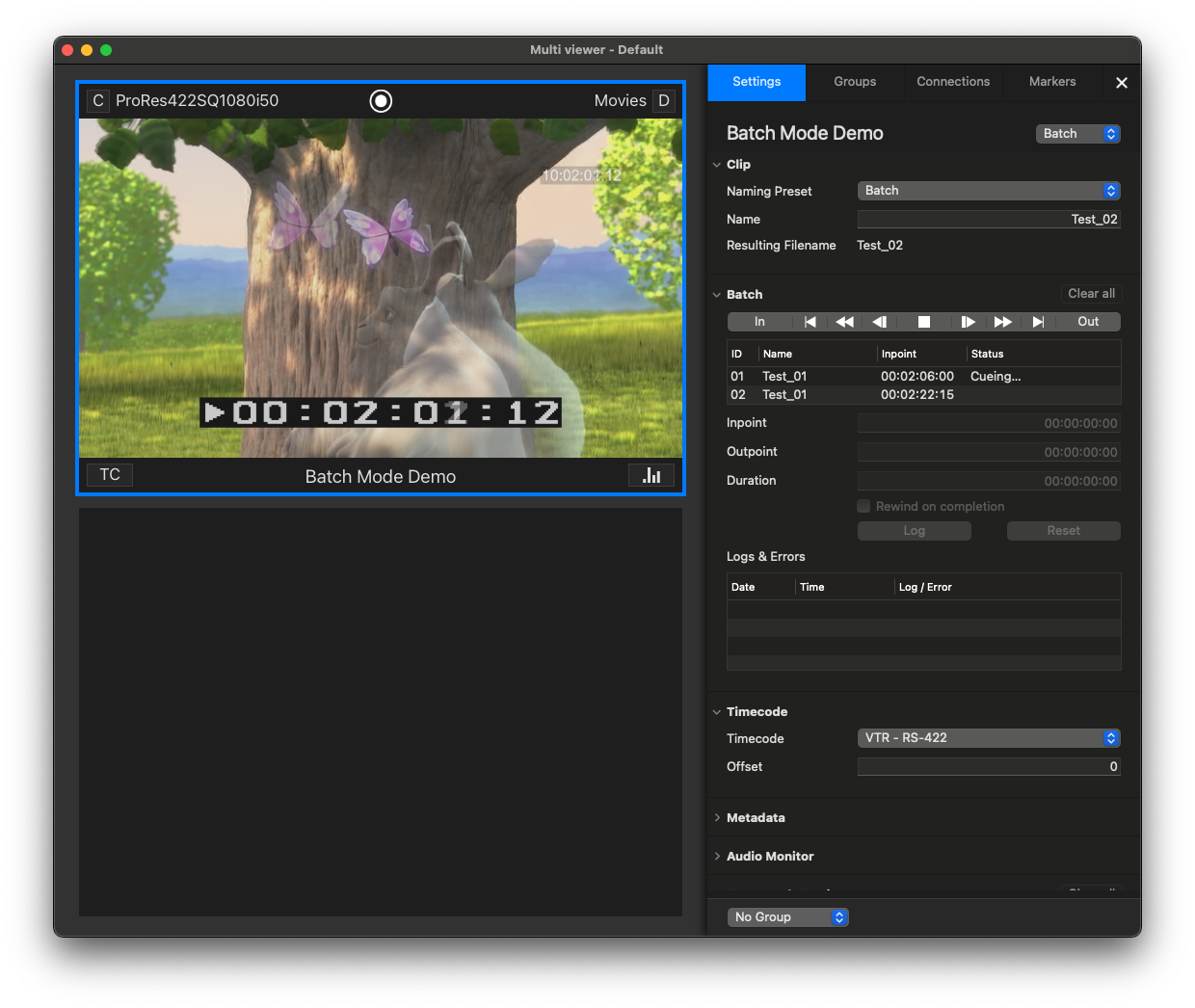
You can see the status (Cueing, Recording, Finished) of the current ongoing Batch Log in the Inspector.
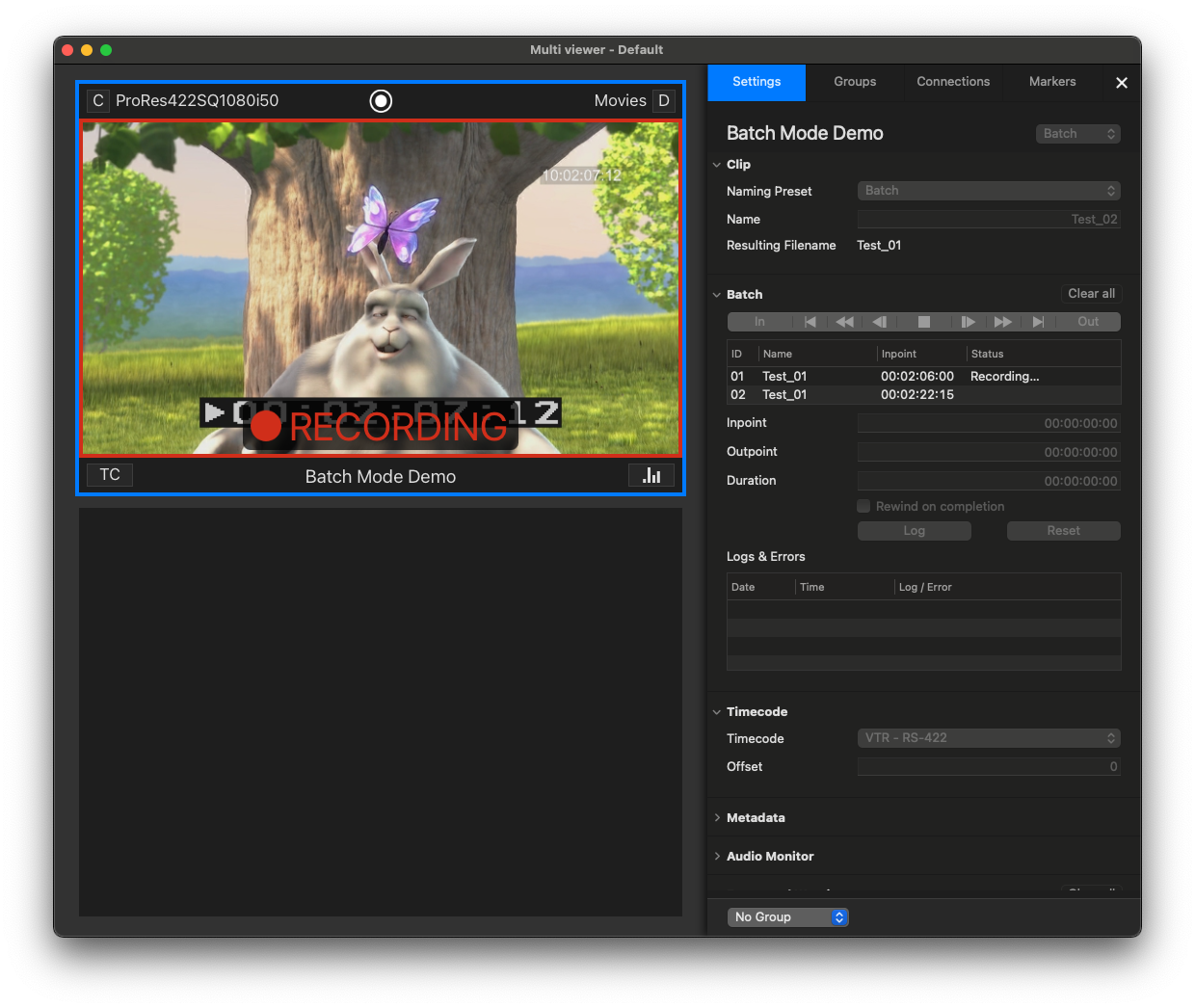

When the Batch List has been recorded successfully, you will see a related Log in the Logs & Error List.
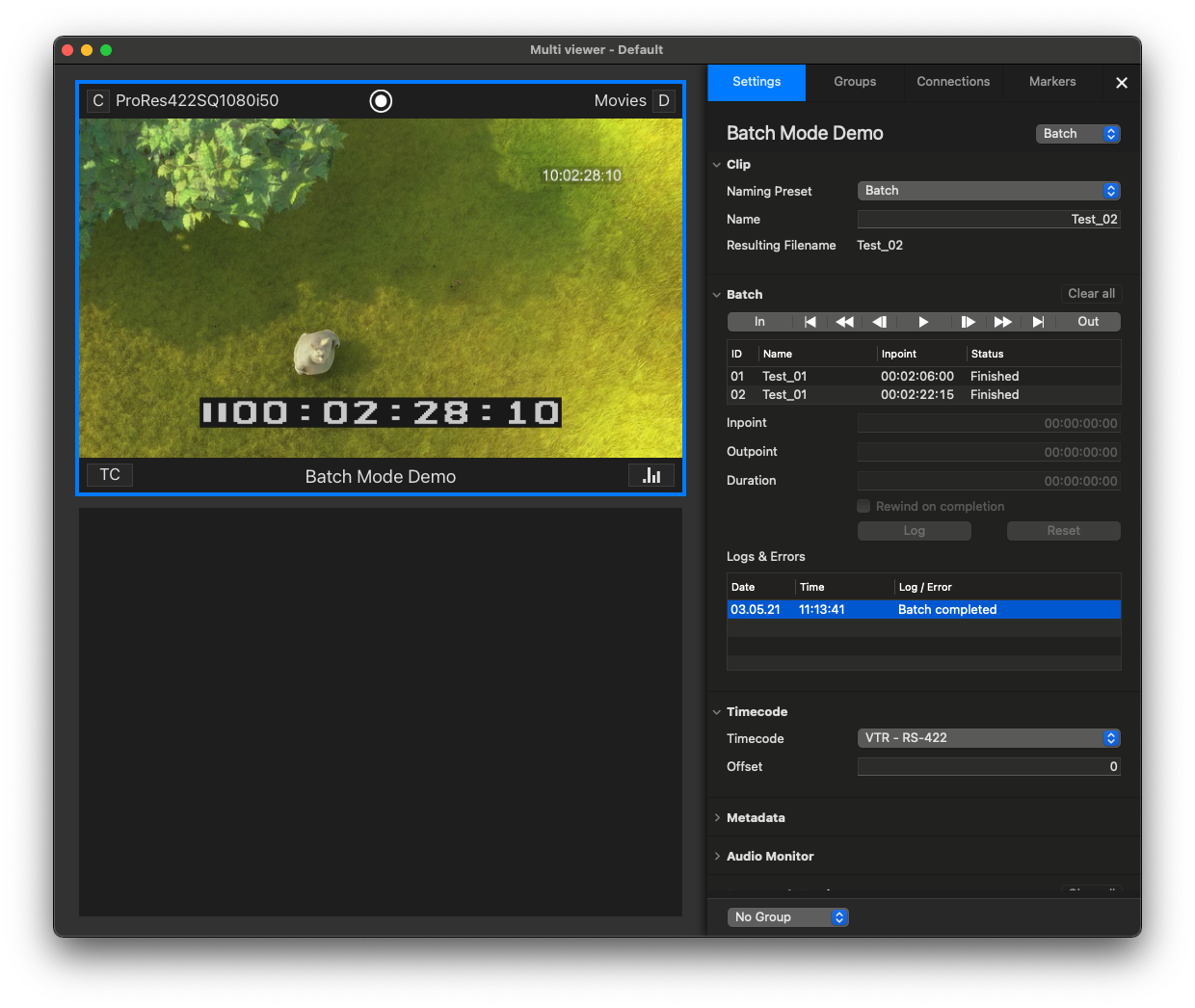
In case the Batch Recording has been canceled or aborted, you will see a related Error in the same “Logs & Errors” section. To add new entries to a new Batch List you need to clear the existing list first by pressing the “Clear All” button above the VTR Controls.