
Just Next can be used to execute the "Jump To Next" function on one or multiple channels at the same time – with a single mouse click. Pressing the blue "Jump To Next" works the same way as pressing this button in Just Play. You can use it to jump from a Gap to the first element of the next playlist, skip the remaining time of the currently playing item or to finish an infinite live event.
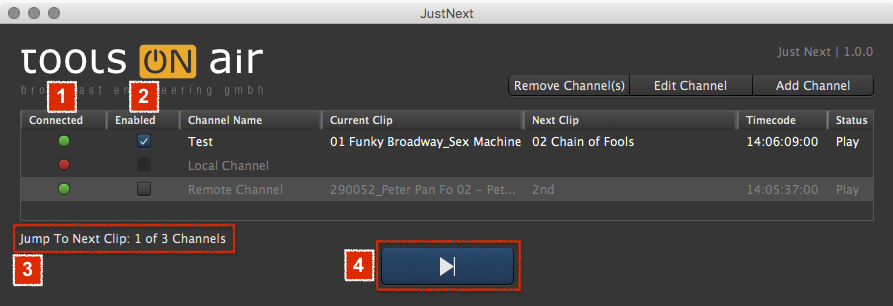
- Activate the checkbox for each connected channel you would like to execute the "Jump To Next" command.
- Review the status info in the lower left area.
- Press the "Jump To Next" button.
- When the network connection between the machine running Just Next and Just Connect is slow or unreliable it is possible that the "Jump To Next" action is executed delayed or not executed at all. Make sure the connection is as fast as possible, using a dedicated network port if needed.
- In contrast to the Just Play user interface, Just Next can execute the "Jump To Next" even when the next clip is already buffered. To avoid playlist corruption do not execute the "Jump To Next" in case the remaining time of the currently playing item is less than 3 seconds (except for Infinite Live Events in Overtime).
It can take several seconds until the Current and the Next Clip info is updated in the user interface. The time it takes to update depends on the network speed, the number of elements in the rundown as well as speed of the Mac running Just Connect.