
The Channel Wizard is part of the Installation process which is described in detail here: Getting Started
Creating a New Channel
When starting Just Play Lite NDI for the first time (or after uninstall), you can use the Channel Wizard to create a Channel.
Start Just Play Lite NDI to automatically display the Playout Channel Wizard.
The Channel Wizard
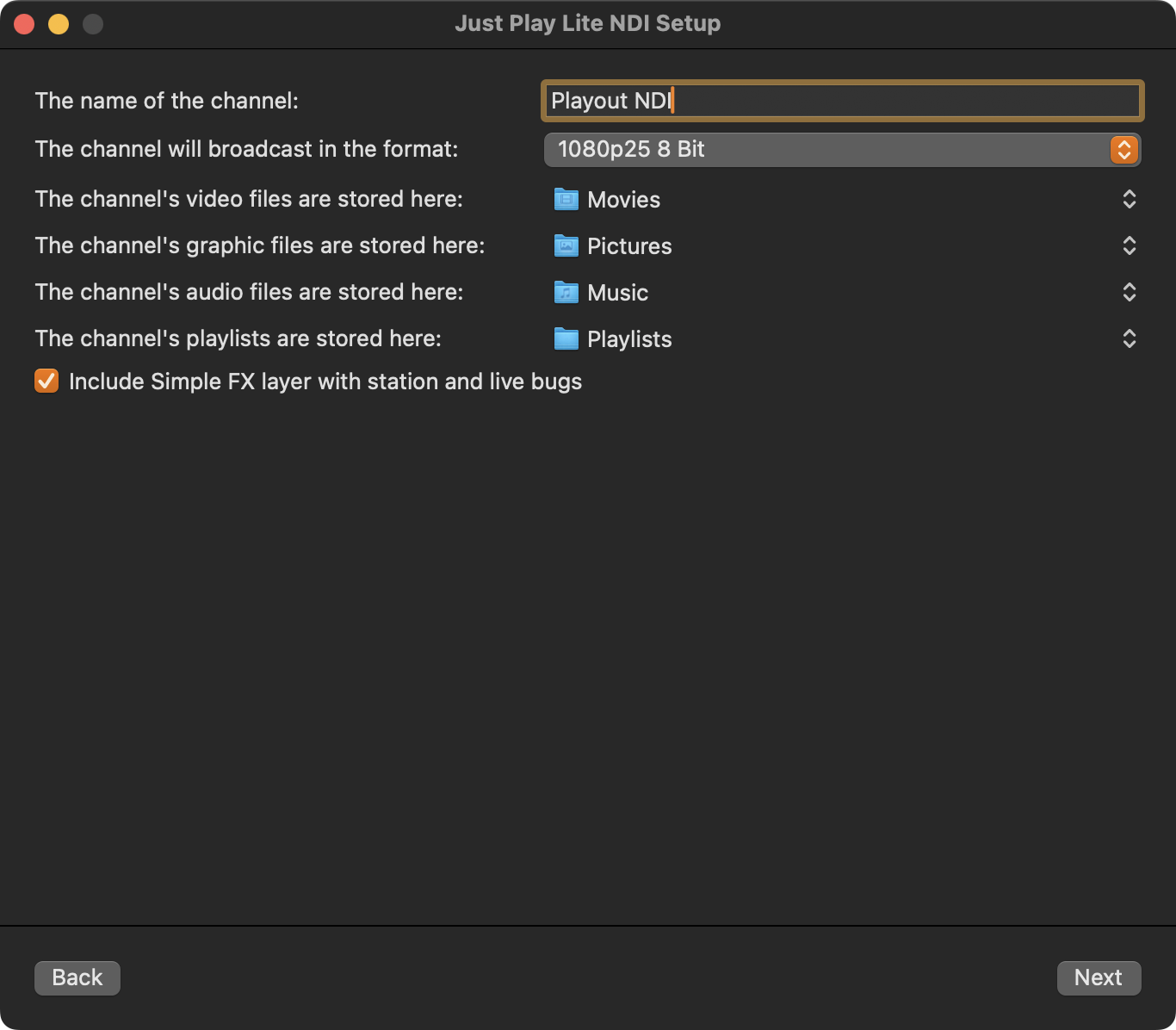
Enter the name of your Channel into the name field.
Select the Format the Channel will use for broadcast (in this example “1080p25 8 Bit”) and make sure to select a
8bit mode and a
progressive mode
Change the Repository Folders if desired. The default Repositories are:
Video files: /Users/yourUserName/Videos
Graphic files: /Users/yourUserName/Pictures
Audio files: /Users/yourUserName/Music
Playlist files: /Users/yourUserName/Documents/Playlists
Keep “Include Simple FX layer with station and live bugs” activated to load a Tools On Air Station ID bug (and a Live Input bug) by default to your on-air signal. Both still images can be changed to your own stationID/liveBug once the channel has been generated. Deactivate “Include Simple FX layer with station and live bugs” if you don’t need the Simple FX graphics option for now.
Click on the “Configure” button to complete the process.
Final Steps
The Just Play Lite NDI user interface will open.
Just Play Lite NDI User Interface
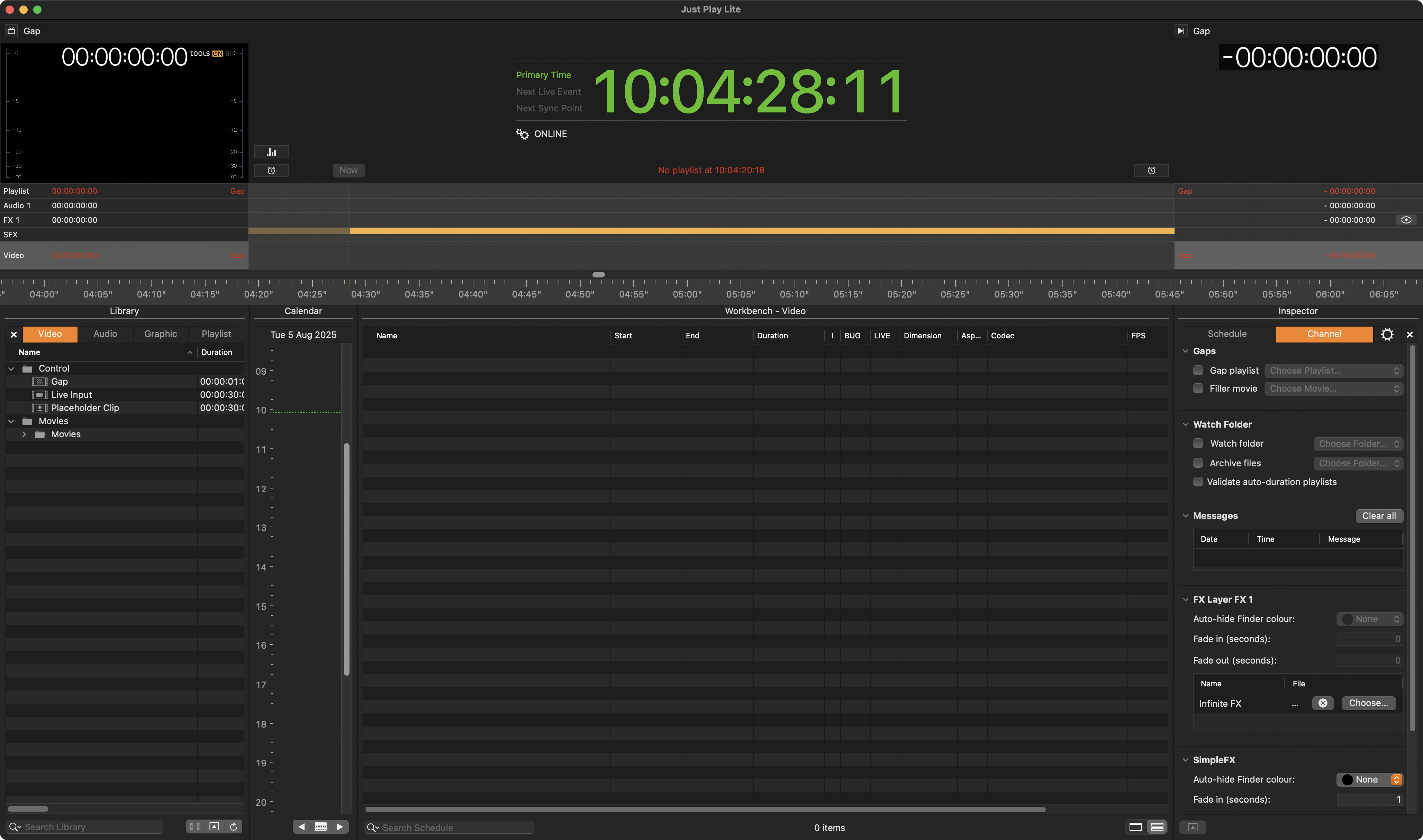
Using the Channel Wizard the new Channel will have one Video Layer, one Audio Layer, one FX Layer and if activated, one Simple FX layer – independent of the purchased license.
Once the Channel has been created, you can also add more Repository folders or change the existing ones.