We have been testing SendGrid’s (https://sendgrid.com ) free service, which allows you to send up to 100 mails per day.
SendGrid
Create an account and log into it.
Click on Settings in the sidebar.
Click on API Keys press the Create API Key button in the upper right corner.

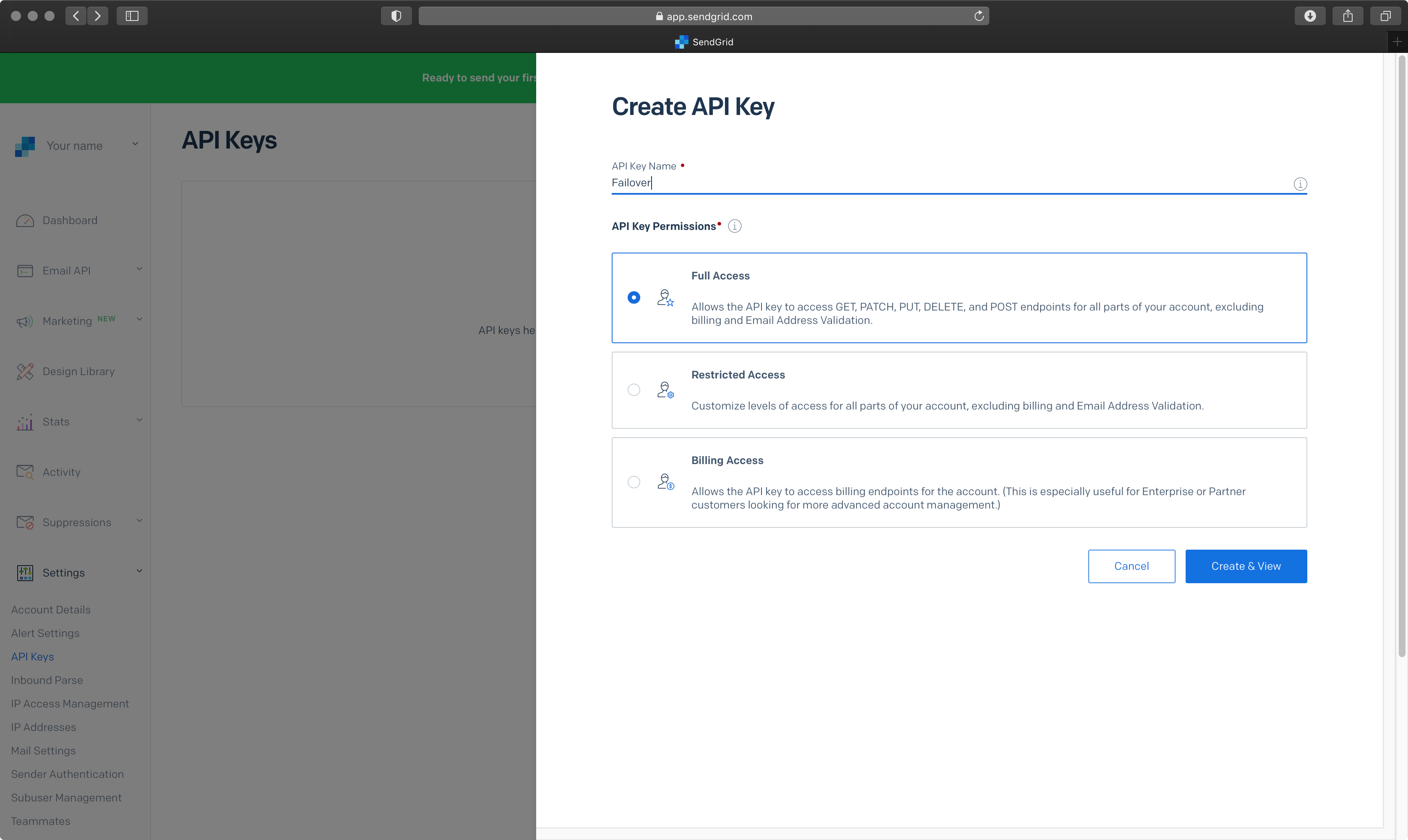
Enter the API Key Name and select Full Access for the API Key Permissions. Press the Create & View button afterwards.
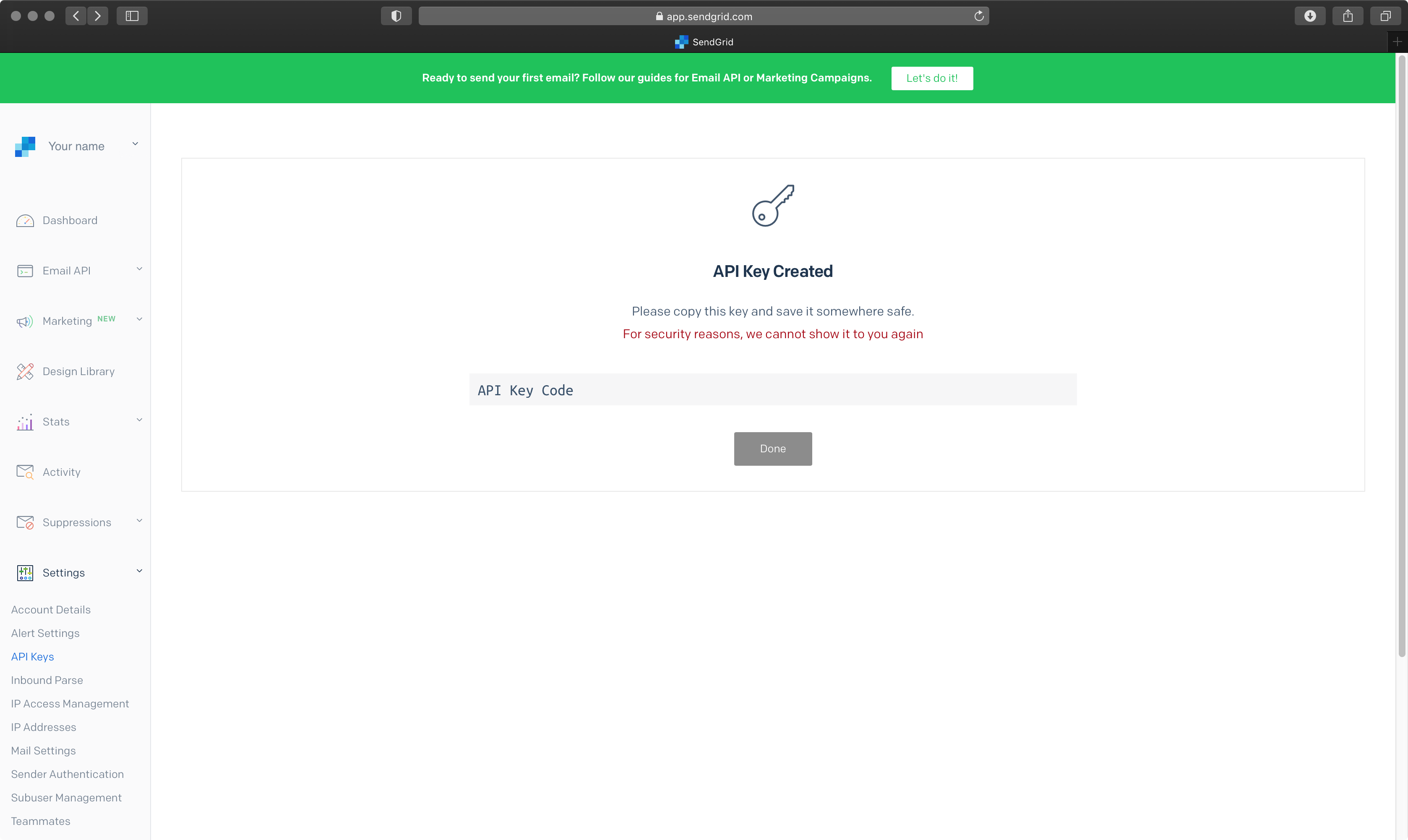
The API Key has now been generated and is shown in the grey area. Copy and save it for later use, as it cannot be retrieved again later on.
In the sidebar, click on Sender Authentication and make sure your account is verified.

ToolsOnAir Just Control Configuration
To add a mail notification, open the Events tab of the Just Control Configuration window, like described here: 12.10 Channel - Events (v3.0)
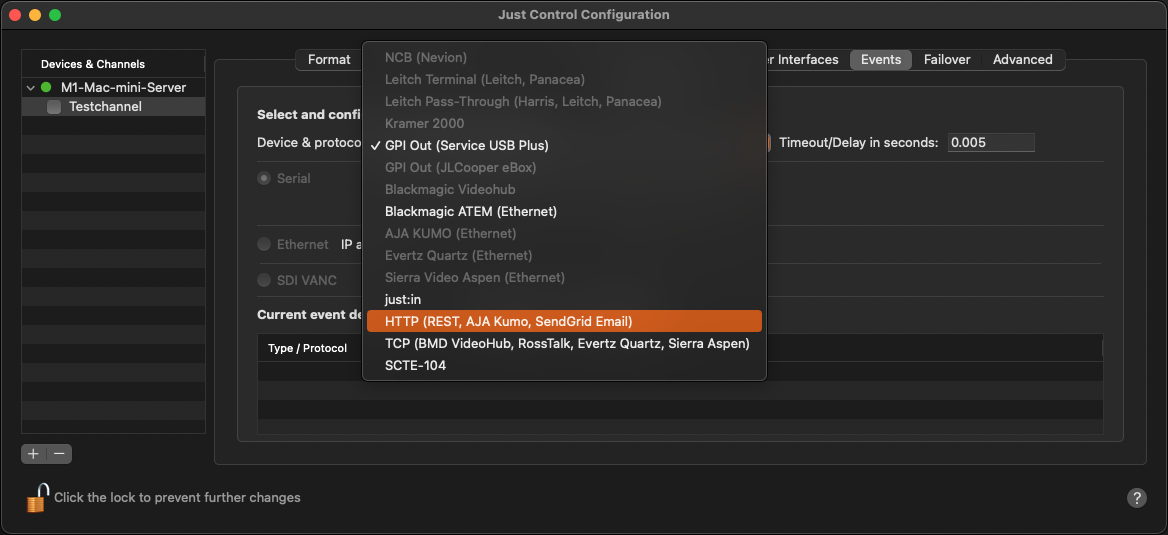
Under Device and protocol select HTTP (Rest, AJA Kumo, SendGrid Email) and click Add.
The configuration window opens. Select SendGrid Email under Presets and click the plus button.
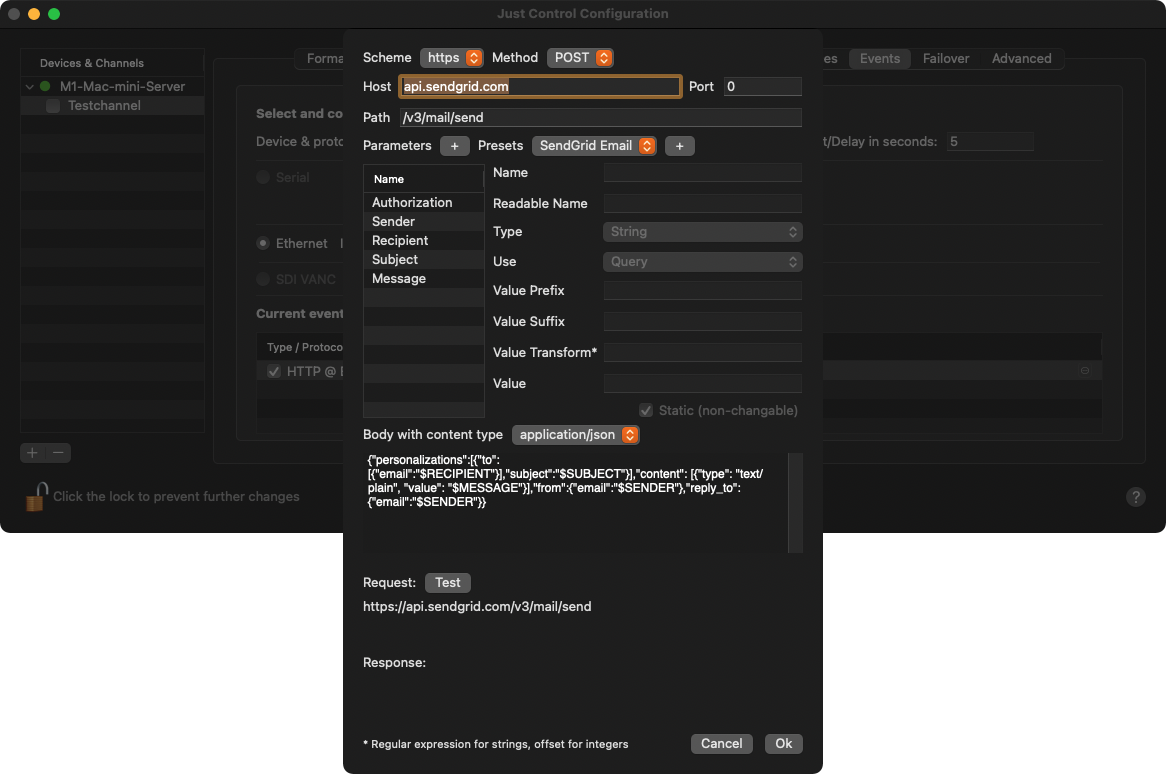
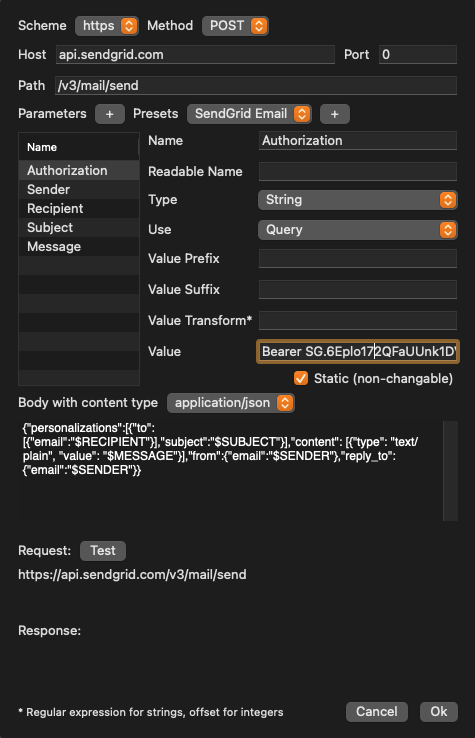
Select Authorization and paste the previously created API key into the Value field.
Select Sender and enter the sender’s email address of the sender into the Value field.

Select Recipient and enter the recipient’s email address into the Value field.

Select Subject and enter the subject text into the Value field.
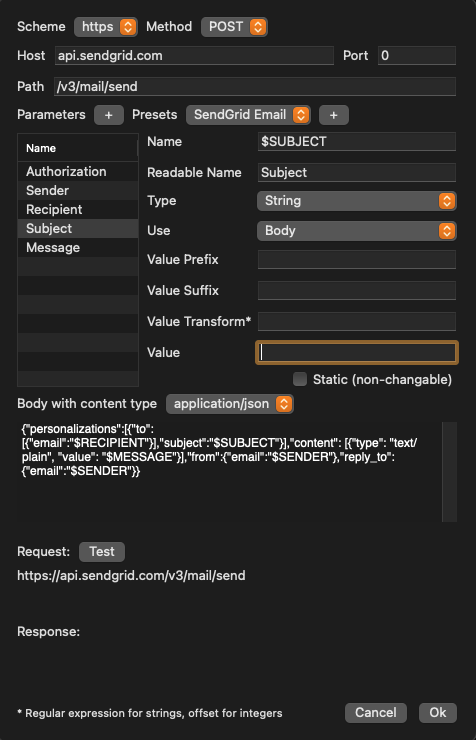
Select Message and enter the email text into the Value field.

8. Press the Test button to verify the connection to the SendGrid server. If everything went ok, press the OK button.
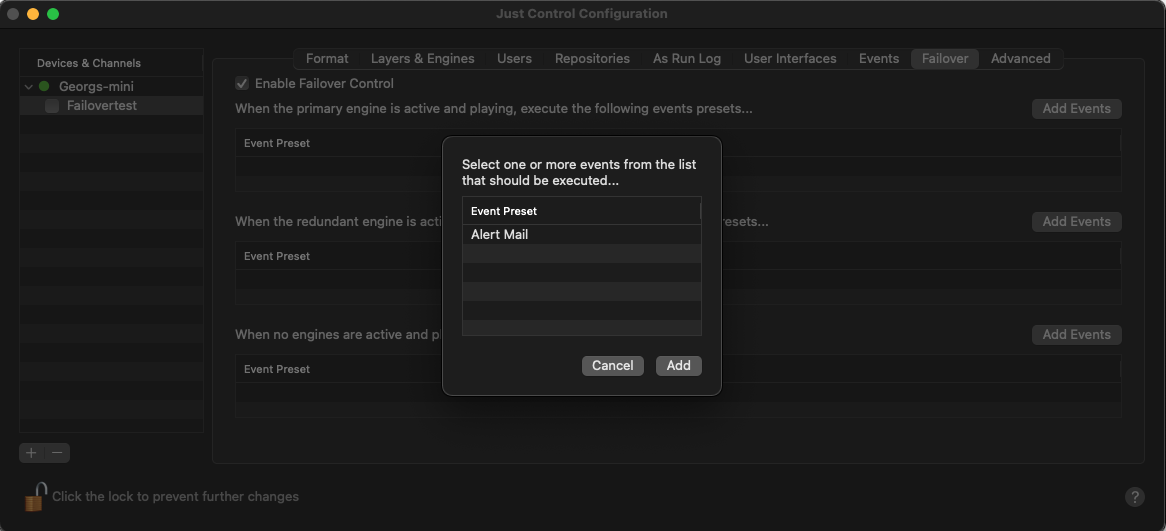
9. You can now use the event as part of the failover option.