
This chapter covers a basic overview of the Configuration panel. For a more in-depth configuration, refer to the following chapters:
Accessing the Configuration Panel
All settings in the Configuration panel can be checked without stopping the channel. To make any changes in the Configuration Panel, you must first stop the Channel by deactivating the checkbox in front of it. Stopping the channel will also stop the playout engine and therefore the broadcast output.
In the Configuration panel, you can configure the Channel settings. The defined settings are then stored in the channel file. You can access the Configuration panel
with the menu Channels → Show Configuration Panel
by pressing “Option-Command-,” on your keyboard.
Configuration Panel Overview
Devices & Channels List
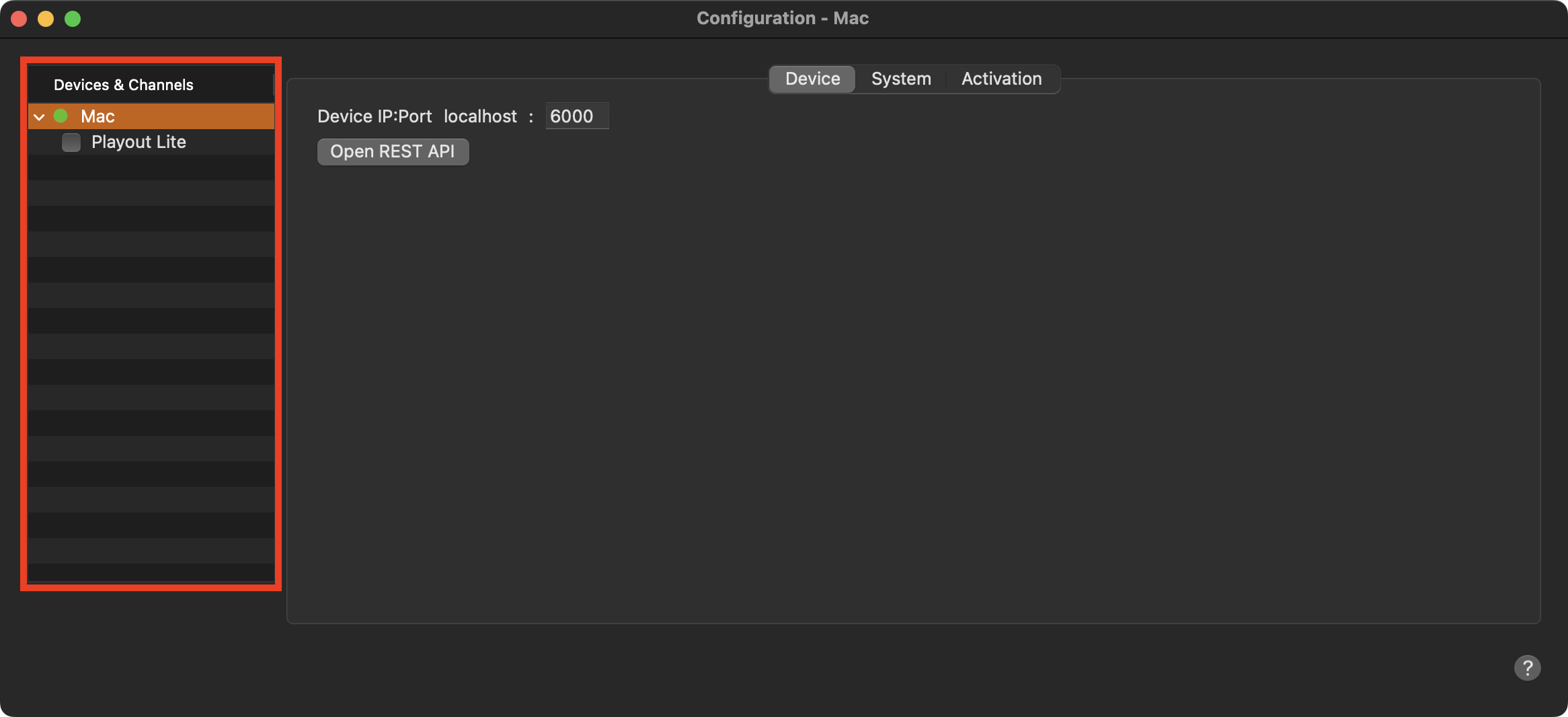
Shows the Channel which is administrated by this interface.
The checkbox in front of a Channel allows you to start or stop the Channel. This is required, for example, when changing the configuration of a Channel.
Configuration Area and Tabs
Click on one of the available tabs to change the setup of the Device or the Channel.
Device Configuration Tab
Select the Device in the “Devices & Channels” list first.

Device: Let you check the port of your device.
System: Let you save a TOA System Profile without the need to stop the channel first.
Activation: Allows you to view or change the Activation information of your Device.
Channel Configuration Tabs
Select the Channel in the “Devices & Channels” list first.
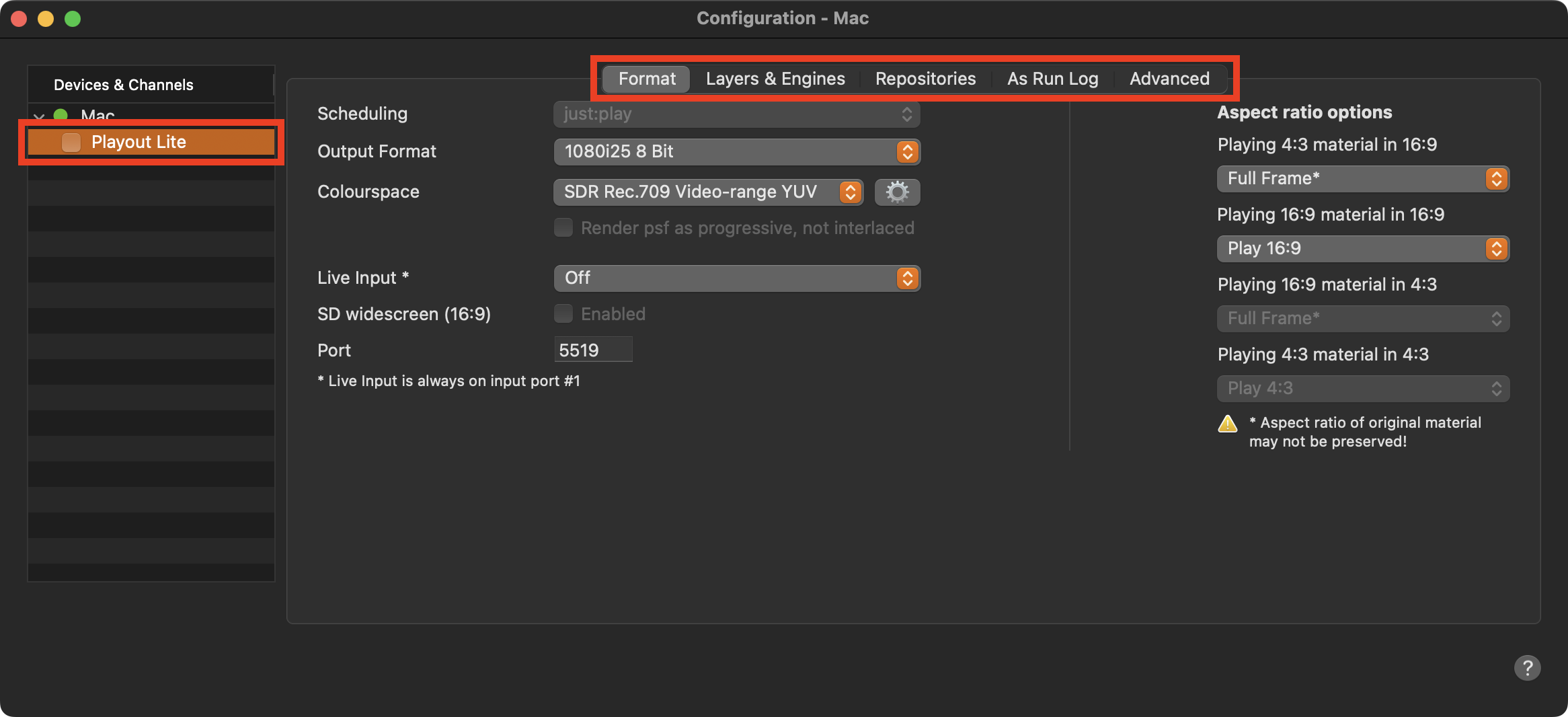
Format: Allows you to change more general settings related to the output format.
Layers & Engines: Shows the activated Layers of the Channel and allows to change the configuration of the engine.
Repositories: Define the path(s) to Videos, Audio files, real-time Graphics and Playlists a client can use. The content of the Repository paths will show up in the Library of the Just Play Lite user interface.
As Run-Log: Allows to define the attributes which will be written to the As Run-logfile at the end of each Video.
Advanced: Activate and configure advanced functions such as “Timecode offset” and “Re-sync engines”.
Just Play Lite Settings
You can access the Just Play Lite Settings panel via the menu “Just Play Lite → Settings…”, or by pressing Command-, on your keyboard.
The “Reset Warning Alerts” button allows you to re-enable warnings if they have been previously turned off.
General
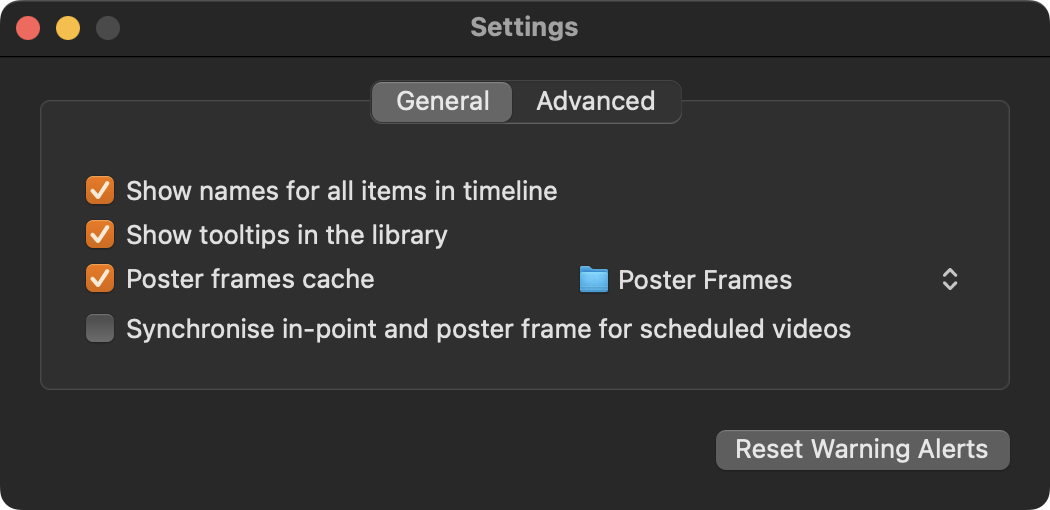
Show names for all items in timeline: Shows the names of all items in the Timeline as an overlay. If this option is deactivated, you can still hover over an item in the Timeline to see its name.
Show tooltips in the library: Deactivate this option to disable tooltips in the Library while moving the mouse pointer over entries. This option is enabled by default.
Poster frame cache: Defines the folder where poster frames will be saved. By default, poster frames are saved in the folder Poster Frames inside the Documents folder of the current macOS User. This option is enabled by default. Disable it to suppress the creation of new poster frames in the Workbench.
Default video in-point: Changes the in-point of Videos that are dragged from the Library into a Playlist to the specified timecode value (assuming that the Video contains timecode). This is useful if all of your Videos contain a trailer or countdown before the actual video content starts.
Synchronise in-point and poster frame for scheduled videos: Defines if setting a new in-point also changes the poster frame of the video, or not.
Advanced
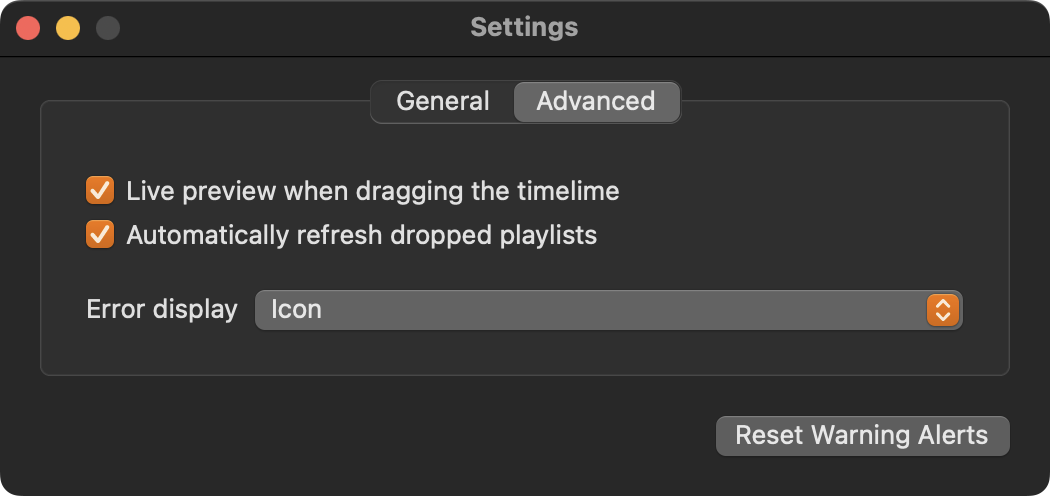
Live preview when dragging the timeline: When enabled, the On Air window updates while dragging the Timeline. Disable this option to improve the overall performance of the user interface.
Automatically refresh dropped playlists: Activating this feature automatically refreshes any Playlists when dragged from the Playlists tab (in the Library) and dropped onto either the Calendar or the Workbench view. This is useful, especially when you have older saved Playlists which do not include the necessary metadata to use the aspect ratio features, and you want to automatically include them when dropping Playlists into the schedule.
Depending on the size of the Playlist (i.e., the number of Video clips) the “Automatically refresh dropped Playlists” feature may slow down, dropping Playlists into a schedule, as each video clip in the Playlist has to be parsed and the necessary metadata to be extracted.
Error display: This option allows you to choose whether error messages are displayed as small icons or as overlays within the On Air Window of the user interface.