
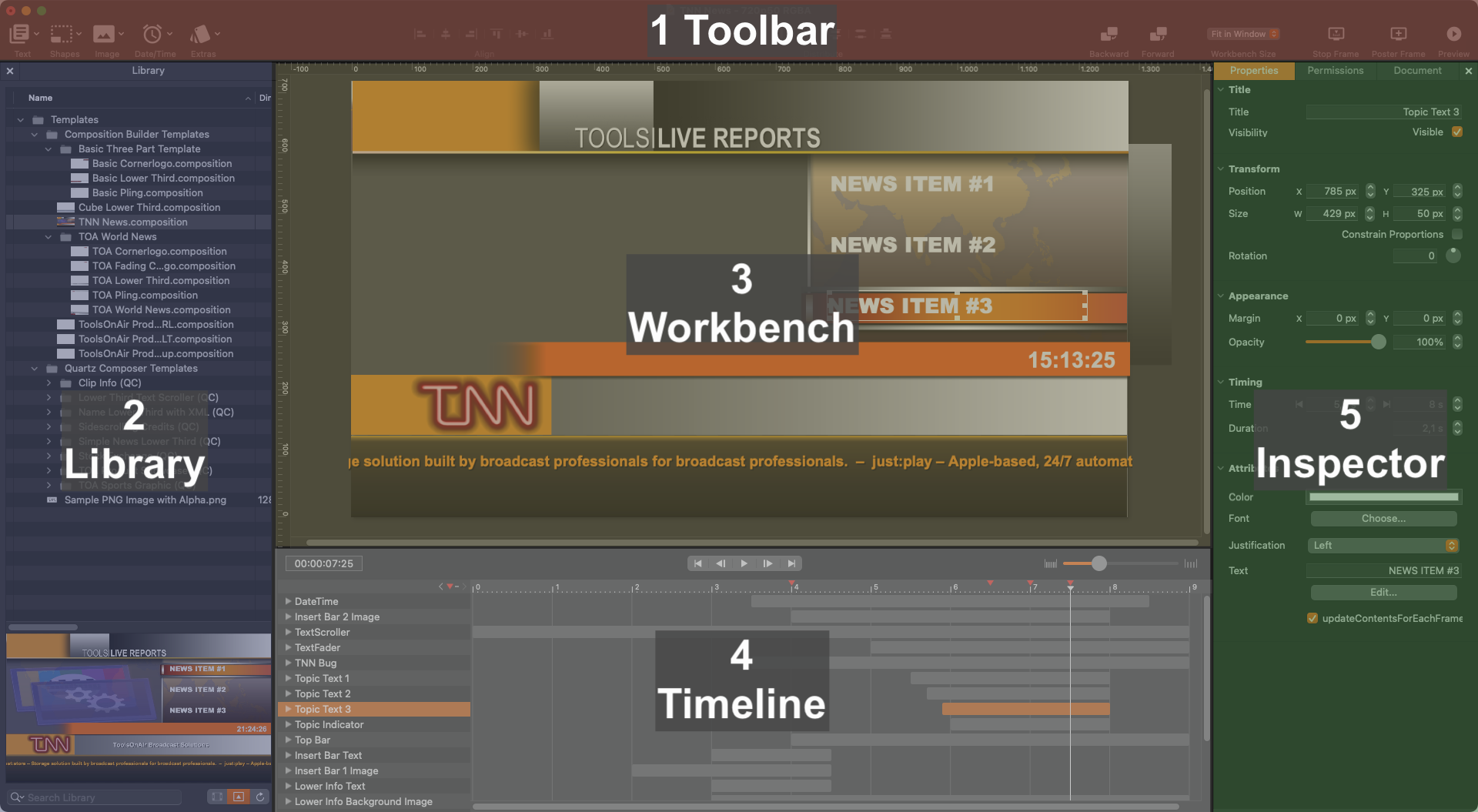
1. Toolbar (Shortcut: Command(⌘)-Option-T): Used to add components to your compositions and provides several other functions.
2. Library (Shortcut: Command(⌘)-L): The Library shows the content of the Repository which is specified in the “Settings” of the Composition Builder application. It can be used to open existing compositions.
3. Workbench: The Workbench is the visual representation of components. This is where you can modify a component's position and size.
4. Timeline: Used to set, remove or modify key frames, scrub through your composition, and define the order of the components.
5. Inspector (Shortcut: Command(⌘)-Shift-I): Used to adjust attributes of components and define composition-specific settings.