
We highly recommend keeping the Multi viewer window and the Channel window as a single window and not separating them using drag and drop. Separating the interfaces can cause issues and removes the preview from one of the user interfaces.
Just Play Pro User Interface Overview
The Just Control application provides tabs that allow you to access all open Just Play Pro and Just Live Pro user interfaces, as well as the Multi viewer interface with a single mouse click.
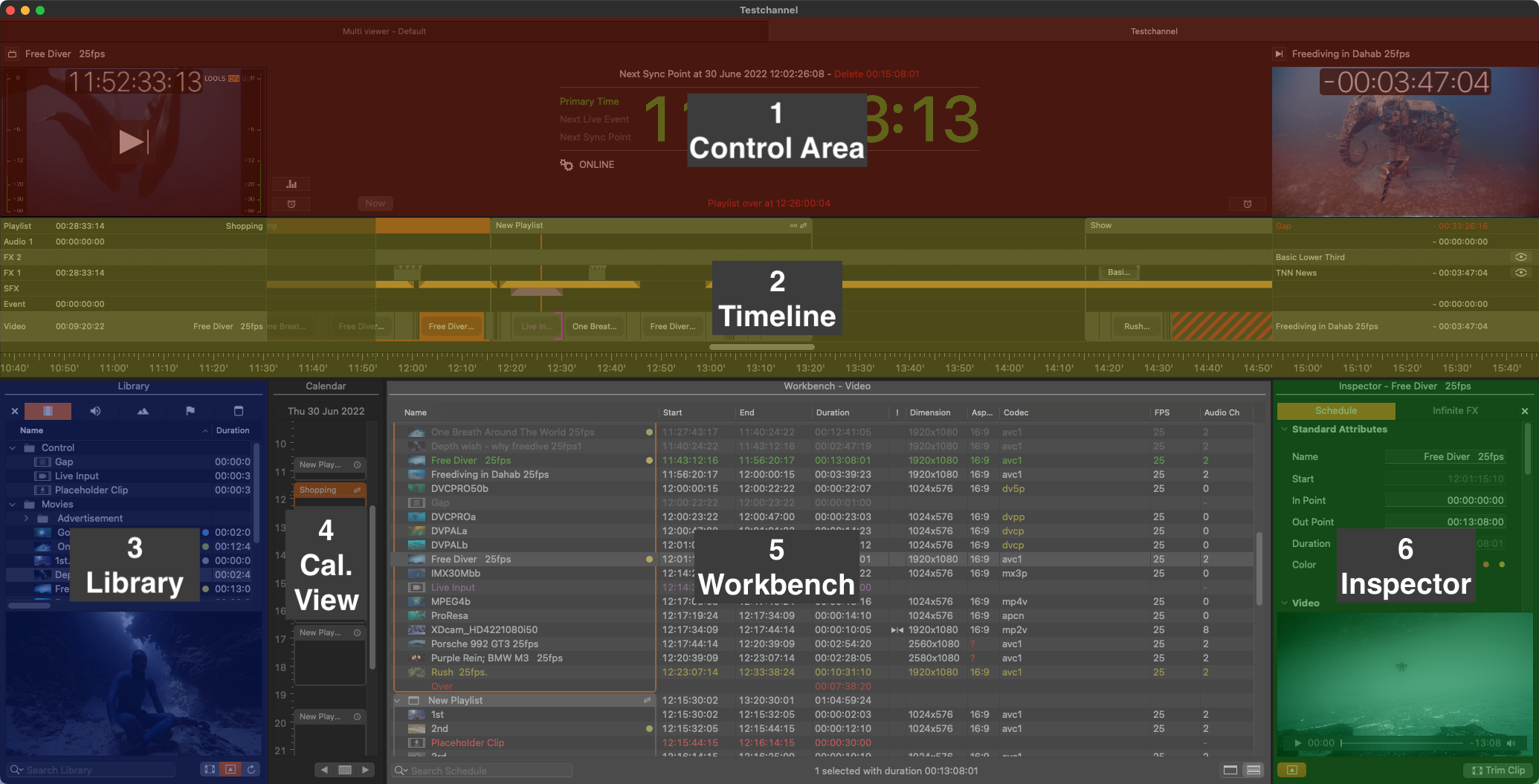
Control Area: Gives an overview of the Playout at the current position of the Current Time Indicator (“CTI”), including the related information about the elapsed and remaining time, general warnings, and the status of the Just Out engine. The control area also allows the user to switch to another Channel using the tabs on top, and to skip the remaining part of the Video clip that is currently On Air (i.e., jumping to the next scheduled Video clip).
Timeline: Shows the Layers available with this Channel as well as the name and the elapsed/remaining time of the elements currently/next on air. It also allows you to add/change Video clips, Audio, Graphic elements, and Events (router controls, SCTE-104, and more). The visibility of the final output is defined from top to bottom.
Library: Divided into five tabs (plus the close button), the Library shows Video clips, Audio files, Graphic elements, Events and saved Playlists. Related metadata will also be shown (if available). There's also a search field and a preview at the bottom.
Calendar View: Gives a proportional overview of the rundown by showing the scheduled Playlists in a vertical Timeline. Jump back and forth by a full day using the “Arrow” buttons or the built-in calendar to go to any day in the future or past.
Workbench: Shows the rundown in a traditional list view, where the content depends on the Layer selection made in the Timeline.
Inspector: You can modify the attributes of an item that is already scheduled. Multiple selection of several items of the same kind are supported.
The proxy preview in the On Air window shows a compressed image with a reduced frame rate. In addition, the Preview can stop for a moment if the communication is interrupted, even when the real output is fine. This means that the Preview is not meant to replace a broadcast monitor for the final check of the master playout.
Just Play Pro Settings - former Preferences (Excerpt)
The actual setup and configuration of the Settings is done by your system administrator.
For a full overview of the Settings, refer to Chapter 11. Configuration Panel - UI & Settings (v.2025.x).
To open the “Settings”, go to the menu “Just Control → Settings”.
Playout
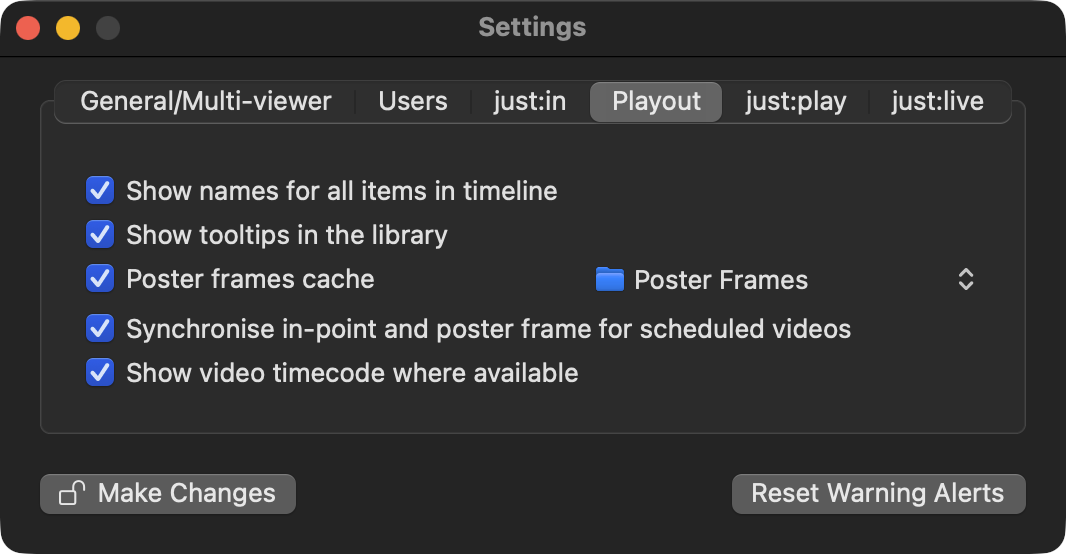
Show names for all items in the Timeline: Activating this option will show the names of all items in the Timeline as an overlay. If this option is deactivated, you can still move the mouse pointer above an item in the Timeline to see its name.
Show tooltips in the Library: Deactivate this option to disable tooltips in the Library while moving the mouse pointer over entries. This option is enabled by default.
Poster Frames Cache: This defines the folder where poster frames will be saved. By default, the poster frames are saved in the folder “Poster Frames” inside the “Documents” folder of the current user. This option is enabled by default. Disable it to suppress the creation of new poster frames in the Workbench of Just Play Pro.
Default Video clip In-Point: This option is disabled by default. Enable it to enter a timecode value. Once enabled, the in-point of Video clips that are dragged from the Library into a Playlist will be set to the specified value (assuming that the Video clip contains timecode). This is useful if all of your Video clips contain a trailer or countdown before the actual Video clip content starts.
Synchronise in-point and poster frame for scheduled Video clips: Activate this option to take over the newly set in point as the poster frame for the selected Video clip.
Show video timecode where available (as of v.2025.4.0): There's a new “Show video timecode where available” option in the Just Control application settings “Playout” tab. By default, this is off, but when selected the video trimmers (both for the Library and the Inspector) and the Inspector fields for in- and out-points will display timecode relative to the video asset’s timecode track. So, for example, if the in-point is set to one second after the start of the video, and the video has a timecode track with the first frame specified as “10:00:00:00”, then the in-point in the inspector and trimmers would be shown as “10:00:01:00”.
Just Play Pro
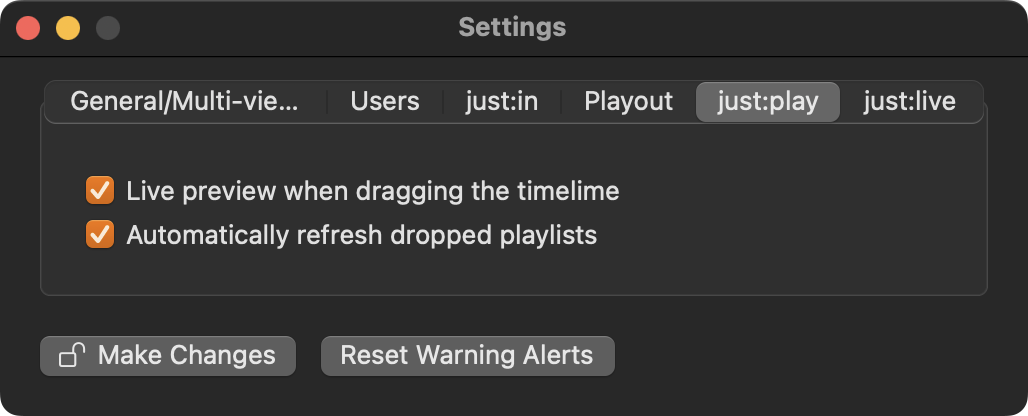
Live preview when dragging the Timeline: With this option, you can disable the update of the "On Air" window while scratching the Timeline. Disabling this option improves the responsiveness of the user interface.
Automatically refresh dropped Playlists: Activating this feature automatically “refreshes” any Playlists when they are dragged from the “Playlists” tab (in the Library) and dropped into either the Calendar or the Workbench view. This is especially useful when you have older saved Playlists that do not include necessary metadata like aspect ratio or Colour space, and you want to automatically include them when dropping Playlists into the schedule.
Reset all dialog warnings: Pressing the “Reset” button enables dialog warnings again.
Depending on the size of the Playlist (= the number of Video clips) the Automatically refresh dropped Playlists feature may slow down dropping Playlists into the schedule as each Video clip in the Playlist has to be interpreted by Just Play Pro and the necessary metadata needs to be extracted.
Make sure the Video clips in the playlist are available in the correct Repository Folder(s), otherwise the imported Playlist will be empty.