
View Menu
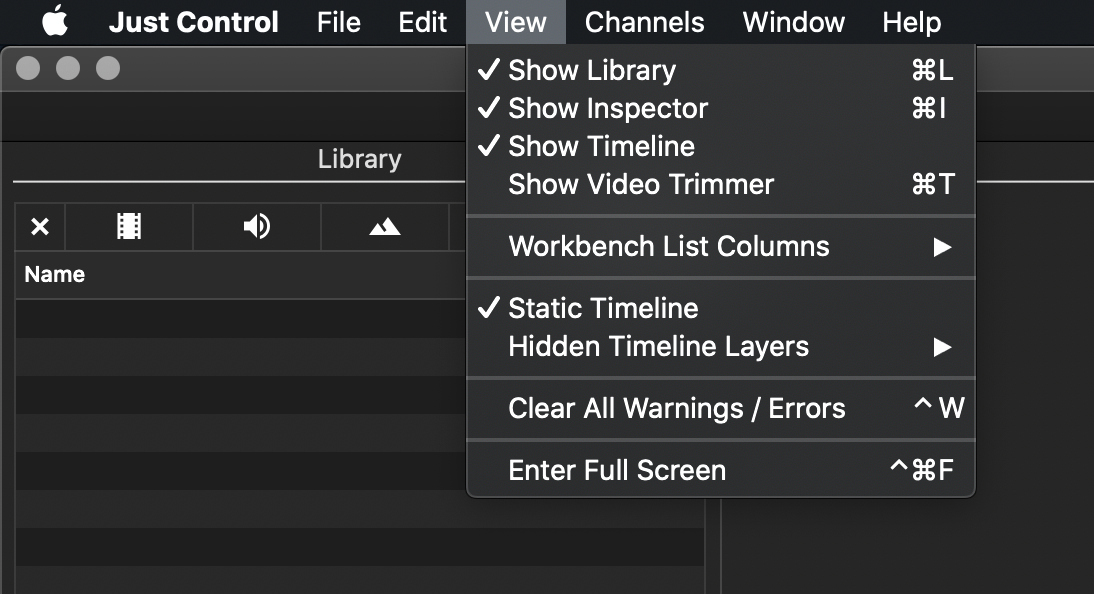
Show Library/Inspector/Timeline/Video Trimmer: Show or hide the main areas of the user interface.
Workbench List Columns: Choose which Workbench columns will be shown. You can also show or hide all columns at once.
Static Timeline: Activate or deactivate the Static Timeline.
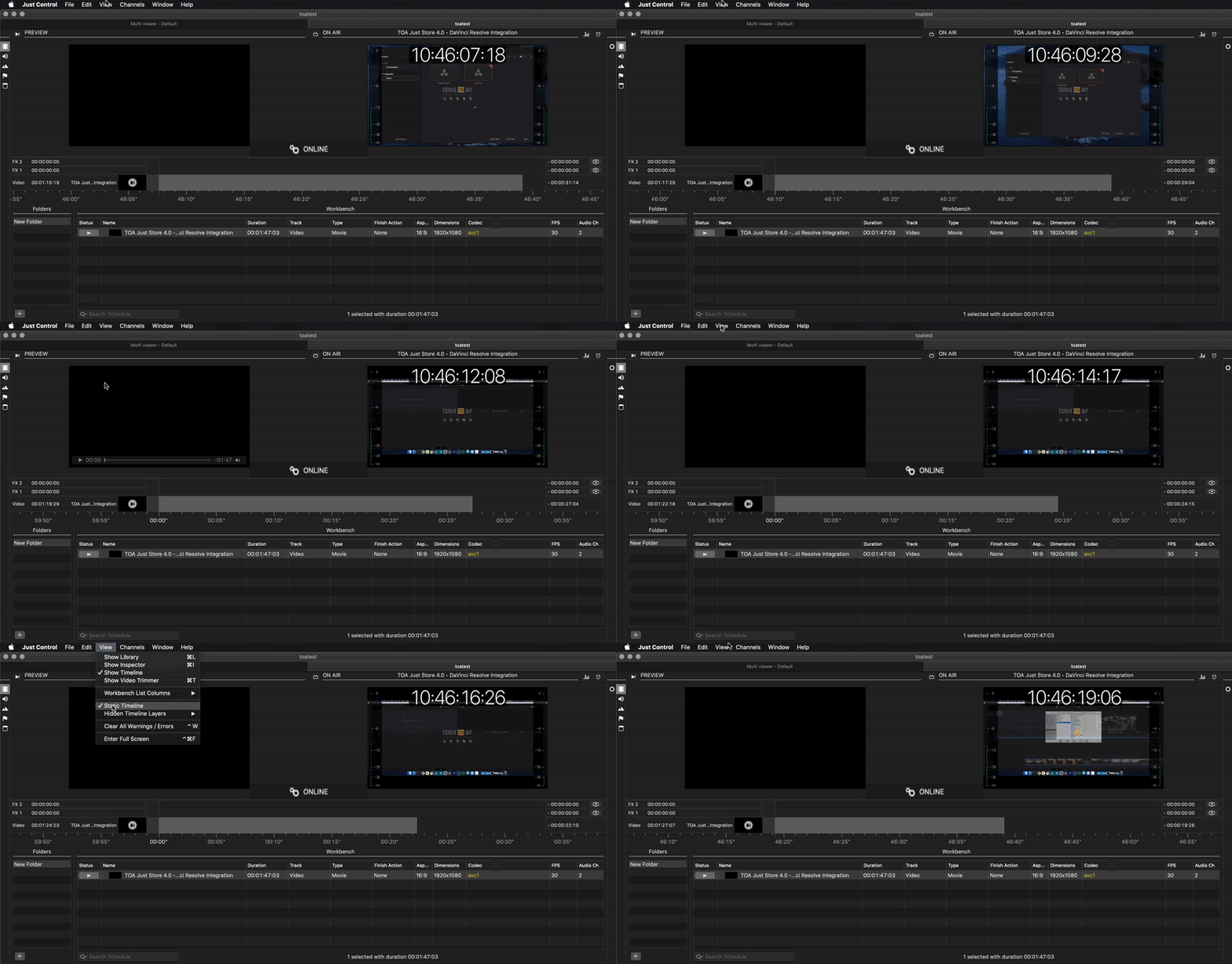
Hidden Timeline Layers: Show or hide timeline Layers. Depending on the configuration of your system administrator, the content of this menu may look different from the one shown here.
Clear All Warnings / Errors: Clears all warnings and errors that may have occurred.
Enter Full Screen: Brings the user interface into Full Screen mode
Collapsable Library and Inspector
You can collapse the Library and Inspector to gain more space. When collapsed, small icons will still be displayed, allowing quick access to the Library and Inspector tabs of your choice.
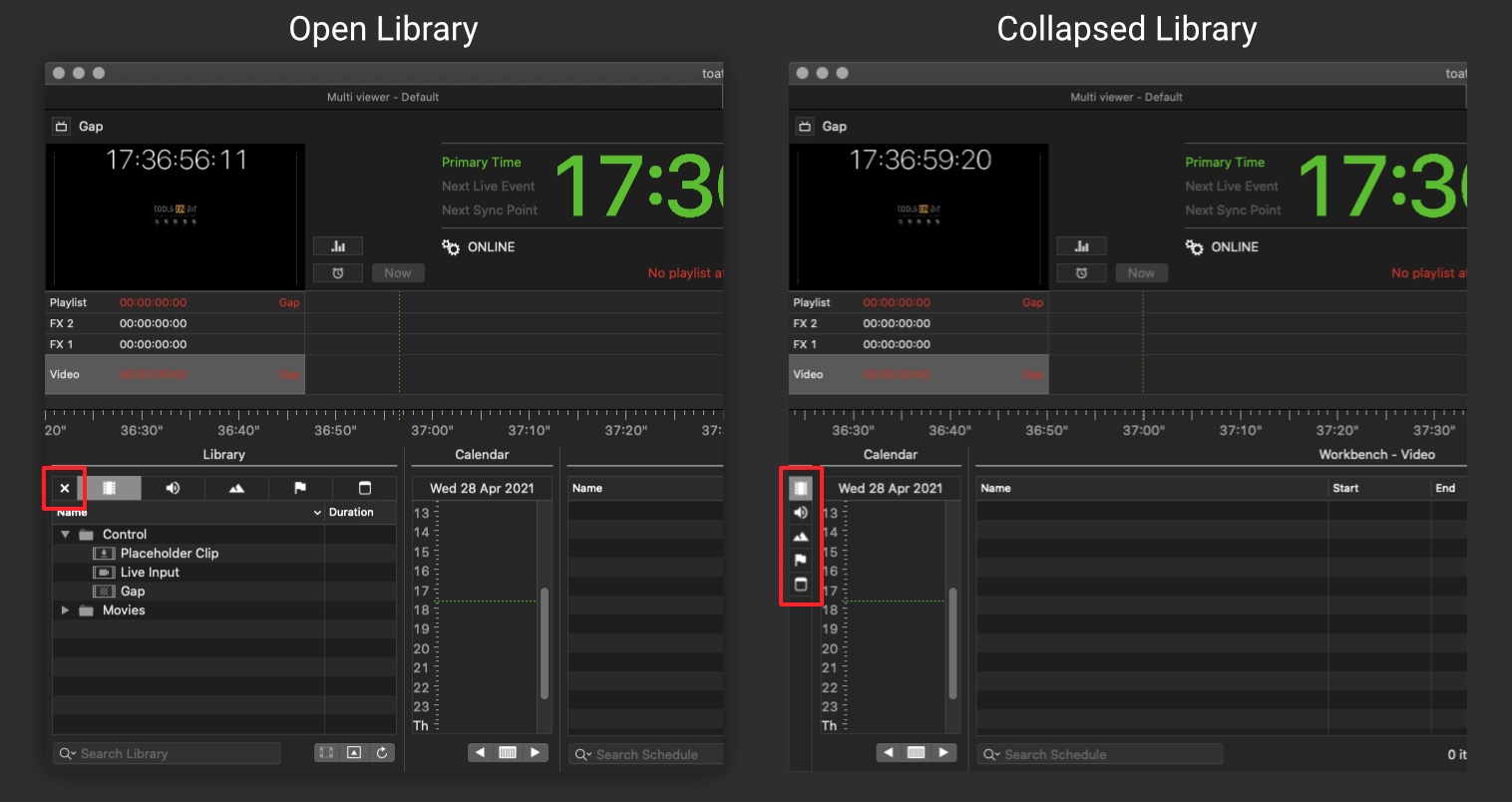
The figure above shows Just Play Pro, but the functionality is the same in Just Live Pro.
Open Library and Inspector

Collapsed Library and Inspector

Resizing User Interface Areas
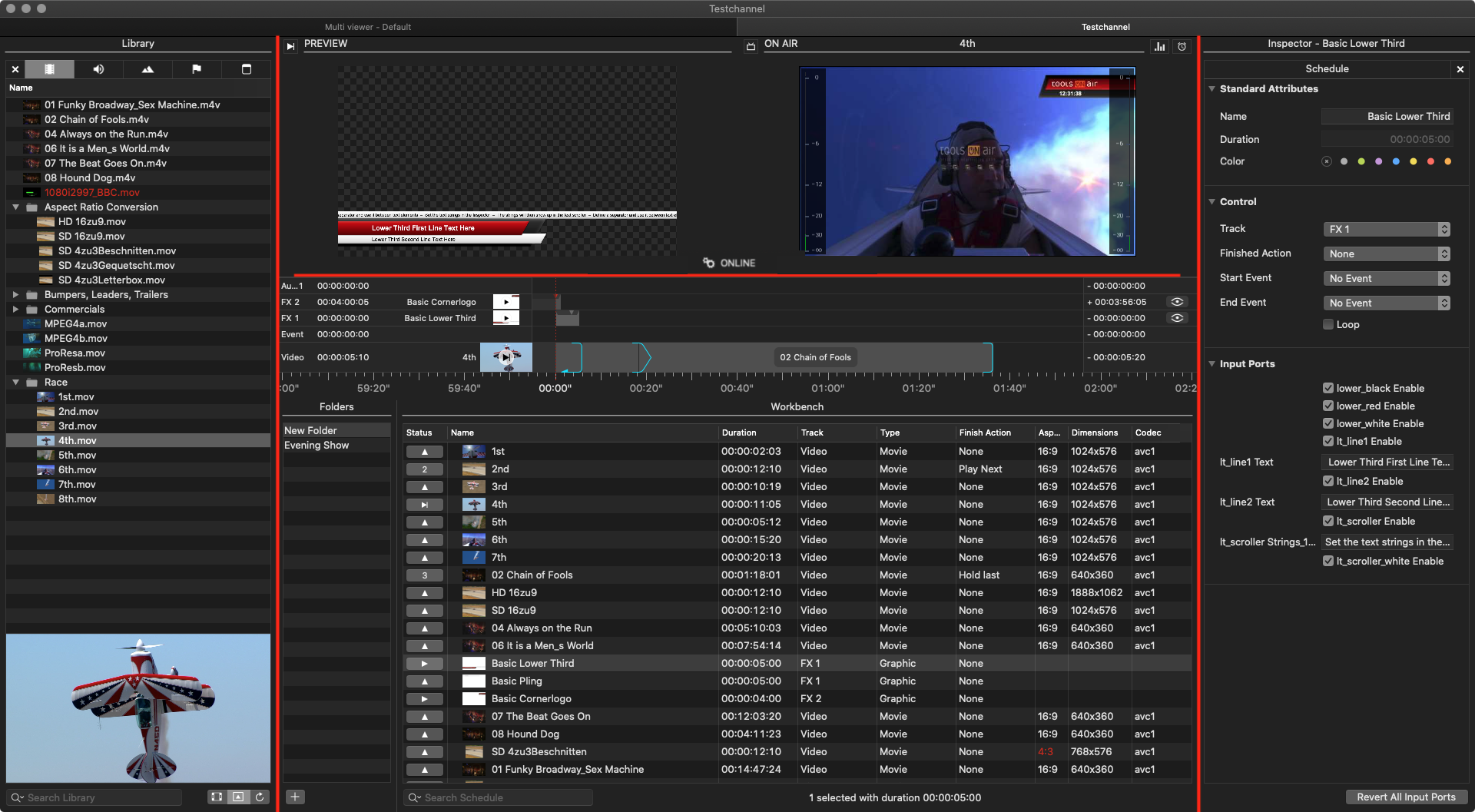
Use the Trim handles shown in red to adjust the size of the Control Area, the Library and the Inspector.
Scroll up/down to change the Timeline Zoom Level
Position the mouse above the Timeline ruler and scroll with the mouse or trackpad up and down to change the zoom level of the Timeline.