
WAN Exposed Just Store
If there are multiple network interfaces and one is used to expose Just Store a WAN then you should make sure that your client computers do not communicate with Just Store over this public network interface. This can cause several issues. To avoid network problems we suggest to directly connect clients to the storage.
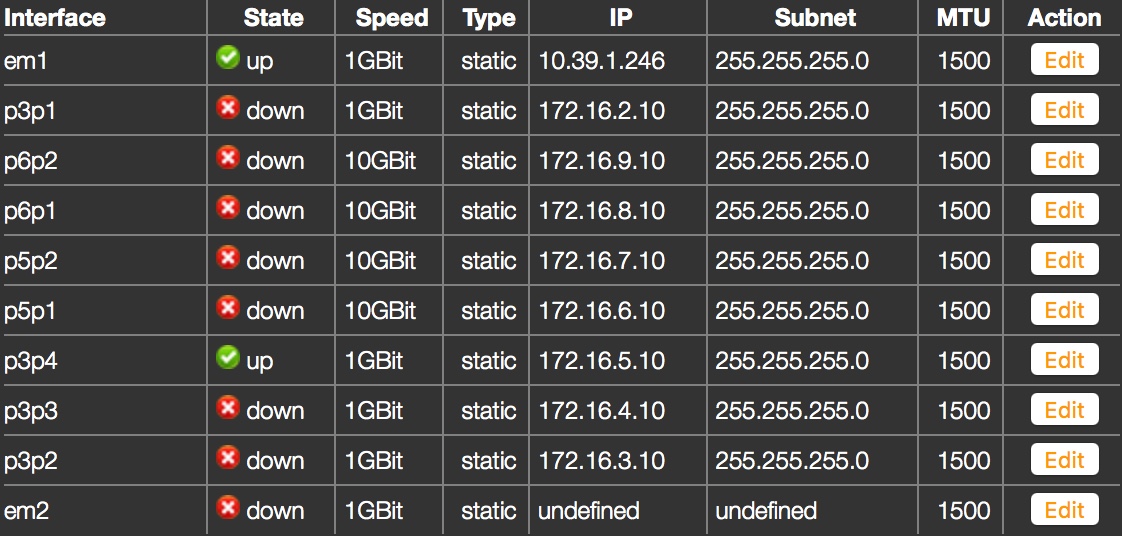
The image above shows that there are multiple network cards installed. That means that multiple network interfaces are available in Just Store. In this case the network interface em1 is used to expose Just Store to a WAN. All other network interfaces are connected to clients or to a switch which is connected to clients.
Clients
After configuring the storage properly follow these steps on the client side:
- Open to the System Preferences on the client Mac.
- Click on the Network preference pane.
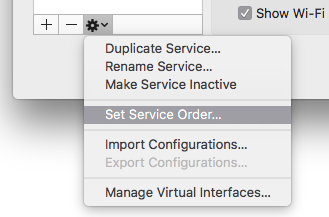
- Below the network interfaces list click on the cog button and select Set Service Order…
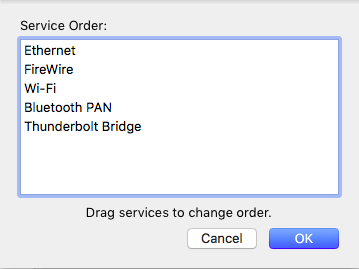
- Move the interface which is directly connected to the storage to the topmost place.
- Assign a static IP address to the client and use 255.255.255.0 as subnetmask (same as in Just Store).
- You may now mount the share points with two or more IP addresses.
In just:mount you can edit the IP address so that the shares are connected over the network interface which is directly connected to it.