
Preface
The Web Administration interface enables you to change some of the Just Store system-wide settings such as performance profiles or network interface details and user configuration.
Performance Profiles
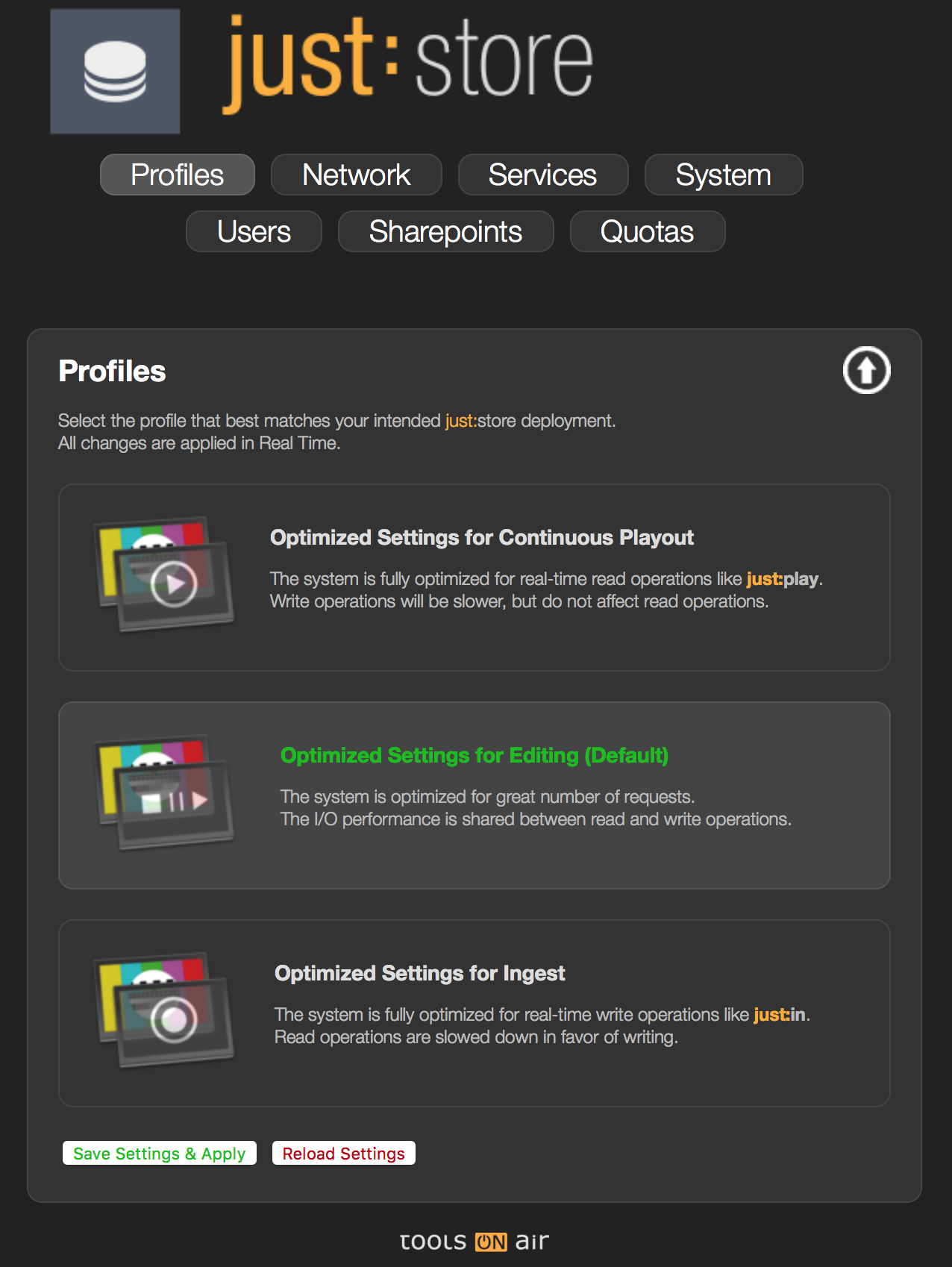
Performance profiles allow you to change the way data is addressed on your Just Store system – based on your requirements. The system has 3 profiles to choose from:
- Optimized Settings for Continuous Playout: The system is fully optimized for real-time read operations like Just Play.
Write operations will be slower, but do not affect read operations. - Optimized Settings for Editing (Default): The system is optimized for great number of requests.
The I/O performance is shared between read and write operations. Optimized Settings for Ingest: The system is fully optimized for real-time write operations like Just In.
Read operations are slowed down in favor of writing.
Network Configuration
IP Configuration
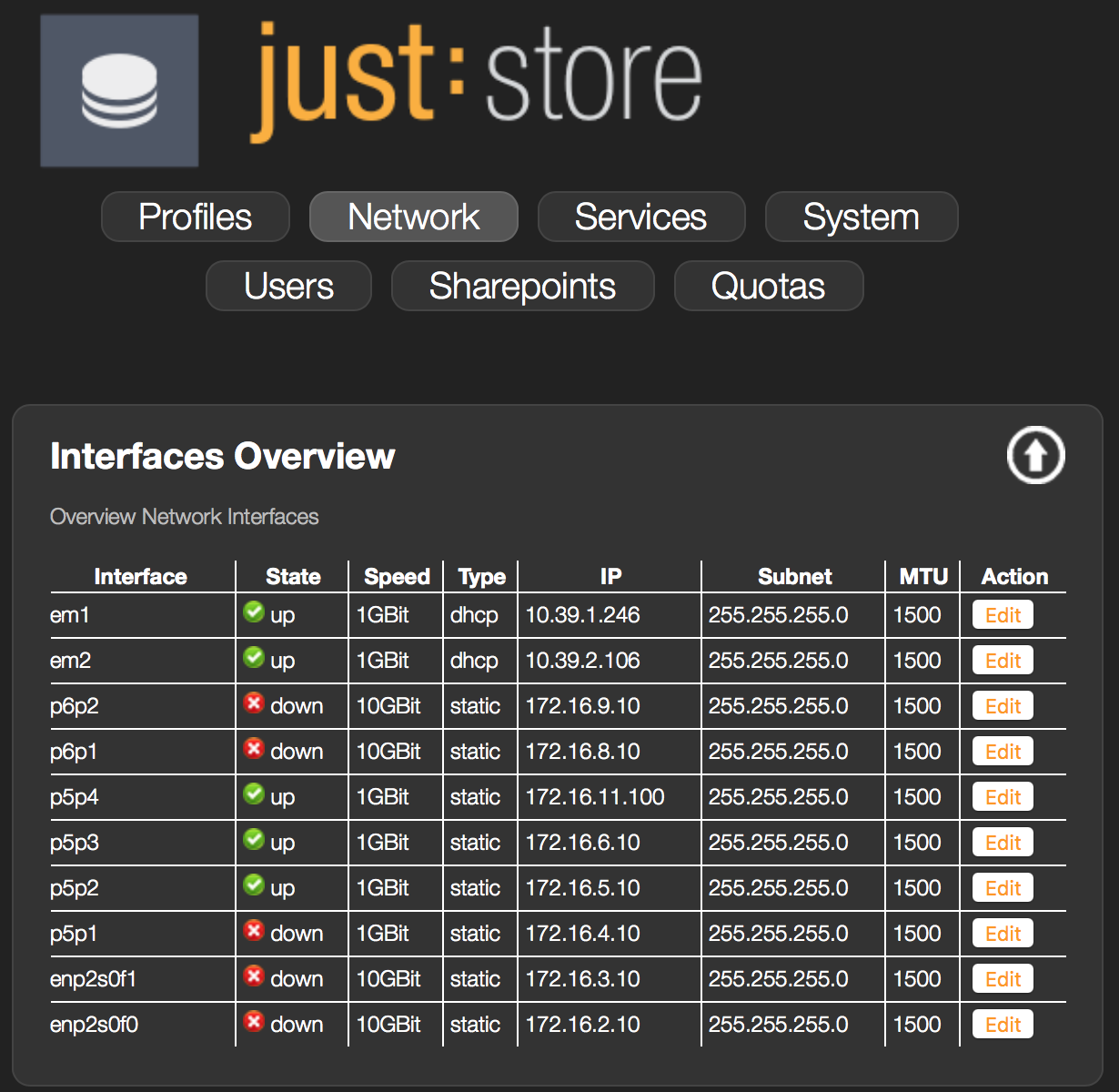
Here you can see and edit your network configuration. Please remember that any changes will reset your connections in order to apply the new settings.
Changing the IP Configuration
- Select which interface you would like to change by clicking Edit button.
- This will open a submenu related to the selected interface. Make your changes. You are able to edit multiple interfaces before applying the changes.
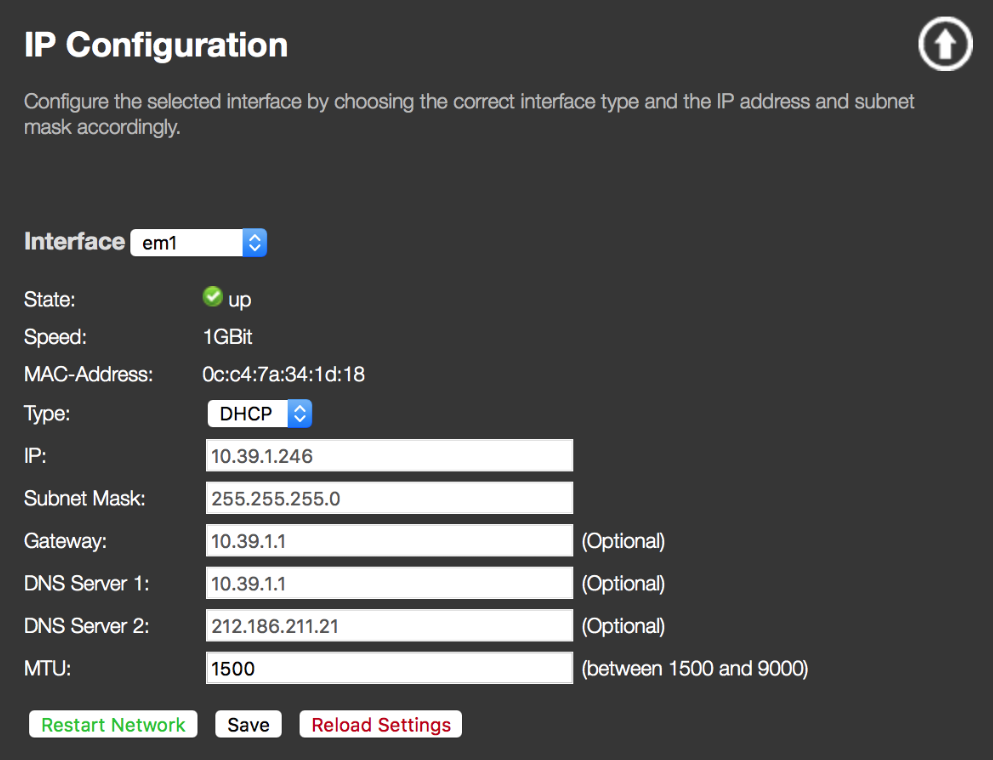
- Click Save to change the network configuration for the following device or Restart Network to apply the network configuration for more than 1 interface simultaneously.
Changing the Hostname
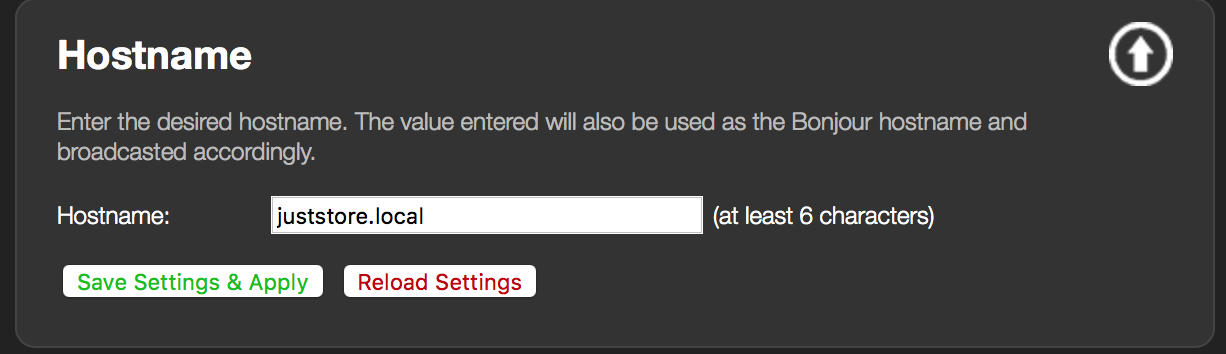
A hostname or Bonjour name can be configured in the network section. The default name is Just Store.local.
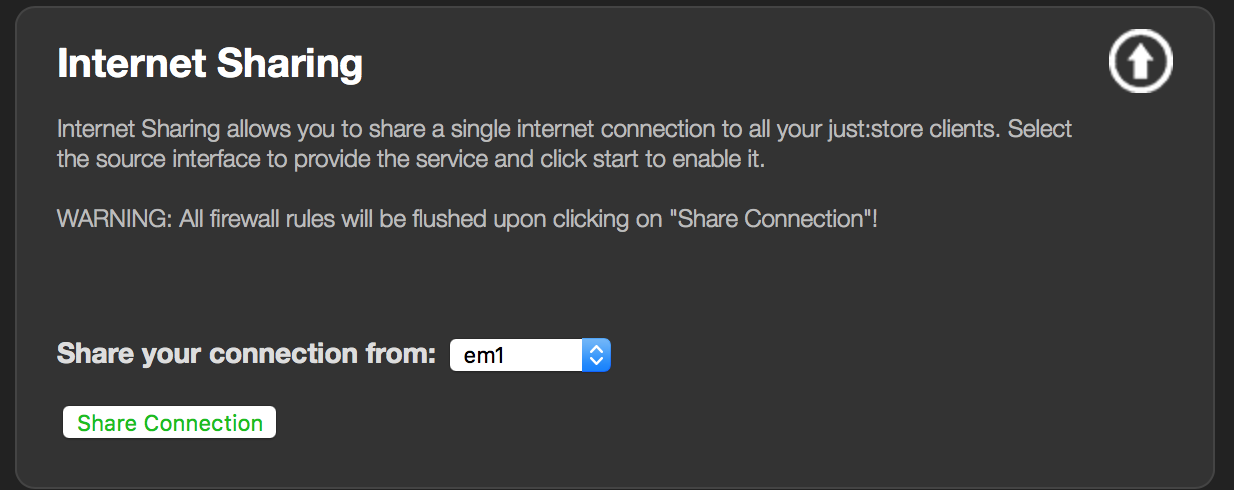
Changing the Internet Sharing Setting
This function allows users to connect to their networks for internet- or LAN-access – provided they use Just Store as their default gateway. Use the company DNS or 8.8.8.8.
For 10 GBit interfaces please ensure your local client interface is set to use jumbo frames (MTU 9000).
User Management
Here you can add, remove and edit users.
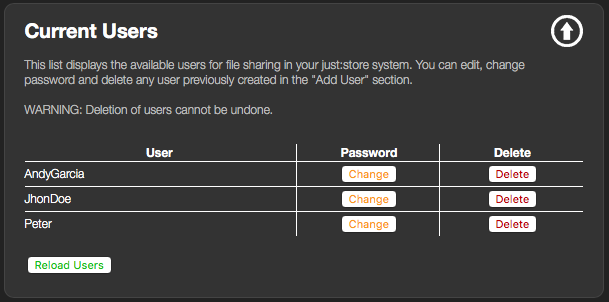
Current Users
Lists all users on the system with their user names / NFS-hostnames and allows you to delete user accounts.
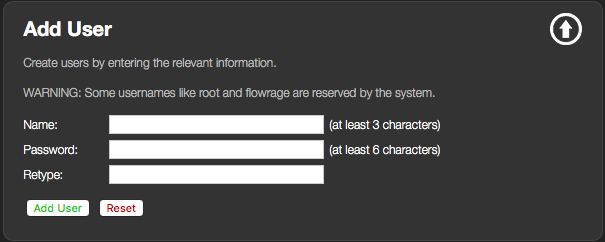
Add User
Allows you to add users. You may specify a NFS-hostname to identify the user if you are using NFS as a protocol.
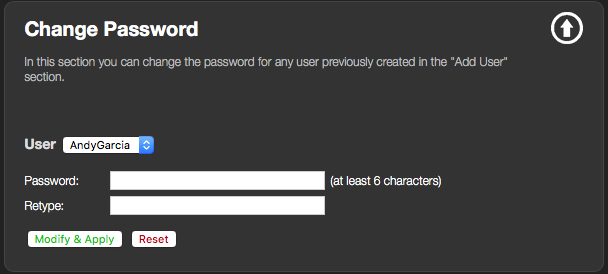
Change Password
Allows you to change the password for a specific user account.
Sharepoint Management
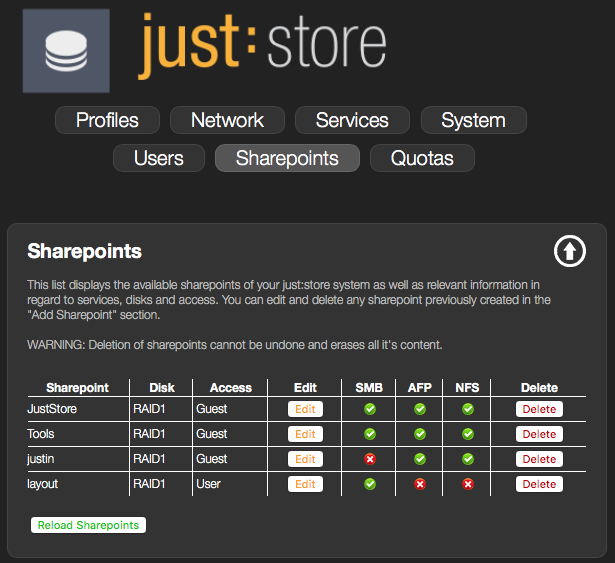
Sharepoints Overview
Shows the status of all current sharepoints. It indicates which access levels are active on the sharepoints and which protocol the sharepoints are using.
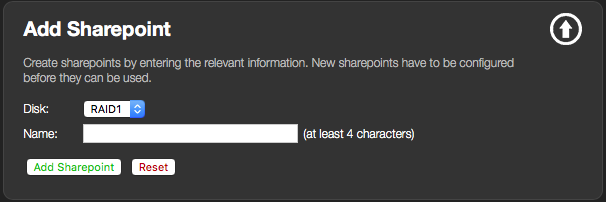
Add Sharepoint
Allows you to add a sharepoint. The disk is indicating which RAID array you are creating the sharepoint on. By default there is only a single array on the system.
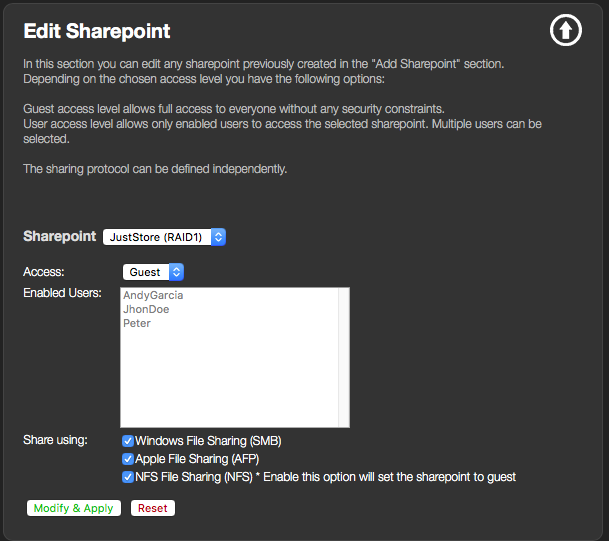
Edit Sharepoint
Allows you to edit the access levels for a selected sharepoint and the protocols used for the sharepoint.
By default a Just Store system comes preconfigured with a single RAID 6 array which is mounted at "/RAID1", so the mount point name does NOT imply that it is a RAID 1 level
When deleteing a sharepoint always ensure that you have backed up your data within the sharepoint before deletion. Once the sharepoint has been removed the data will be removed as well.
Service Management
The service management area allows you to monitor and edit the sharing services and the autostart services.
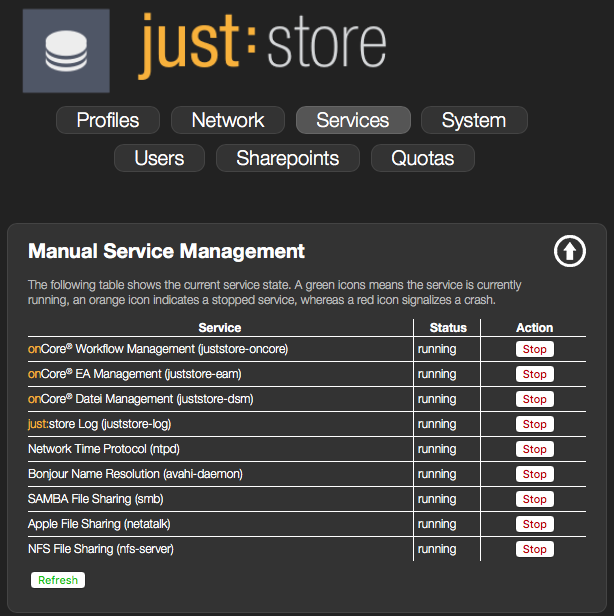
Manual Service Management
Allows you to manually control the network sharing protocols used by Just Store. This includes the services needed for AFP, SMB, NFS, Bonjour and web-administration interface.
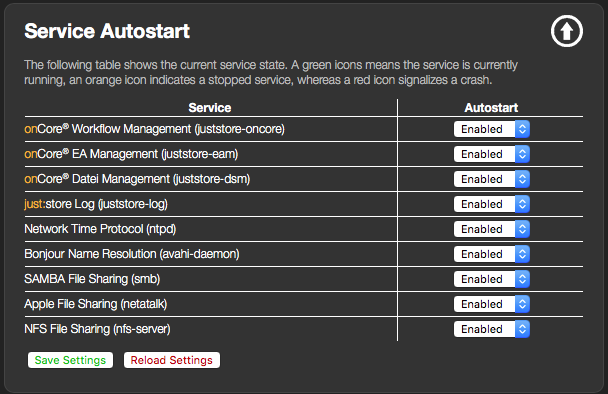
Service Autostart
Allows you to set the automatic startup of the network sharing protocols.
Optimize Filesystem
When enabled the system will run an automatic defragmentation, general health and optimization script on the filesystem(s). This will be scheduled to take place between 2:00 AM and 4:00 AM.
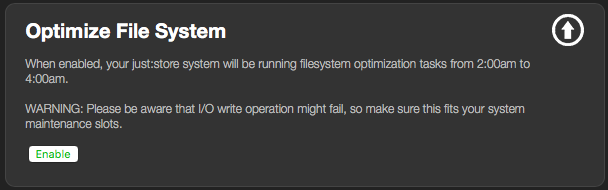
Once filesystem optimization has been enabled you will experience a performance-drop during the optimization time period. We advise you to not use the system during this period.
Quota Management
Just Store allows you to manage the amount of space you allocate for a sharepoint on your RAID. You have the ability to restrict the usage using Quotas.
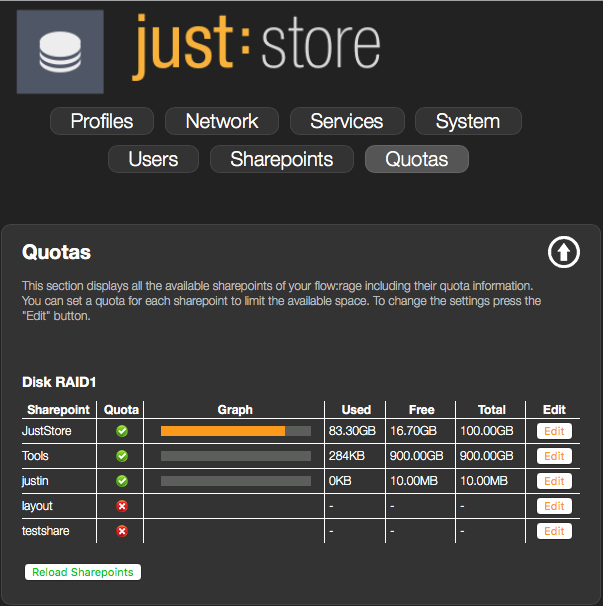
Changing the Quota
- Select which sharepoint you would like to change quota by clicking Edit button. This will open a submenu related to the selected sharepoint. Make your changes.
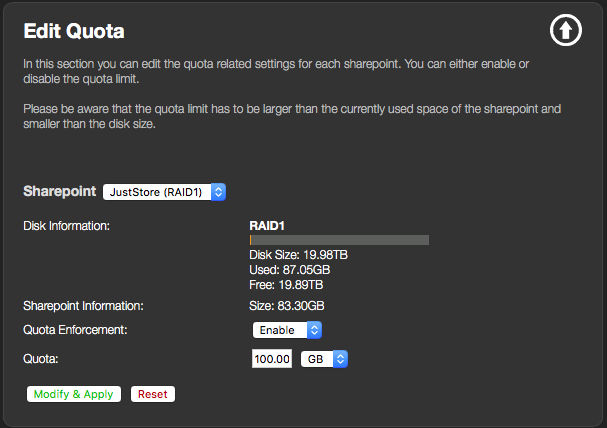
- Once a sharepoint has Quotas enabled, it may take a few minutes to reflect the changes while the sharepoint size is calculated. This limit is considered a hard limit and once the limit has been reached no additional data will be allowed to be copied to that sharepoint.
System
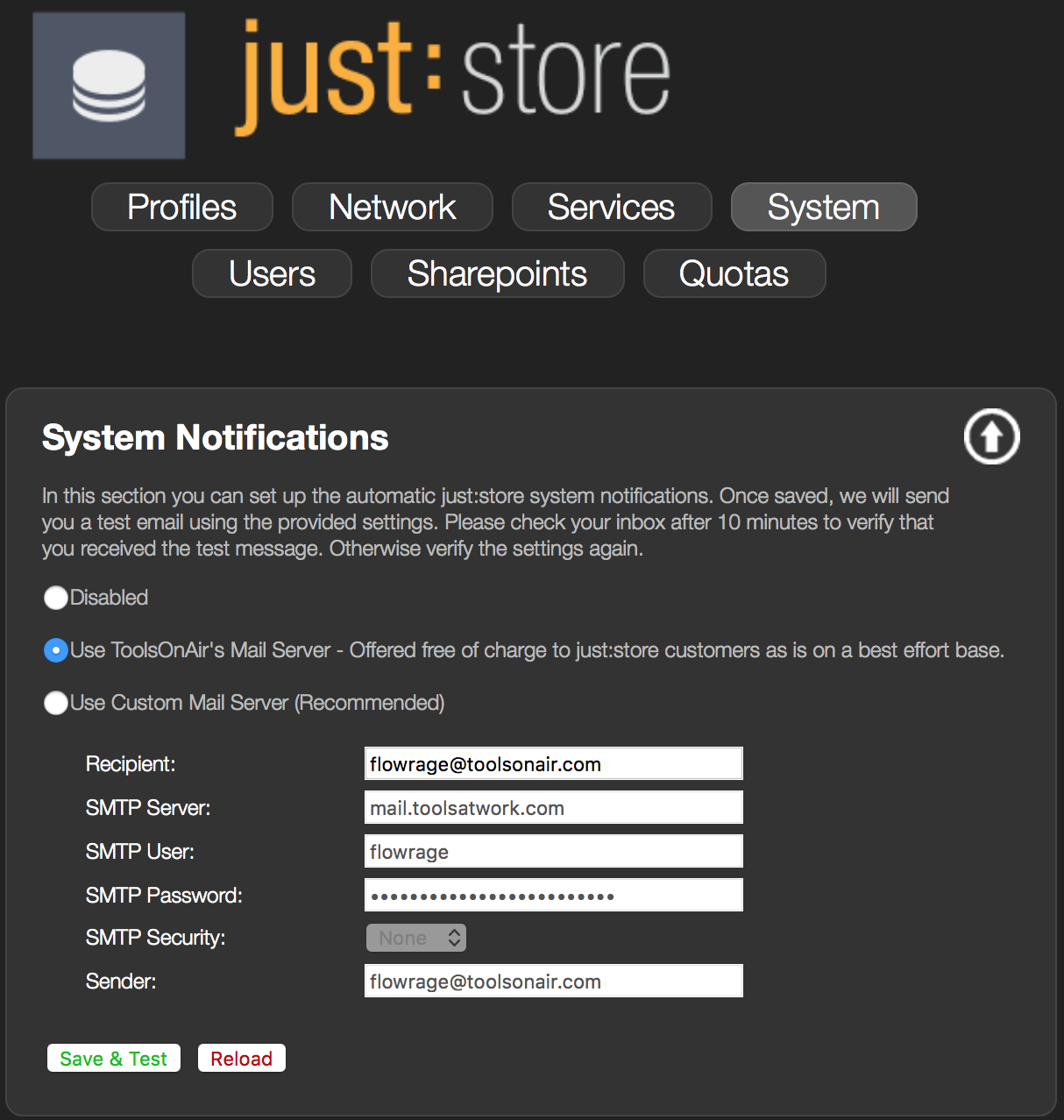
The system management section allows you to configure email notifications, shutdown of the system, silencing any controller alarms and changing the system password. Once an error occurs the system takes a snapshot of the monitoring information on the system and uses the specified email server settings to send out an email containing the collected monitoring information.
Power
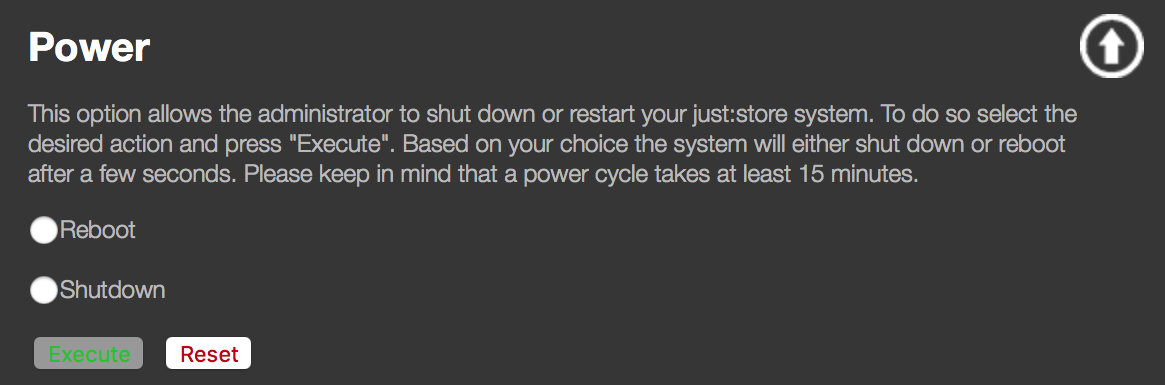
Should you require to shutdown or restart the system please issue the shutdown command from this interface.
Silence Alarm
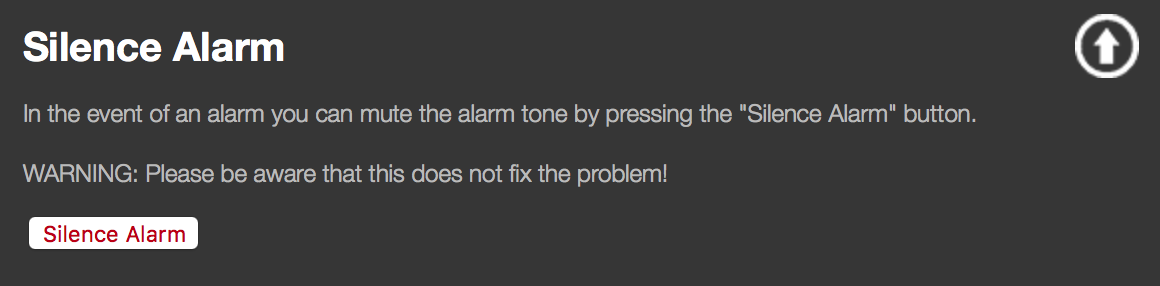
In the event of a failure, the system will issue an audible alarm from its RAID controller. Depending on how quickly you resolve the issue the alarm will continue to sound. You are able to disable the alarm here.
Change System Password
All systems are shipped with a default username and password.
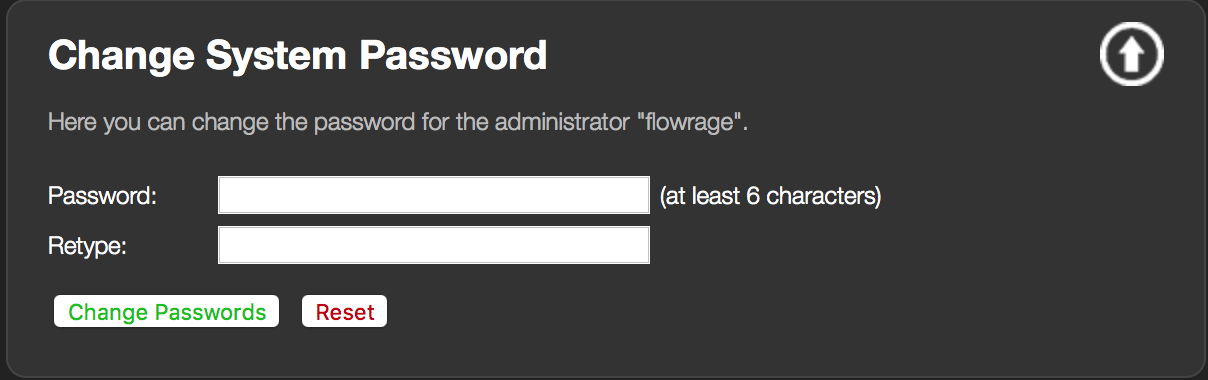
Change the default password once you deploy your system!