Using this built-in method enables you to switch between a Live Input Signal and the playout of a video file without the need for a video router. You can also add graphics to the Live Input Signal without the need for a second video device.
Using this built-in method means that the video card synchronizes to the incoming video, so make sure that there is always an incoming video signal and that it is stable. To stabilize the signal in advance (i.e. before it is sent to the video card input) you must use a frame synchronizer which supports the playout format of your channel. Suited frame synchronizers can be found on the AJA Website or you can also use a Blackmagic Design ATEM switcher. Please contact the manufacturer of all 3rd party video devices which are used with your setup to make sure, that they can handle the VANC data pass-through as needed.
Configuration
Connect the Live Input Signal to the first SDI Video input.
Press “Command-Option-,” in Just Control, to open the Just Control Configuration window and select one of the available DSK in methods.
Video out: only video and audio are provided at the available outputs of the video device
Video+Key: video and audio, as well as a key signal, is provided at the available outputs (supported devices only)
Default black: Black will be played out in case nothing is playing in the timeline of Just Control.
Default pass-through: The connected signal will be played out in case nothing is playing in the timeline of Just Control.
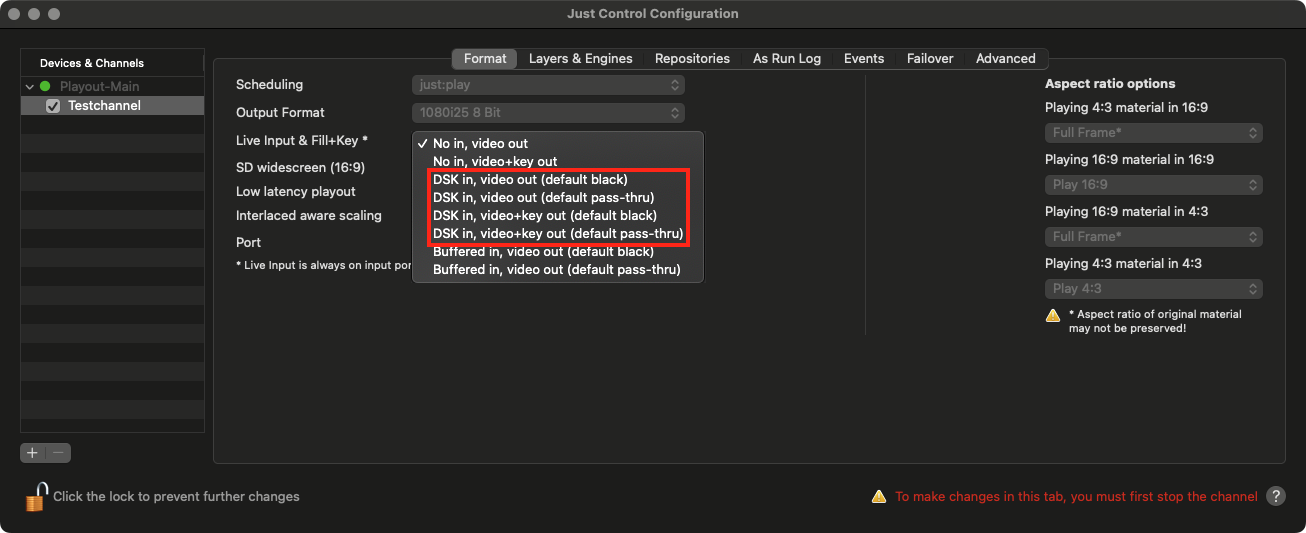
Please verify that your engine is configured using AJA as output device, otherwise the DSK based switch to live methods will be greyed out here.
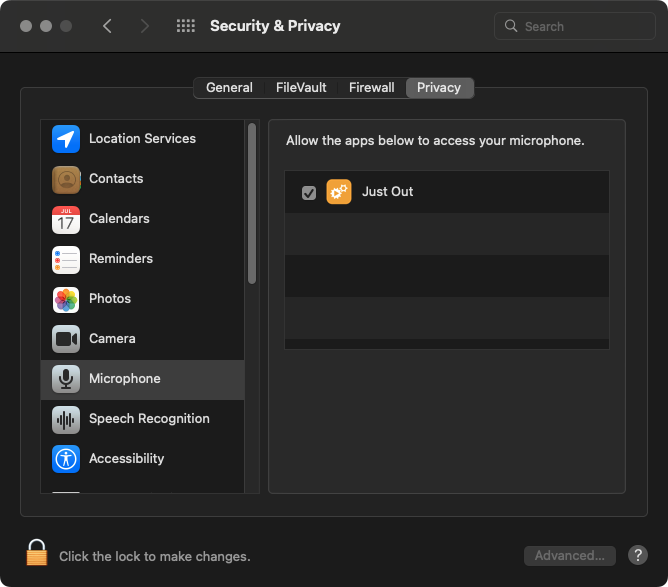
In case you use the DSK-based switch to live methods please ensure that the Microphone (“System Settings → Privacy & Security → Microphone”) has access to the Just Out engine application as shown on the screenshot below. Otherwise, you will not be able to hear the Audio Signal on the SDI or NDI® Output!