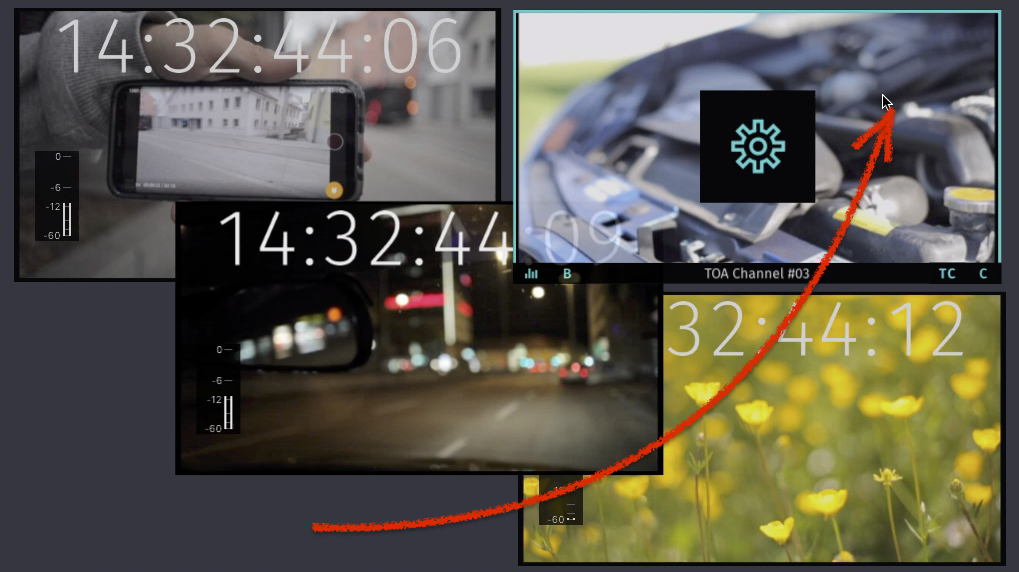
Single View
When opening Just In for the first time it will present a single View. Basically you can connect to one Channel now. It's possible to display multiple Channels at once by using the Split & Join functionality of Just In.
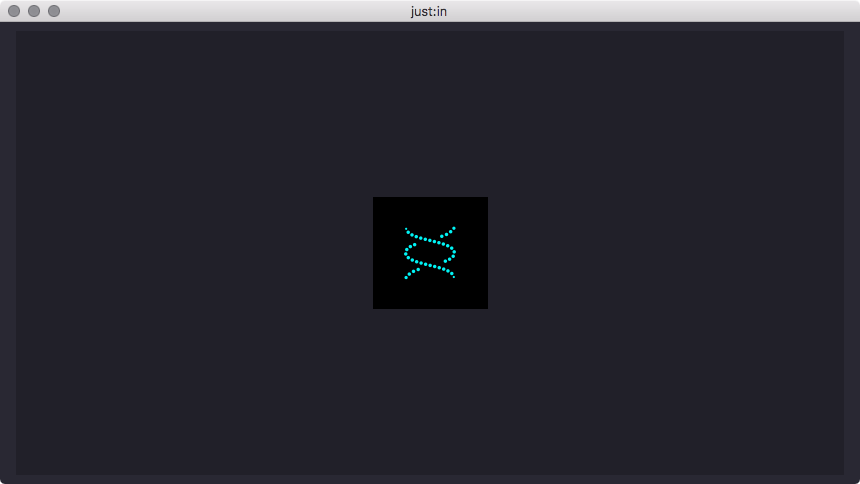
Splitting a Viewer
- Select the Viewer by clicking it once, the border will turn turquoise. Make sure you don't click the button in the middle.
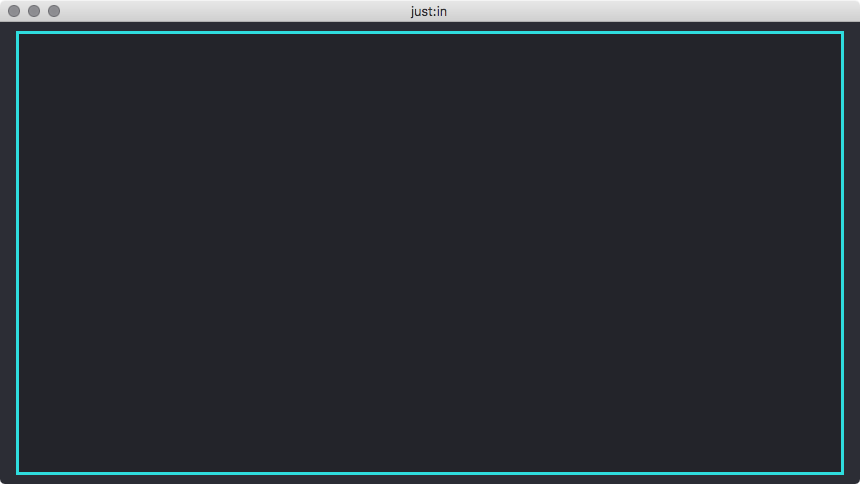
- Select the menu command Channel → Split.
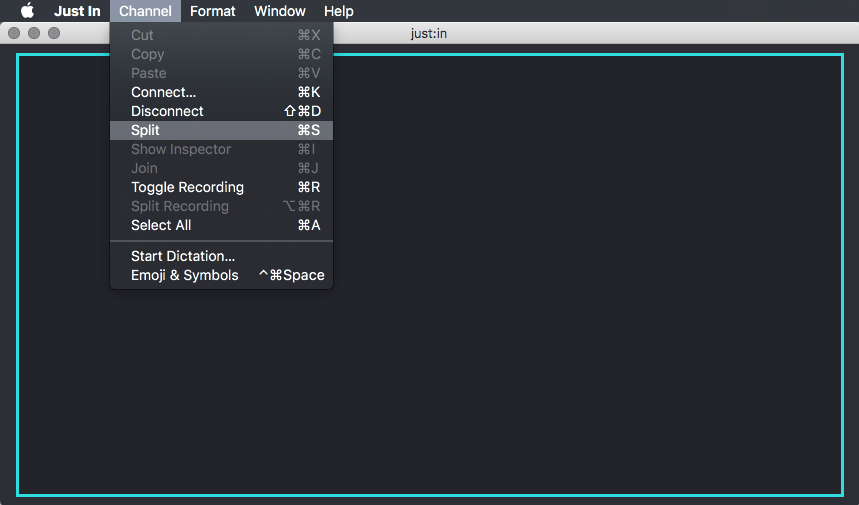
- The Viewer has four Views now. You can connect each View to a Channel as described in the previous chapters.
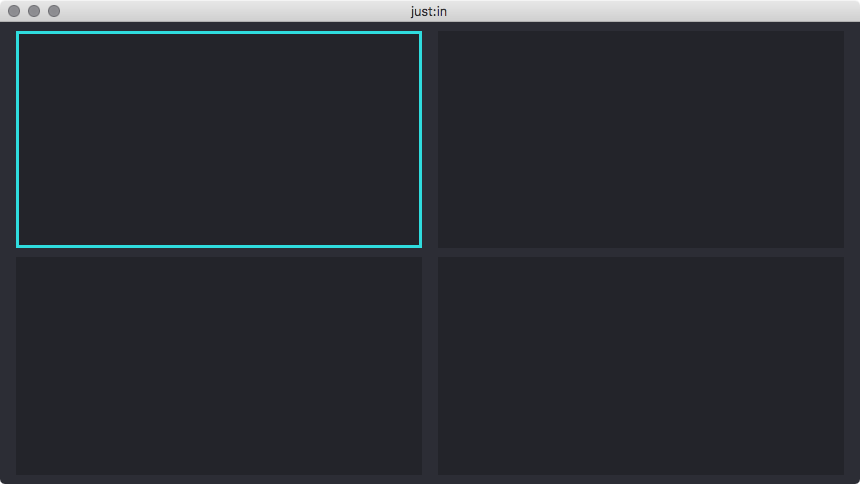
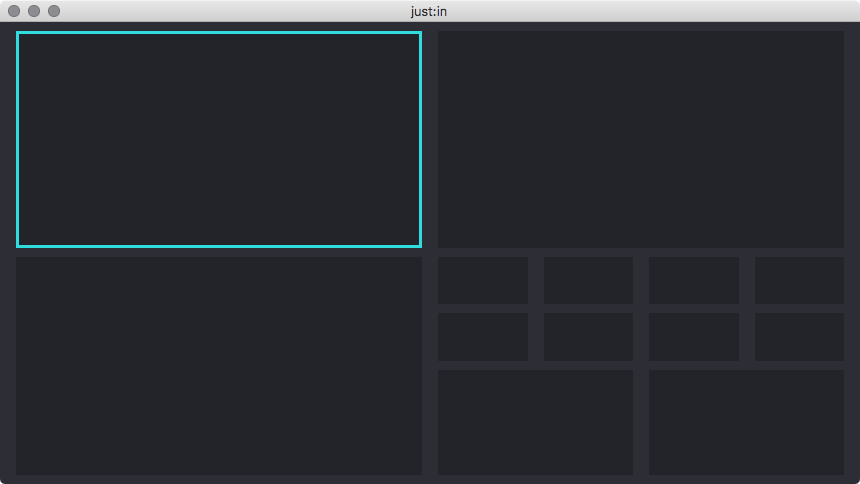
- You may repeat these steps for each View to create further Views.
Joining a Viewer
- Select a Viewer by clicking it once, the border will turn turquoise. Make sure you don't click the button in the middle.
- Select the menu command Channel → Join.
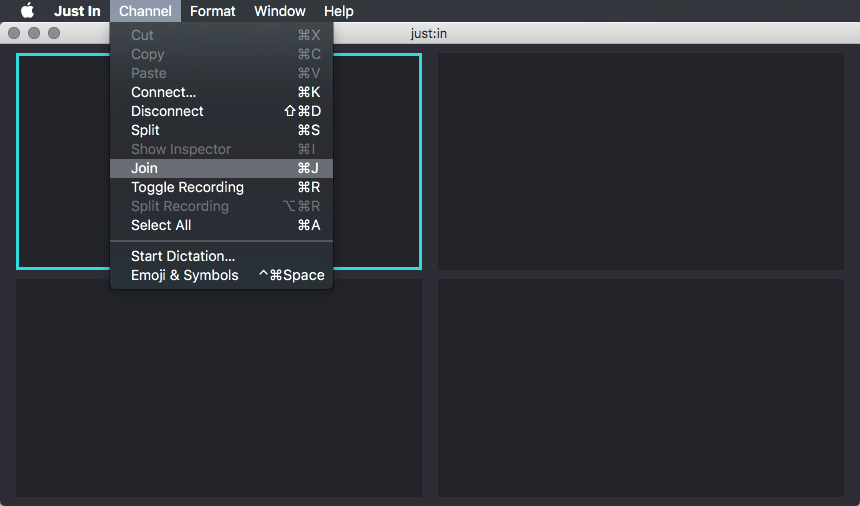
- The Viewer has one View now.
Reordering Viewers
Moving a Viewer to another View
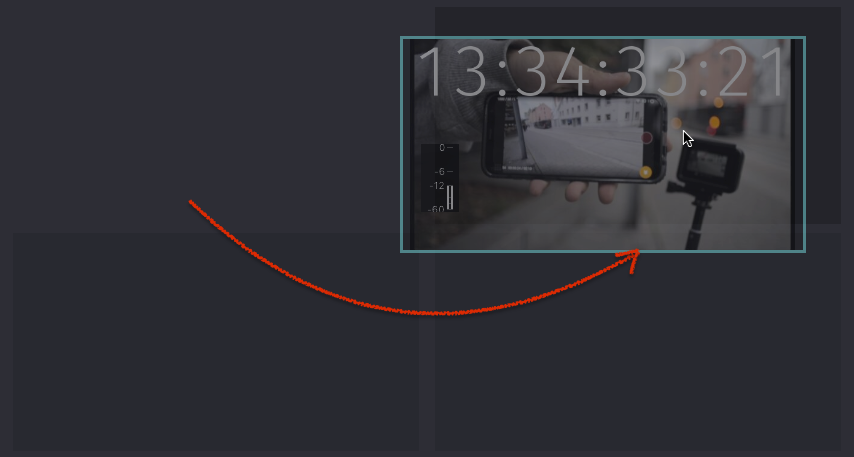
Drag and drop the Viewer to move them to another View.
Interchanging Viewers
Drag and drop the Viewer onto another, active Viewer to interchange them.