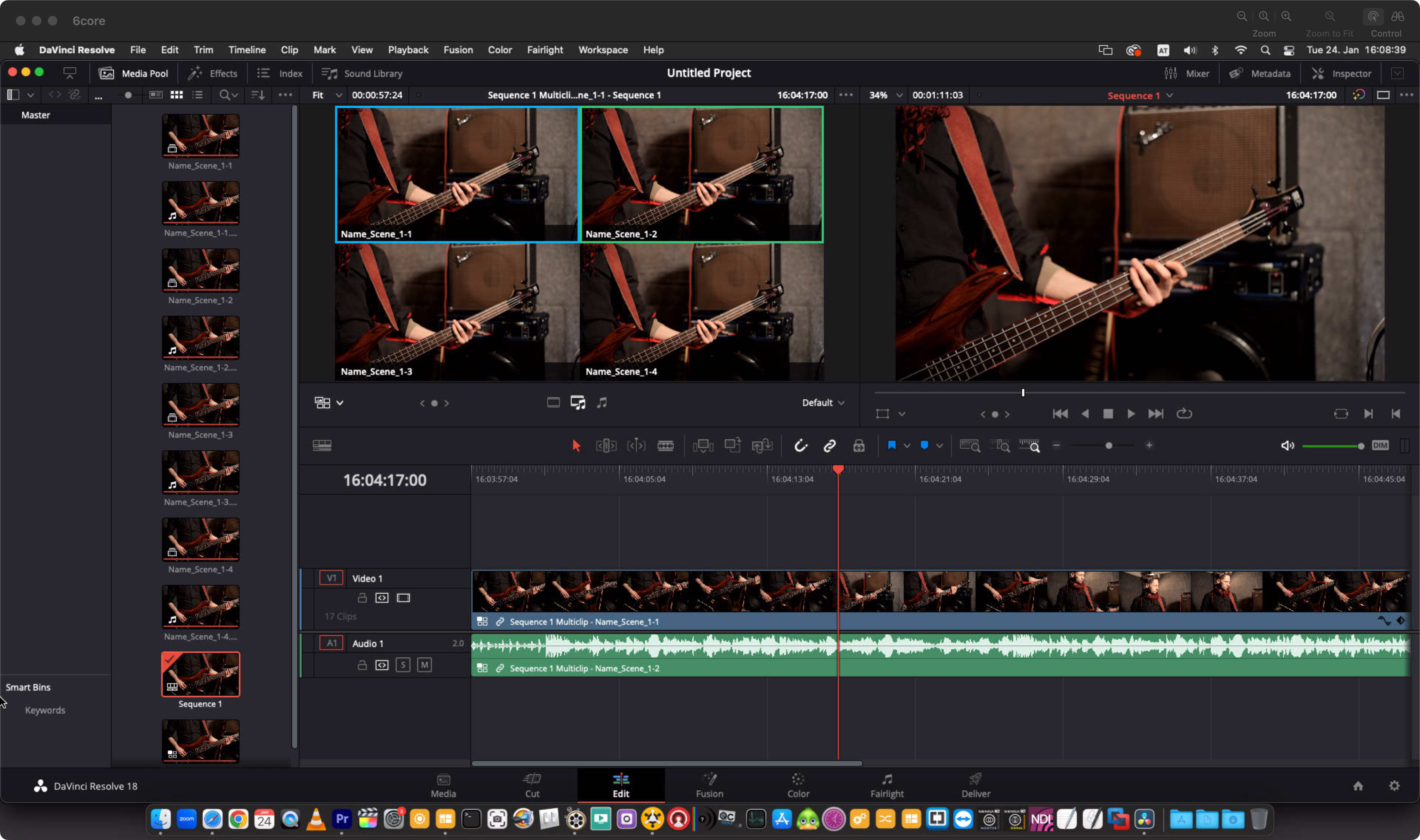
When using Live Cut with DaVinci Resolve, please ensure that you are using DaVinci Resolve v.18 or later, as previous versions will not handle FCPXML v.1.10 files correctly.
Start a Live Cut project and choose Final Cut Pro as the Editor option within the Project Settings (“Editor” tab). Then make sure that the file naming applies to the given naming convention and start the recording.
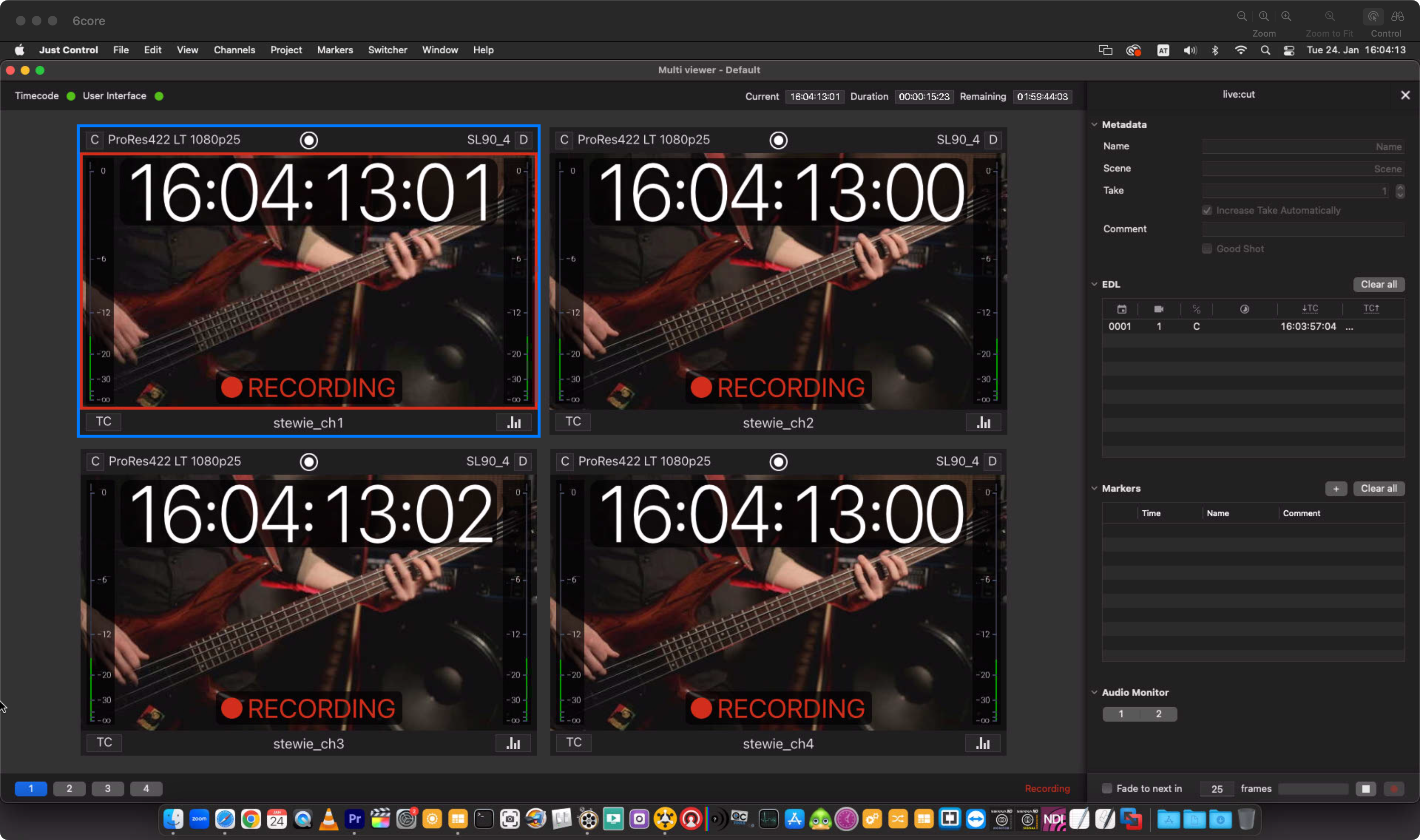
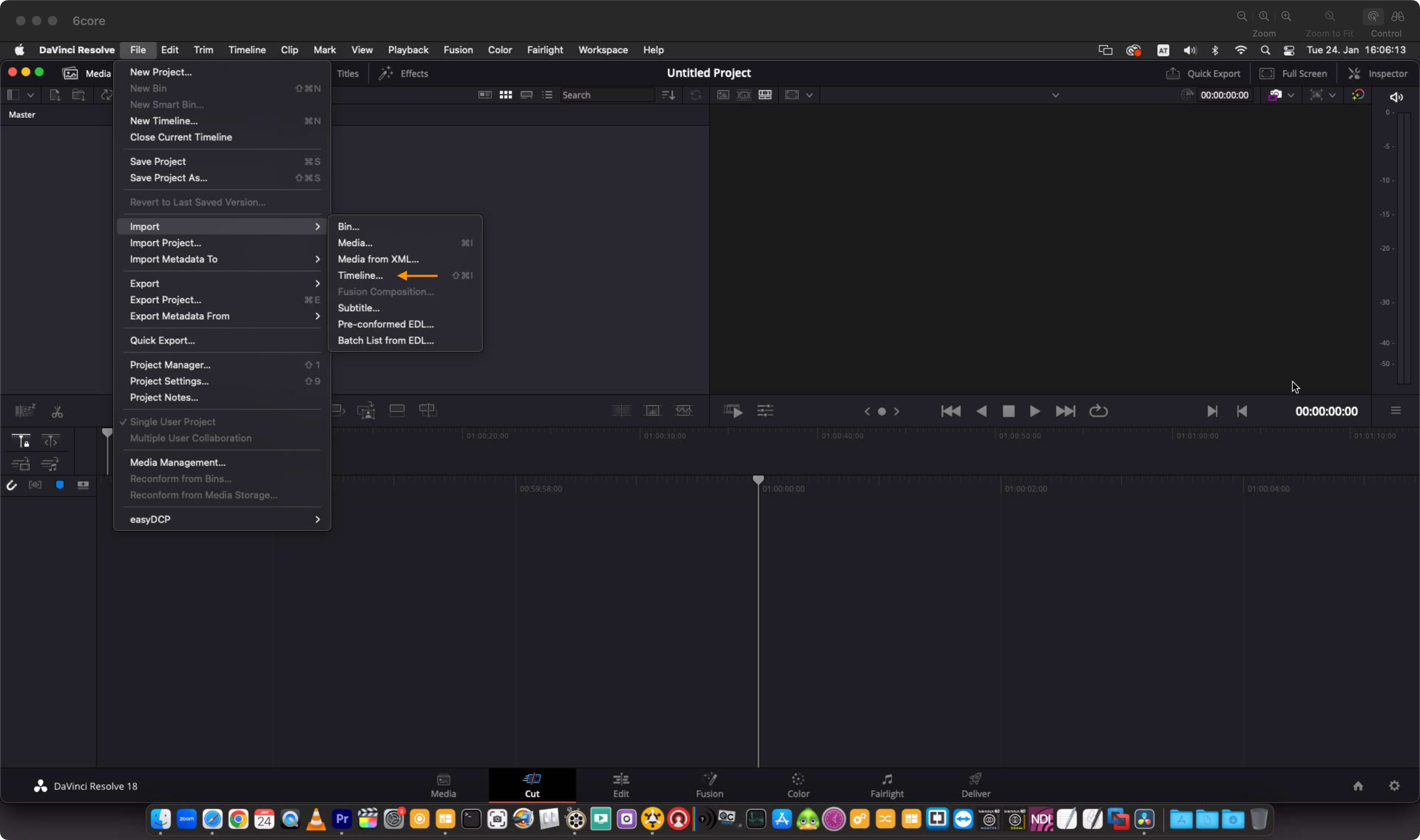
Once done, stop the recording and wait for the multicamera XML file to be created. Open DaVinci Resolve v.18 or higher and create a new Project. Then import the XML by using the “File - Import - Timeline” option.
Adjust the import options and press the “Ok” button.

Once done, DaVinci Resolve can be switched into “Edit Mode”.