
What is a Channel?
A Channel is a virtual representation of a single input of your Video Capture Device or NDI®5 stream. Depending on the number of Video Devices and the number of inputs each device offers and/or NDI®5 streams, you may configure one or multiple Channels.
How to connect to a Channel?
Before you can connect a Channel, make sure that at least one Device (Just In Engine) is connected successfully, that at least one Channel is enabled, and that the Just In Engine application is running. If you need further information about how the “Connection” tab is related to the “Configuration” Panel, please continue reading. Open Just Control and log in with an available User. Then open the Inspector and switch to the “Connections” tab.
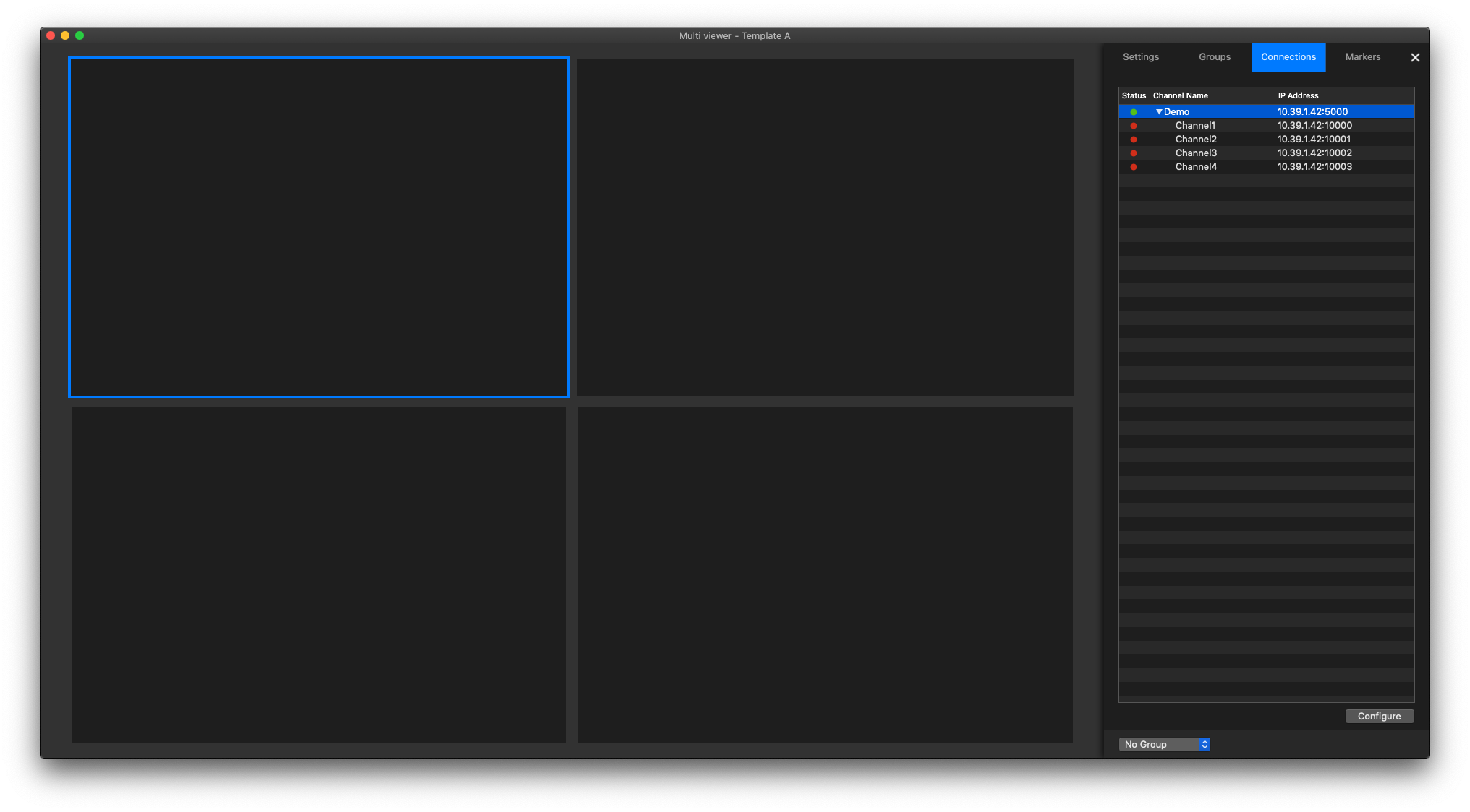
There are different ways to connect a Channel to a Channel Viewer. You can either drag & drop the Device from the Connections List to connect all enabled Channels from this Device or you can drag & drop single Channels from the Connections List to a Channel Viewer.
Drag & Drop a Device to the Channel Viewer Area
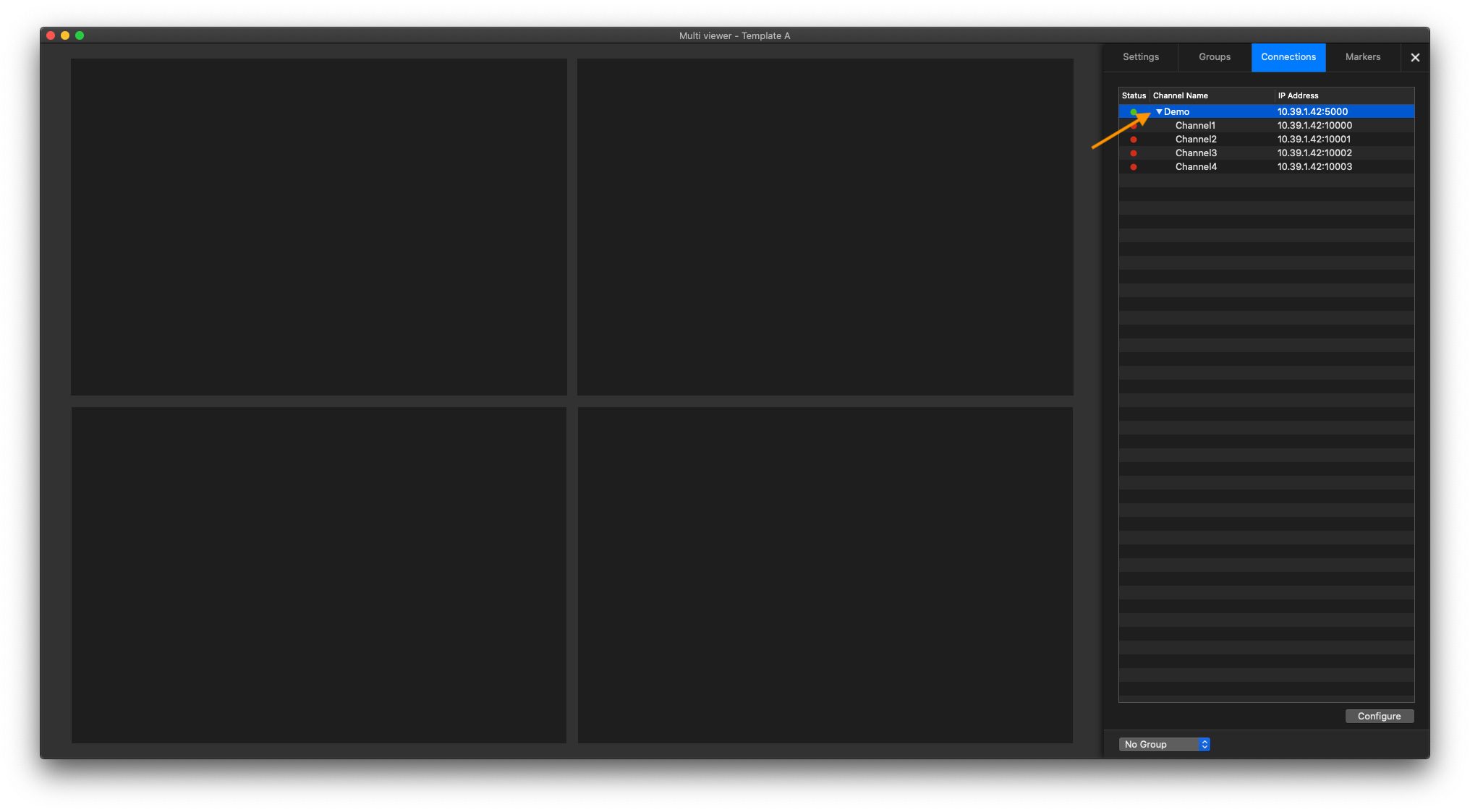
Select the Device within the “Connection” tab and drag & drop it to the Channel Viewer Area. You will see highlighted Channel Viewers, which are indicating that these Viewers will be used to establish the connection to the given Channels.

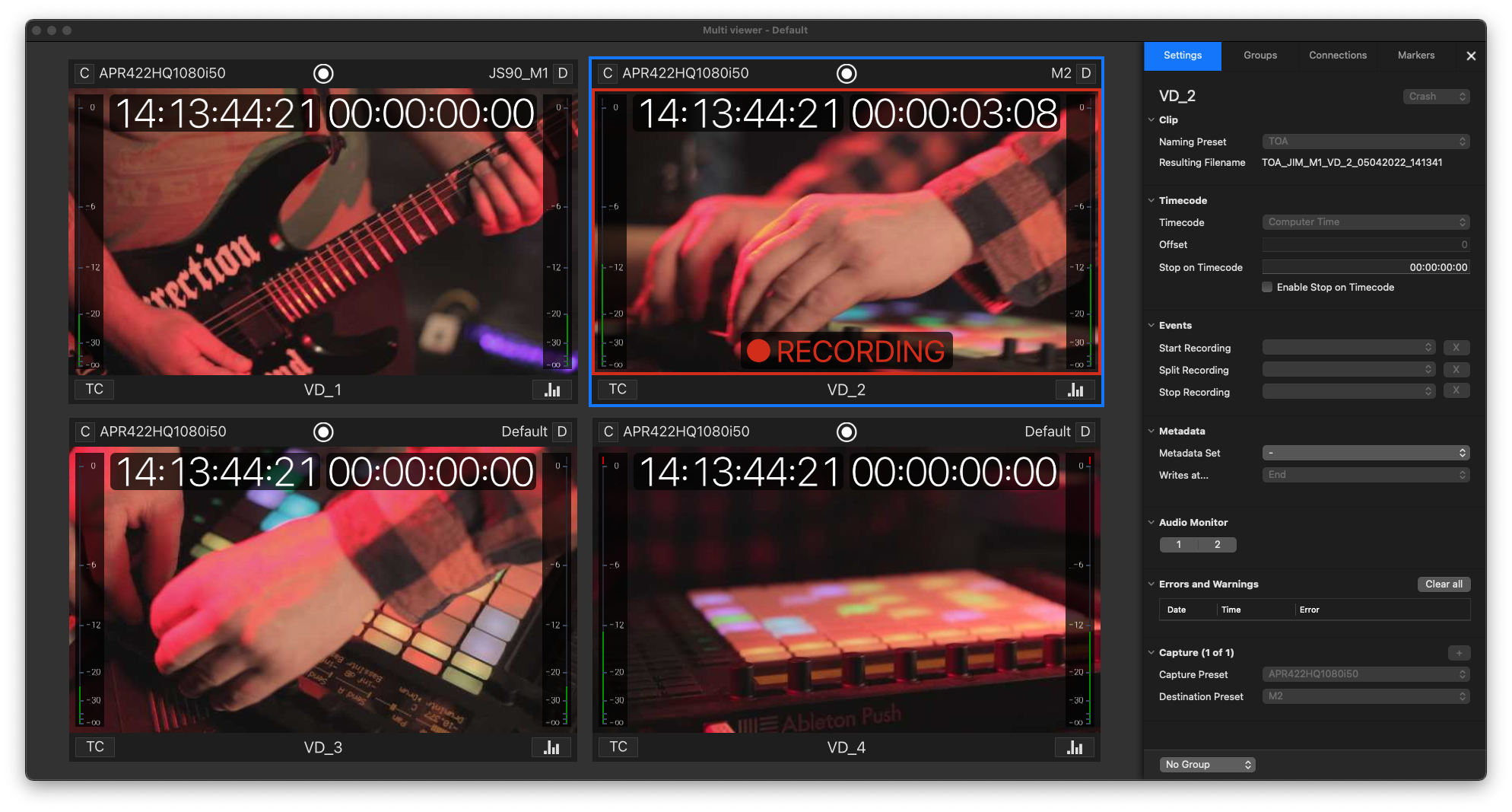
Once a Channel is connected, you can use the “Settings” tab to adjust the related settings and start recording.
Drag & Drop a single Channel to the Channel Viewer Area
Select a single Channel within the “Connection” tab and drag & drop it to the Channel Viewer Area. You will see a highlighted Channel Viewer, which indicates that this Viewer will be used to establish the connection to the given Channel.
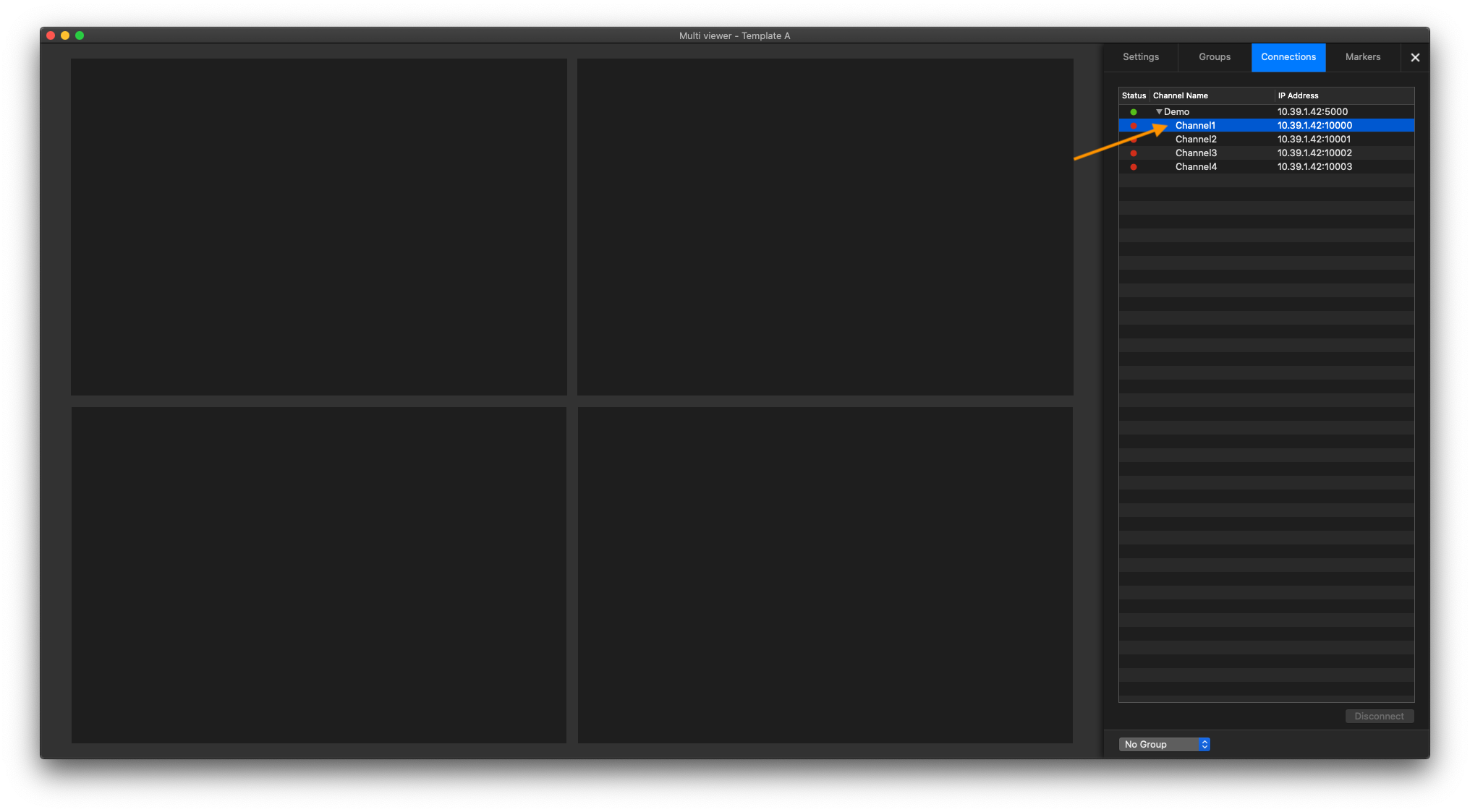
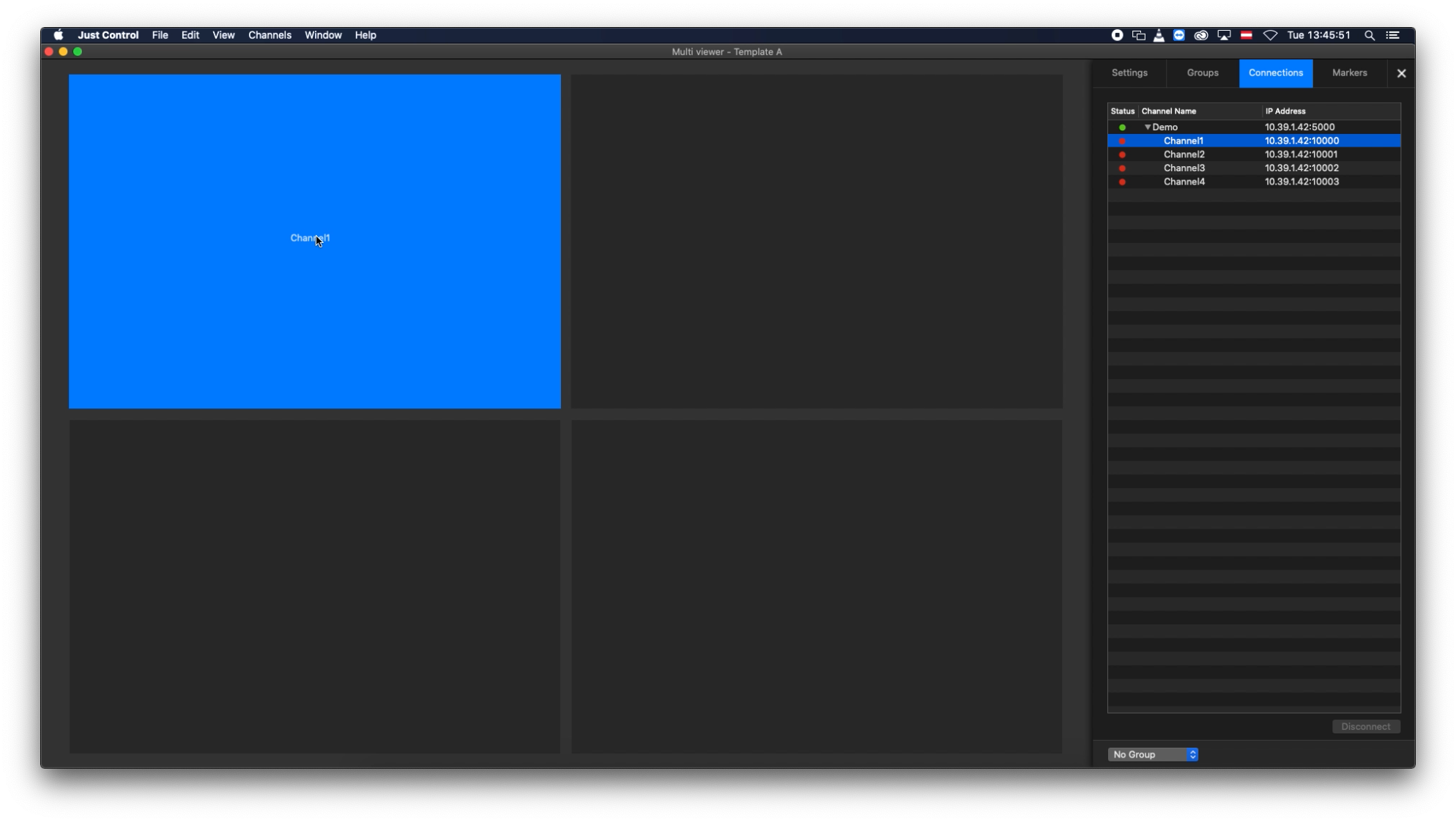
A Channel can also be connected with a double click (a free Channel Viewer has to be selected before) or a slide to the right, when using a Magic Mouse or Trackpad.
Once a Channel is connected you can use the “Settings” tab to adjust settings and start recording.

Status of a channel
Within the Connections List (Inspector - Connections Tab), there is a Status indicator, which can have three different values.
Green: Device/Channel is successfully connected.
Yellow: Channel had a problem while connecting.
Red: Device/Channel is not connected.
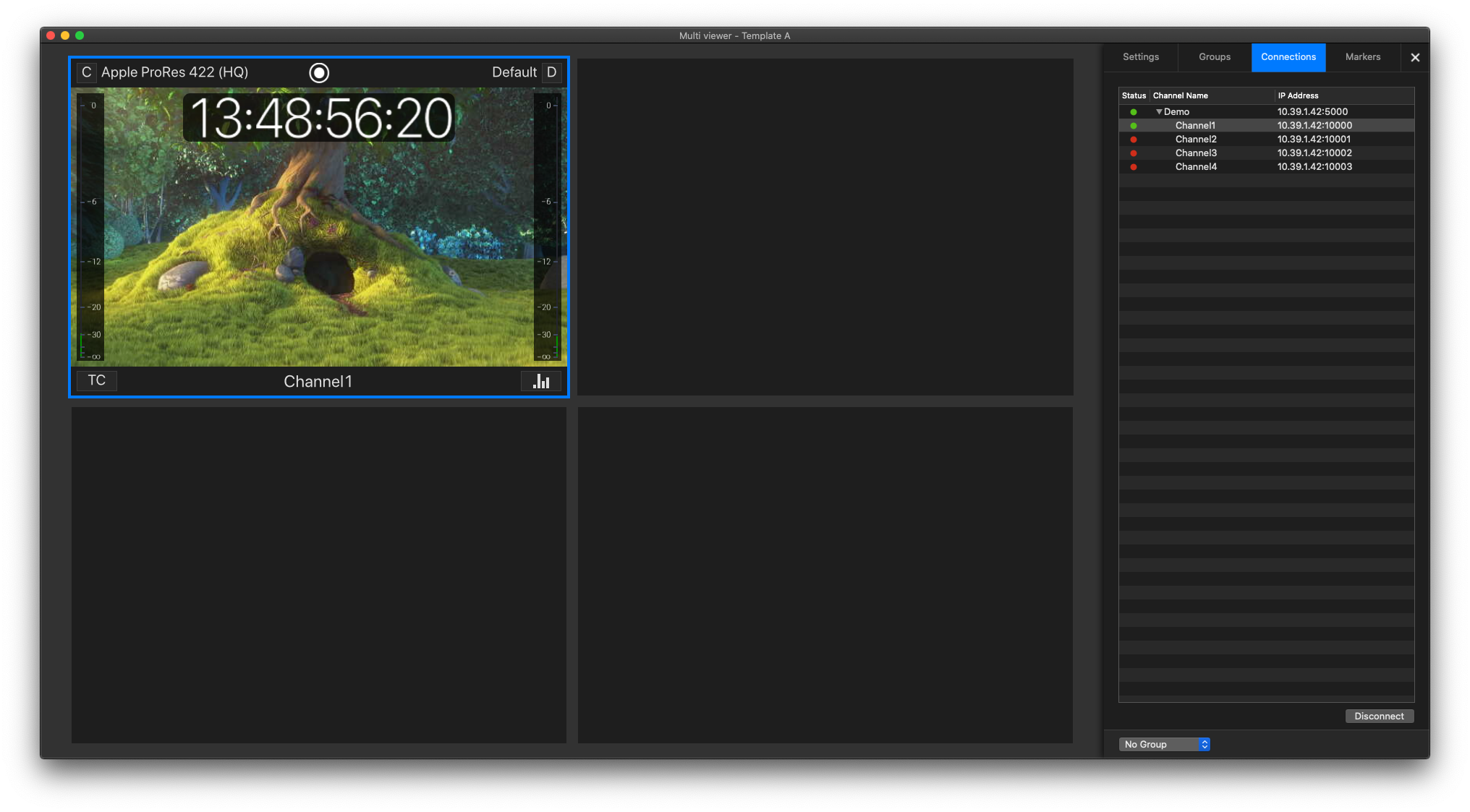
Green/Red - Connected/Disconnected Device/Channel
In the screenshot below, the Device with the name “Demo” is connected (Green status indicator), the Channel with the name “Channel1” is connected to the Channel Viewer Area and the other Channels (“Channel2”, “Channel3” and “Channel4” are available but not connected (Red status indicator).
Yellow - Connection Problem
In the screenshot below, there is a Channel (“Channel4”) with a yellow indicator, which normally means there was a problem while connecting to a Channel.

Device not running
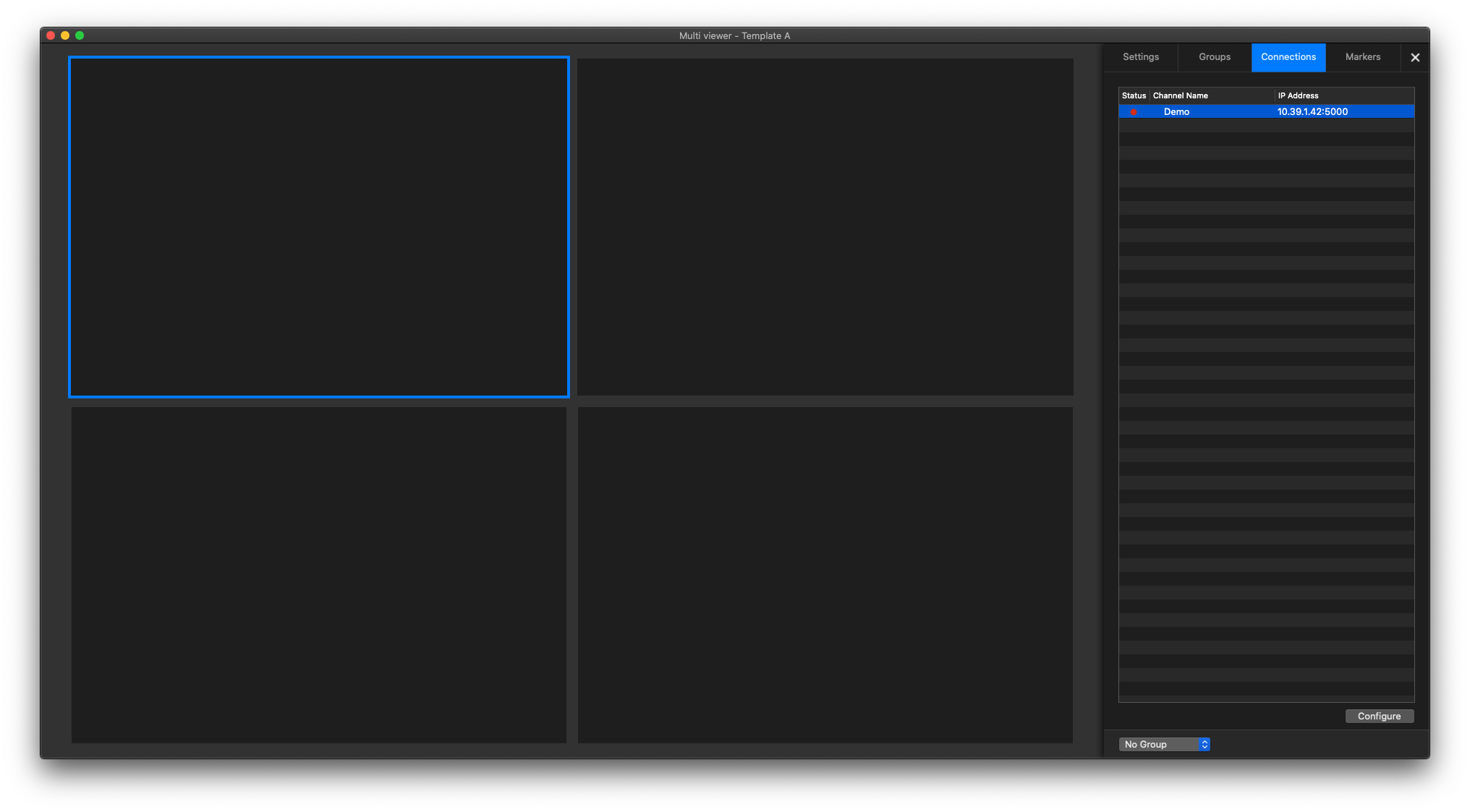
If the Device status light is red, it indicates that the Just In Engine application is not running.
Move a Channel between Channel Viewers
You can move a Channel from one Channel Viewer to the other by drag & drop. It is not relevant whether the Channel Viewer is empty, the selected Channel will be moved to the empty Channel Viewer or it switches places with the other Channel automatically.
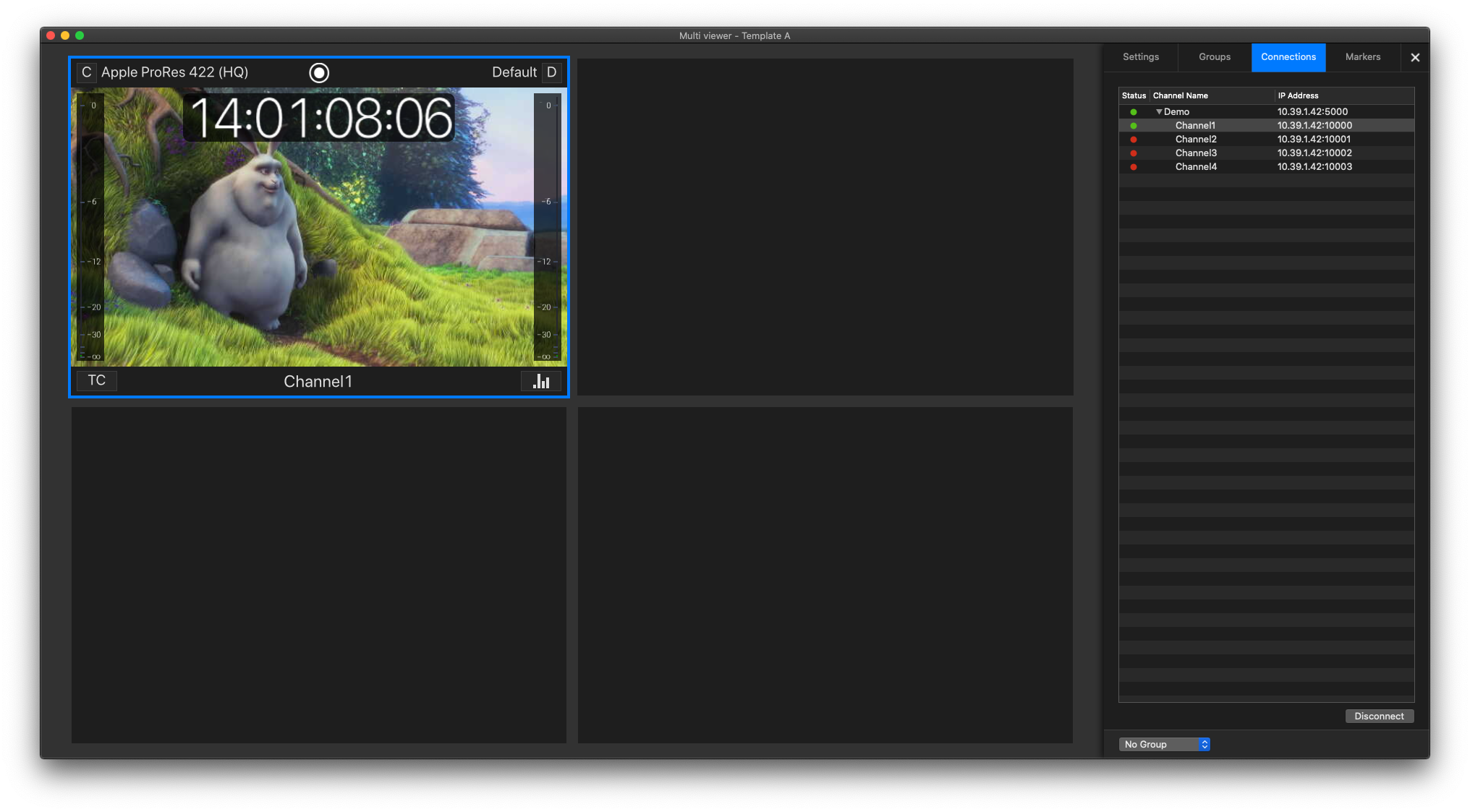
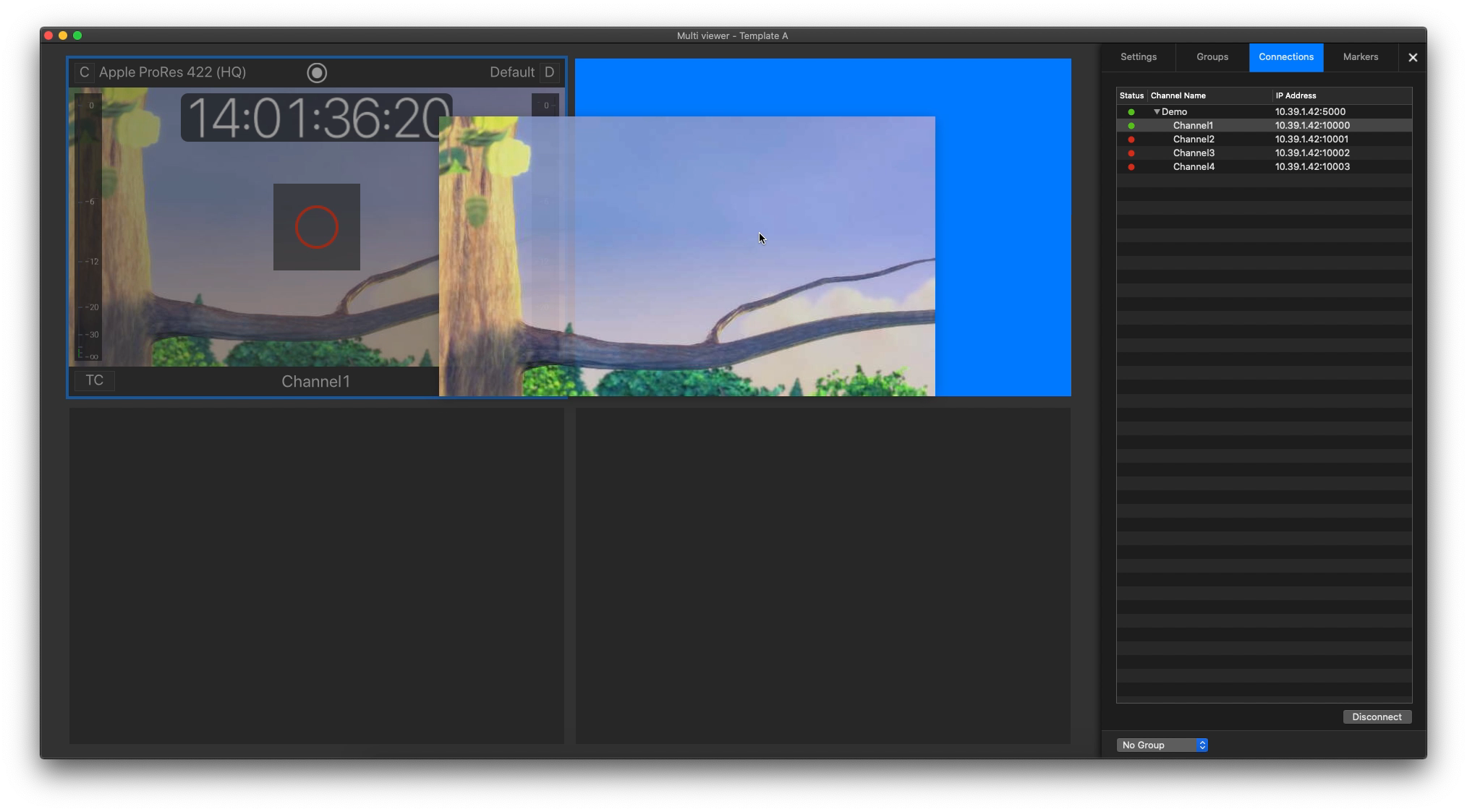
Channels can also be moved when the Channel Viewers have different sizes and when the Channels are currently recording.
Channel Quick Look
If you only want to see one Channel in macOS' Quick Look mode, select a Channel and press the “Spacebar” – or double-click on a Channel to switch to the Quick Look view. Press the “Spacebar” again (or the Escape-”esc” key) or double-click the Channel again to switch back to the normal view.
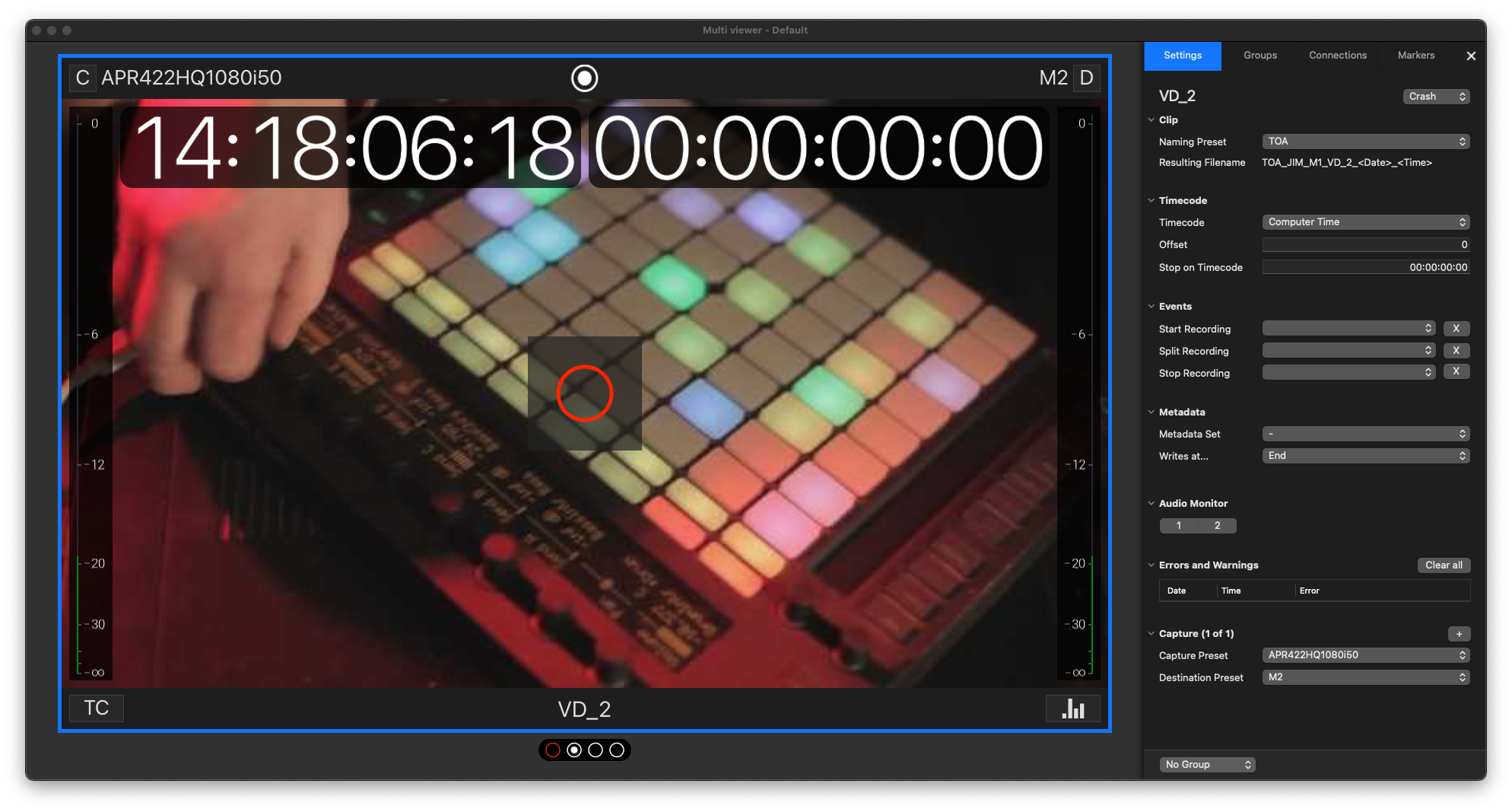
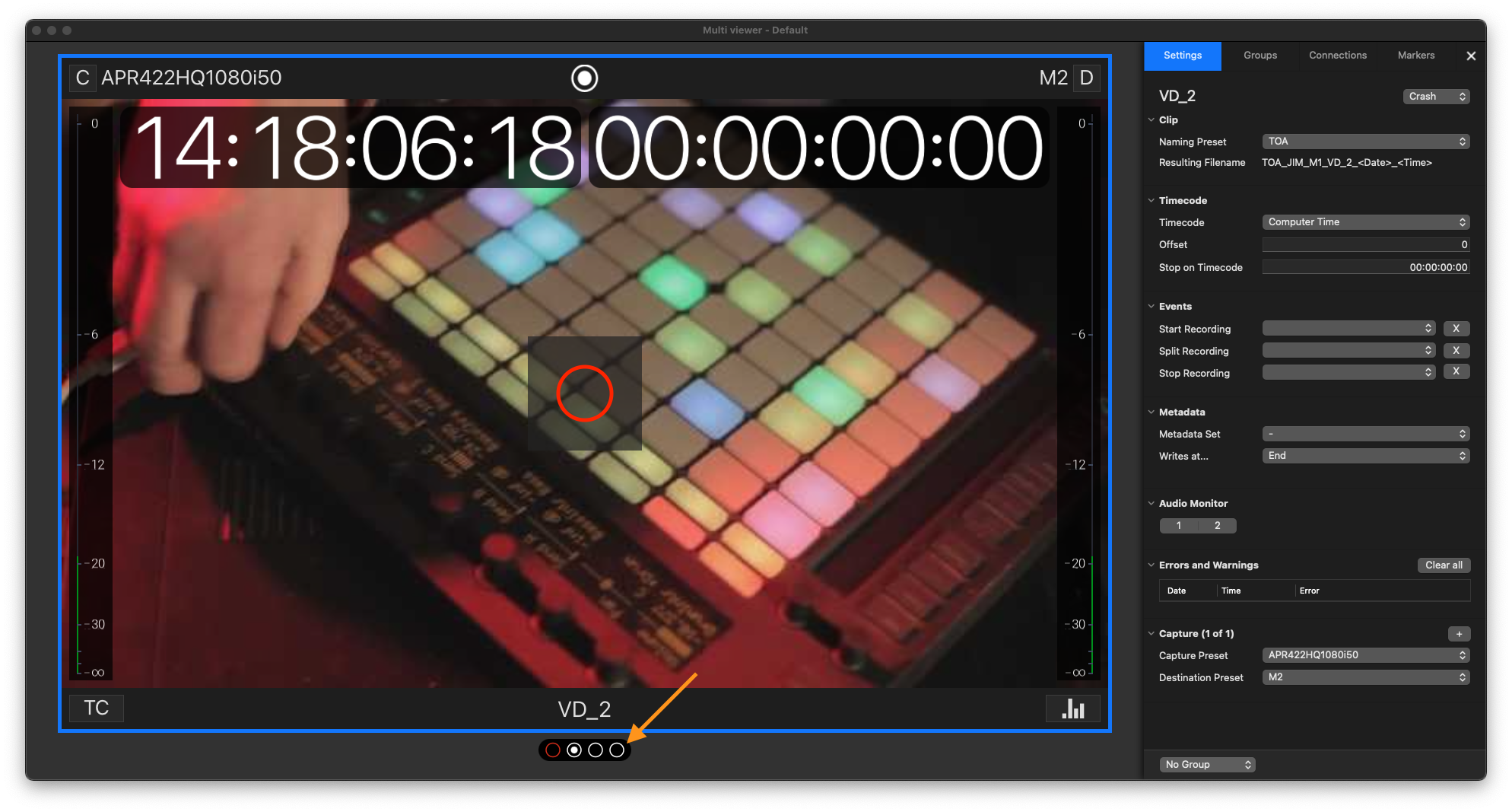
You can also switch Channels when using the Quick Look view. Either use the “Arrow Keys” or the mouse to switch between Channels by clicking on the small circles underneath the Channel Viewer.
Disconnect a Channel
To disconnect a Channel, select the appropriate Channel in the Channel Viewer Area first. Then there are different options to disconnect:
Use the “Command + Shift + D” keyboard shortcut.
Double-click on the Channel in the Connections list.
In the Connections list, swipe the Channel entry to the left.
Use the “Disconnect” button below the Connections list.
Use the “View” menu and select “Disconnect”.
Disconnecting a Channel from Just Control, does not stop the recording.
If you want to disconnect all currently connected Channels, select all Channels within the Channel Viewer Area and either use the keyboard shortcut “Command + Shift + D” or use the “Disconnect” button below the Connections list.