If you encounter a problem with a Just In Mac application (Just In Engine or Just Control), the ToolsOnAir Support Team will likely ask you for a TOA System Profile, as it contains all necessary information about your system and the application logs. To generate such a TOA System Profile, please follow the steps below:
Open the Just Control Configuration panel and select the appropriate Device. Then switch to the “System” tab.
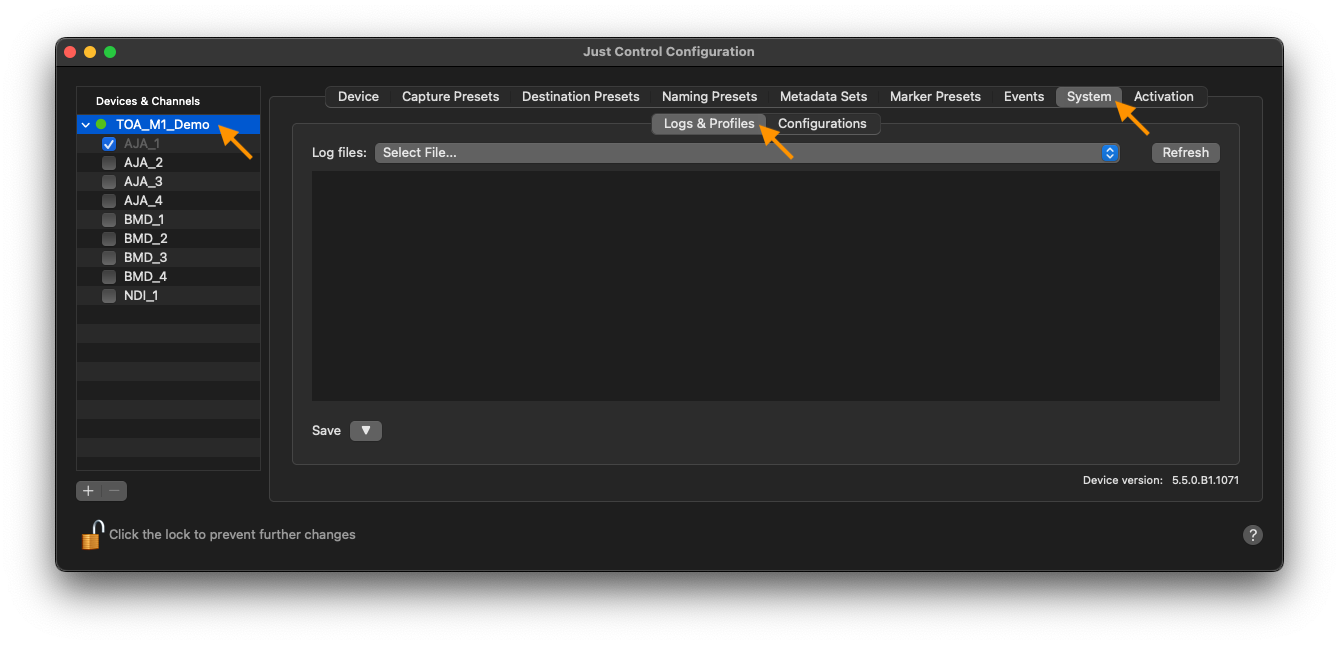
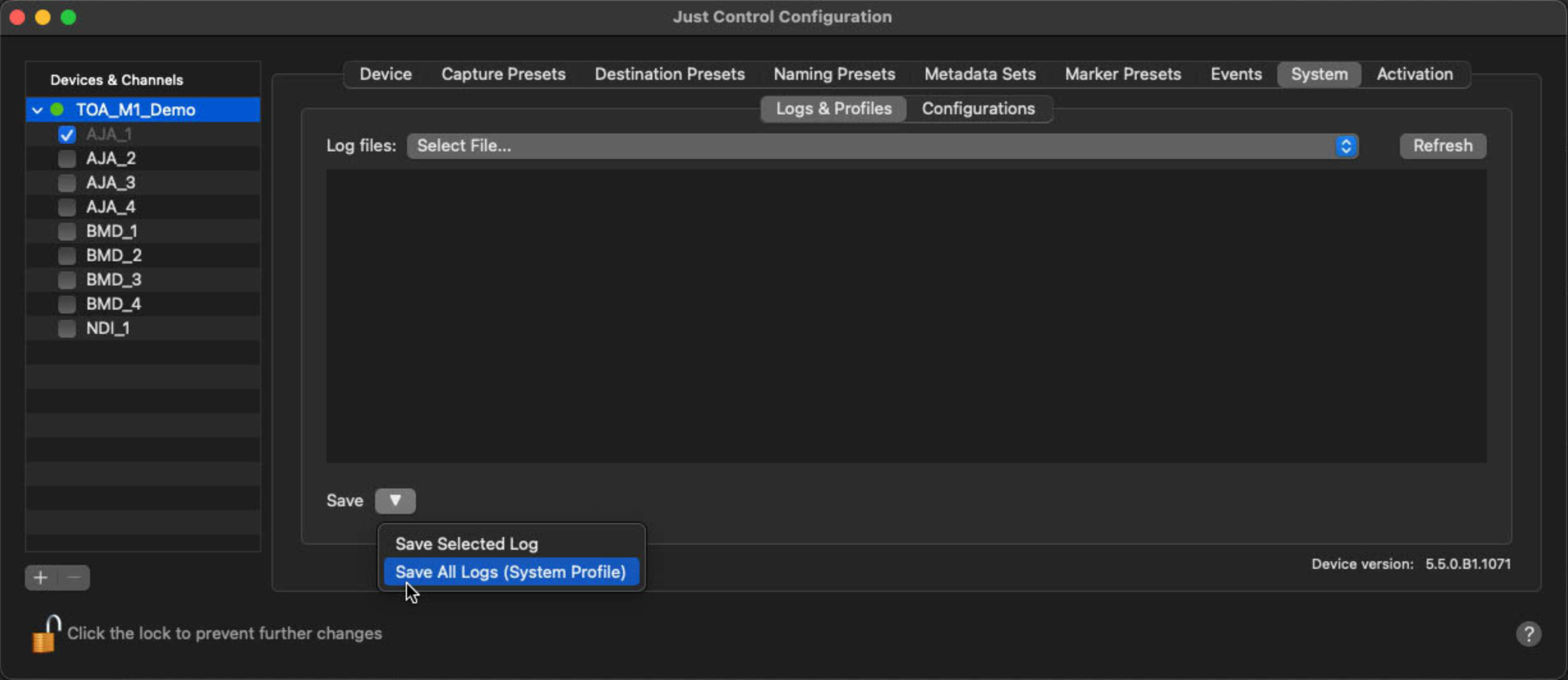
Next, make sure the “Logs & Profiles” tab is active and press on the “Save” pull-down, and click on “Save All Logs (System Profile)”.
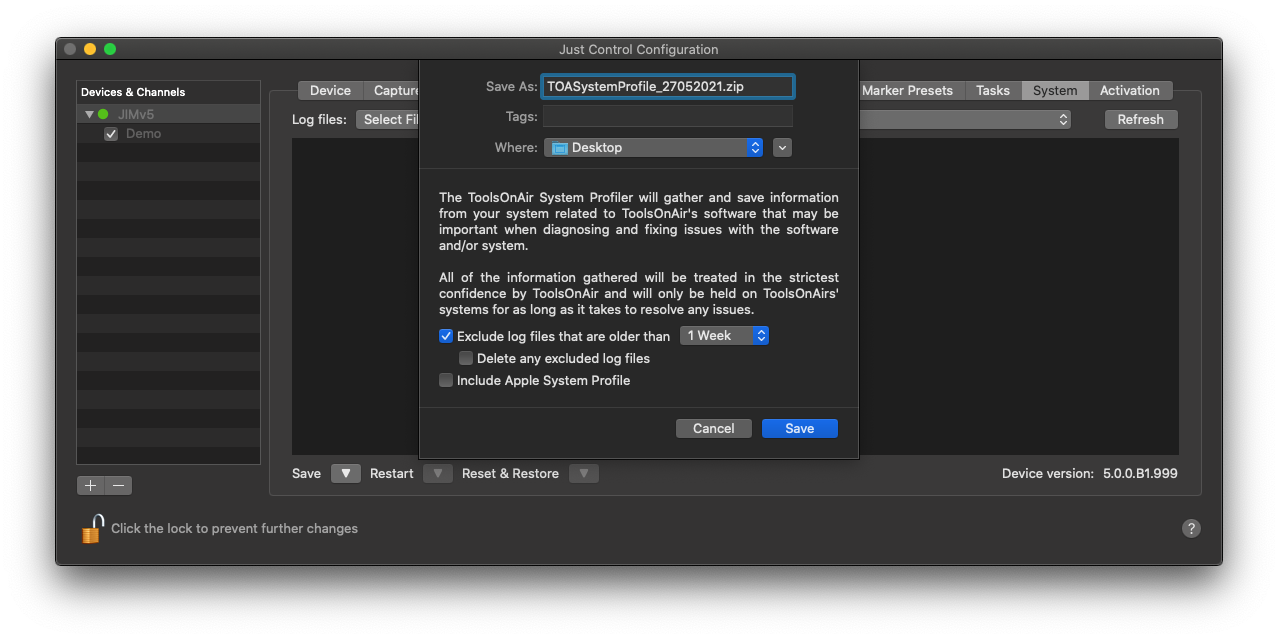
Ensure that you are using a valid name and choose an appropriate location to save the compressed (.zip) file. Generally, we only require logs from the last seven (7) days. If needed, please include an Apple System Profile as well by checking the option “Include Apple System Profile”. Then use the “Save” button to start the process.
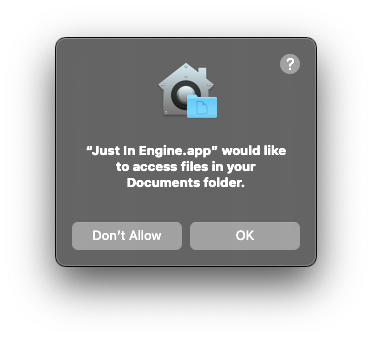
Please verify that both applications (Just In Engine and Just Control) have access to the appropriate folder(s) if asked.
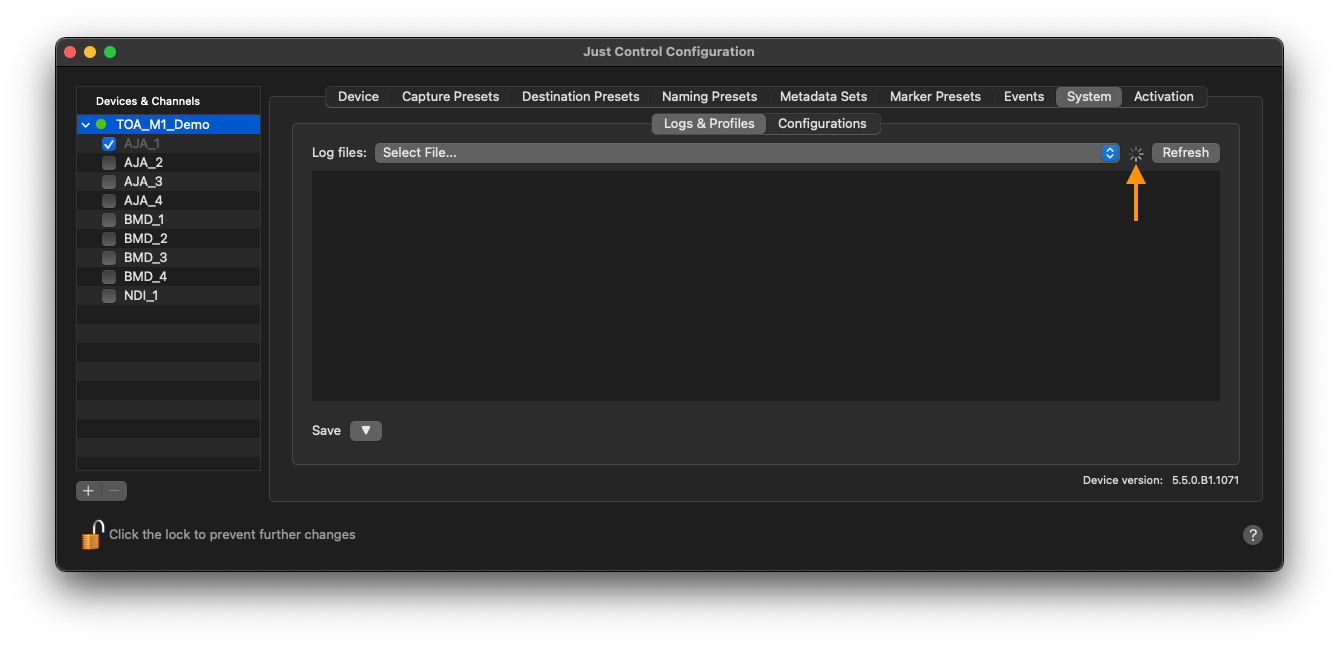
During the generation process of the TOA System Profile you will see a spinning wheel next to the “Refresh” button. Please wait until this spinning wheel disappears, before trying to copy the “.zip” file.