What is Batch Recording?
Batch Recording records a Batch List of predefined In- and Outpoints from a VTR Device. Batch Recording requires a valid VTR Device connection.
Making a Batch Recording
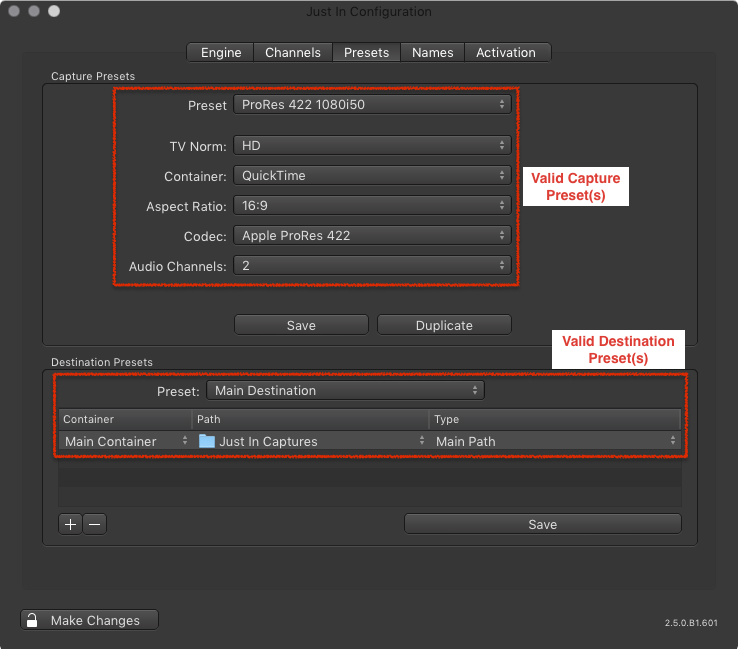
- Make sure to have at least one valid Capture and one valid Destination Preset in Just In Engine.
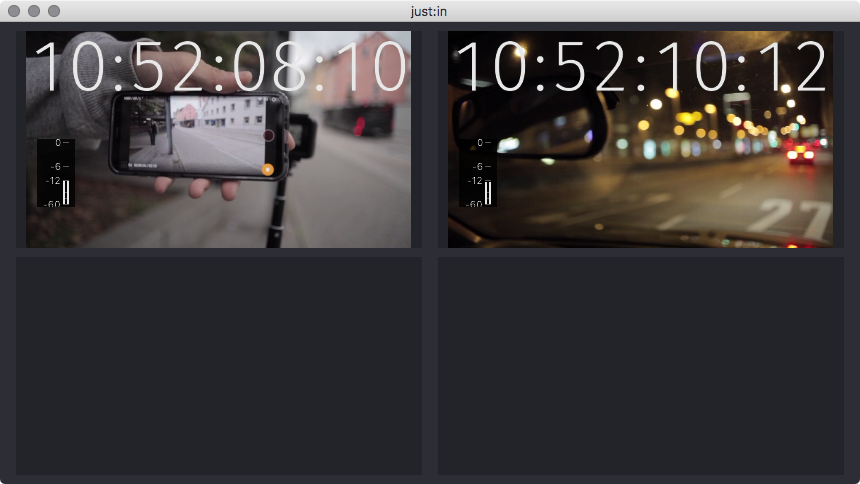
- Make sure you are connected to a Channel in Just In.
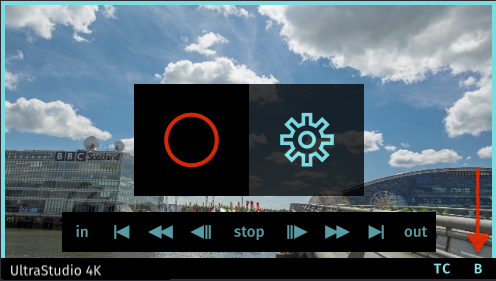
- Select Batch Mode in the desired Channel View. VTR Controls will appear when the remote functionality is enabled on the VTR, otherwise you will not see any VTR Controls.
- Open the Inspector of the desired Channel.
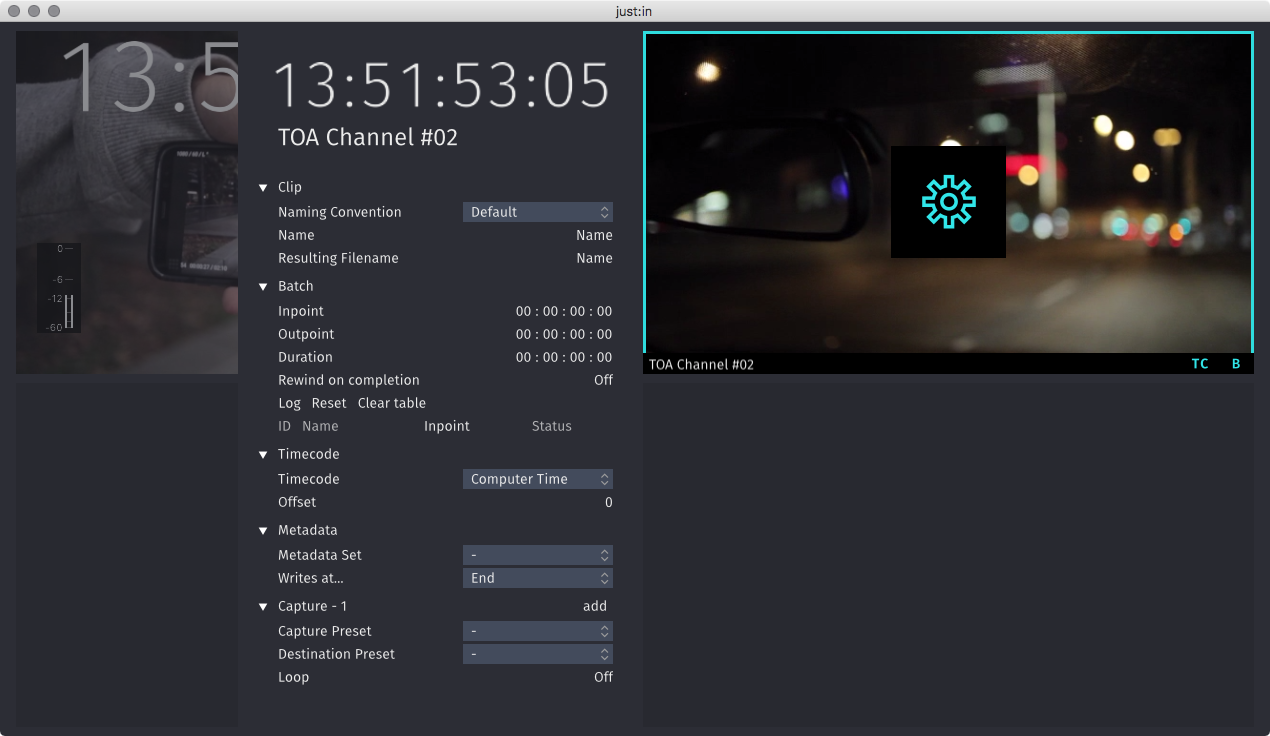
- Select a Naming Preset and define a clip name.

- Select a Capture Preset and a Destination Preset.

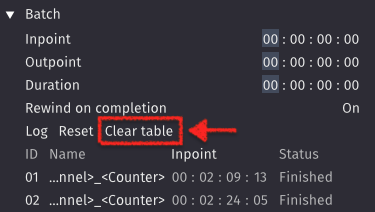
- Define your Batch List by entering an Inpoint, Outpoint and Duration. Press the Log button for each entry.

- If you wish you may modify the other settings.
- Now hover over the Channel View. Next to the Inspector button there's a Record button. Press the this button to start the Batch Recording (shortcut: command +R).
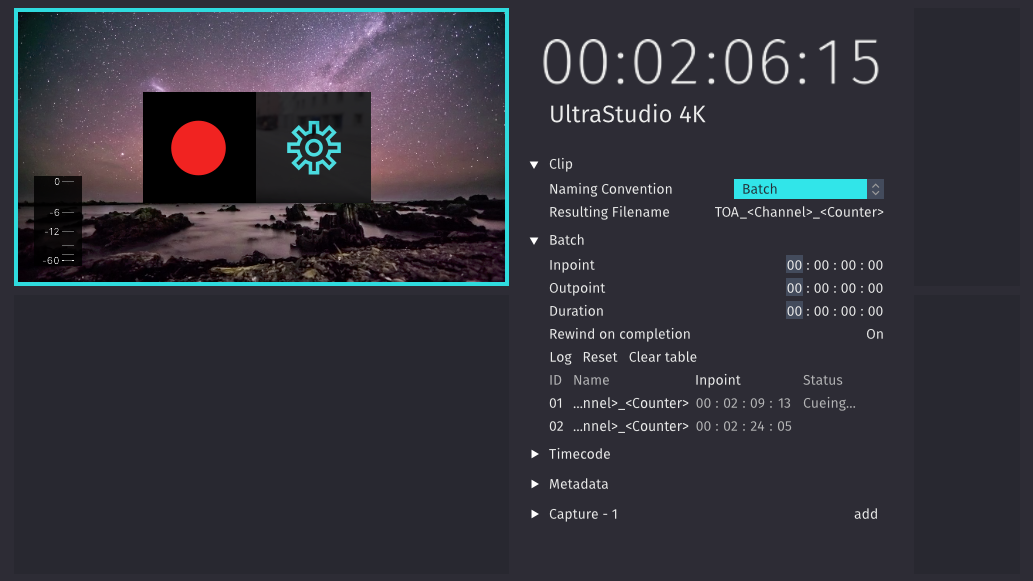
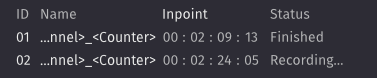
- You can see the status of the current ongoing Log the table in the Inspector.
- Just In informs you when the Batch List has been recorded successfully.
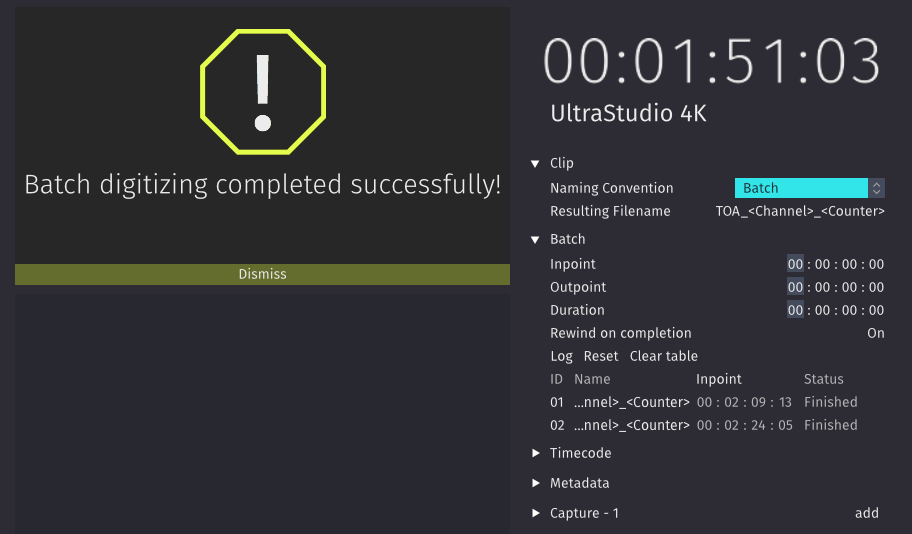
- To be able to add new entries to a new batch list you need to clear it by pressing the Clear table button.