
When an error or problem occurs Just In will inform you about that by displaying a message in the corresponding Channel Viewer(s).
Types of Warning Messages
- Red Warnings: inform about a severe problem which must be fixed in order to continue.
- Yellow Warnings: inform about an issue which should be fixed, but you may dismiss the warning.
You may dismiss several yellow warnings at once by holding the option key while clicking on the Dismiss button at the bottom.
Lost Channel Connection
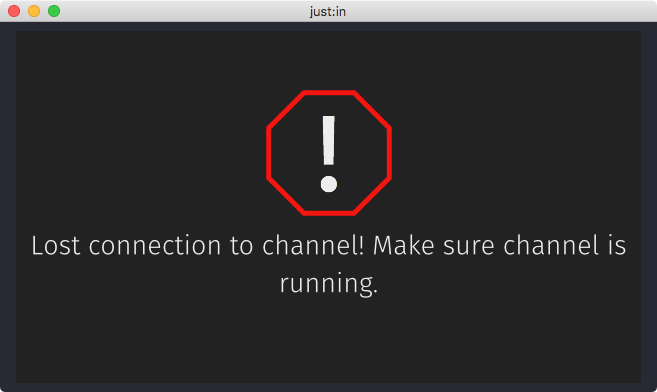
- Can be related to a network connectivity problem.
- Verify the connection between Just In and Just In Engine.
- As soon as the connection to the Channel can be re-established this message disappears automatically.
Signal Loss
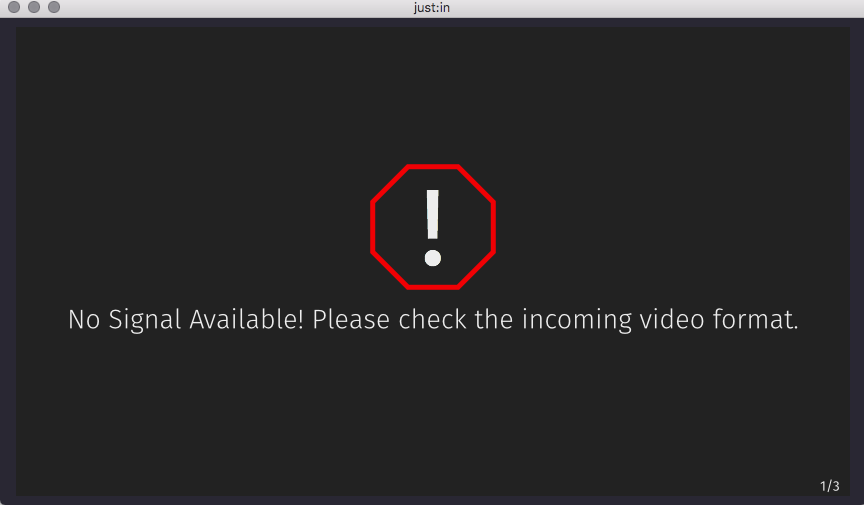
- The Video Signal has been lost and the current Recording will stop in order to safeguard the already recorded clip.
- Once the Signal is back Just In restarts the Recording.
- You can optionally choose to continue writing into the same container by enabling this option in the Just In Engine Preferences.
- We strongly recommend using a frame store on every Channel input in order to prevent signal loss.
Preset Issues (XDCAM, DNxHD and H.264)
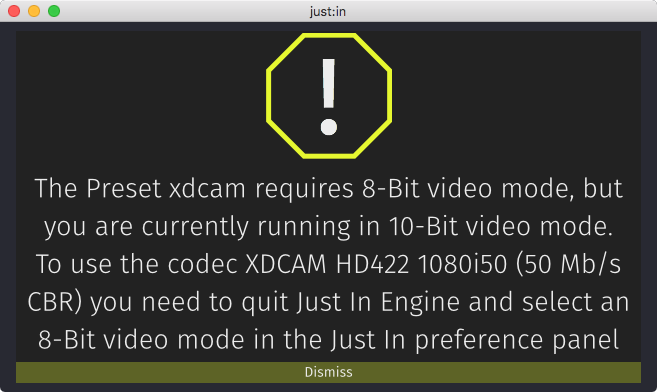
- When there is a problem with a Preset a warning will be displayed.
- You can dismiss the error message and fix the issue.
Recording Destination not Available
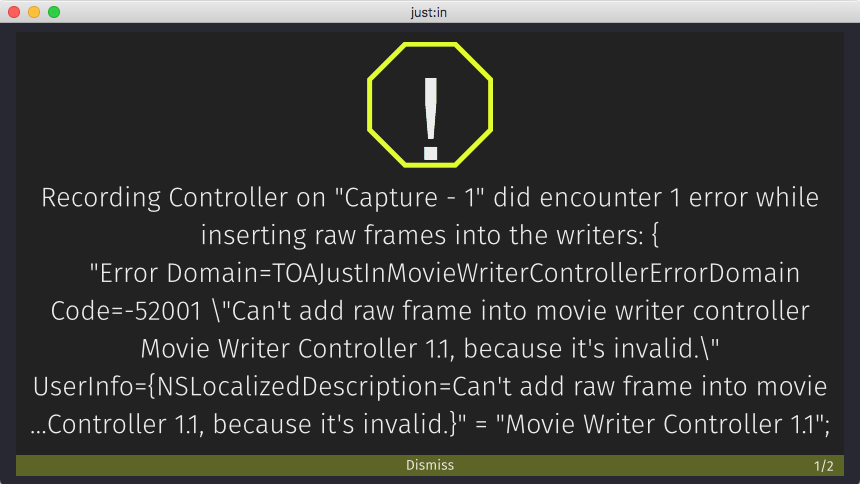
- A volume or folder which has been defined in the selected Destination Preset could not be found.
- Double check your Destination Preset(s).
Too much Load on Engine
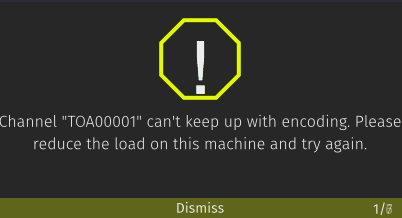
- The resolution and/or framerate of the Channel Preview may be too high.
- Verify the Preview Options of the particular Channel in the Preferences of Just In Engine.
- Use a dedicated machine for Just In Engine. Make sure the machine and network specs are sufficient.