
The Inspector is used to select your Capture Settings (such as Naming, Metadata, Capture and Destination Presets…). This chapter explains all Inspector options and also shows how the Inspector changes depending on the currently selected Recoding Mode.
Before you are able to use the Inspector it is mandatory that the Just In user interface is connected to a Channel which is configured and running in Just In Engine. Refer to the chapter Just In Engine if you have not yet configured the Channel(s) yet.
General Inspector Overview & Crash Recording Inspector
For detailed information on how to make a Recording please refer to the chapter Capture Modes (Just In v2.5).
The Inspector changes depending on the Recording Mode you are using. This shows the Inspector when in Crash Recording Mode.
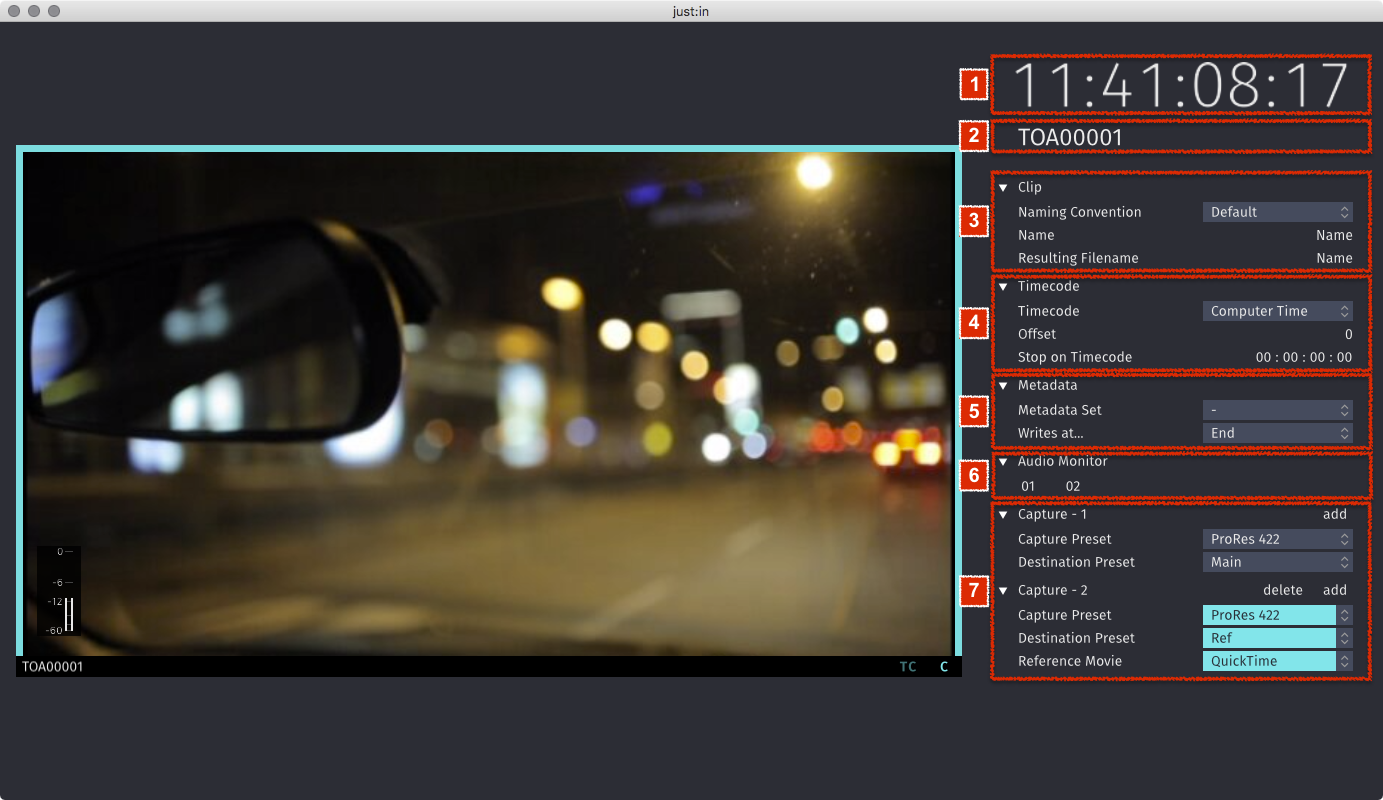
- Timecode: Timecode of the Channel.
- Channel Name or Connection Info (click to toggle).
- Clip
- Naming Convention: select one of the Presets which have been configured in Just In Engine.
- Variables: visible in this figure as Name or Angel, this list may differ – depending on your Naming Presets.
- Resulting Filename: shows the resulting Filename based on the elements of the selected Naming Preset. The file name used for the recorded Video can be different if the filename already exists.
- Timecode
- Timecode: select a Timecode source, like Computer Time, VTR, LTC…
- Offset: define a Timecode offset.
- Stop on Timecode: define a Timecode where to stop the Recording.
- Metadata
- Metadata Set: you can select a Metadata set, for example QuickTime. This provides several predefined Metadata fields for you to fill.
- Writes at: select whether the Metadata will be written at the Start or at the End of a capture.
- Audio Monitor: you can listen to the Audio stream of the incoming Signal to preview the Audio part in addition to the Video preview. This is for previewing only and will not replace a hardware device to check the audio quality or AV synchronisation. (Please update to macOS 10.13.3 to enable this function on a new Mac Pro)
- Enabling/Disabling a Single Audio Channel: click on the desired Audio Channel to enable/disable the Audio Preview.
- Enabling/Disabling all Audio Channels: hold the option key while clicking on any Audio Channel to enable/disable the Audio Preview for all Channels.
- Captures: add or remove Captures by using the add and delete buttons.
- Capture Preset: select one of the Presets which have been configured in Just In Engine.
- Destination Preset: select one of the Presets which have been configured in Just In Engine.
- Reference Movie (depending on Destination Preset): select the type of Reference Movie.
Batch Recording Inspector
For detailed information on how to make a Recording please refer to the chapter Capture Modes (Just In v2.5).
The Inspector changes depending on the Recording Mode you are using. This shows the Inspector when in Batch Recording Mode.
- Inpoint: the Capture Inpoint.
- Outpoint: the Capture Outpoint.
- Duration: the Capture Duration.
- Rewind on completion: enable this to rewind on completion.
- Log button: logs the previously defined Capture.
- Reset button:
- Clear table button: clears the Batch Log table.
- Batch Log Table: lists Batch Recordings which have been added with the Log button.

Scheduled Recording Inspector
For detailed information on how to make a Recording please refer to the chapter Capture Modes (Just In v2.5).
The Inspector changes depending on the Recording Mode you are using. This shows the Inspector when in Scheduled Recording Mode. At the top of the Inspector all Apple Calendar Events for that particular Channel are listed.
