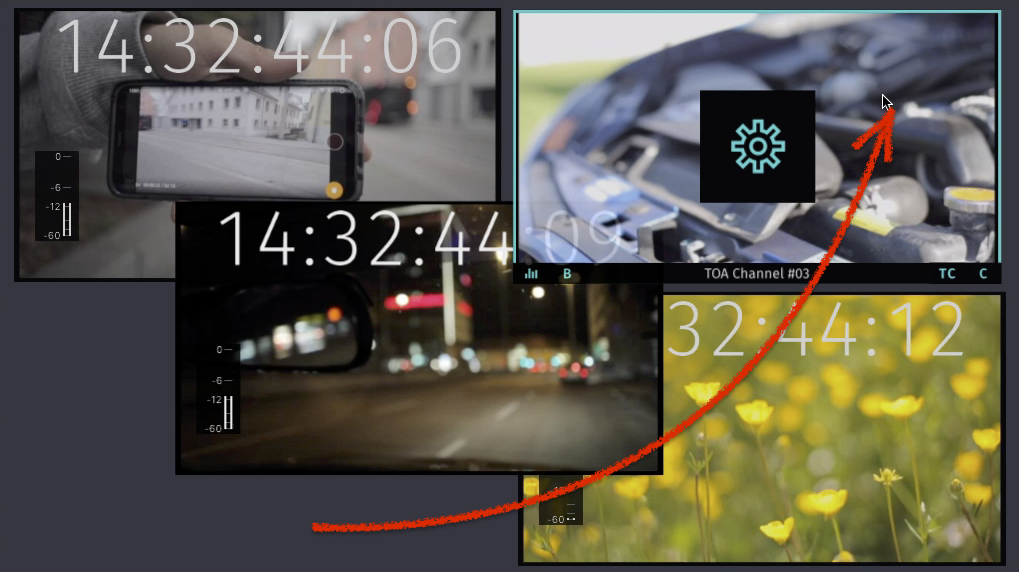
The Just In user interface allows you to control multiple Channels at a time. The Main Window can be splitted and joined to fit your needs. This chapter explains how to use the Split & Join functionality of Just In.
Single View
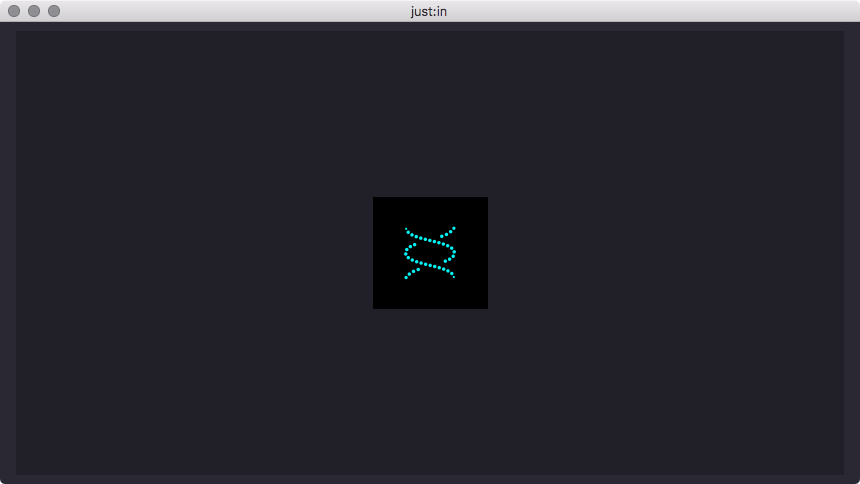
When opening Just In for the first time it will present a single View. Basically you can connect to one Channel now. It's possible to display multiple Channels at once by using the Split & Join functionality of Just In.
Splitting a View
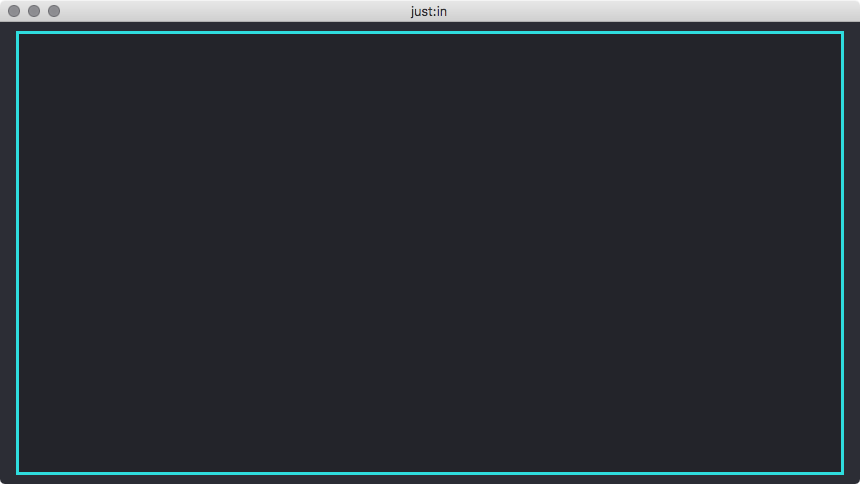
- Select the View by clicking it once, the border will turn turquoise. Make sure you don't click the button in the middle.
- Select the menu command Channel → Split or use the shortcut command + S.
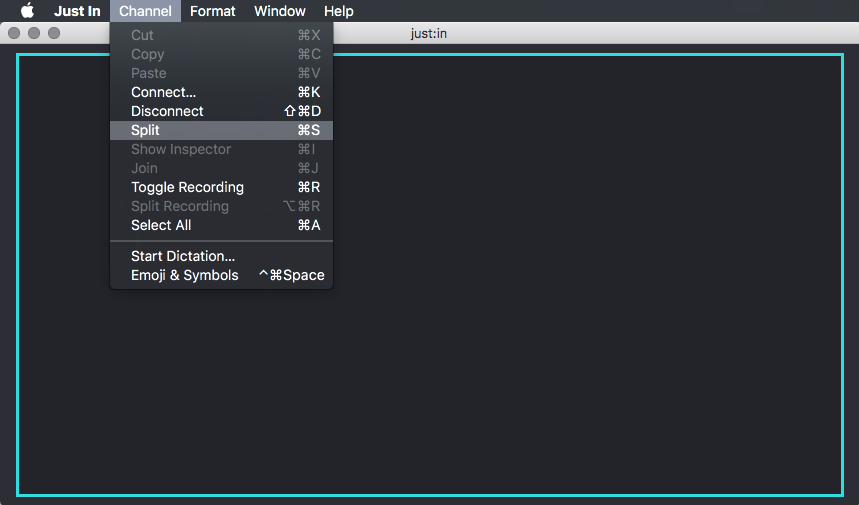
- Four views are now displayed. You can connect each View to a Channel as described in the previous chapters.
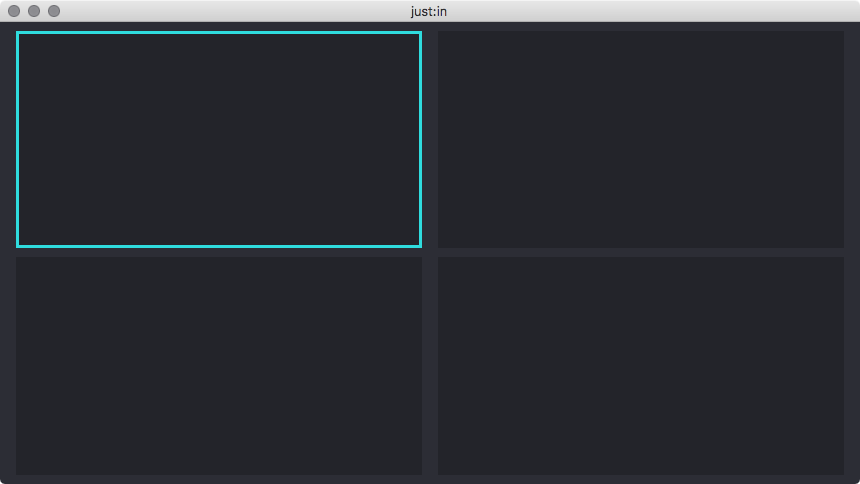
- You may repeat these steps for each View to create further Views.
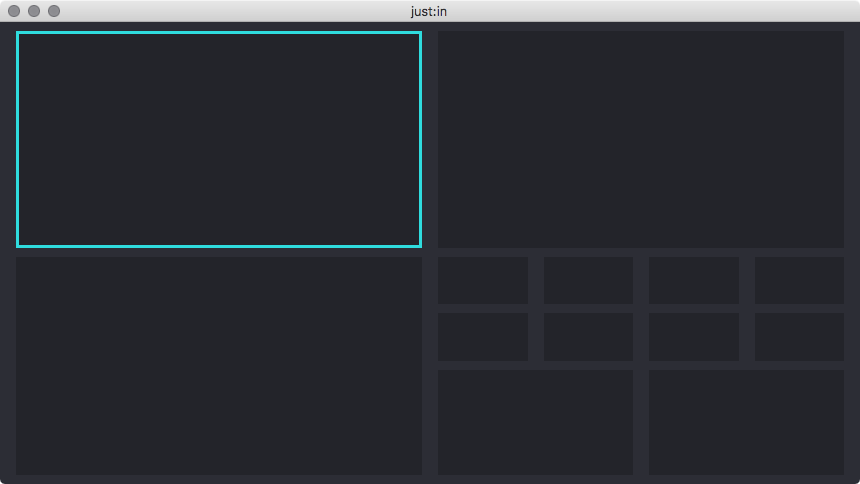
When using the smallest Channel View the Audio Bars and the Buffer Status are disabled automatically for those Views.
Joining a View
- Select a View by clicking it once, the border will turn turquoise. Make sure you don't click the button in the middle.
- Select the menu command Channel → Join or use the shortcut command + J.
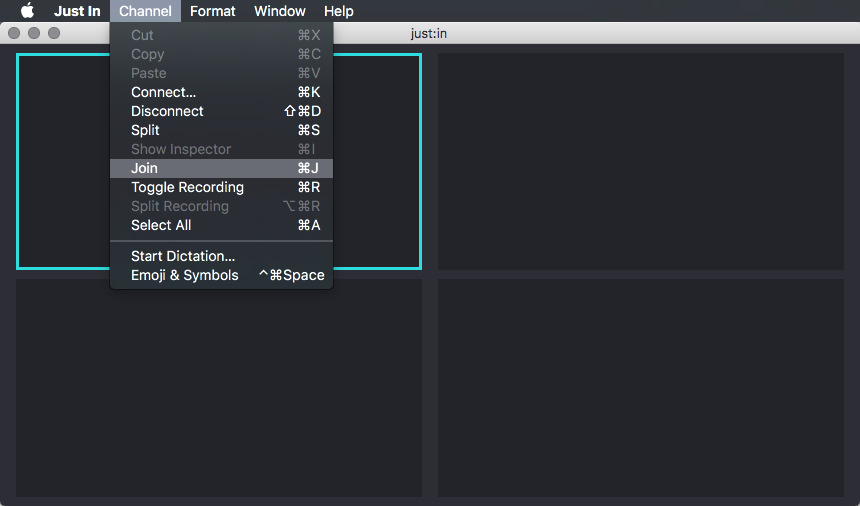
- There's only one View now.
It is not possible to join Views which would result in a connected Channel becoming unavailable. Select the connected Channel of the quadrant you would like to join, otherwise the join will not work.
Reordering Views
Moving a View to another Position
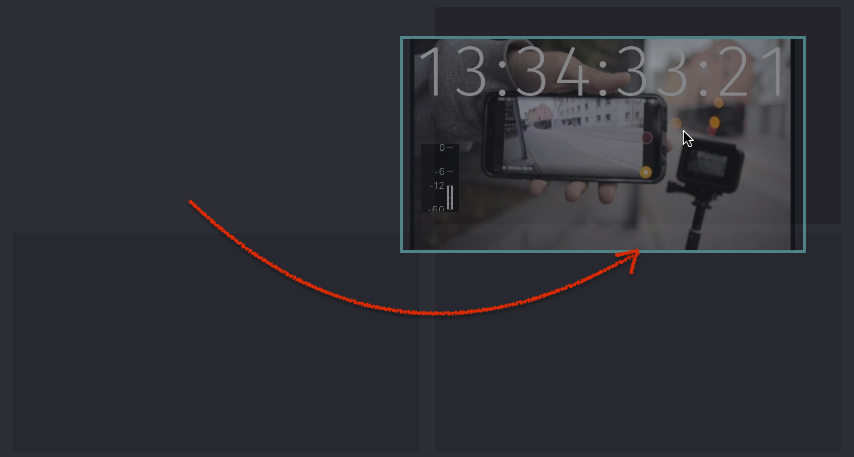
Drag and drop the View of a connected Channel to move it to another position.
Interchanging Views
Drag and drop a View onto another View to interchange them.