
This chapter covers the Installation & Upgrade process of Just In Engine and Just In.
In case of a previous Activation of any version prior to version 2.5 you will need a new activation code. Please contact ToolsOnAir to receive your updated activation code under software maintenance.
Important: Before you Install
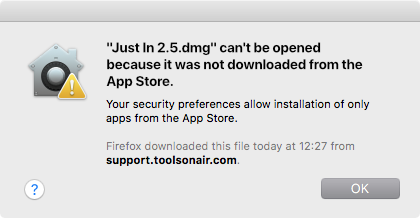
Just In comes as a disk image (DMG). To open the disk image the Security settings of the system must be changed.
- Open the System Preferences.
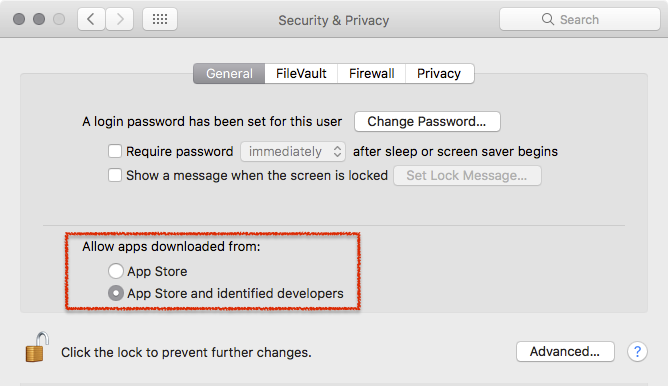
- Go to Security & Privacy.
- Click on the General tab.

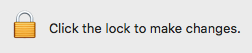
- Unlock the Preference Pane.
- Change the setting to Allow apps downloaded from App Store and identified developers.
- You can now head to the point Download & Installation below.
Further reading (external link): → macOS Sierra: Open an app from an unidentified developer
Download & Installation
- → Download Just In from our Online Helpdesk (free account required).
- Extract the downloaded ZIP archive. If this dialog appears refer to → Important: Before you Install.
- The Just In disk image will show up.
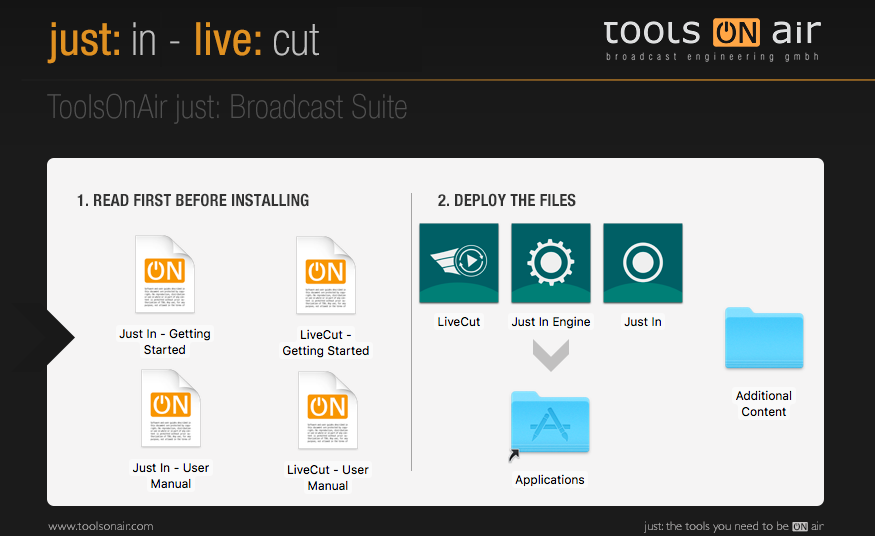
- Copy Just In and Just In Engine to the Applications folder.
- If desired, add the Applications to your Dock.
- Follow the steps described in the next chapter Initial Setup.
Upgrading from a Previous Version
Upgrading from Version 1.8
- Go to the Applications folder.
- Delete the old version of Just In Multi.
- Go to the folder /Library/Application Support/ToolsOnAir/Just In.
- Deleted the file config.xml.
- Follow the steps described above.
Upgrading from Version 2.x
Quit all Just In applications you would like to update and drag and drop them inside the .dmg window onto the Applications folder to update them to the new version.