We recommend a basic installation of the operating system. Once the OS installation has finished, install all updates which are available through Apple's Software Update. Then configure the OS as described below.
- Do not install any additional applications on the Playout machine(s). Those could be: MenuMeters, Growl, Dropbox, Adobe CC, Notification Center widgets, Dashboard widgets, Google (the GoogleSoftwareUpdateDaemon causes issues) or any other background daemons. The only exception is Macs Fan Control.
- Once one of the ToolsOnAir components has been started, never change one of the settings described in this chapter. Changing any OS related setting during playout can harm the final output and even crash the engine.
- The server version of OS X is not supported.
System Preferences
The System Preferences may look differently on your system and may offer more/less functions, depending on the OS version and the hardware you are using.
Energy Saver
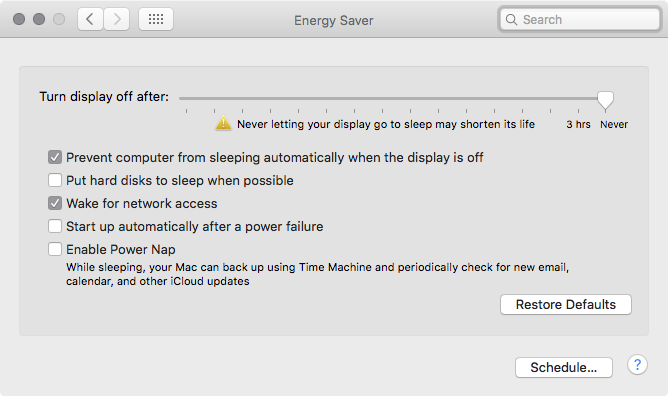
- Disable computer and display sleep functions: set the slider(s) to Never.
- Disable the hard disk sleep, computer sleep and Power Nap features.
- If you are configuring a MacBook with a switchable GPU make sure to select the Higher Performance setting.
Screen Saver
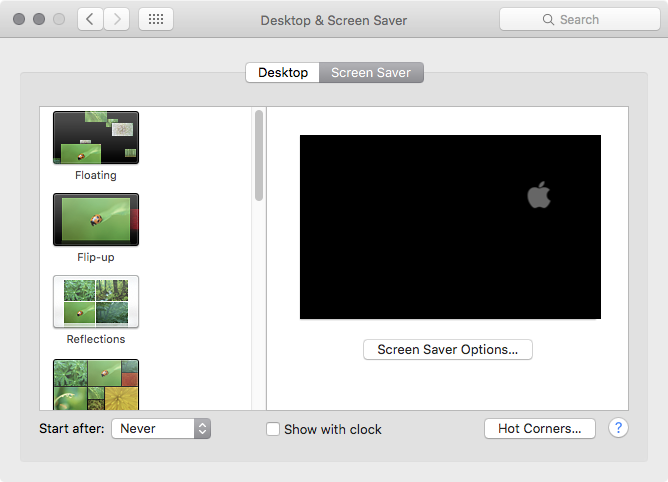
- Set the Start after setting to Never.
Sound
- Define which audio output is used by the OS for playing system sounds. The same output is used by the Just Live/Just Play UI when playing Videos in the preview windows.
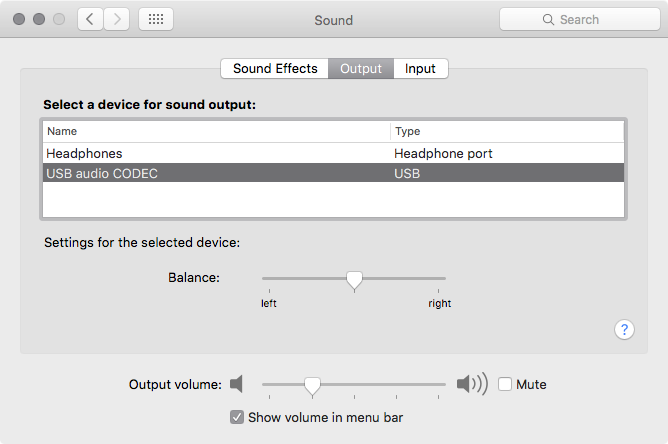
- Never select the AJA/Blackmagic Design video device as input/output device. Rather select the internal speaker/line-out as input/output device.
- Make sure that there is no Audio Device in your facility like an Apple TV, which could (dis)connect to the machine running just:out, while the just:out engine is running.
Network
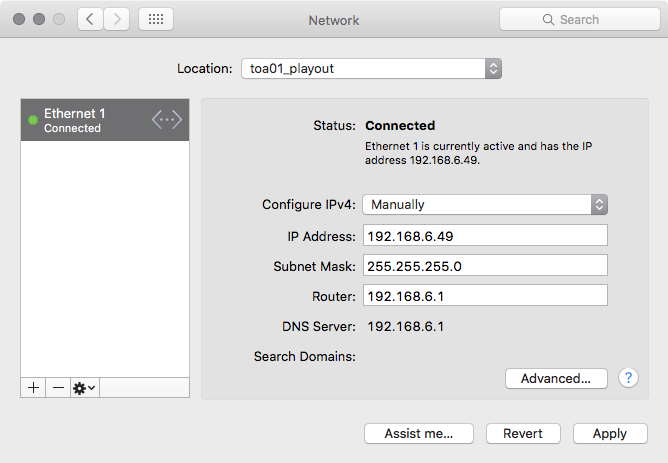
- Delete all unneeded network connections here and change the order of the connections so that the IP address you are going to use for ToolsOnAir internal communication has the main priority (i.e. topmost item in the list).
- If a network based router/switch should be controlled using Just Live/Just Play, make sure the 3rd party hardware also uses the main network.
Startup Disk
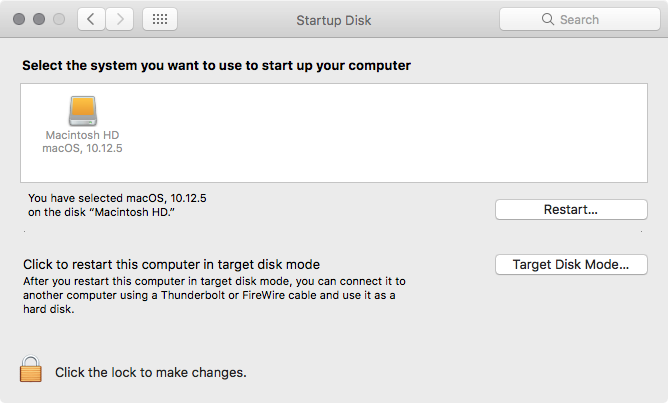
- Make sure that the disk or partition which will be used for the ToolsOnAir components is selected as the startup disk.
App Store
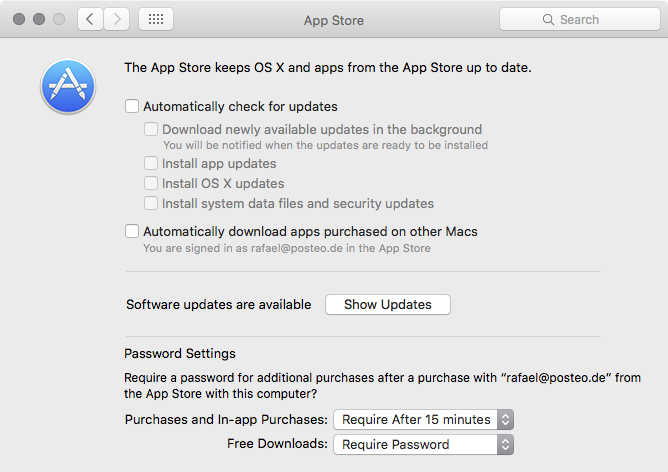
- Make sure your operating system is up-to-date, then disable the automatic software update function.
Sharing
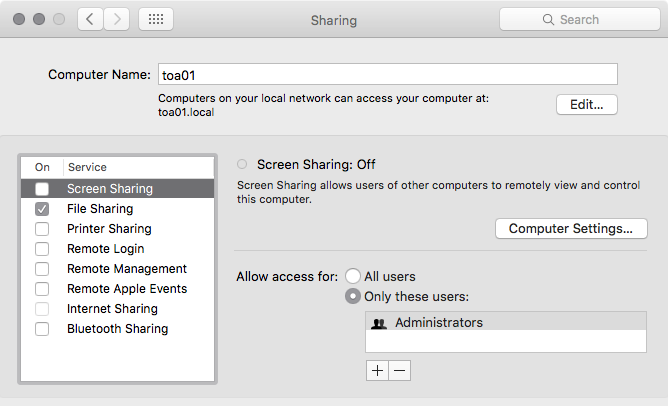
- Turn on any sharing service you might want to use with this system. When using Screen Sharing make sure that the screen resolution does not change whenever connecting from another machine.
- We recommend to disable Remote Login/Management/Apple Events because they can cause some serious issues.
- We recommend using TeamViewer for remote management and file copying.
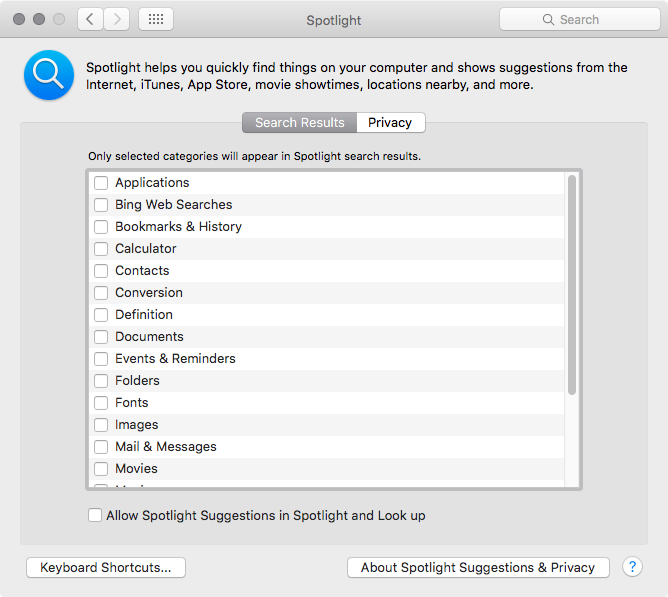
Spotlight
- We recommend disabling Spotlight on any machine running just:out and to add at least all volumes used to store media files under the Privacy tab.
- It is possible to keep it on on all machines running just:connect and/or the Just Live/play user interface.
TOA System Checker
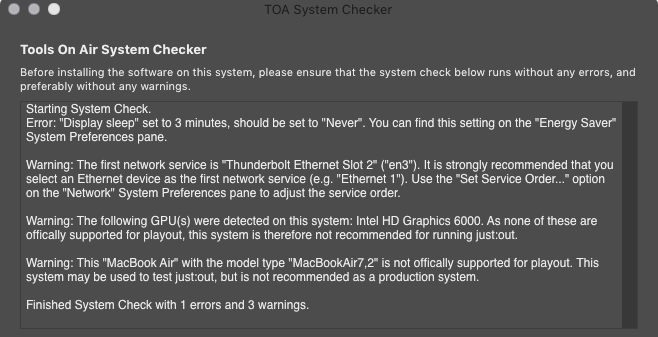
The TOA System Checker is located on the Just Live/Just Play installation disk image.
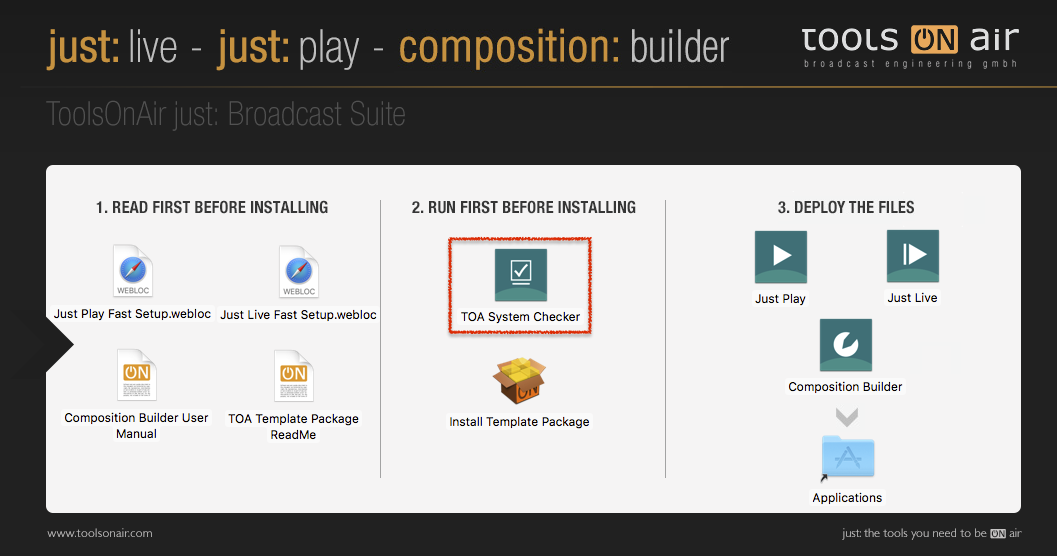
It allows you to easily verify the settings of the most important Apple System Preferences and also checks if the used hardware is sufficient/supported. Before installing Just Live/Just Play you can make sure that all system relevant settings are set up properly by running the TOA System Checker. You will get a list of issues and recommendations related to the configuration of your system.