Preface
There are two ways how you can connect your Mac with Just Store:
- Connecting to a Just Store system directly using the macOS Finder.
- Using our just:mount application to streamline the sharepoint management process.
The following instructions presume that the Just Store system has been set up properly and that you have the Protocol and the IP Address of the Just Store system you want to connect to.
Establishing a Connection with the macOS Finder
Please note that this method ejects all mounted sharepoints upon a restart of your Mac.
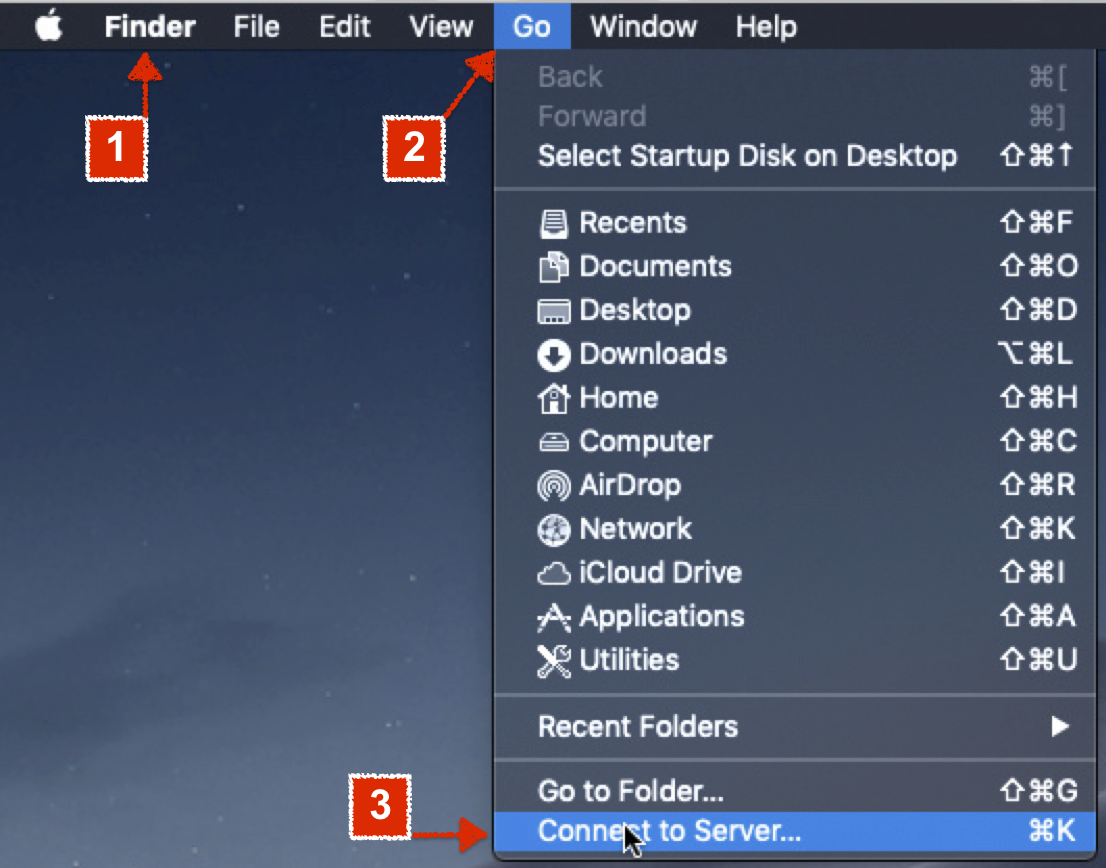
- Make sure Finder is the active app.
- Click on the Go menu.
- Select the Connect to Server... command (shortcut command + K).
- The Connect to Server window appears.
Enter the Protocol of your choice (afp, smb, nfs), followed by the IP Address of the Just Store system you want to connect to. If you don't know the Protocol or the IP Address of the Just Store system please consult your system administrator.
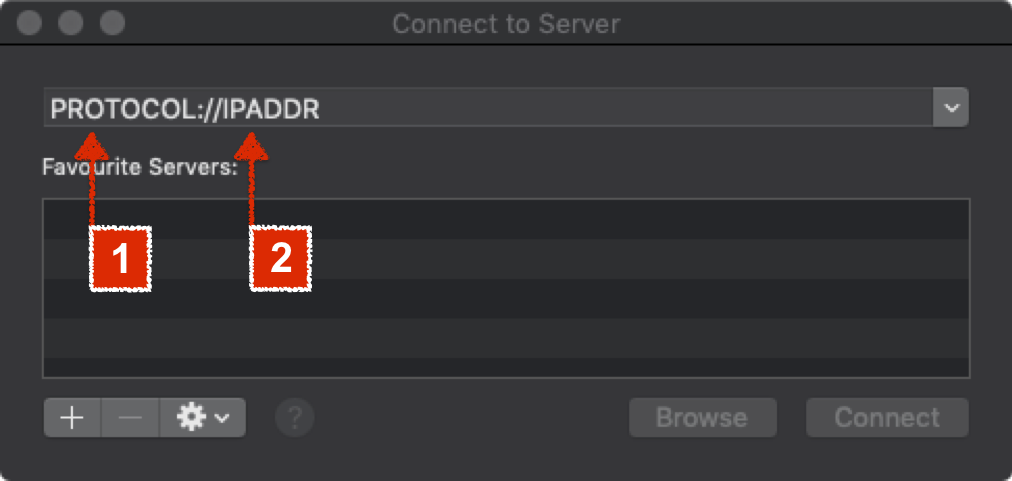
Please note that when using NFS the path is in following notation: nfs://[IP]/media/RAID[NR]/[Share]
- [IP] → IP Address of the Just Store system.
- [NR] → RAID number.
- [Share] → Name of the sharepoint.
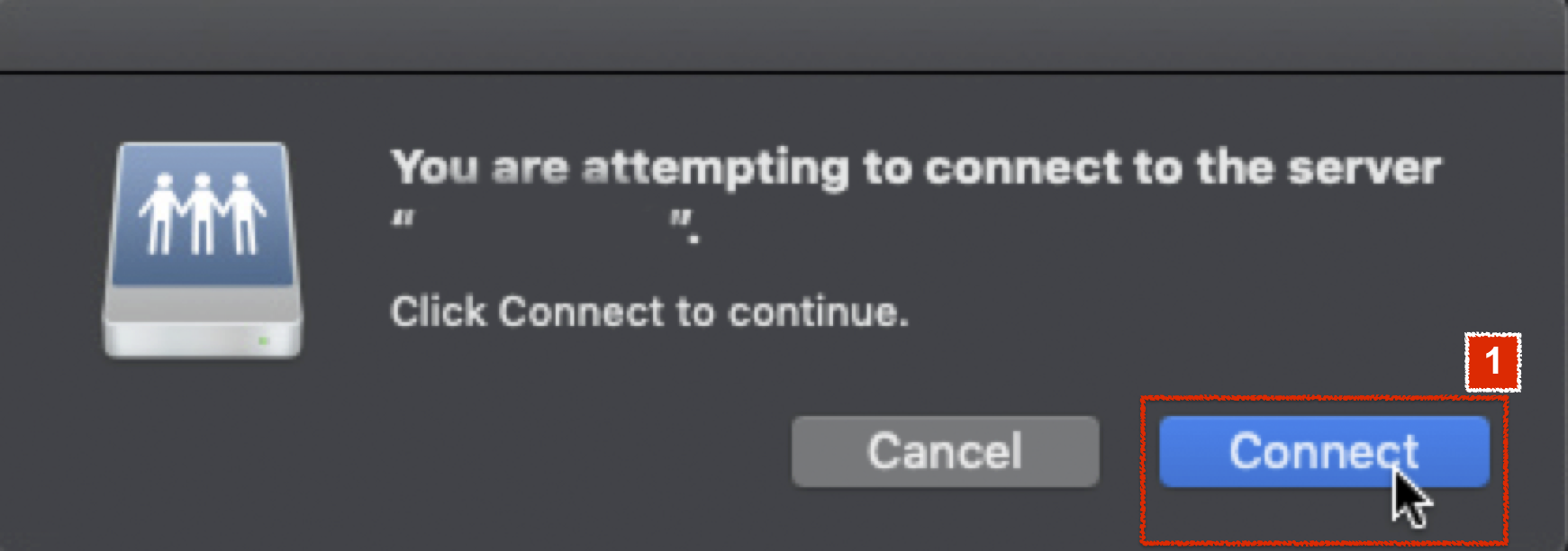
Accept the dialog by clicking the Connect button.
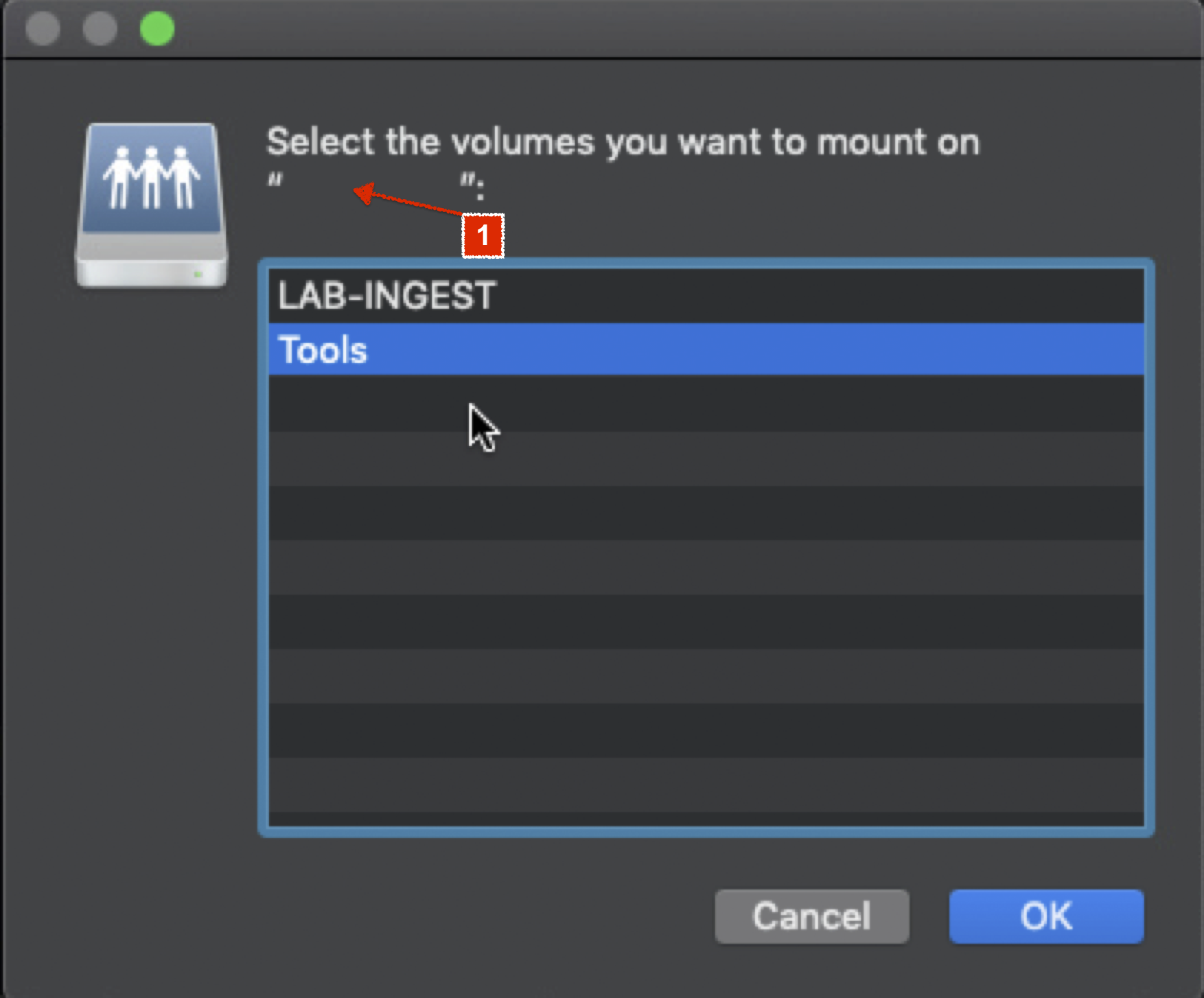
Select the desired sharepoint and press the OK button. The sharepoint will be displayed in the sidebar of any Finder window.
Establishing a Connection with the just:mount Application
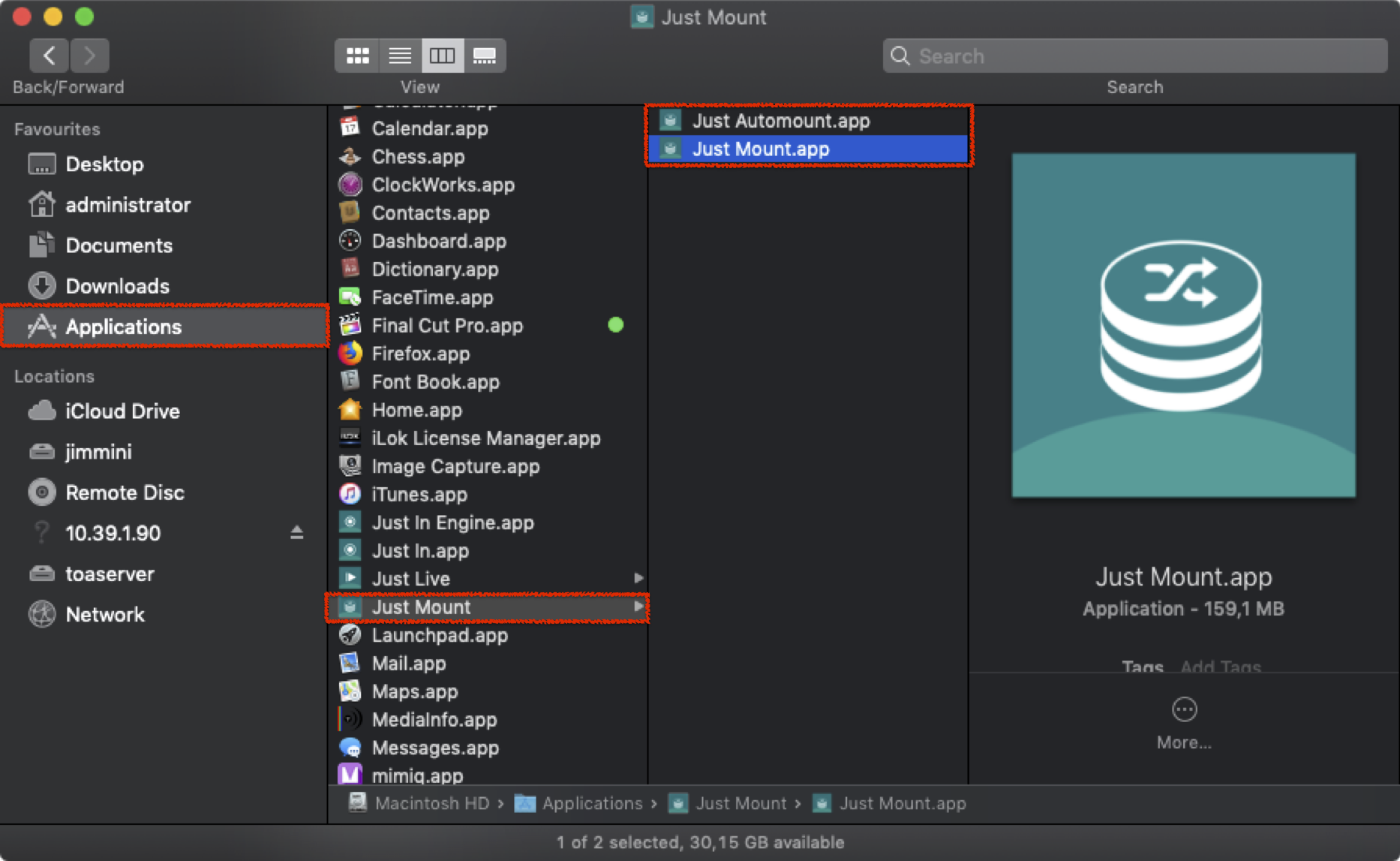
- Follow the installation procedure of just:mount as described in → Just Store v3.0 Getting Started.
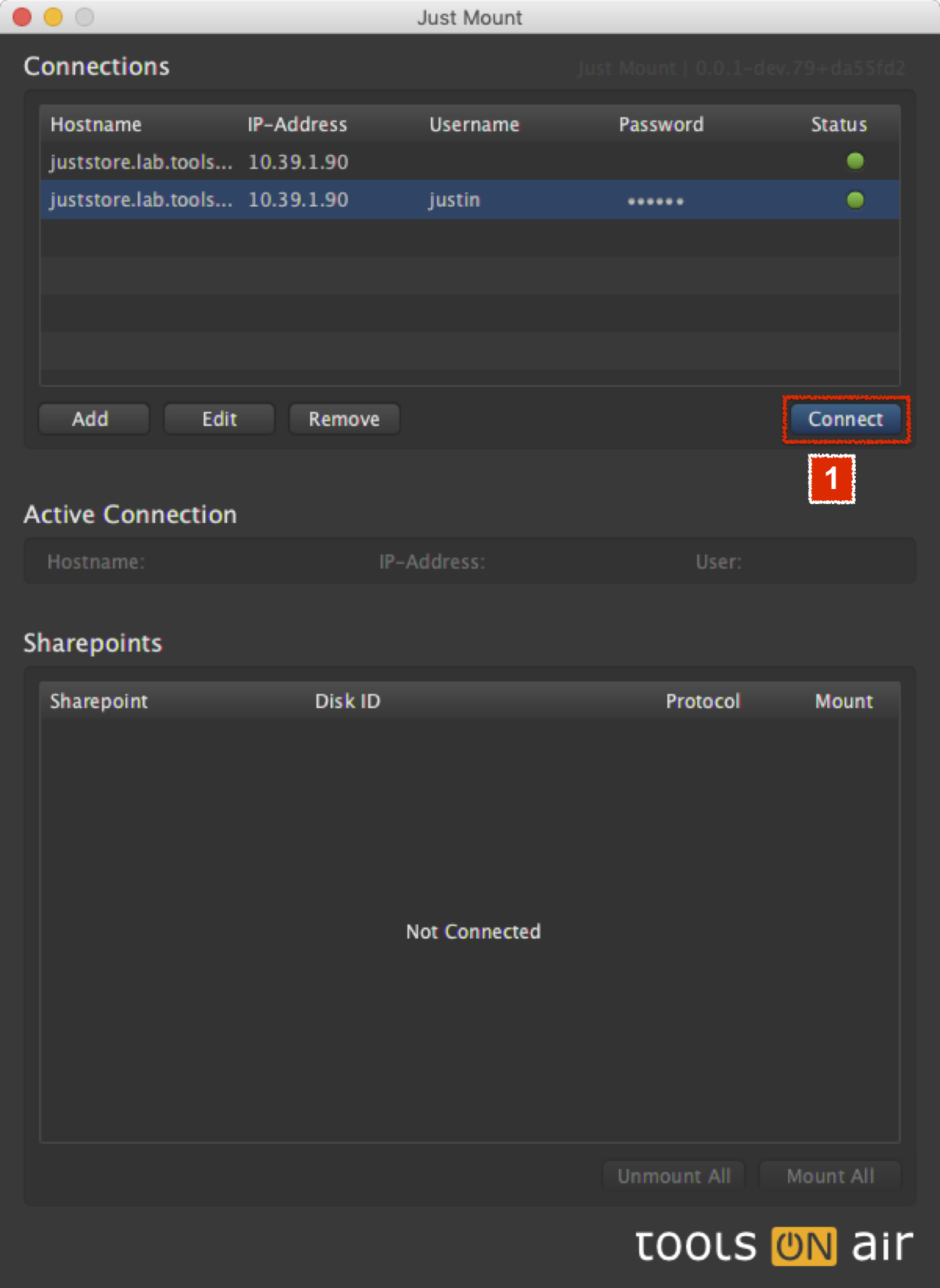
- Open Just Mount.
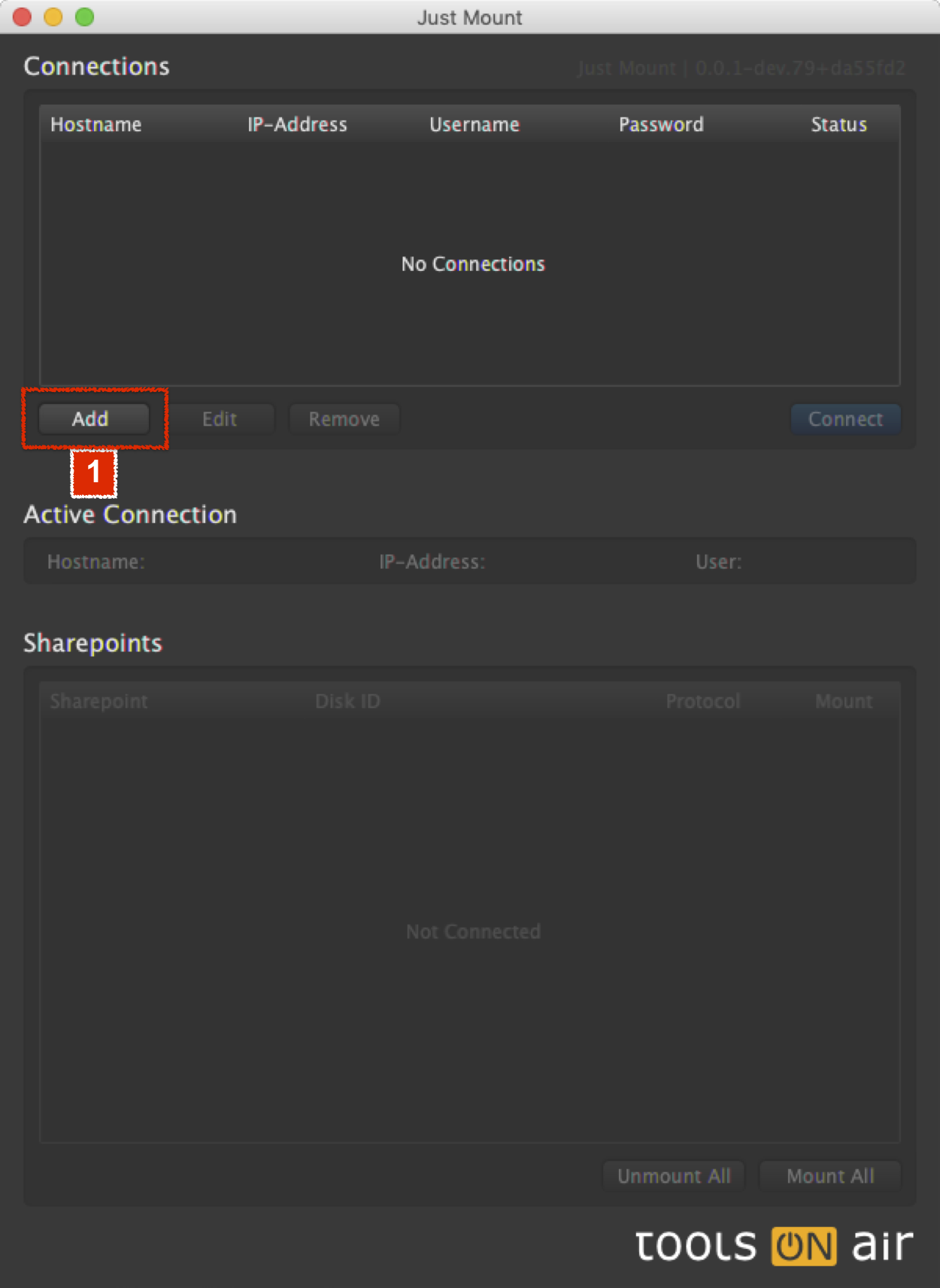
- Press the Add button.
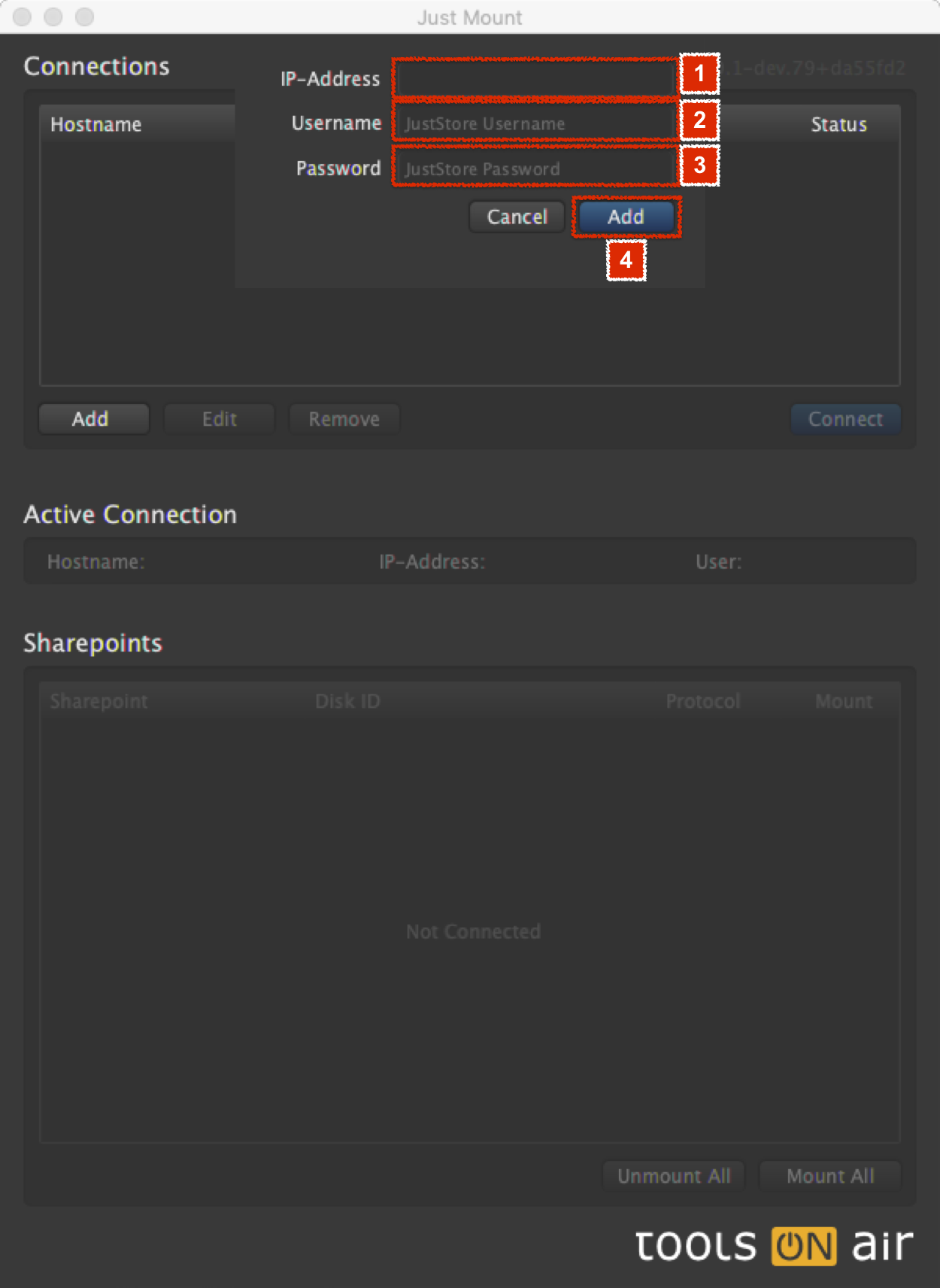
- Enter the SMB or AFP connection credentials. Leave Username and Password blank if you want to use guest. Press the Add button afterwards.
- Select the desired Connection in the Connections list and press the Connect button.
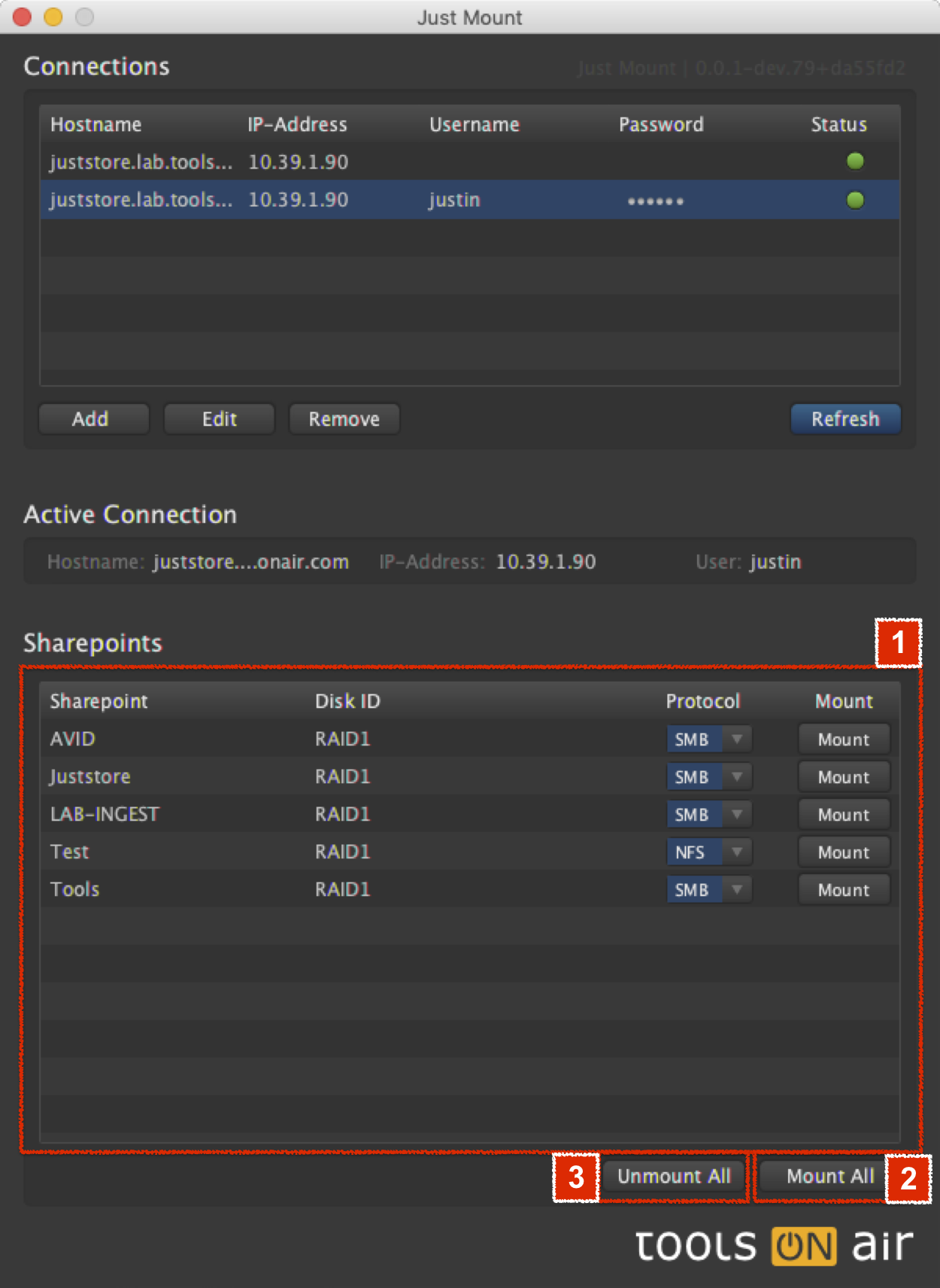
- The sharepoints will be displayed in the Sharepoints list. Change the Protocol if desired and then use the respective Mount buttons to mount/unmount the sharepoint(s).
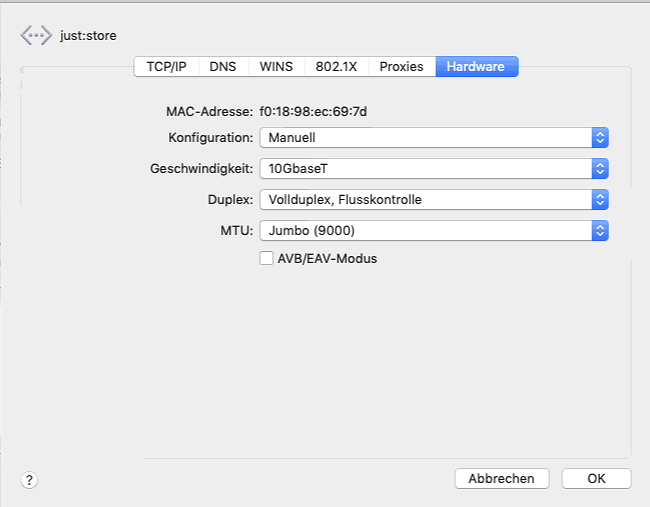
Network Settings for macOS Clients
Network Settings are the most important things to have no troubles during your workflow. Also, a misconfiguration of your network can cause various issues.
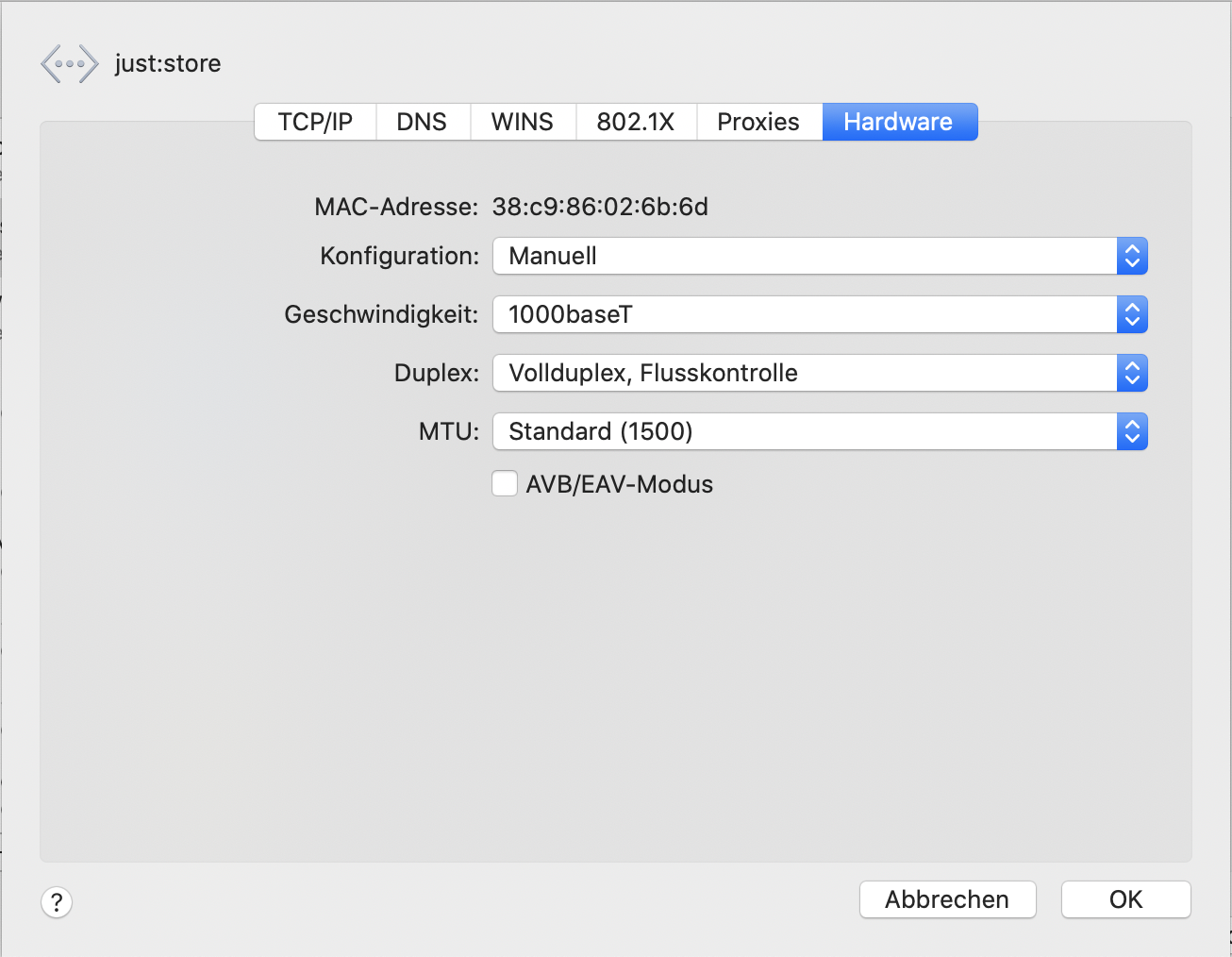
Configure your clients like the option below shows.
1Gbit Connection
10Gbit Connection