
Preface
You can monitor and administrate Just Store with a web browser. By default Just Store is configured for direct connections using the IP address 172.16.x.10. You need the exact IP address to connect to the web administration interface.
Following animation indicates that the user interface is waiting for data. It will disappear as soon as all data has been retrieved.

Accessing the Profiles
- Open a web browser. We suggest using Firefox, Safari, Edge or Chrome. Internet Explorer can cause style and function issues.
- Enter the IP address or hostname of the Just Store system you want to connect to into the address bar of your web browser.
- Press the enter key.
- Select Administration on the main page.

Enter your login credentials and press the Login button.
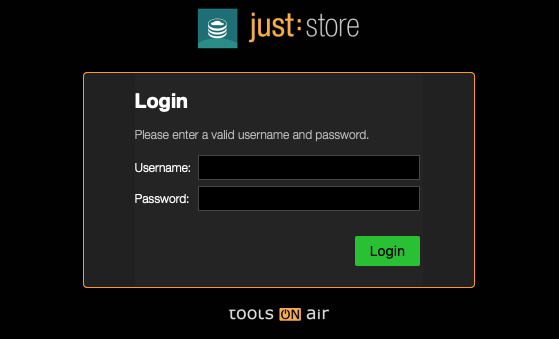
DEFAULT LOGIN
Username = Just Store
Password = Just Store
- In the upper bar click on Profiles.
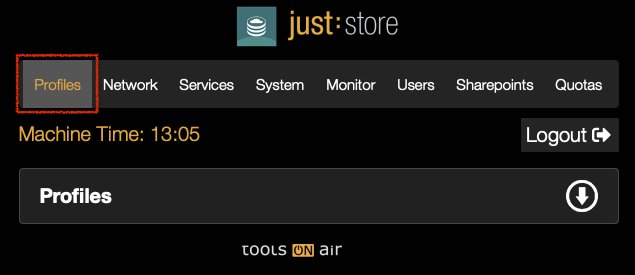
- If the Profiles do not show up completely click on the arrow button.

Selecting a Profile
Just Store's unique Performance Profile functionality enables you to edit the performance workload. There are three profiles.
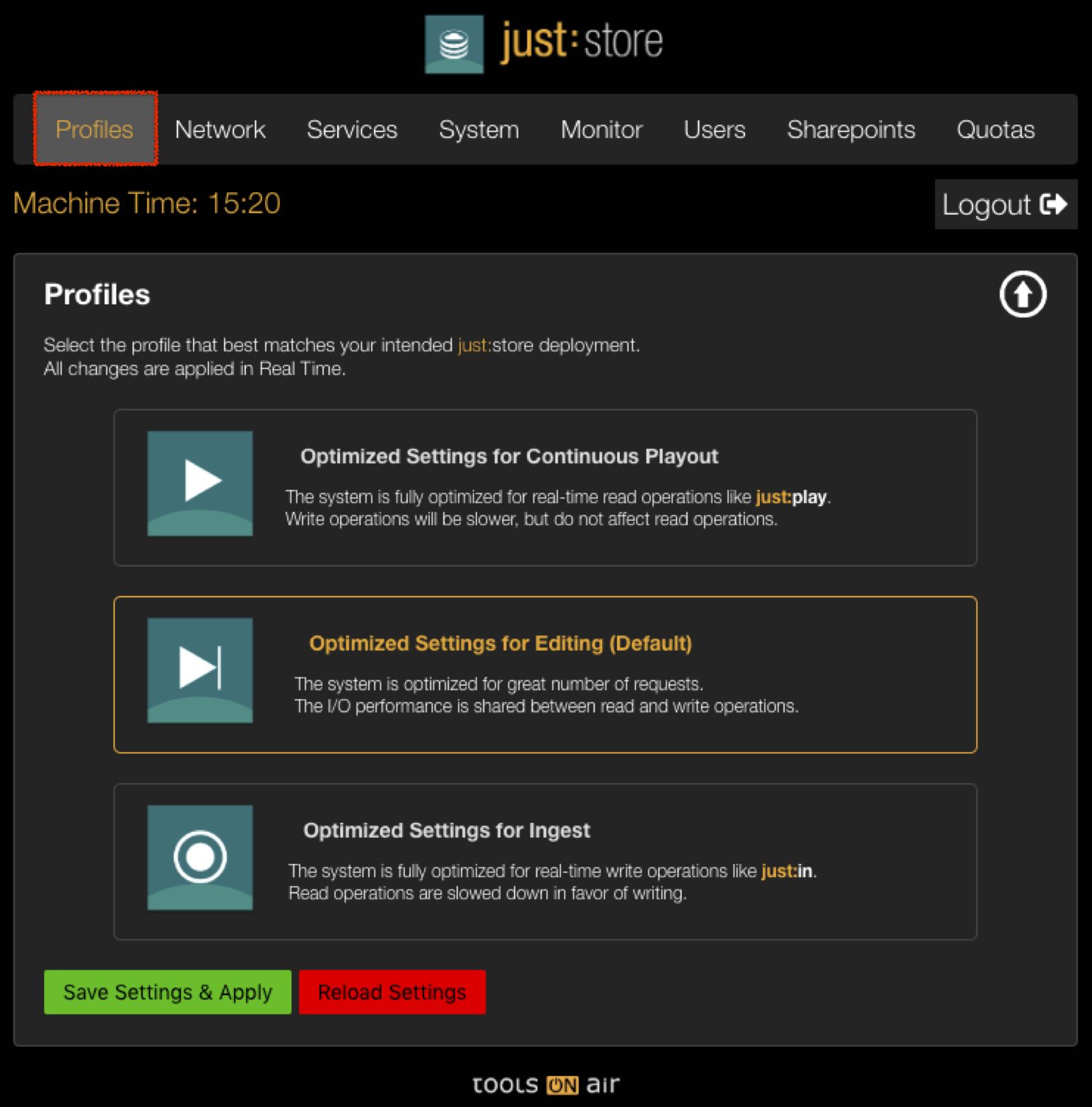
Optimized Setting for Continuous Playout
 If your workflow needs to focus on read operations only, then select this profile. For example, if you have Just Play or any other playout solution connected to the Just Store system, then you are setting the focus on pure read operations. So, when you selecting the profile Optimized Setting for Continuous Playout the write operations will get a lower and the read operations a higher priority.
Optimized Setting for Editing

If your workflow needs to focus on both read and write operations, then select this profile. This profile is optimized for concurrent video editing and playout, given that the read and write operations are set to be handled and prioritized accordingly. So, when selecting the profile Optimized Setting for Editing the write operations and the read operations will get the same priority.
Optimized Setting for Ingest

If your workflow needs to focus on write operations only, then select the profile Optimized Setting for Ingest which will allocate the write operations a higher priority than read operations.
Changing a Profile
Changing a Profile will be operated in real time by Just Store. Processes which are already running will not change their priority