Preface
Currently we do not offer a Just Store sharepoint management application for Windows. We suggest using Microsoft Explorer.
The following instructions presume that the Just Store system has been set up properly and that you have the Protocol and the IP address of the Just Store system you want to connect to.
Using Microsoft Explorer
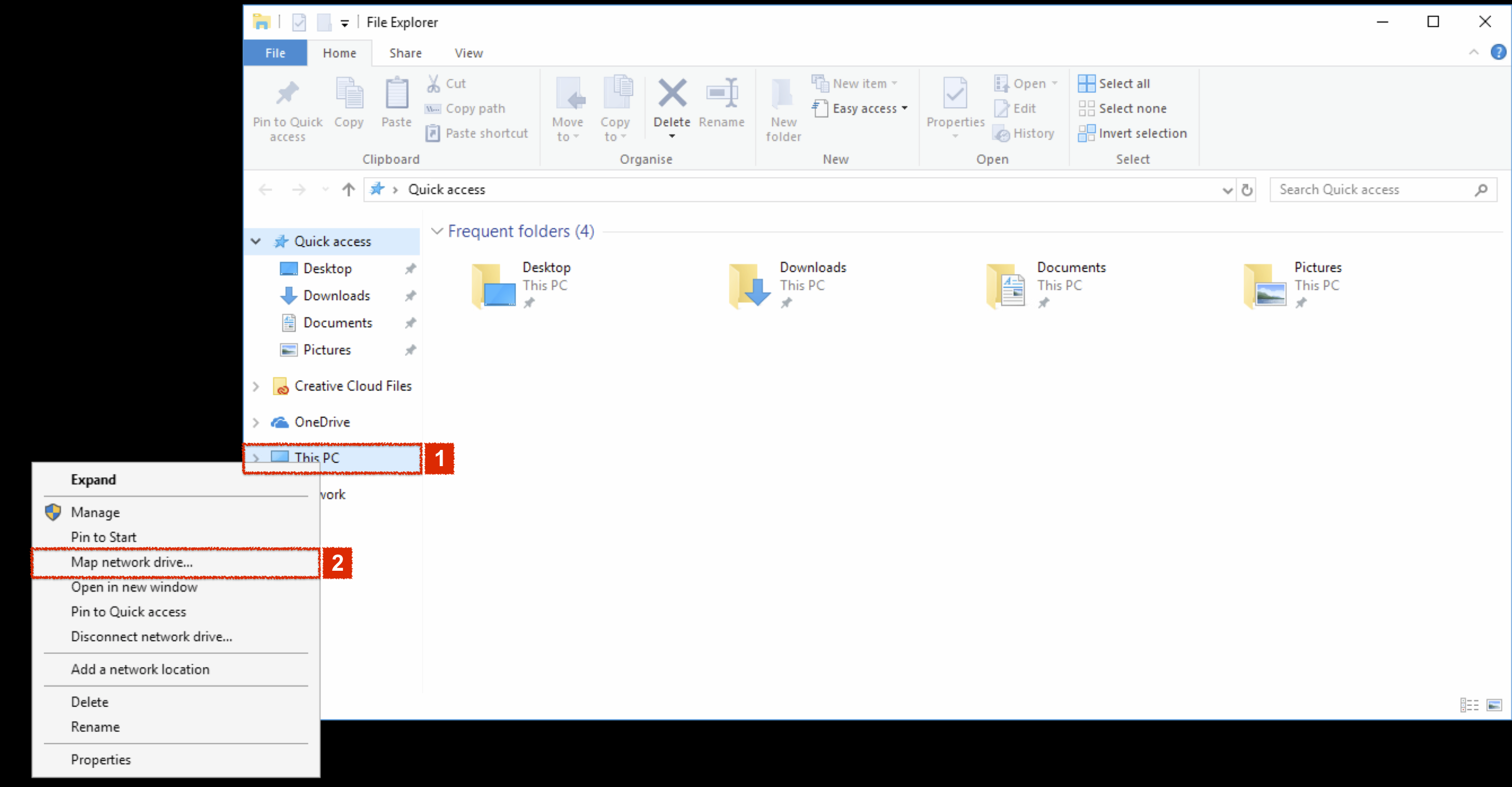
- In the sidebar of an Explorer window right click This PC and select Map network drive…
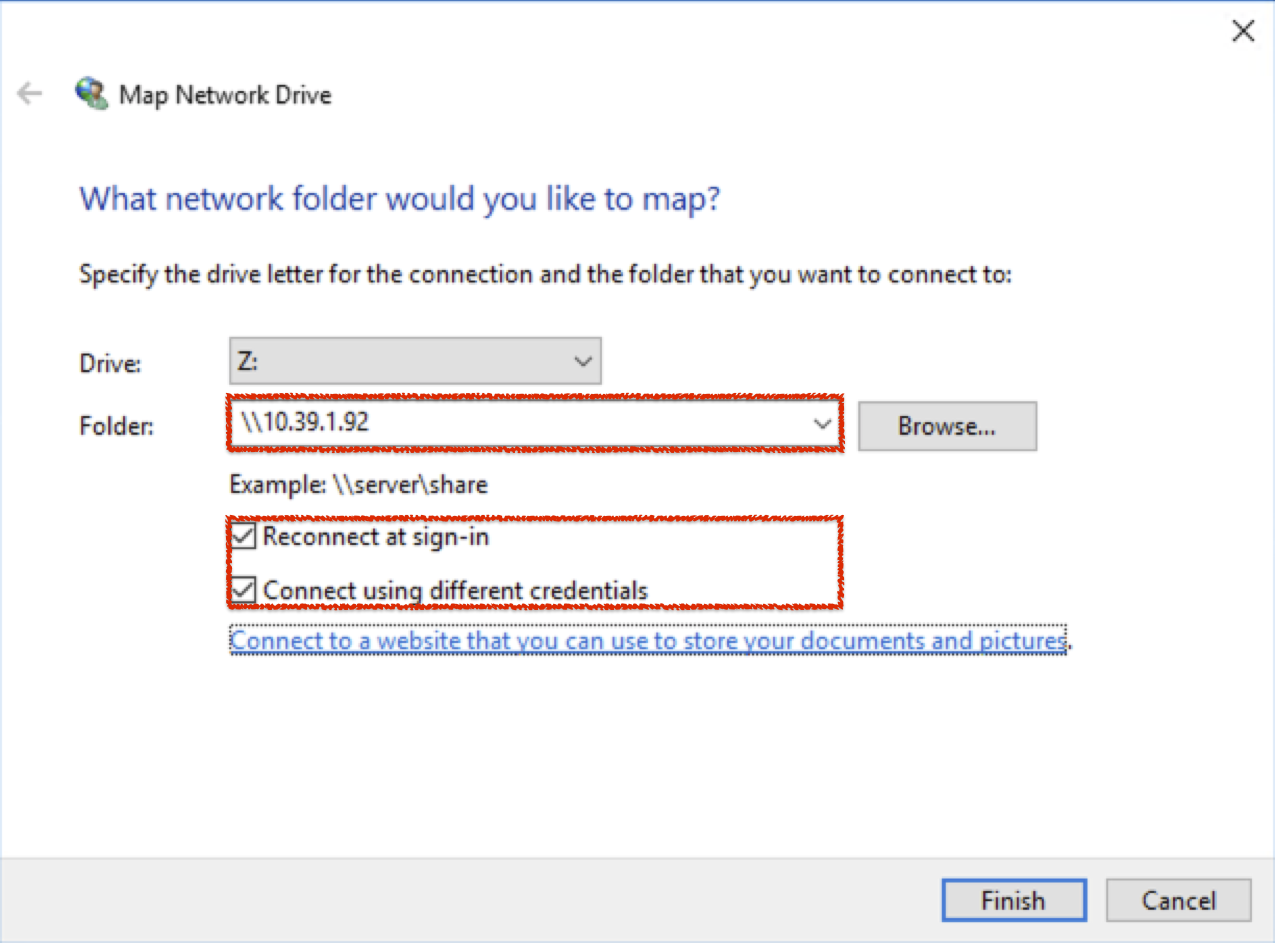
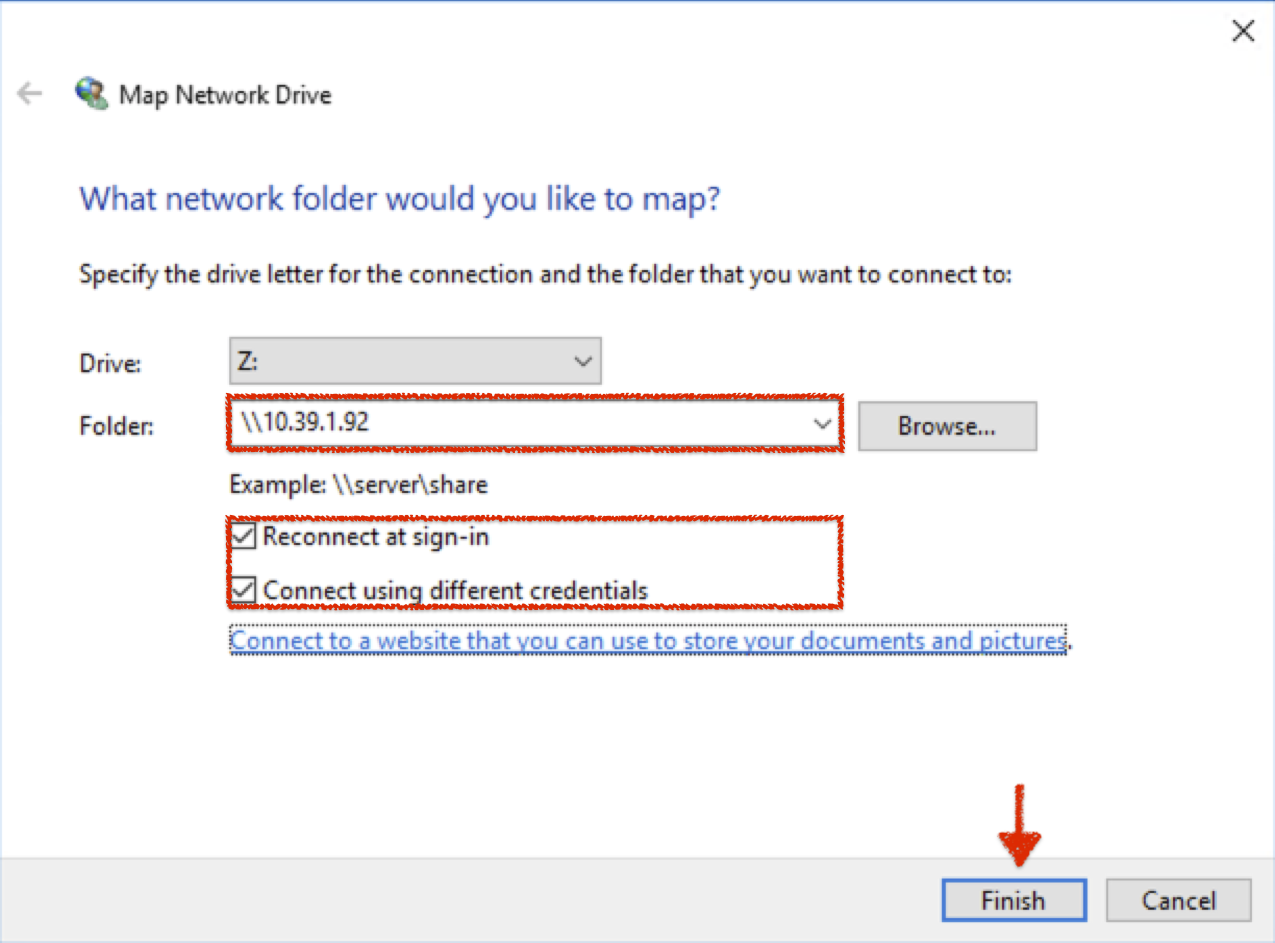
- Select the Drive letter and enter the Folder (i.e. hostname or IP address) followed by the sharepoint name. Also enable the Reconnect at sign-in and Connect using different credentials options.
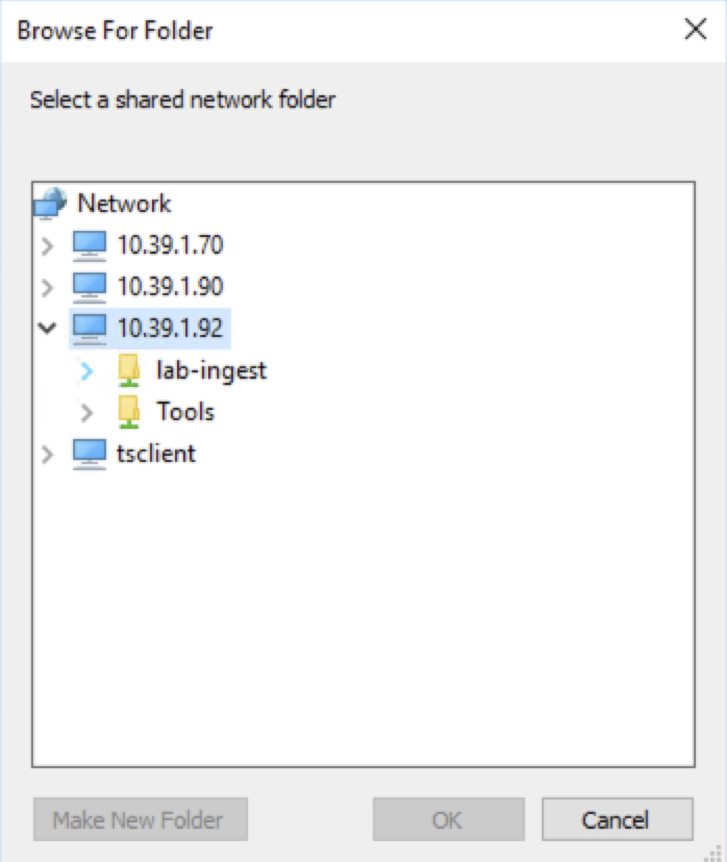
- Alternatively you may click the Browse… button to select the sharepoint. Press the OK button afterwards.
- Press the Finish button.
- Enter the network credentials in the popup. Activate the Remember my credentials checkbox.
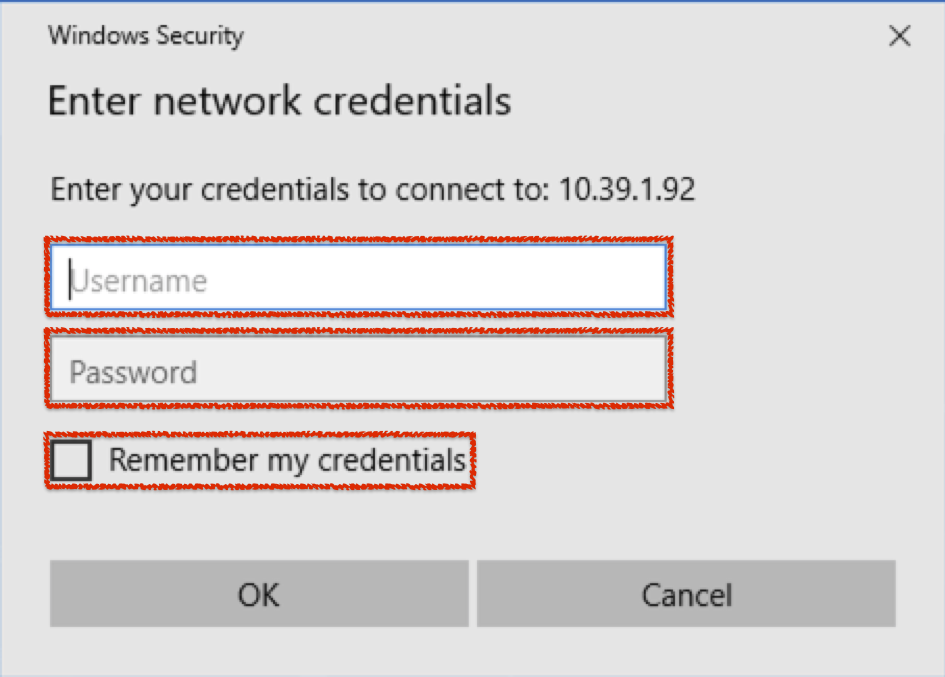
- Press OK
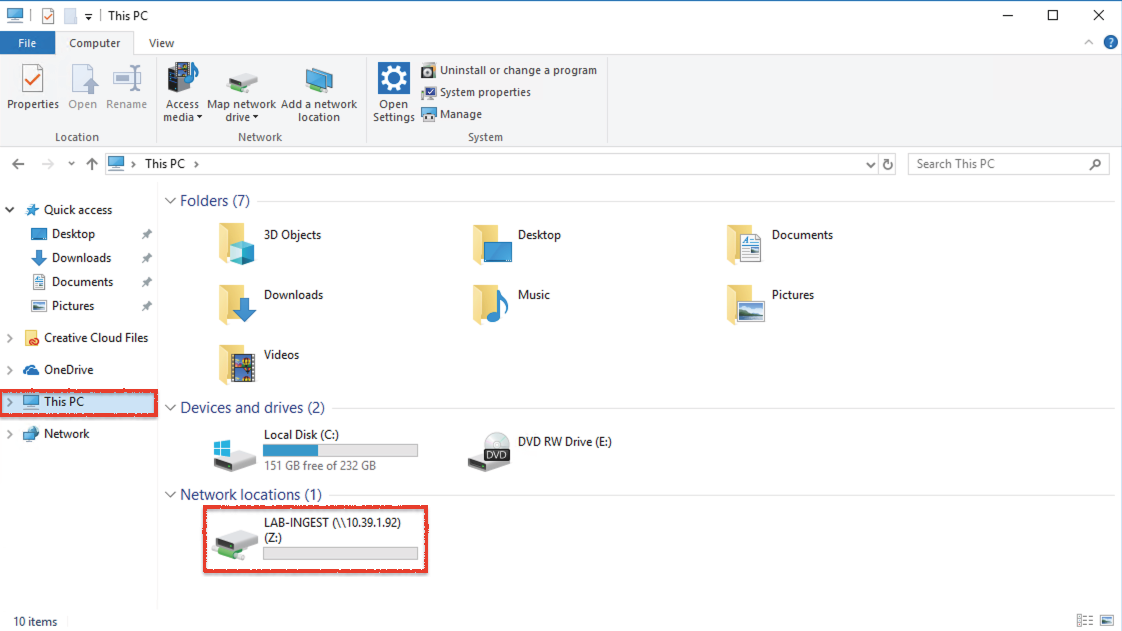
- The sharepoint should now be mounted under This PC → Network locations.