
Preface
You can monitor and administrate Just Store with a web browser. By default Just Store is configured for direct connections using the IP address 172.16.x.10. You need the exact IP address to connect to the web administration interface.
Following animation indicates that the user interface is waiting for data. It will disappear as soon as all data has been retrieved.

Accessing the Network Configuration
- Open a web browser. We suggest using Firefox, Safari, Edge or Chrome. Internet Explorer can cause style and function issues.
- Enter the IP address or hostname of the Just Store system you want to connect to into the address bar of your web browser.
- Press the enter key.
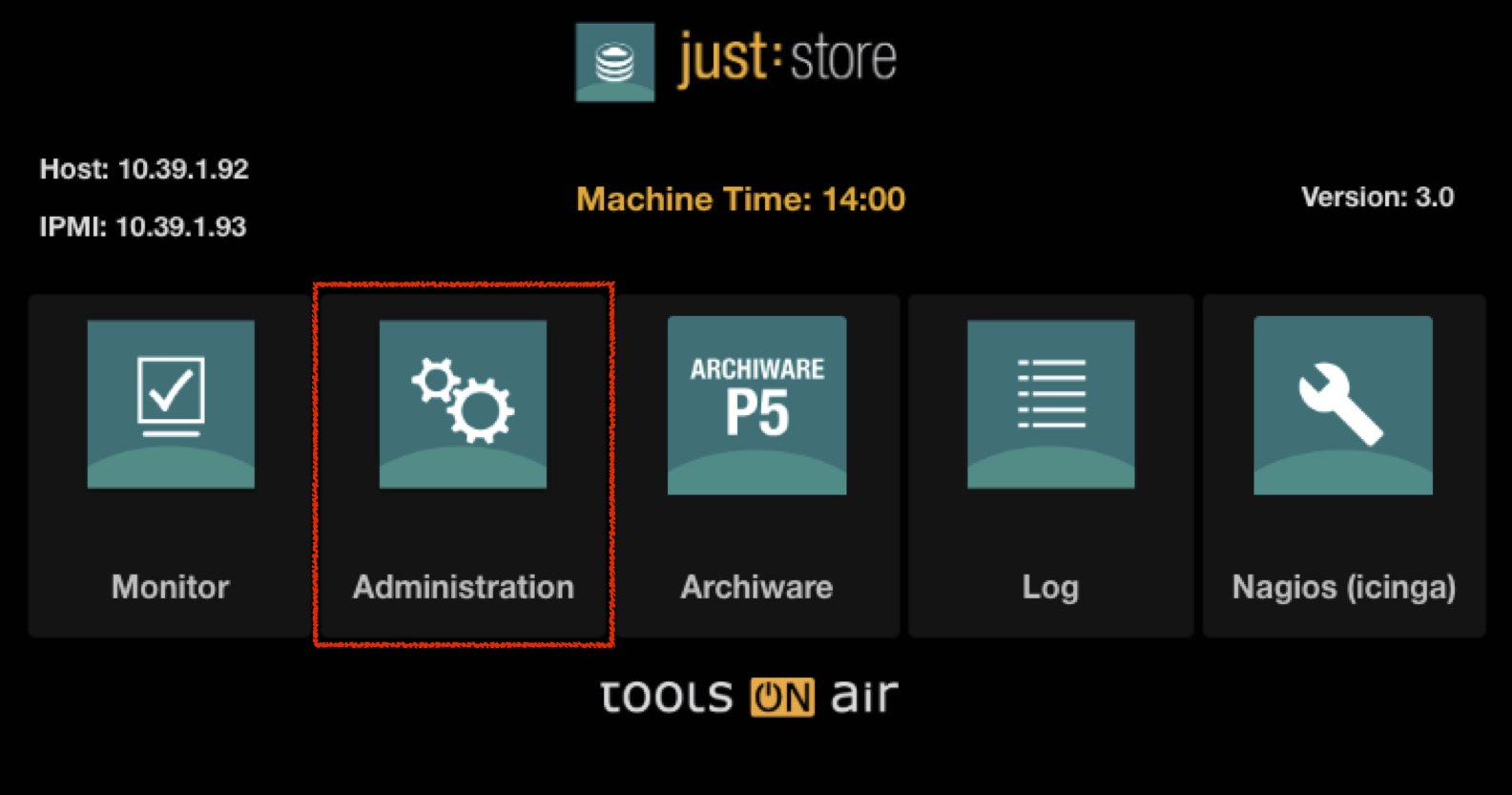
- Select Administration on the main page.
Enter your login credentials and press the Login button.
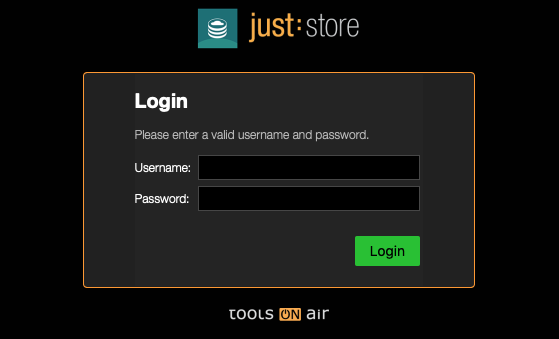
DEFAULT LOGIN
Username = Just Store
Password = Just Store- In the upper bar click on Users.
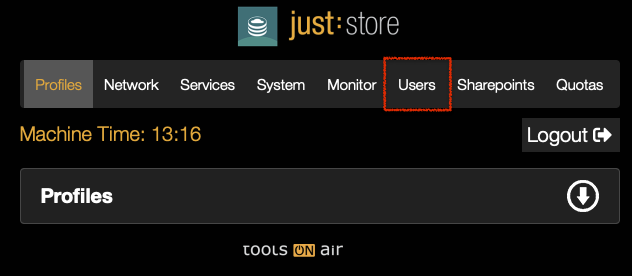
- To show or hide a section click on the respective arrow icons.

Current Users
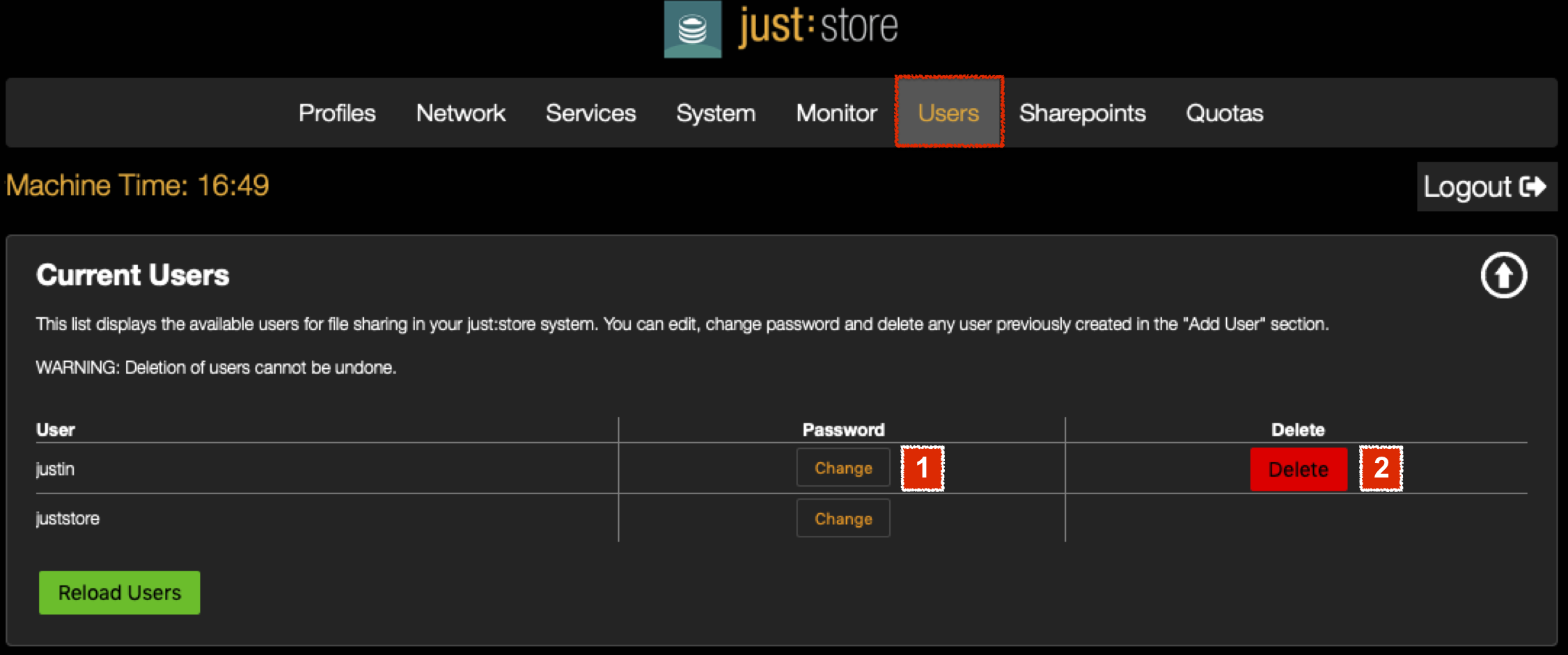
- Change: click this button to change the password of a user.
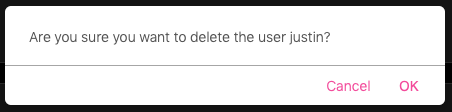
- Delete: click this button to delete a user. A warning dialog will be shown before deletion.
Change Password
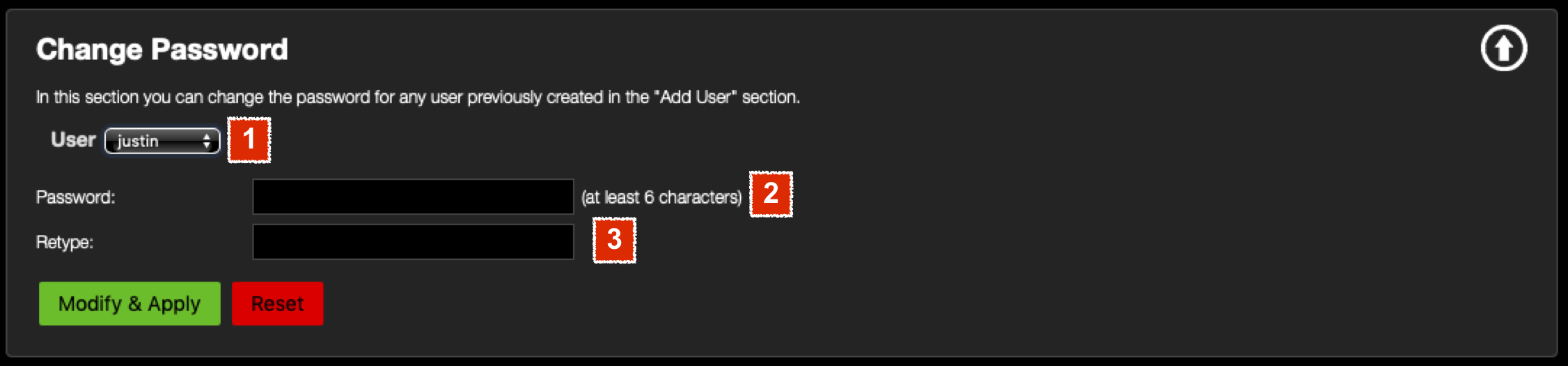
- Select the desired user in the drop down menu.
- Enter a password (at least 6 characters).
- Retype the password.
- Press the Modify & Apply button when you're done.
Add User
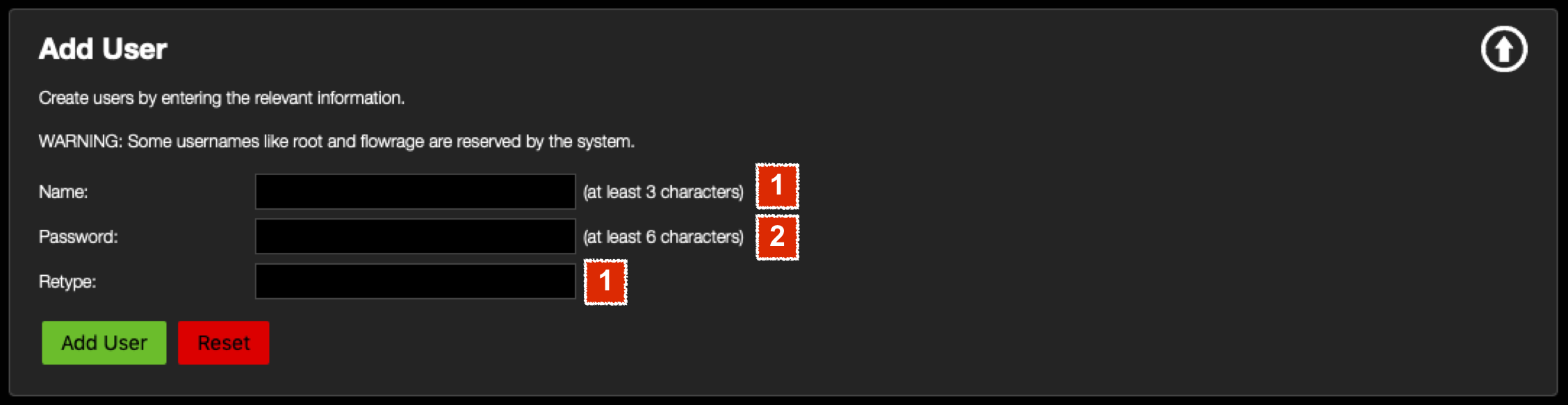
- Enter the name of the new user (at least 3 characters).
- Enter a password (at least 6 characters).
- Retype the password.
- Press the Add User button when you're done.