
Preface
You can monitor and administrate Just Store with a web browser. By default Just Store is configured for direct connections using the IP address 172.16.x.10. You need the exact IP address to connect to the web administration interface.
Following animation indicates that the user interface is waiting for data. It will disappear as soon as all data has been retrieved.

Accessing the System Settings
- Open a web browser. We suggest using Firefox, Safari, Edge or Chrome. Internet Explorer can cause style and function issues.
- Enter the IP address or hostname of the Just Store system you want to connect to into the address bar of your web browser.
- Press the enter key.
- Select Administration on the main page.

Enter your login credentials and press the Login button.
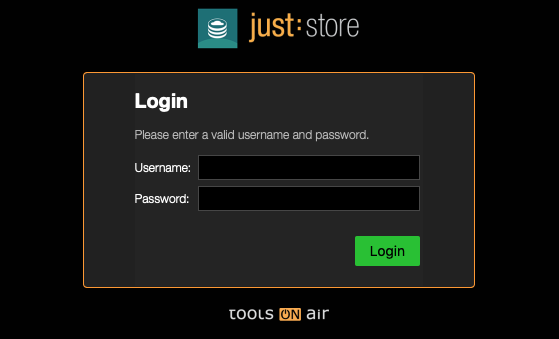
DEFAULT LOGIN
Username = Just Store
Password = Just Store
- In the upper bar click on System.
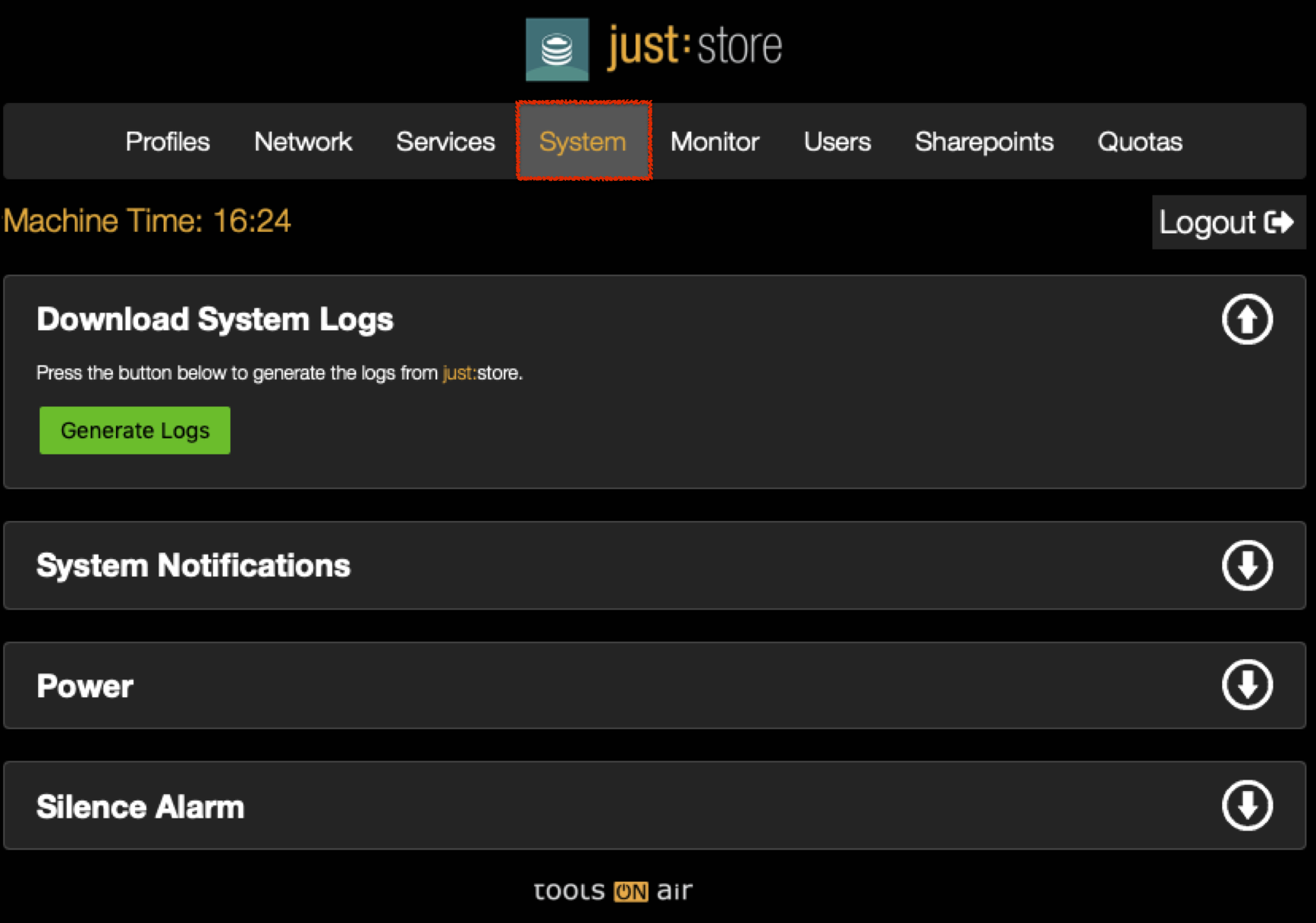
- To show or hide a section click on the respective arrow icons.

Download System Logs
In a support case you may download the system logs and send them to us for further assistance. Press the Generate Logs button to download the logs.
System Notifications (Email Notifications)
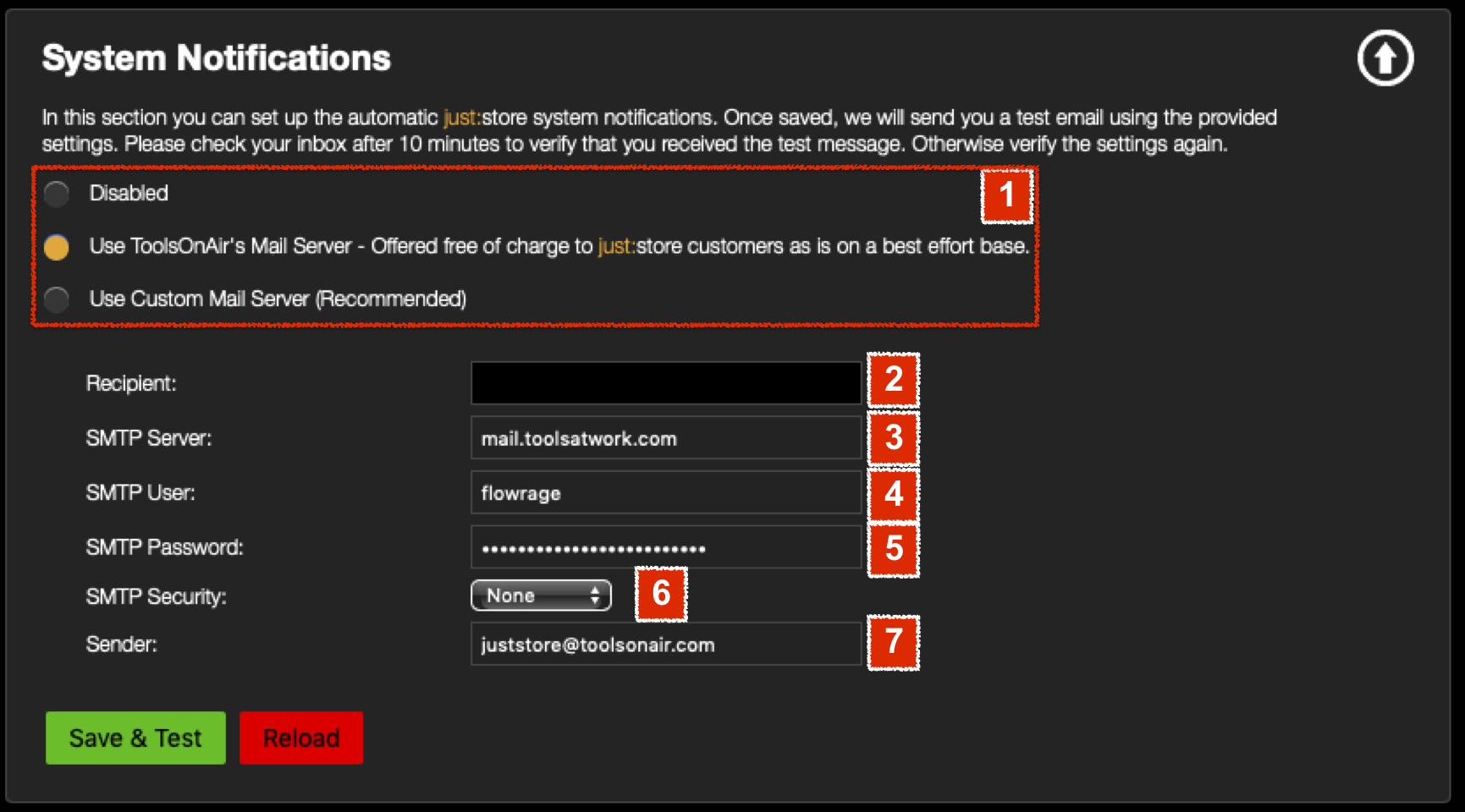
- Decide whether you want to use ToolsOnAir's mail server or a custom mail server – which is recommended.
- Enter the mail address of the Recipient.
- Enter the SMTP Server Address.
- Enter the SMTP User (if you use a custom mail server).
- Enter the SMTP Password (if you use a custom mail server).
- Enter the SMTP Security (if you use a custom mail server).
- Enter the SMTP Sender (if you use a custom mail server).
- Press the Save & Test button.
Power
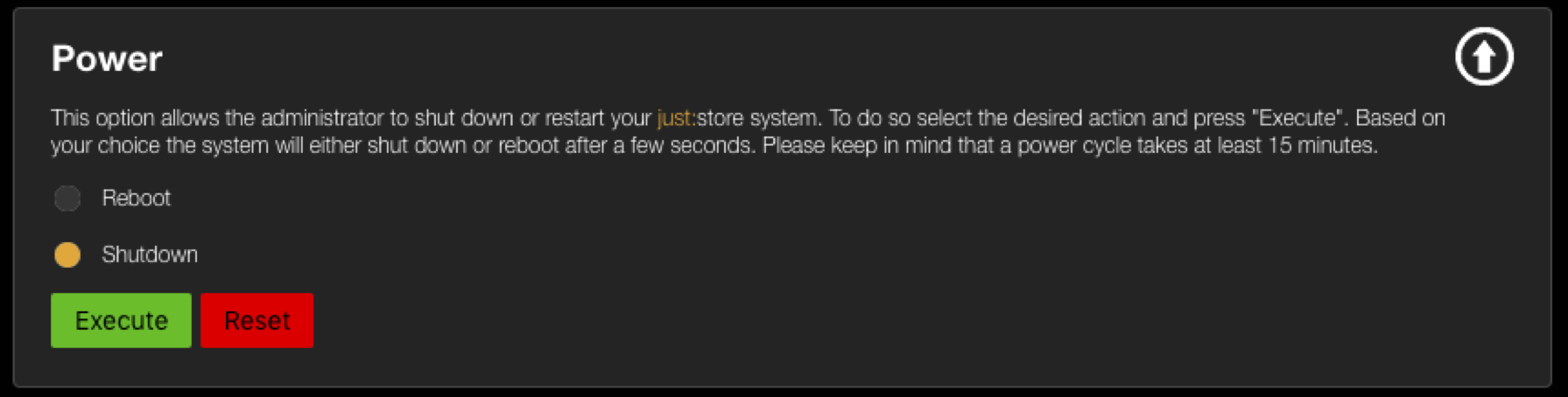
This section allows you to reboot or shutdown the Just Store system. Keep in mind that all connections will be lost when doing so.
Silence Alarm
The RAID controller sounds an audible alarm when there are issues. You may silence the RAID controller alarm.

Keep in Mind
Open a support ticket if there's a problem with your RAID controller.