
Preface
In Batch Mode a channel records a Batch List of predefined In- and Outpoints from a VTR Device. Batch Mode requires a valid VTR Device (RS422) connection.
Starting a Recording
- Make sure to have at least one valid Naming,- Capture- and Destination-Preset already created in the Configuration Panel. And at last one Channel connected to the Channel Viewer Area.
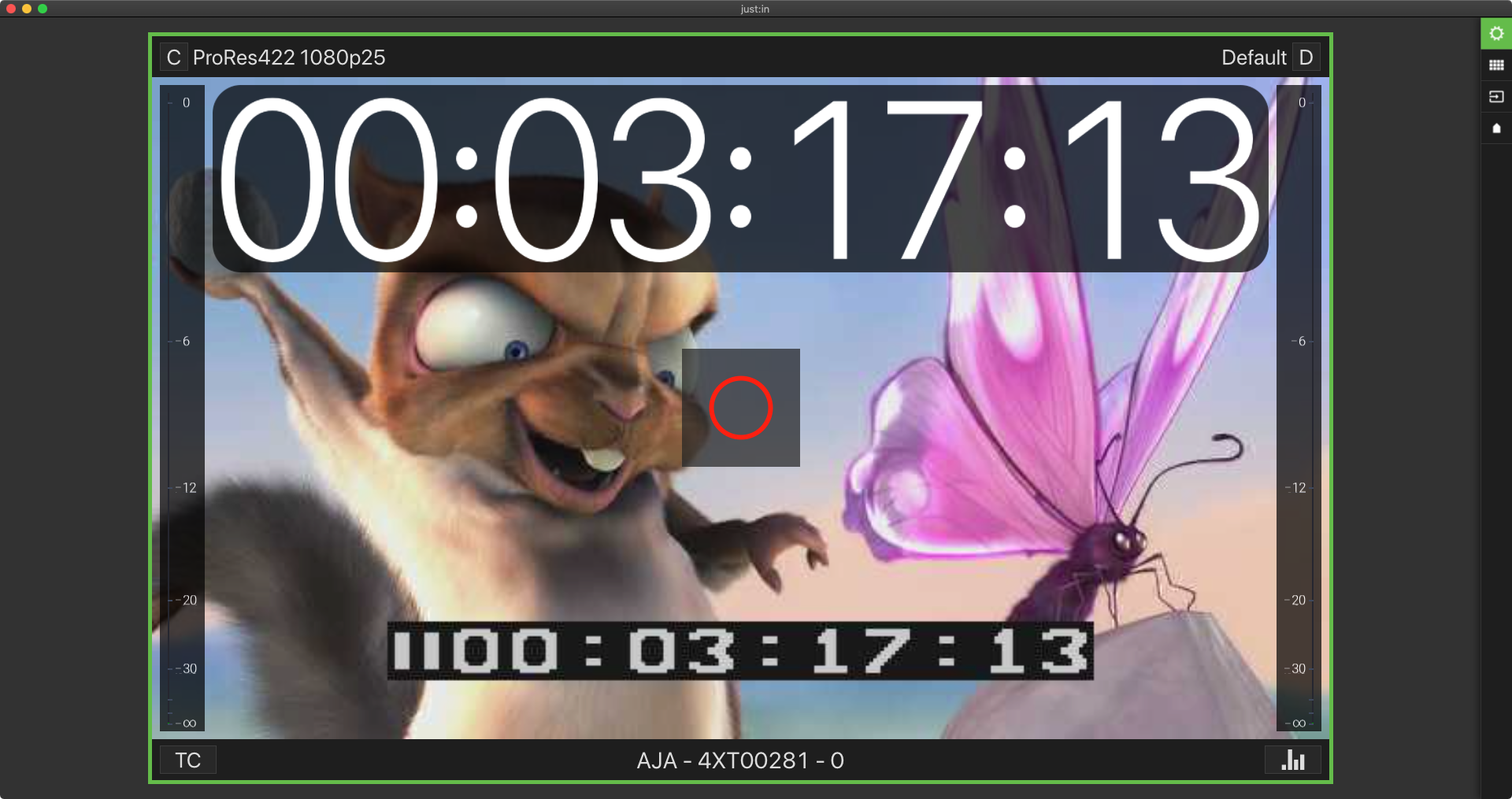
- Open the Inspector and switch the Channel into Batch Mode.

Select a Naming Preset and define a clip name for the first Batch Entry. Then also check if the correct Timecode Source is selected.
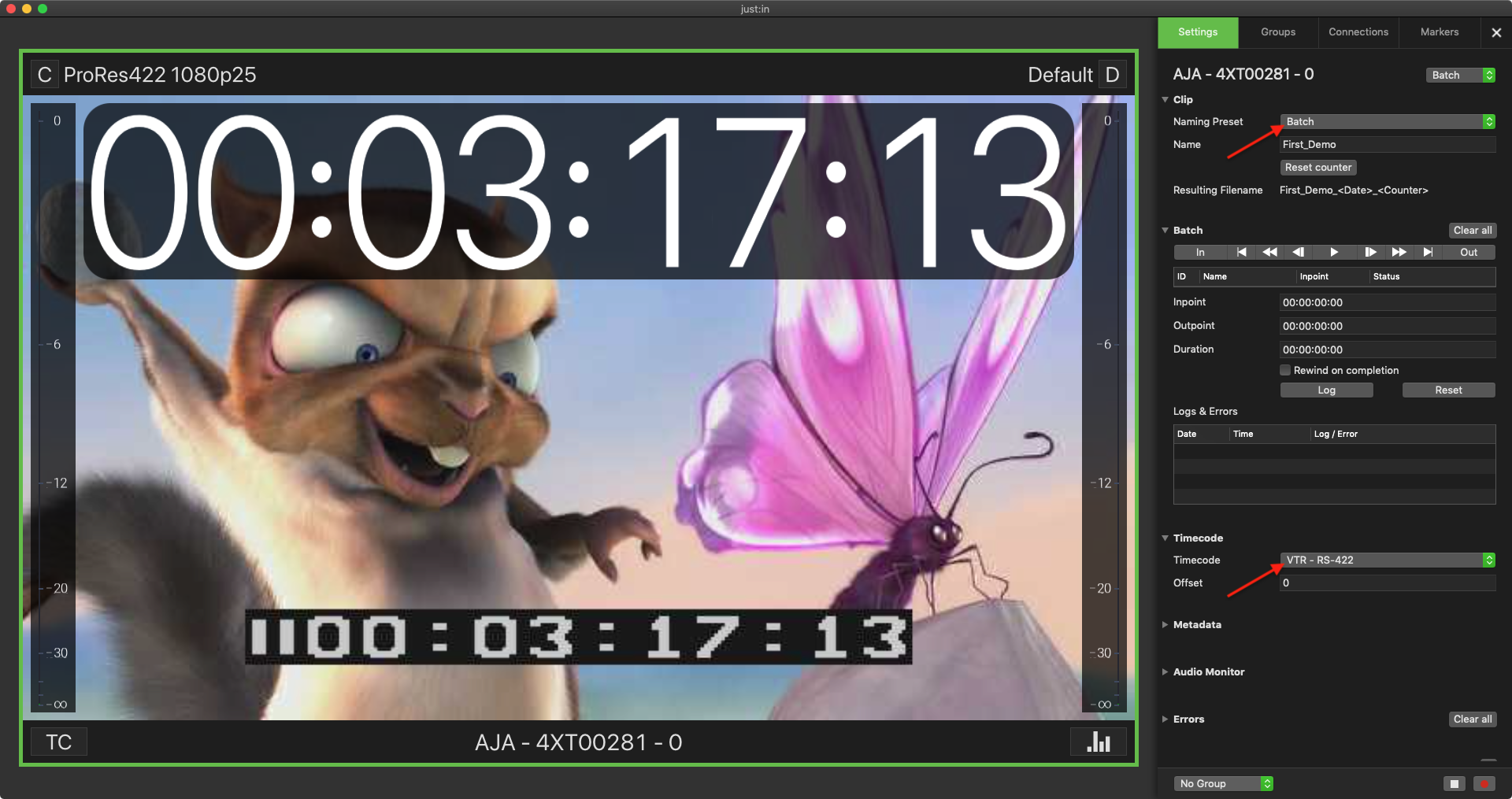
Please make sure that a valid Capture- and Destination-Preset is selected.
- Define your Batch List by entering an Inpoint, Outpoint and/or Duration. Press the Log button for each entry. To add further entries press the Reset button and repeat this step.
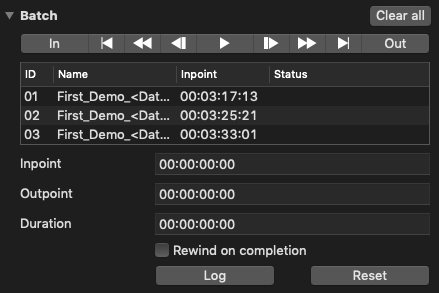
- Hover over the Channel View and press the Record button.
- You can see the status of the current ongoing Batch Log in the Inspector.

- When the Batch List has been recorded successfully, you will see an appropriate Log in the Logs & Error List.
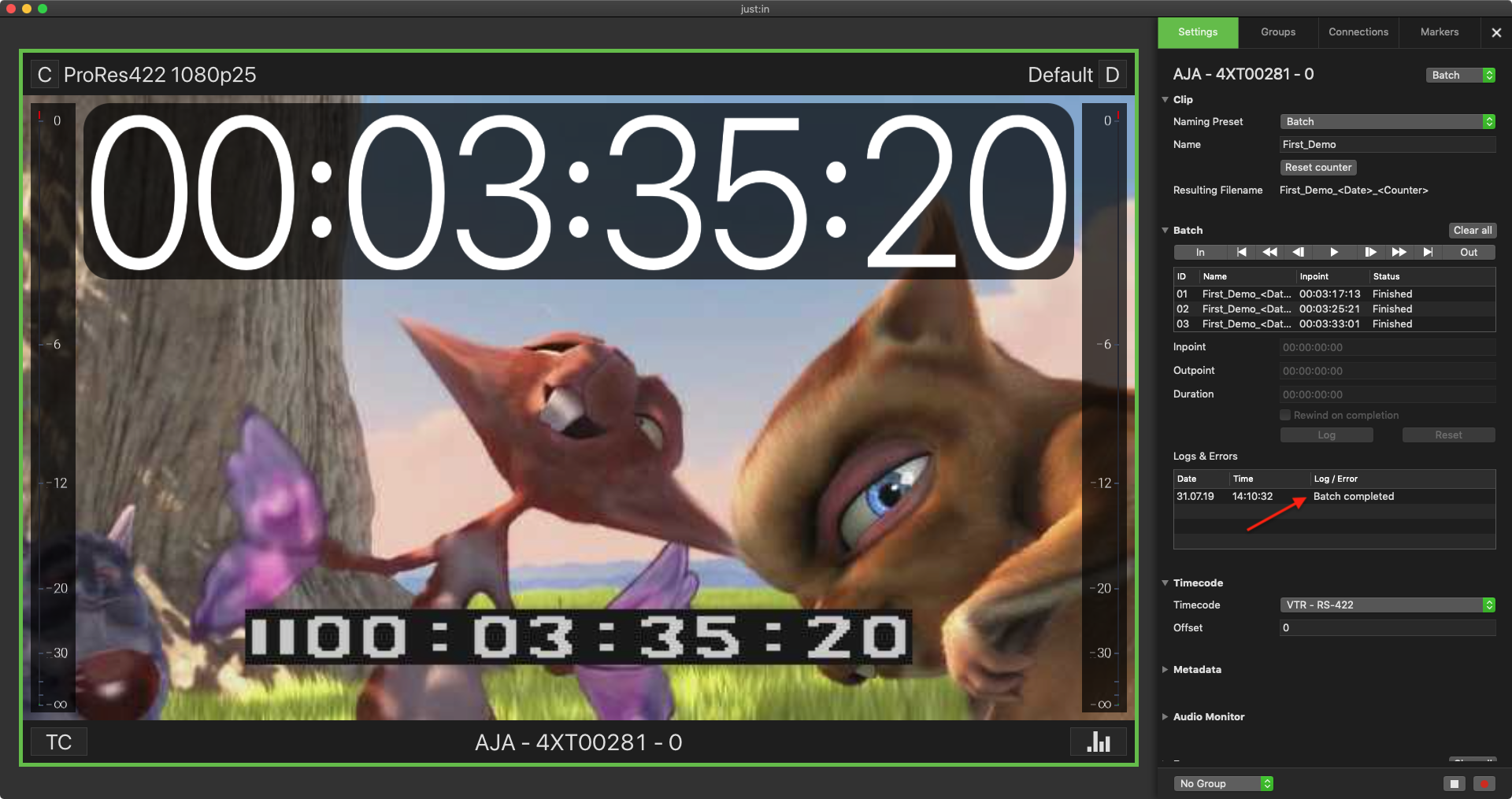
- In case the Batch Recording has been canceled or has been aborted you will see an appropriate Error in the same Log & Error List.
- To add new entries to a new Batch List you need to clear the existing list by pressing the Clear All button above the VTR Controls.