
Overview

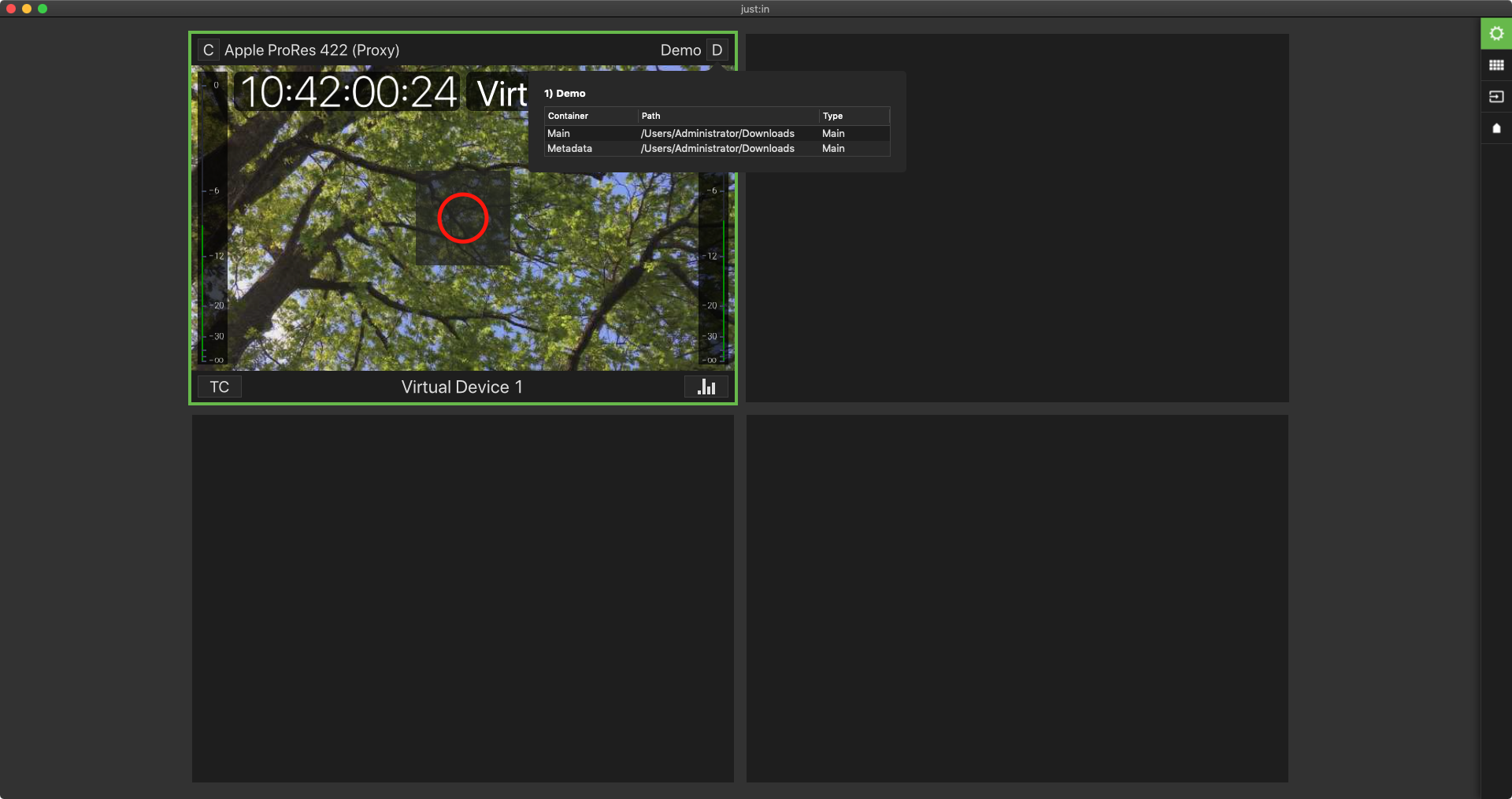
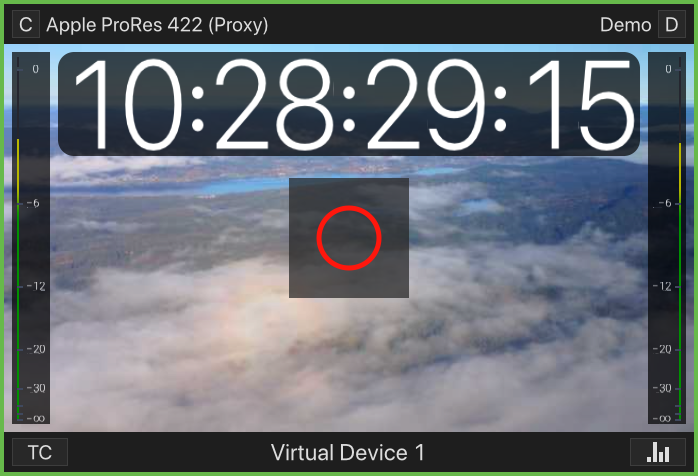
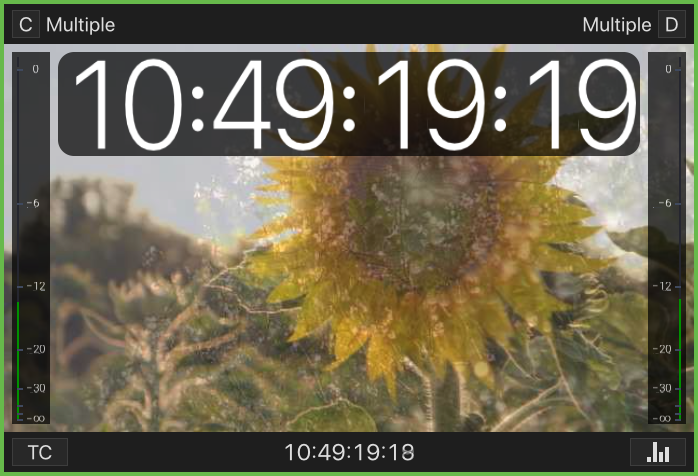
- Timecode: displays the Timecode depending on the selected Timecode mode (see below).
- Channel View Border: when you click on a Channel View it gets a coloured border which means it's selected. You may select multiple Channel Views by holding the command-key. This is useful if you want to change the capture settings of multiple Channels at once.
- Channel Recording Border: when a Channel is recording, then there will be a red recording around the video preview area.
- Record Button (command + R): this button shows up as soon as you hover over a Channel. Press this button to start or stop the Recording on the particular Channel.
- This button only shows up after selecting a valid Capture and Destination Preset in the Inspector. Refer to the Just In Engine configuration chapter for further details on Presets.
- If the Channel is in Schedule Mode, then you will not see the Recording Button.
- Audio Bars: shows Audio levels (dB).
- Status Display: shows the status of the particular Channel View (see below).
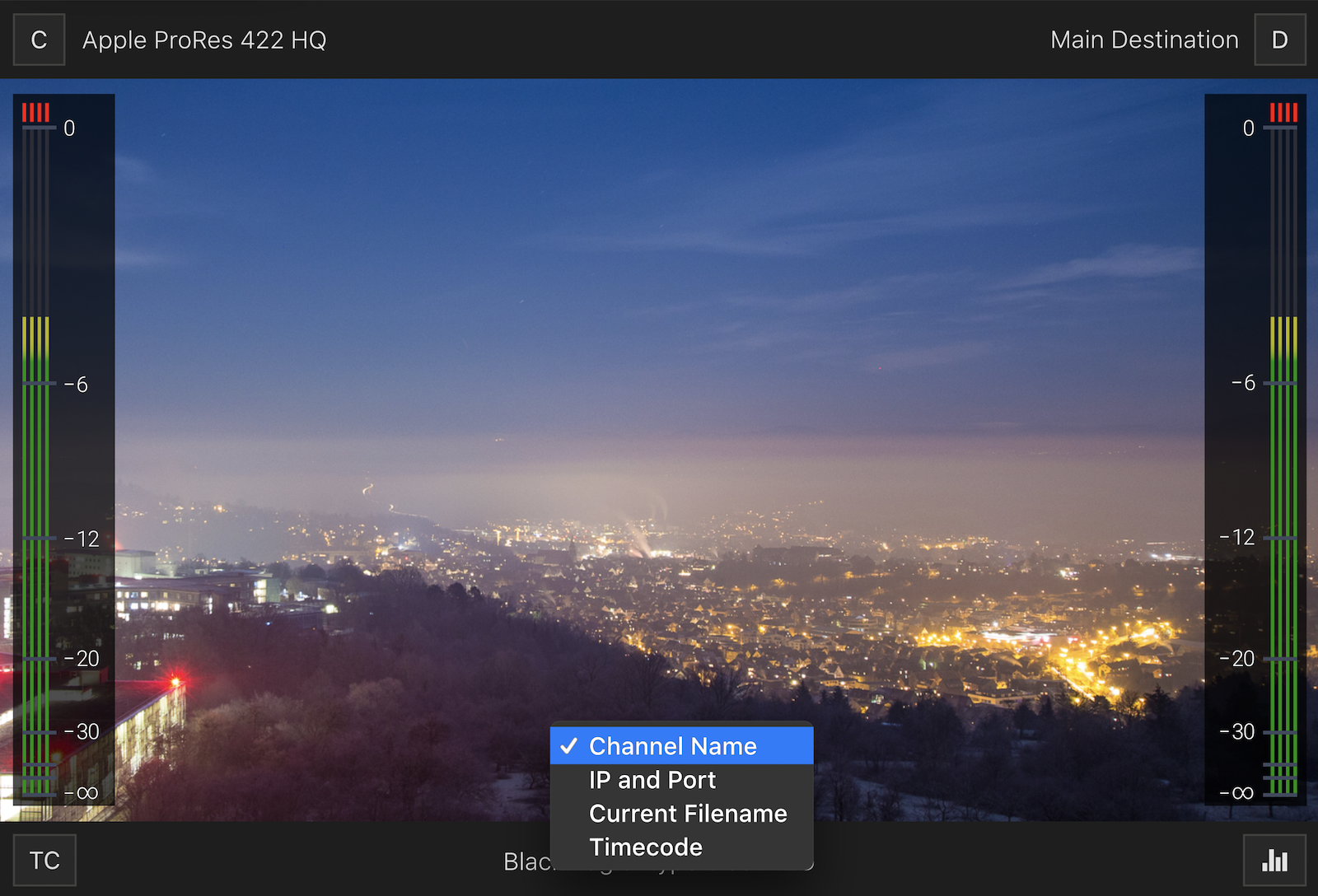
- Channel Info: click to switch between Channel Name, IP-Address & Port, Name of the current Recording or current Timecode.
- Lower Bar: within the lower bar you can choose between different timecode options, turn on/off the audio bars and switch between different channel info options.
- Timecode Mode: click to select the Timecode Mode (see below).
- Audio Bars: turn audio bars on/off.
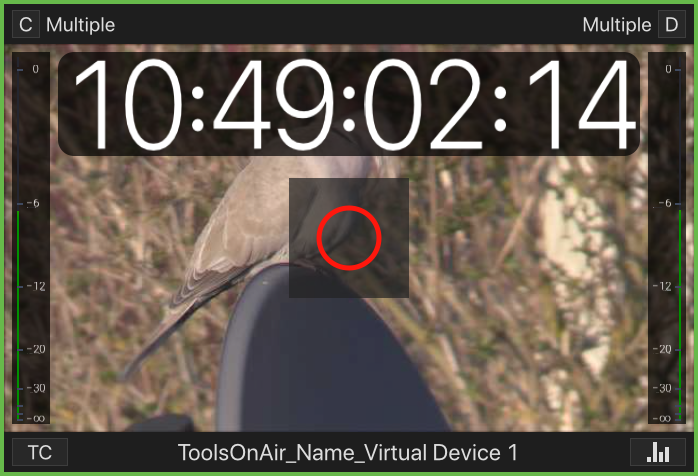
- Upper Bar: displays the Capture and Destination Preset. If you have more than one Capture ID these areas will display "Multiple". When clicking on the "C" or "D" icon, you will see more information about Capture- or Destination Preset.
- Capture-Preset: displays the current selected Capture-Preset(s).
- Destination-Preset: displays the current selected Destination-Preset(s).
All Overlays of the Channel View resize automatically depending on the display resolution and the size of the Channel Viewer. The dB scale of the Audio Bars is hidden depending on the size of the Channel Viewer.
Timecode Modes
You can choose between following Timecode Modes.

Off
Hides the Timecode for this particular View. All other Channel Views will be not affected.
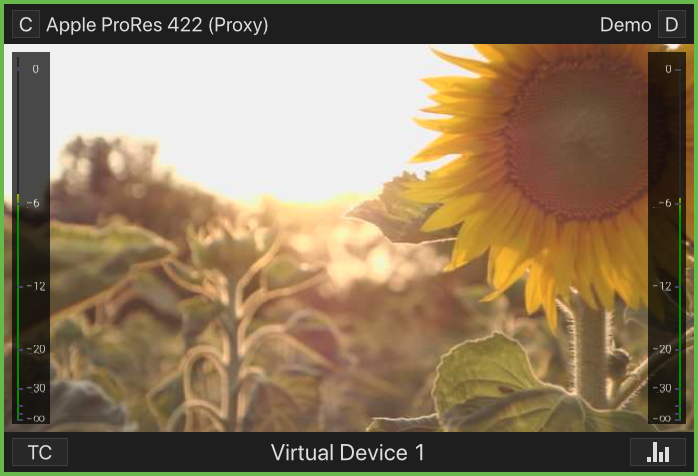
Dual Timecode
Displays the current Timecode in the top left corner and the Elapsed Time during Recording in the top right corner.
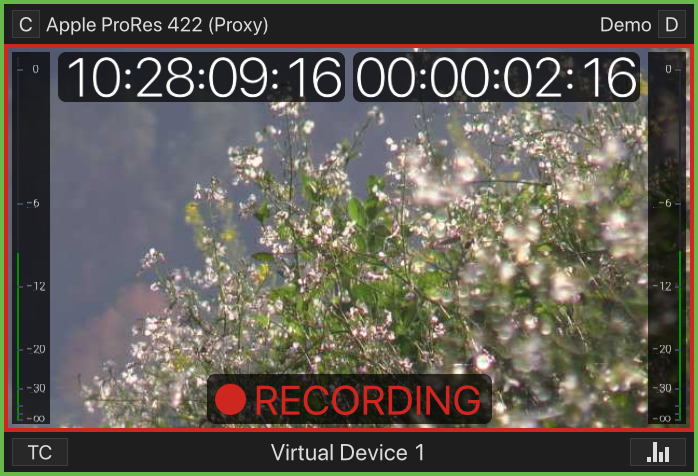
Small/Medium/Large
Displays a small/medium/large Timecode in the upper center.
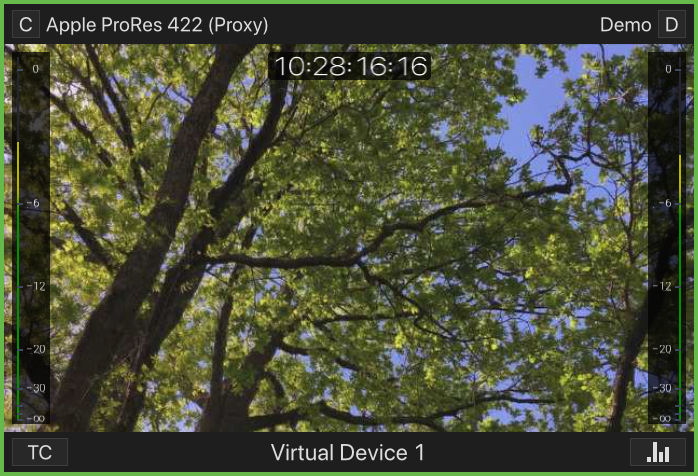


Timecode + Name
Displays the current Timecode in the top left corner and the Channel Name in the top right corner.

Click on the current Timecode to display the Elapsed Time Recording Time.
Audio Bars
You can turn the Audio Bars on/off for each Channel Viewer.
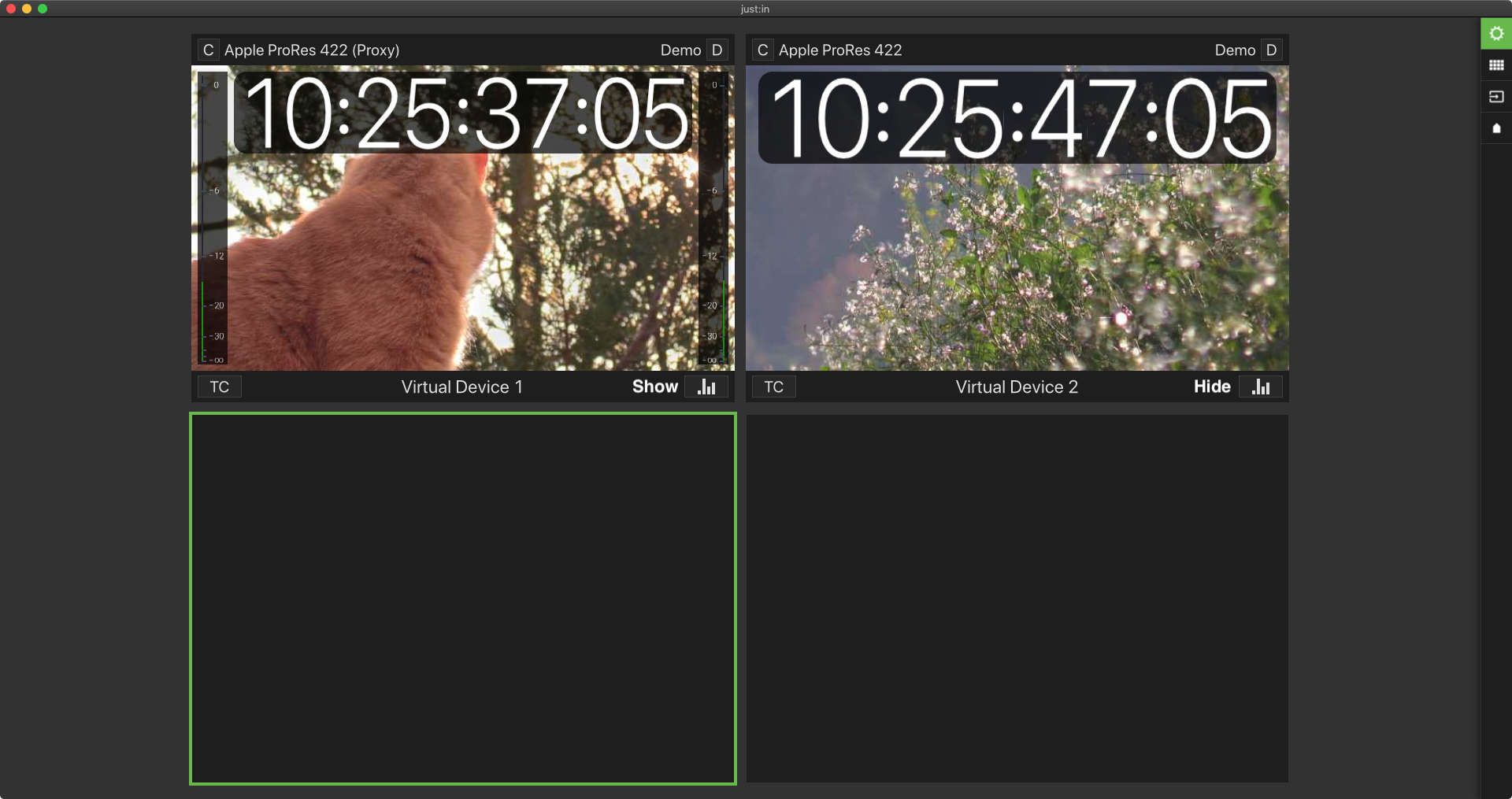




Recording and Buffer
The Channel is in Recording mode and the Buffer Status is visible. This is an indication for a performance problem. The CPU and/or storage may be too slow.

Recording with Errors
There was a problem during recording. Consult the Error section in the Settings tab of the Inspector or take a look at the channel log.

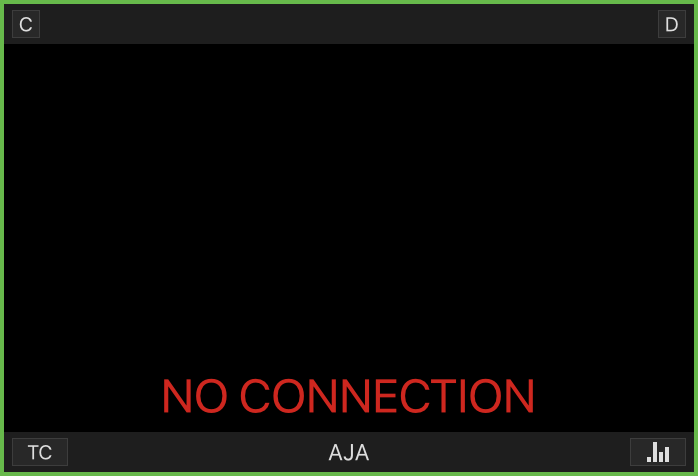
No Connection
A connection could not be established or a connection has not yet been established.
No Preset
Capture ID(s) are not correctly configured. Go to the Inspector and set up your Capture- and/or Destination Presets accordingly to your needs.

Configuration
This Error Message indicates an invalid Preset configuration.

Errors
There was a problem during the last Recording or during the time where the Channel was in Idle Mode. Consult the Error section in the Settings tab of the Inspector or take a look at the channel log.

No Signal
Channel has no or an invalid signal.
