
These chapters explain the Just In User Interface application for macOS. You will learn how to:
- connect to Channels (provided by a properly configured Just In Engine (mac or linux)
- customize the User Interface
- use the Inspector to select Capture Settings and how to start Recordings.
It is mandatory to configure Just In Engine properly before the Just In User Interface can be used. This can either be Just In Engine Mac or Just In Engine Linux. Refer to the appropriate User Manual section or ask your system integrator for further information.
What is the Just In User Inteface and what does it do?
- Just In is the User Interface to control multiple Channels available from one or multiple instances of Just In Engine on the network.
- Just In provides Realtime Video and Audio Previews from the Channels and allows you to select your Capture and Destination Presets for the resulting Recordings.
- The Just In User Interface is used to execute Recordings using one of the available Capture Modes.
- The application has access (if granted at first launch) to the macOS Calendar application and can therefore receive scheduled events for Schedule Mode.
First Launch
Upon the first launch of the Just In User Interface, you have to select a starting grid, which you can later use to connect channels too. The following chapters explain how to connect to Channels and how to do Recordings.
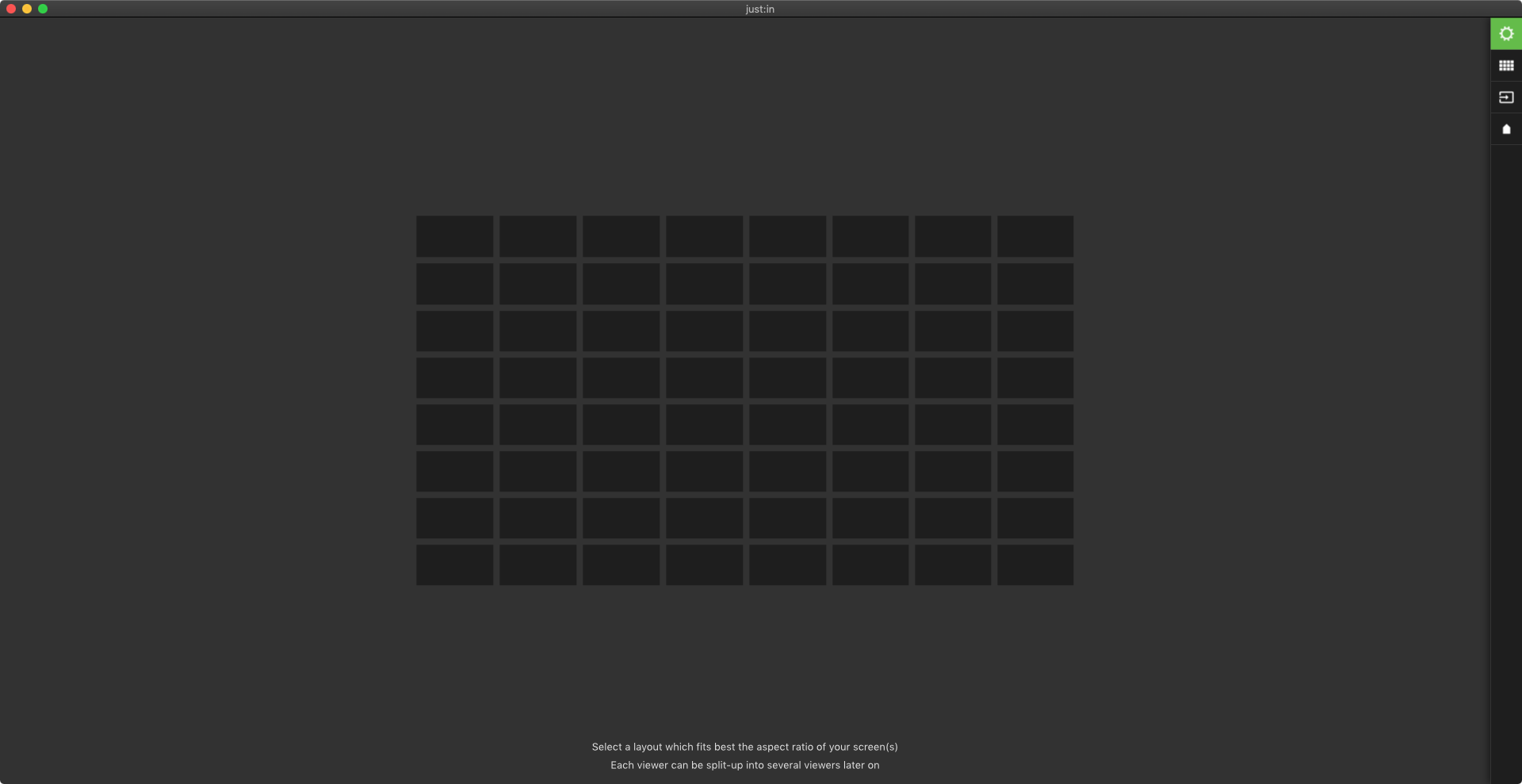
The Just In User Interface can only handle Channels with the same frame rate. When connecting to Channels with different frame rates, the Timecode displays will stutter every second.
Access to macOS Calendar
The Just In interface has to have access to the macOS Calendar application in order to receive Scheduled events for Schedule Mode. If you do not grant the application access to the Calendar application, the Schedule Mode will not work as expected. At the first launch of the Just In User Interface macOS is asking if you allow the application access to your Calendar. Press "Ok" here to make sure that Schedule Mode is working correctly.
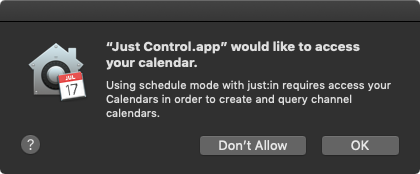
You can change the permissions at any time within the Security & Privacy Pref Pane (System Preferences), as shown below.
