
General
The Apple Event Script Device can be very useful for different kinds of things, such as using the macOS notification system to keep track of start and stop recording actions.
Devices
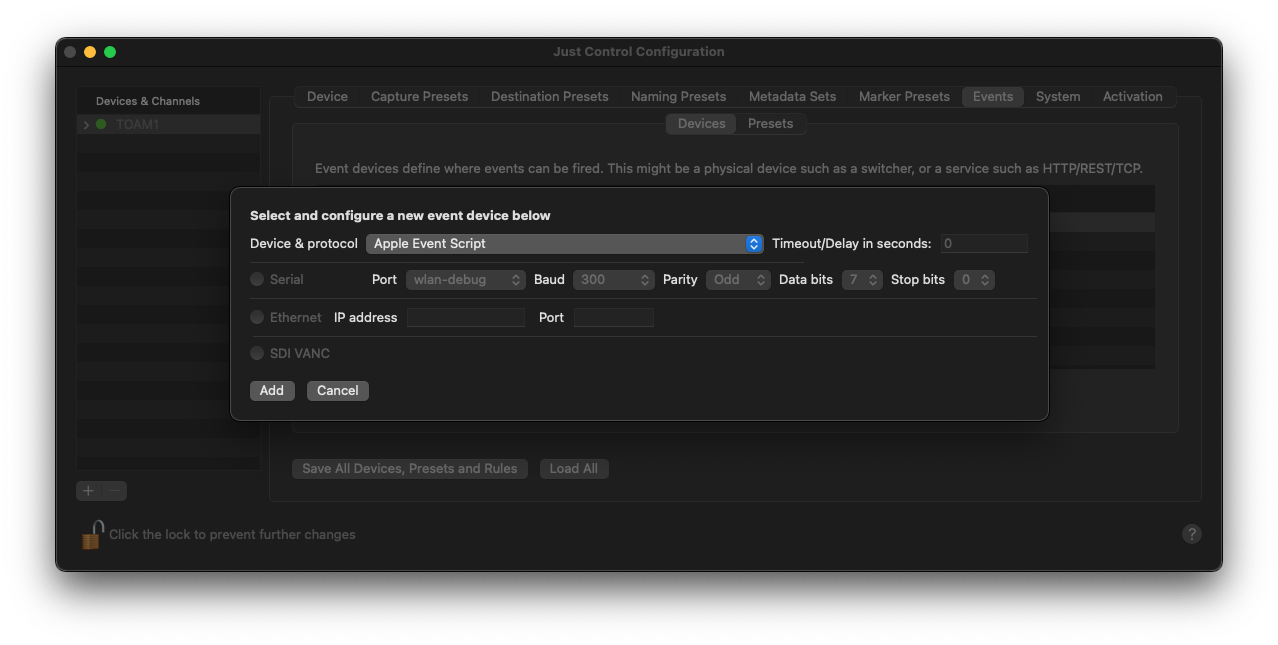
Click on the “Add” button to select the “Apple Event Script” Device from the “Device & protocol” list and press the “Add…” button to create the Device. Further configuration will be done within the Recording Event itself. Please see below:
Presets
To create a new Preset, define a name for the Preset, select “Apple Event Script” and press the “Add” button.
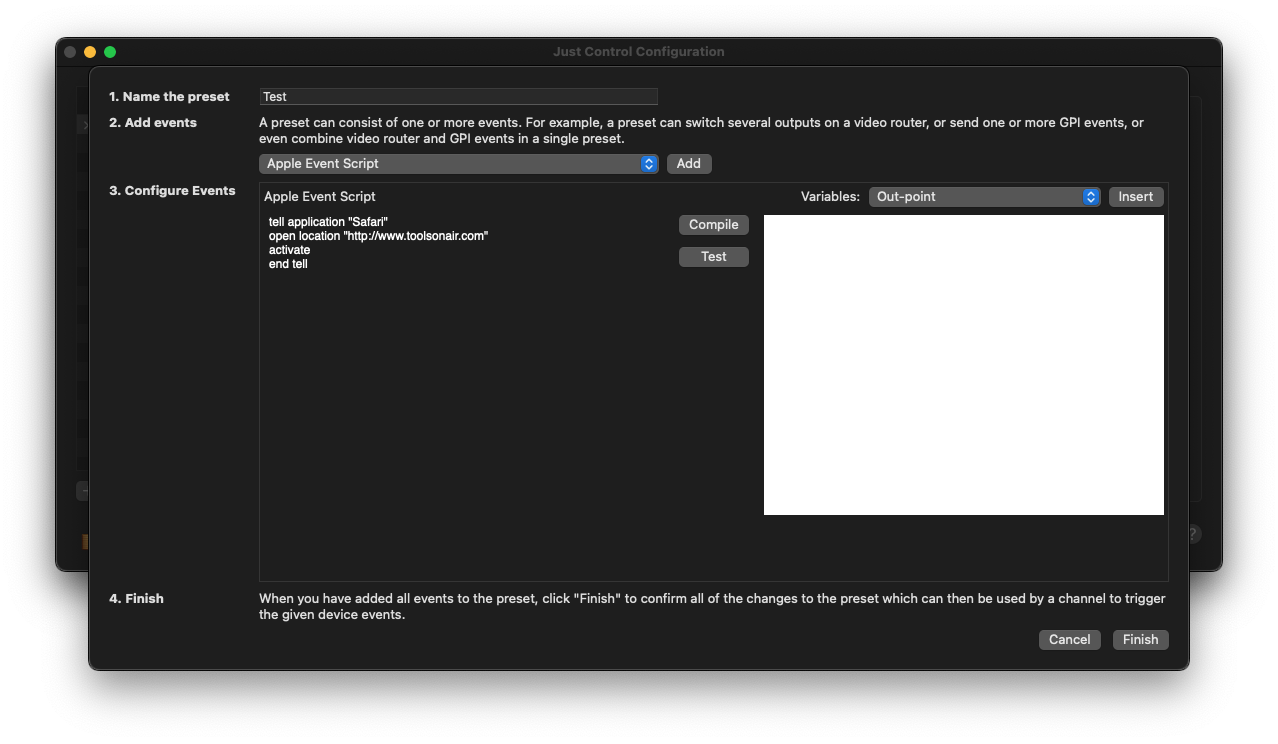
Then add your Apple Script code and use the “Test” button to test the script (recommended). Once done, use the “Compile” button to complete this step.
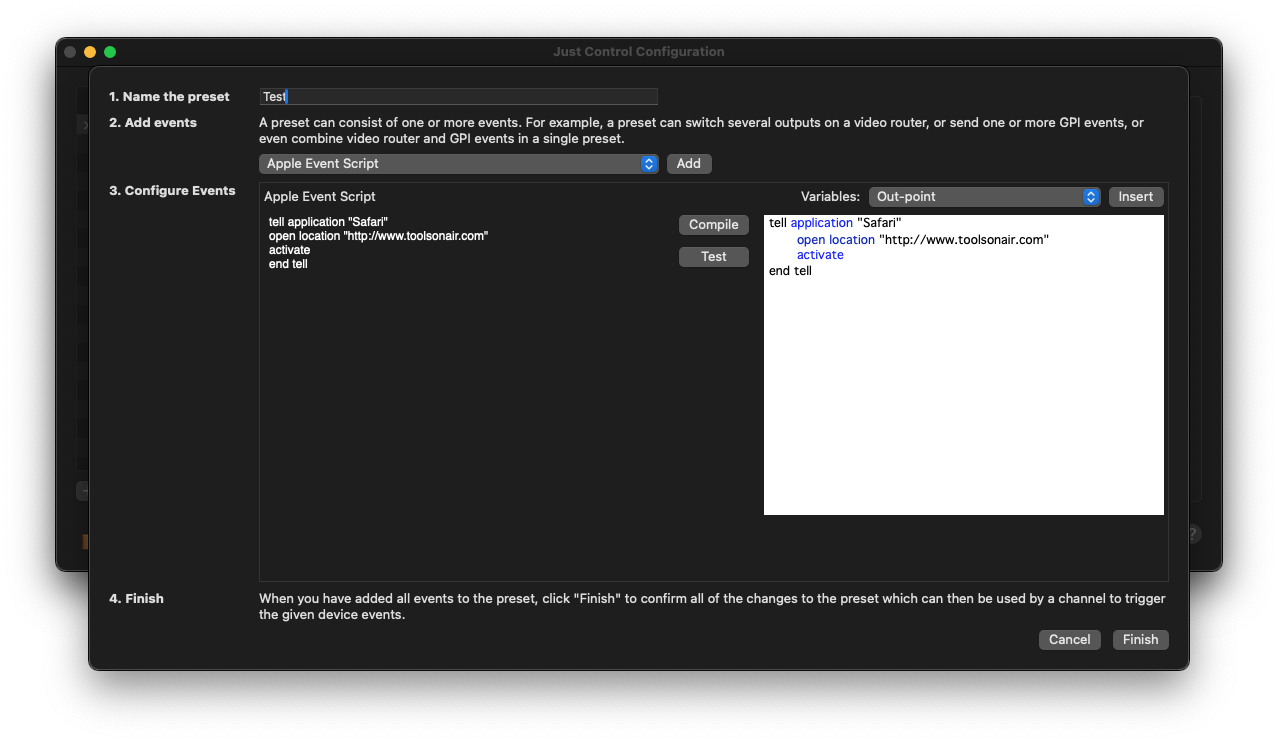
Please note that you can also use internal variables, such as the Channel Name or File Name, within the Apple Script, to make it even more flexible and useful.
Once done, press the “Finish” button and the Event will be visible within the Presets list and available within the Inspector of Just Control as well.