General
Using the Blackmagic ATEM Event Device, you can perform the following tasks on a Blackmagic Design ATEM Production Switcher.
Adding Devices
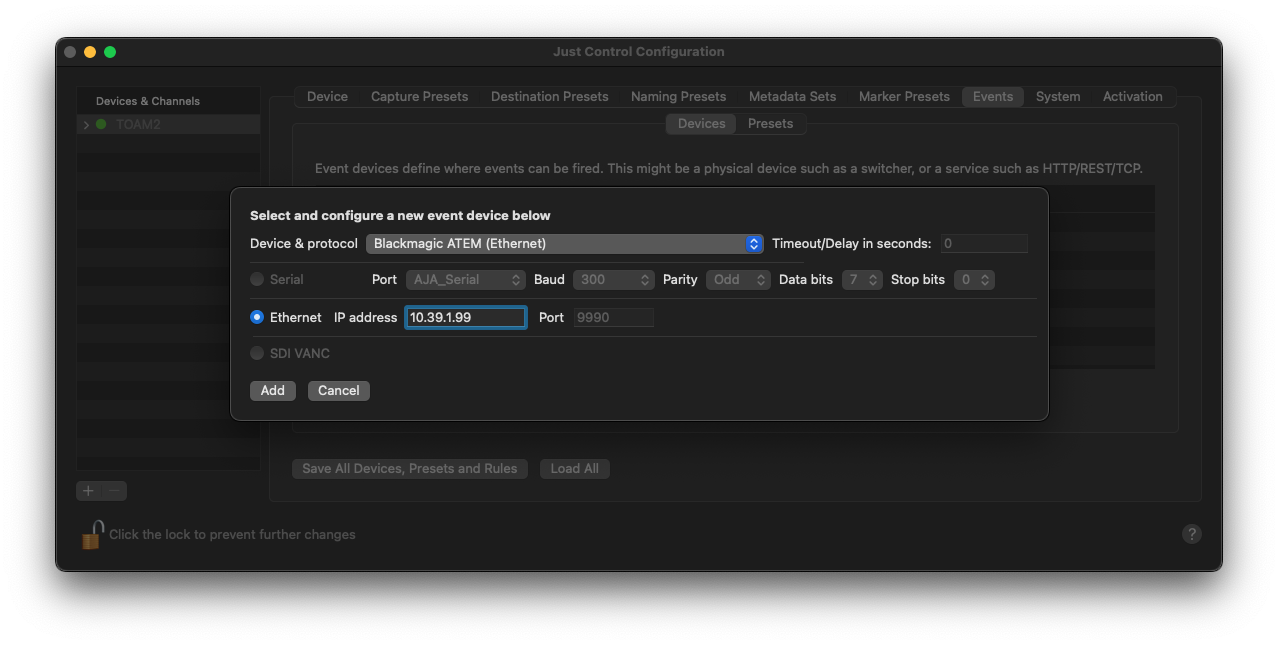
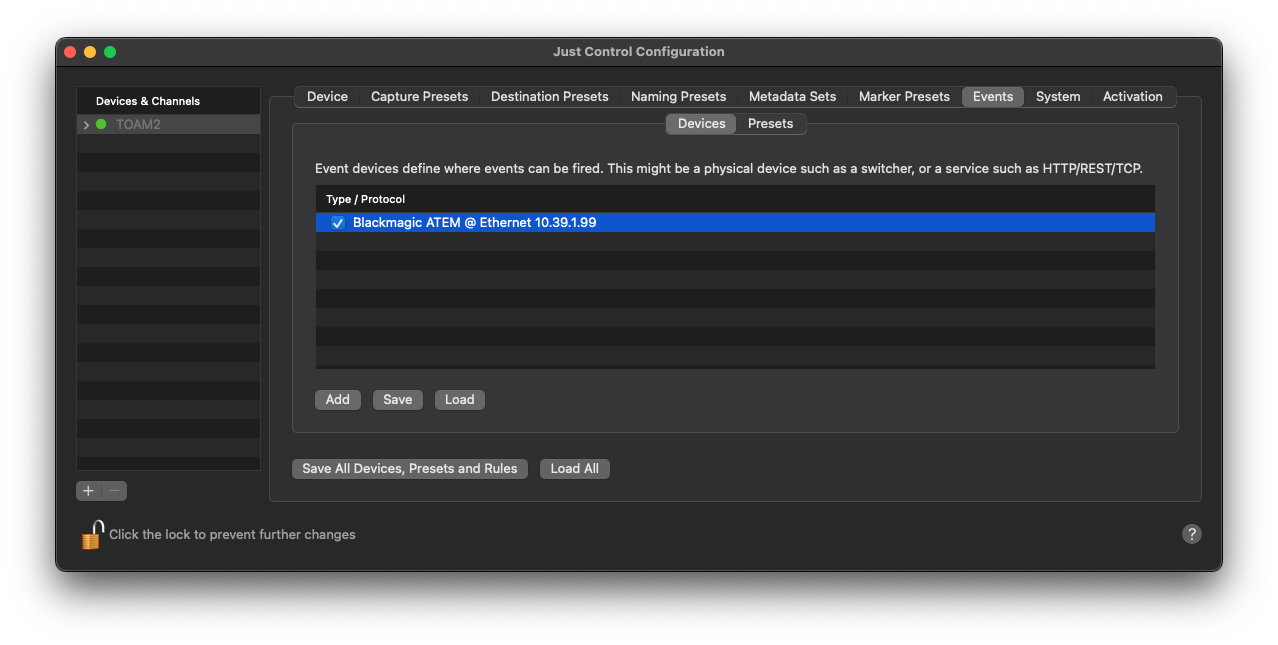
Click on the “Add” button to select the “Blackmagic ATEM (Ethernet)” Device from the “Device & protocol” list, enter the IP address of the Blackmagic Design ATEM production switcher, and press the “Add…” button to create the Device. Further configuration will be done within the Recording Event itself. Please refer to the screenshots below:
Creating Presets
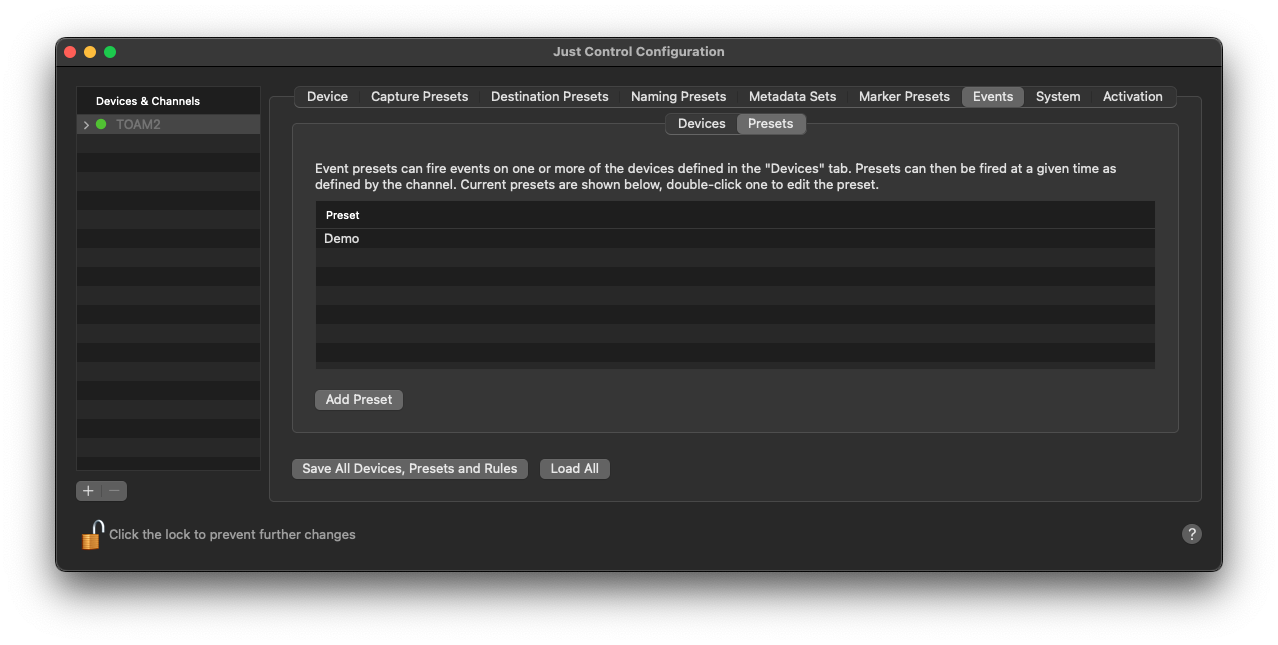
To create a new Preset, define a name for the Preset, select “Blackmagic ATEM” and press “Add”.

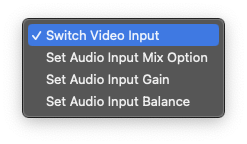
Now define which Input should be routed to the PGM Out. In addition, you can set the mixer level and, if required, the “auto-transition” option. Other options can be defined when using the selection box on the top right, such as:
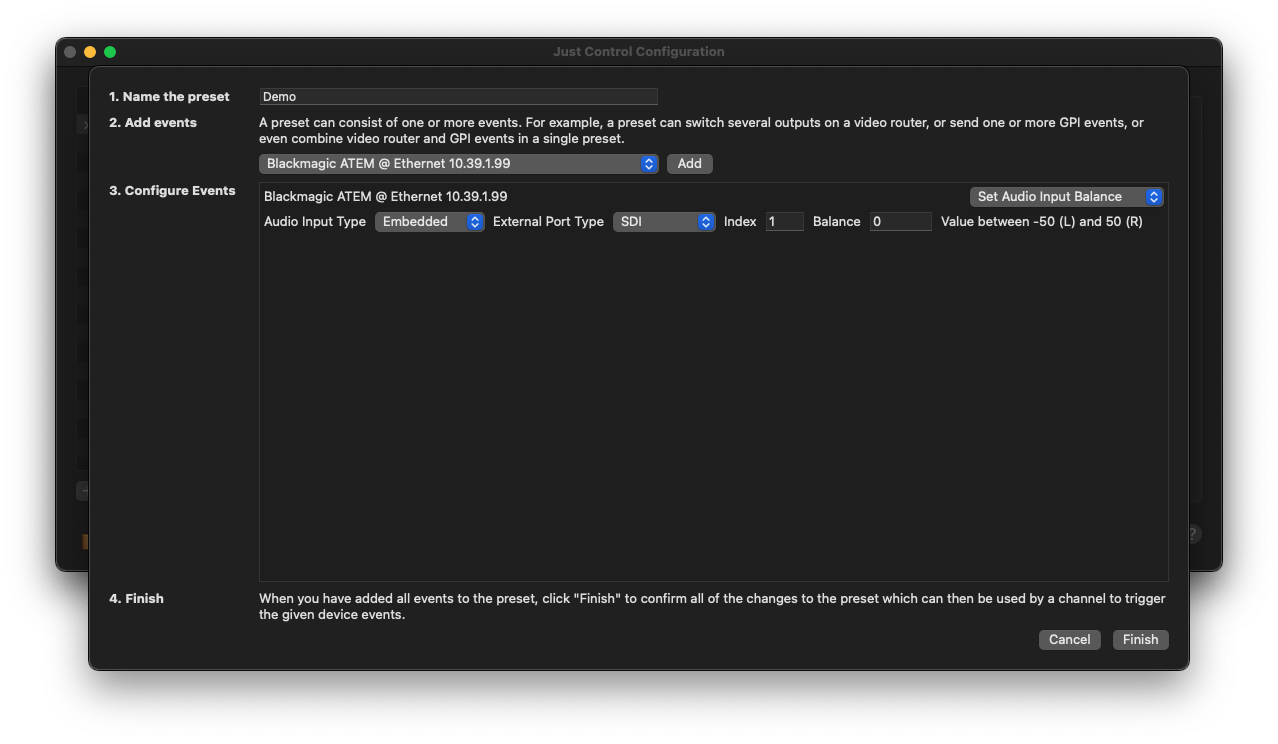
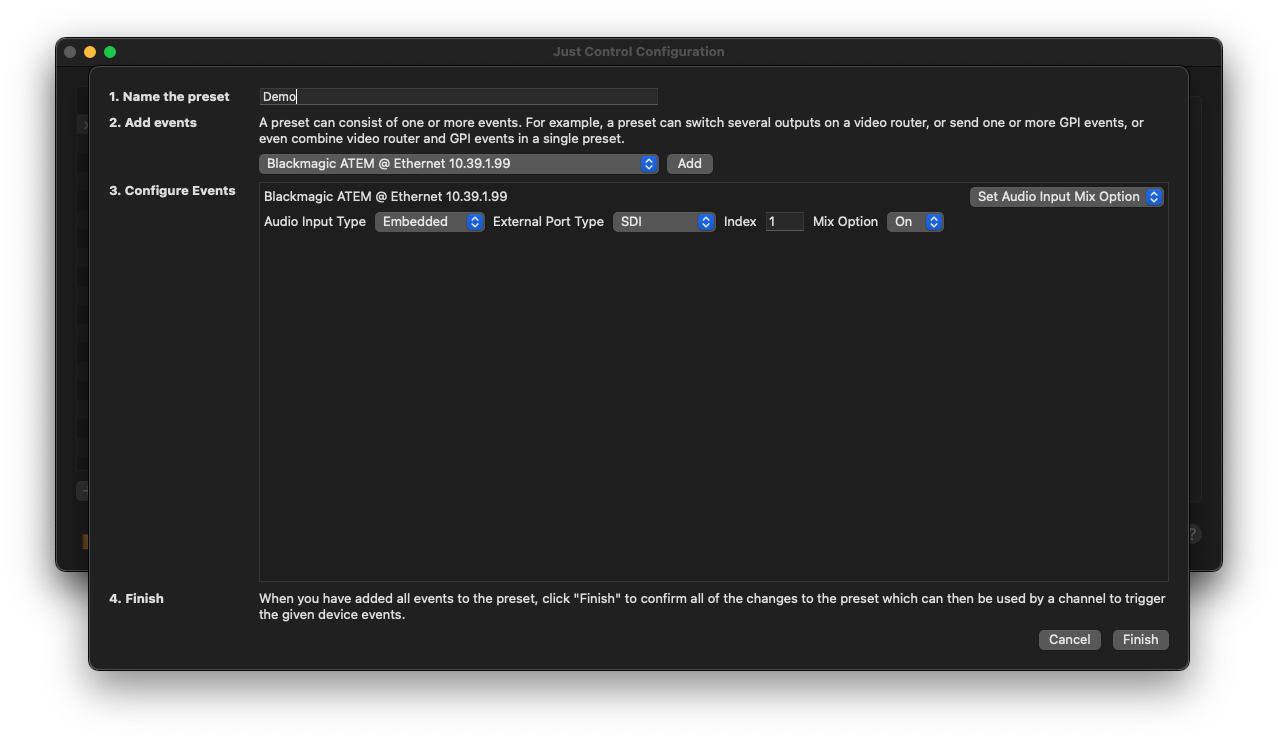
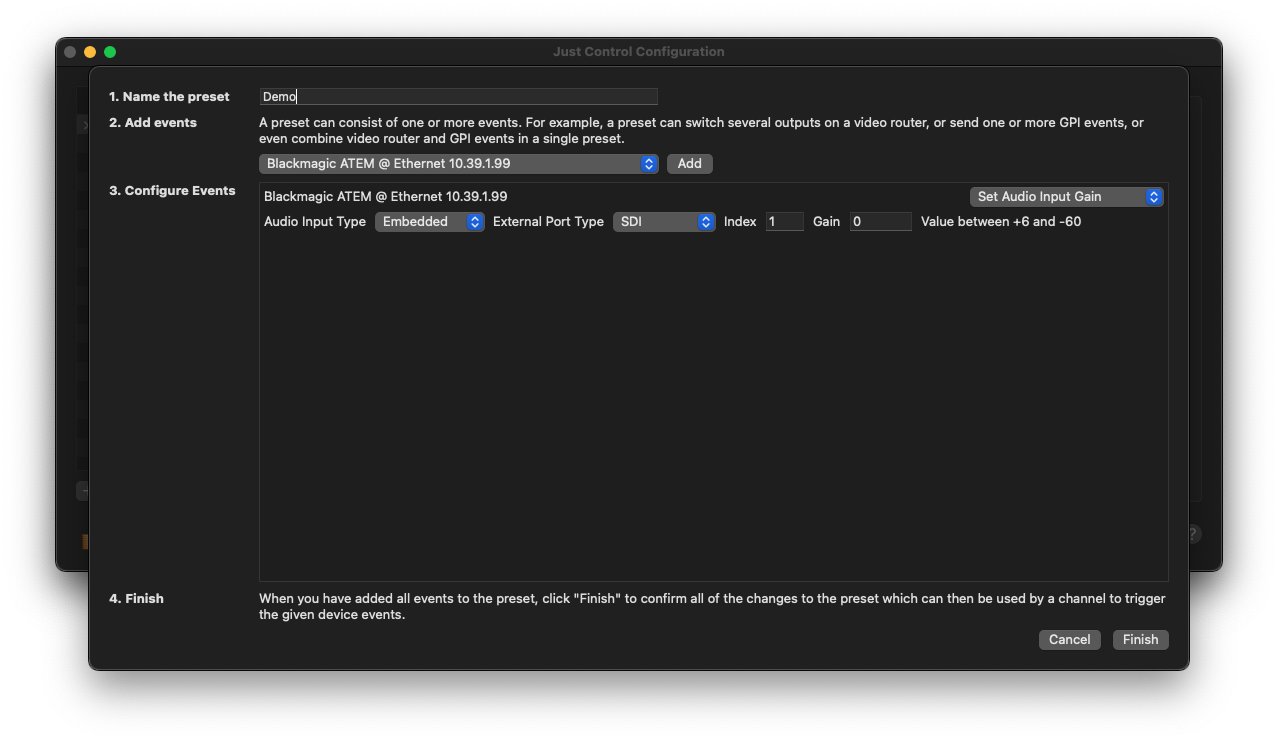
Once everything is set up, press the “Finish” button and the Event will be visible within the Presets list, and be available within the Inspector of Just Control as well.