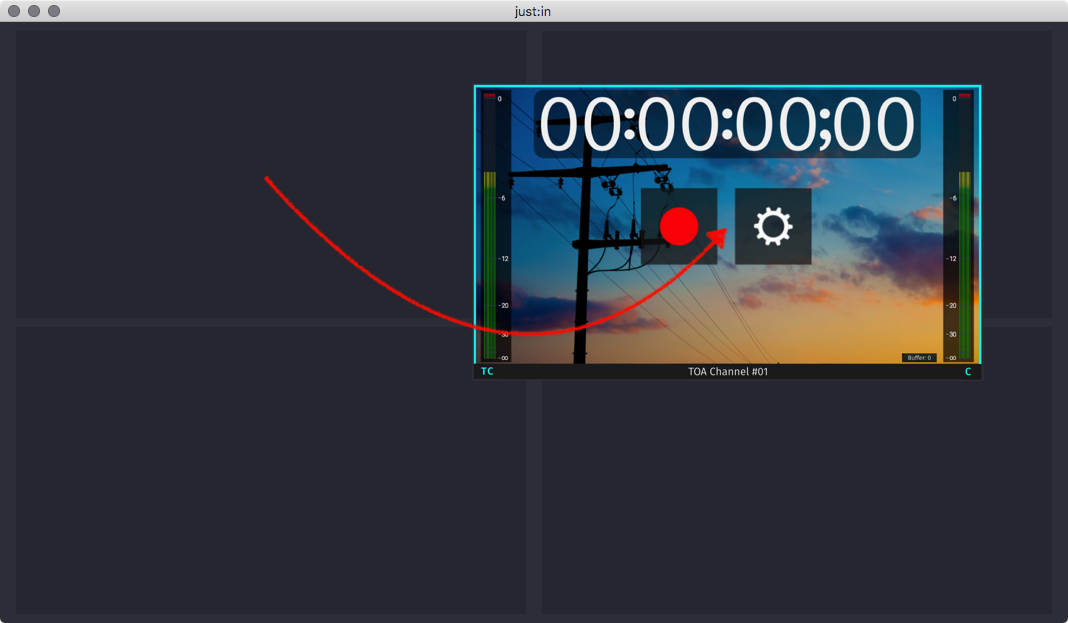
The Just In User Interface allows you to control multiple Channels at a time. The Main Window can be splitted, arranged and and joined to fit your needs. This chapter explains how to use the Split & Join functionality of Just In.
Single Channel View
When opening Just In for the first time it will present a single View. Basically you can connect to one Channel now. It's possible to display multiple Channels at once by using the Split & Join functionality of Just In.
Splitting a Channel View
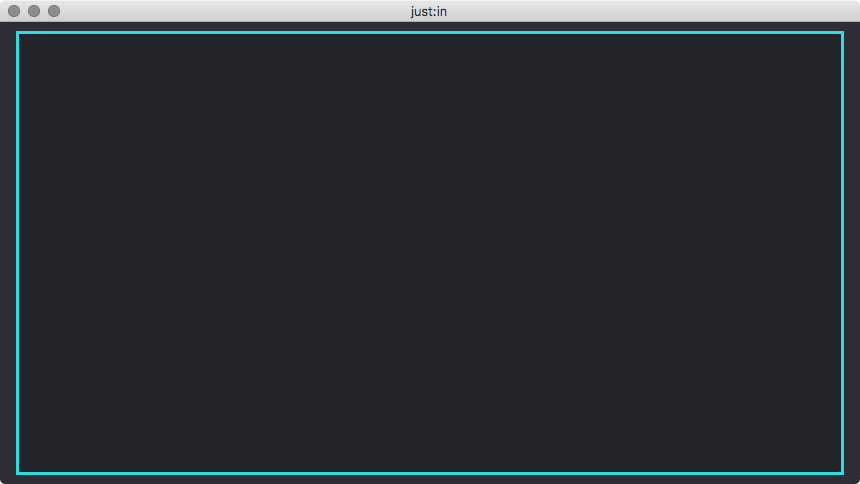
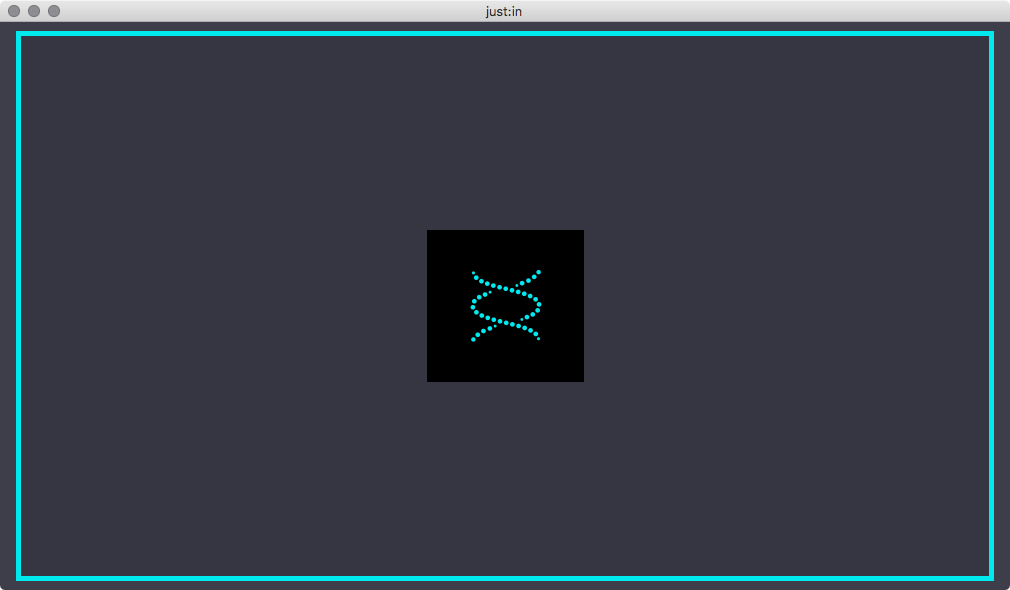
- Select the View by clicking it once, the border will turn turquoise. Make sure you don't click the button in the middle.
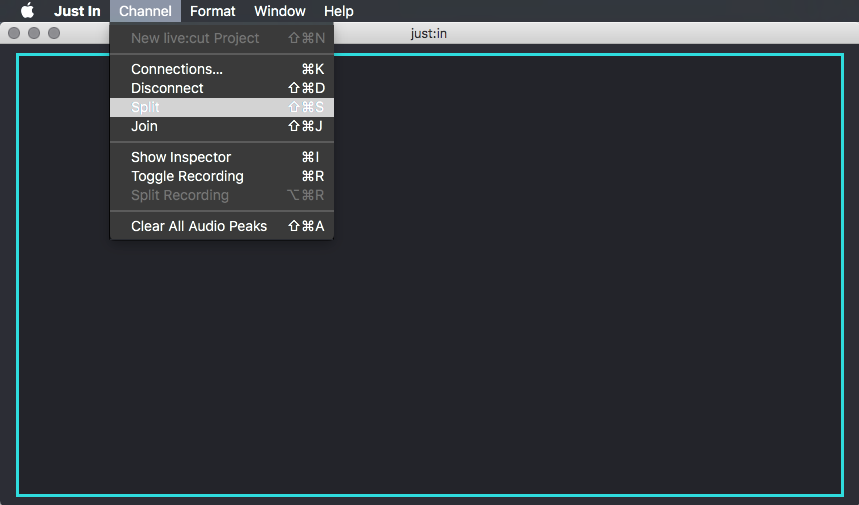
- Select the menu command Channel → Split or use the shortcut shift + command + S.
- Four views are now displayed. You can connect each View to a Channel as described in the previous chapters.
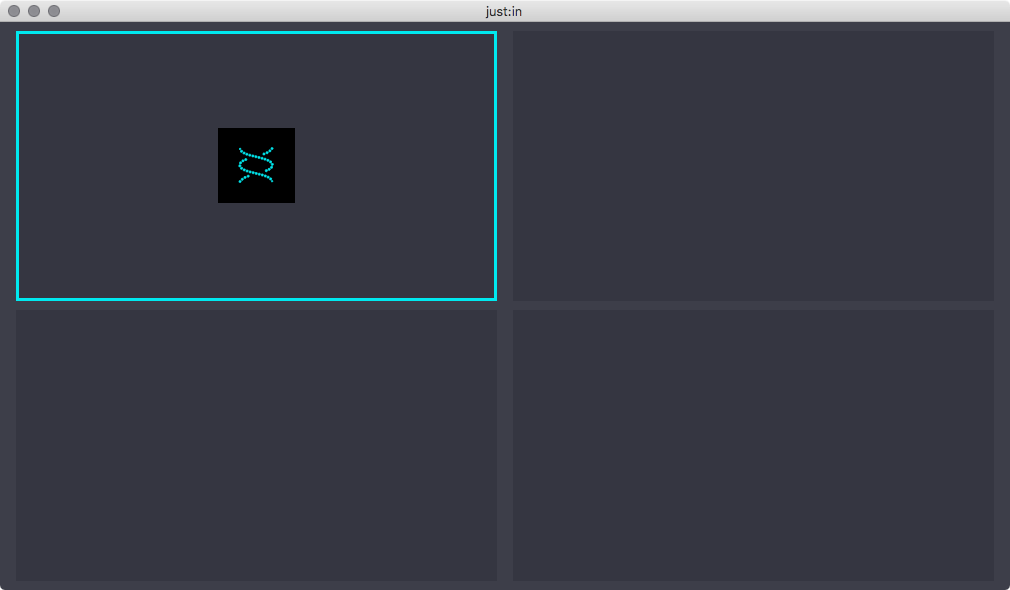
You may repeat these steps for each View to create further Views.
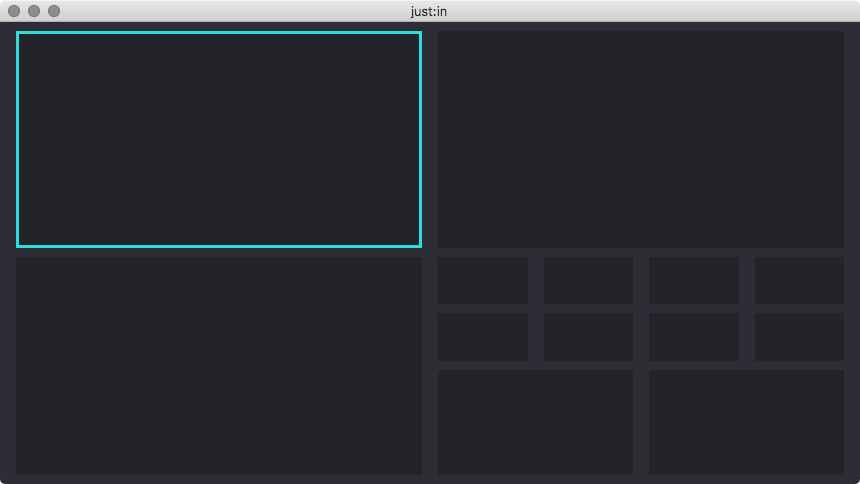
Each Channel View has a minimum size. Splitting an existing Channel View is not possible if the resulting four new Channel Views would be smaller than 201x111 pixels each.
Joining a Channel View
Joining a Channel View is only possible when all respective Channel Views are disconnected from a Channel.
- Select a View by clicking it once, the border will turn turquoise. Make sure you don't click the button in the middle.
- Select the menu command Channel → Join or use the shortcut shift + command + J.
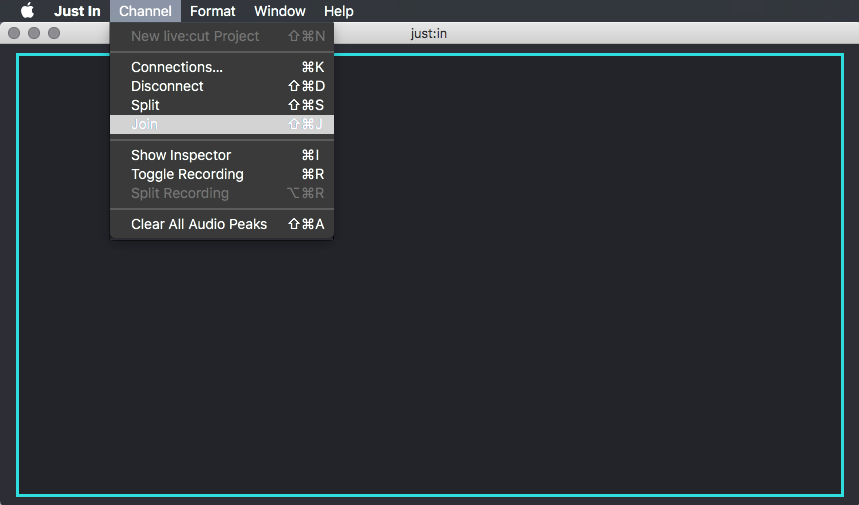
The previously available four Channel Views have been reduced to one Channel View.
Moving Channel Views
Drag and drop a Channel View to another Channel View. You may drop it on a disconnected Channel View or a connected Channel View. The Channel Views will then be interchanged accordingly.