
This chapter explain the Just In User Interface based on an already connected Channel.
Main Window
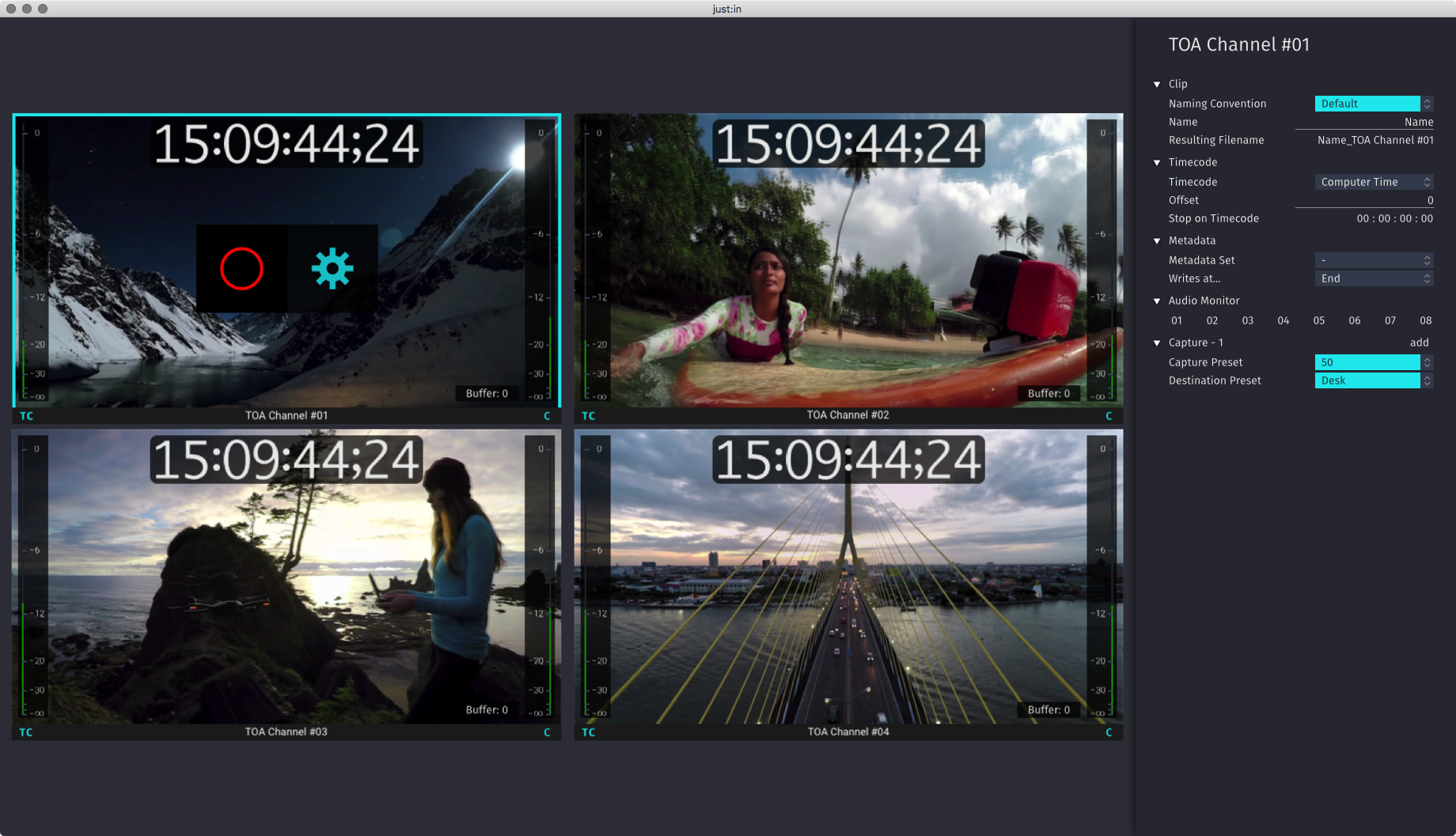
The main window includes the Inspector as well as up to 64 channel viewers, each one showing the Signal which is currently received by the Channel. The various overlays of the channel viewer (Timecode, Audio Bars…) are shown depending on the settings defined in the Preferences (see below). By default all overlays – except for the Buffer Status – are shown.
Preferences
You can access the Just In User Interface Preferences in the menu Just In → Preferences or by using the keyboard shortcut command + comma.
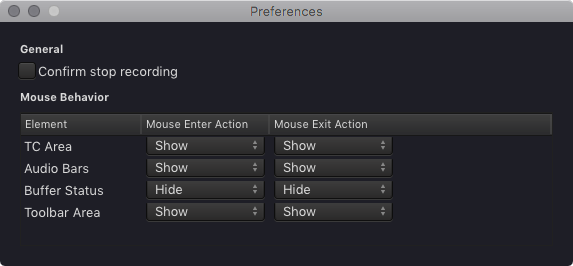
General
Confirm stop recording: when enabled a Recording can only be stopped by pressing the Record button a second time within 5 seconds.
With this security feature unindented recording stops can be avoided.
Mouse Behaviour
You can define which elements will be shown when entering or exiting a Channel Preview.
- Mouse Enter Action: select whether the particular element will be shown or hidden when the mouse is hovering over a Channel Preview.
- Mouse Exit Action: select whether the particular element will be shown or hidden when the mouse is not hovering over a Channel Preview.
All elements except the Buffer status are shown by default.