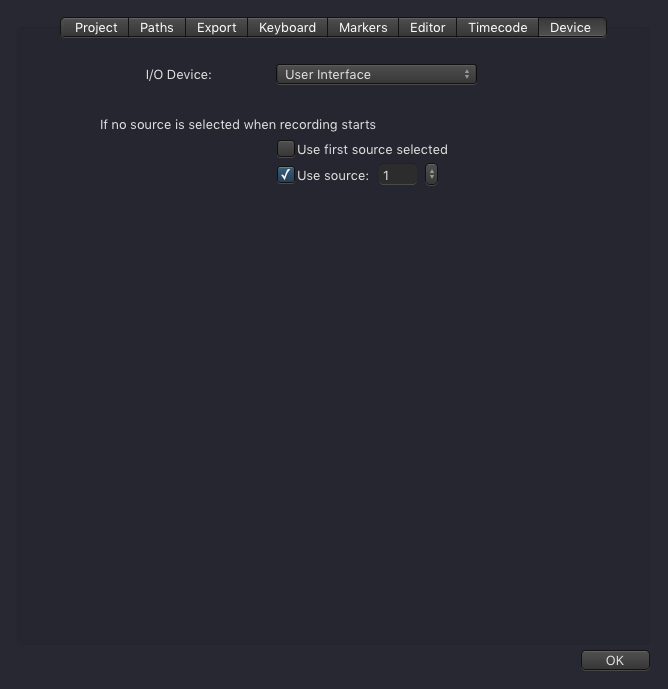
Define the I/O Device here. Live Cut supports following I/O Devices:
- ToolsOnAir GPI Box
- Blackmagic ATEM
- User Interface acts as a "vision mixer".
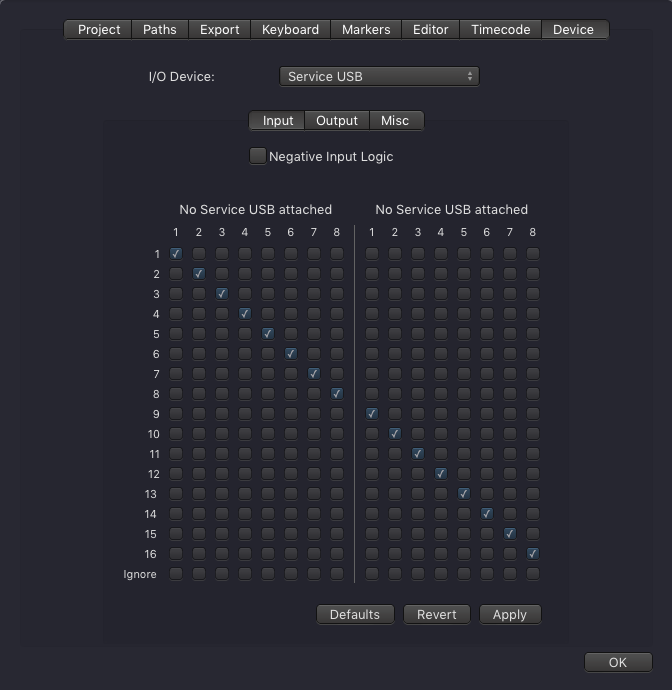
ToolsOnAir GPI Box
When using the ToolsOnAir GPI Box you need to select "Service USB" as your I/O Device.
Make sure that the Service USB Box is connected via USB to the Live Cut machine and that the driver is installed (located on the disk image).
Blackmagic ATEM
Select Blackmagic ATEM as the I/O Device. Enter the IP address of the device and press the Apply button. If you're being asked to update the Project Template accept it.
Make sure the Blackmagic ATEM software is installed on the Live Cut machine.

User Interface
Use this option to use the user interface as a "vision mixer". The active camera can then be changed by clicking on the appropriate Channel, or by using the buttons below the Channel Previews, or by using keyboard shortcuts.