
The Just In User Interface offers three different interfaces, each one has its own advantages.
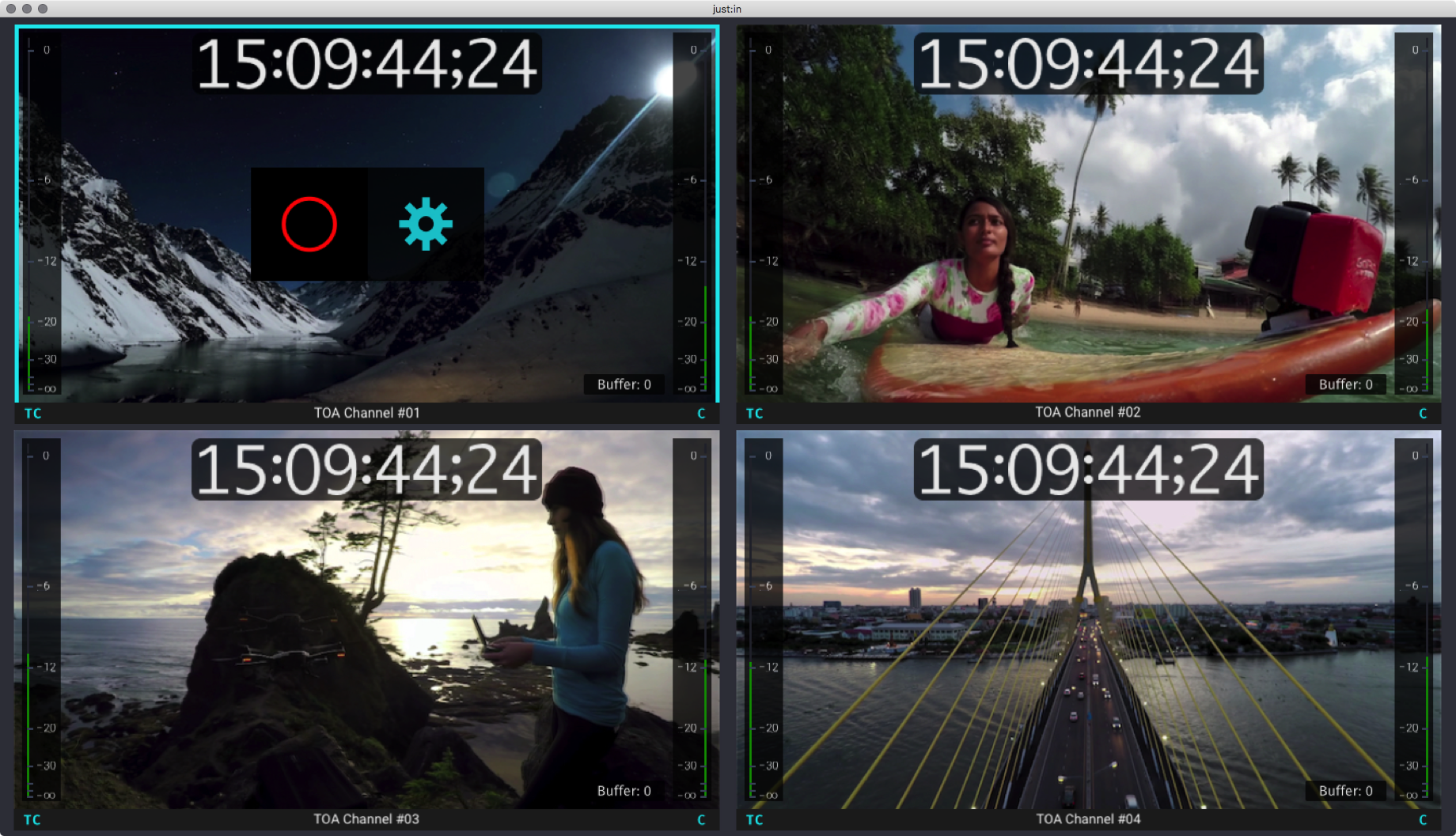
Mode 1: Channel View Mode
Offers a clean view of all your Channels using the maximum viewer size depending on the number of Channels. Move your mouse to the Channel Viewer you would like to change parameters and click on the sprocket to open the Inspector.
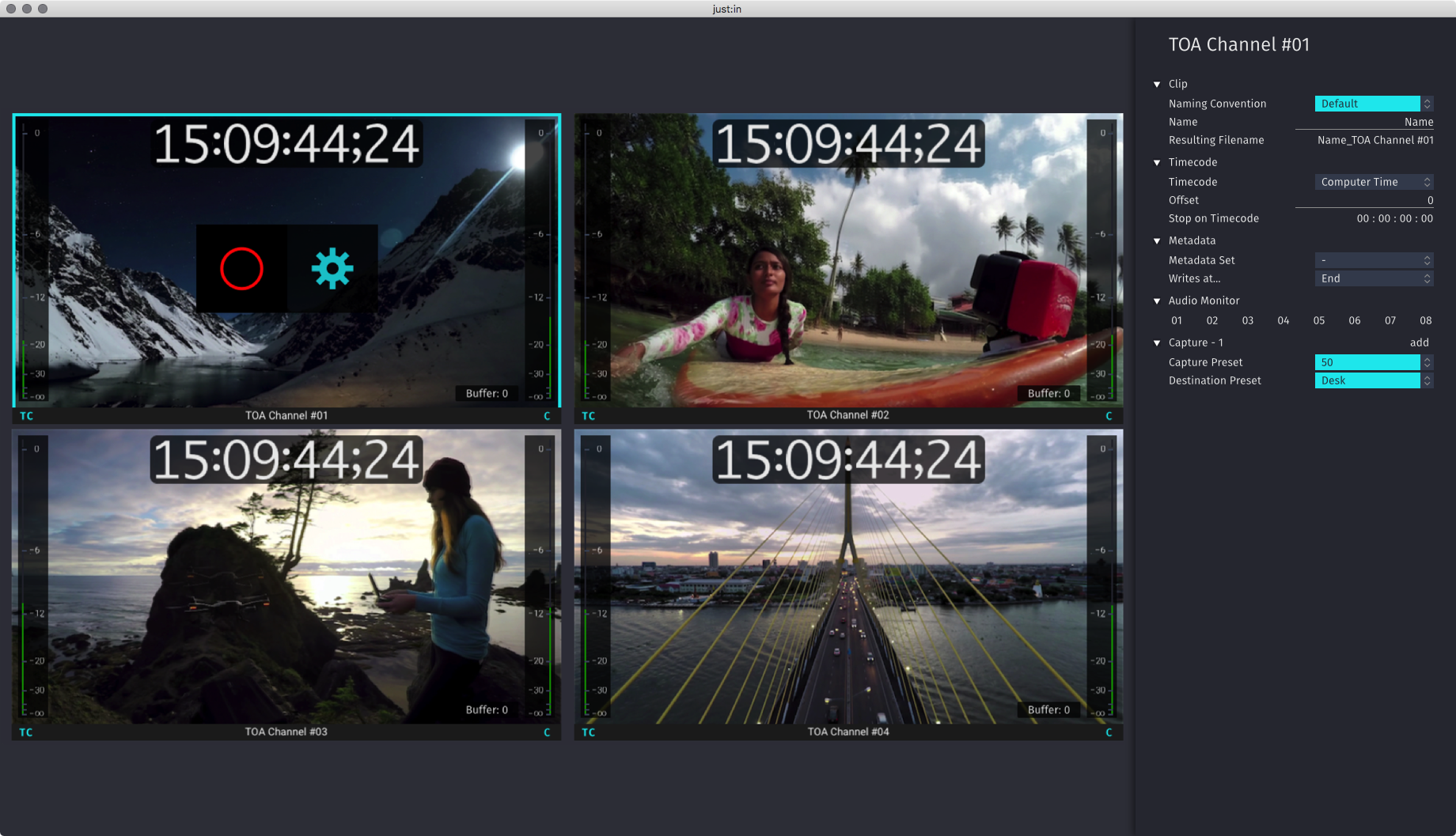
Mode 2: Inspector View Mode
Shows all the Channels like the Channel View Mode, plus the Inspector. All Channels are shown slightly smaller compared to the Channel Viewer Mode, but you can change settings using the Inspector. In some situations this view is mandatory, for example when using the Batch Capture Mode. Move your mouse to any active Channel and click on the sprocket to close the Inspector.
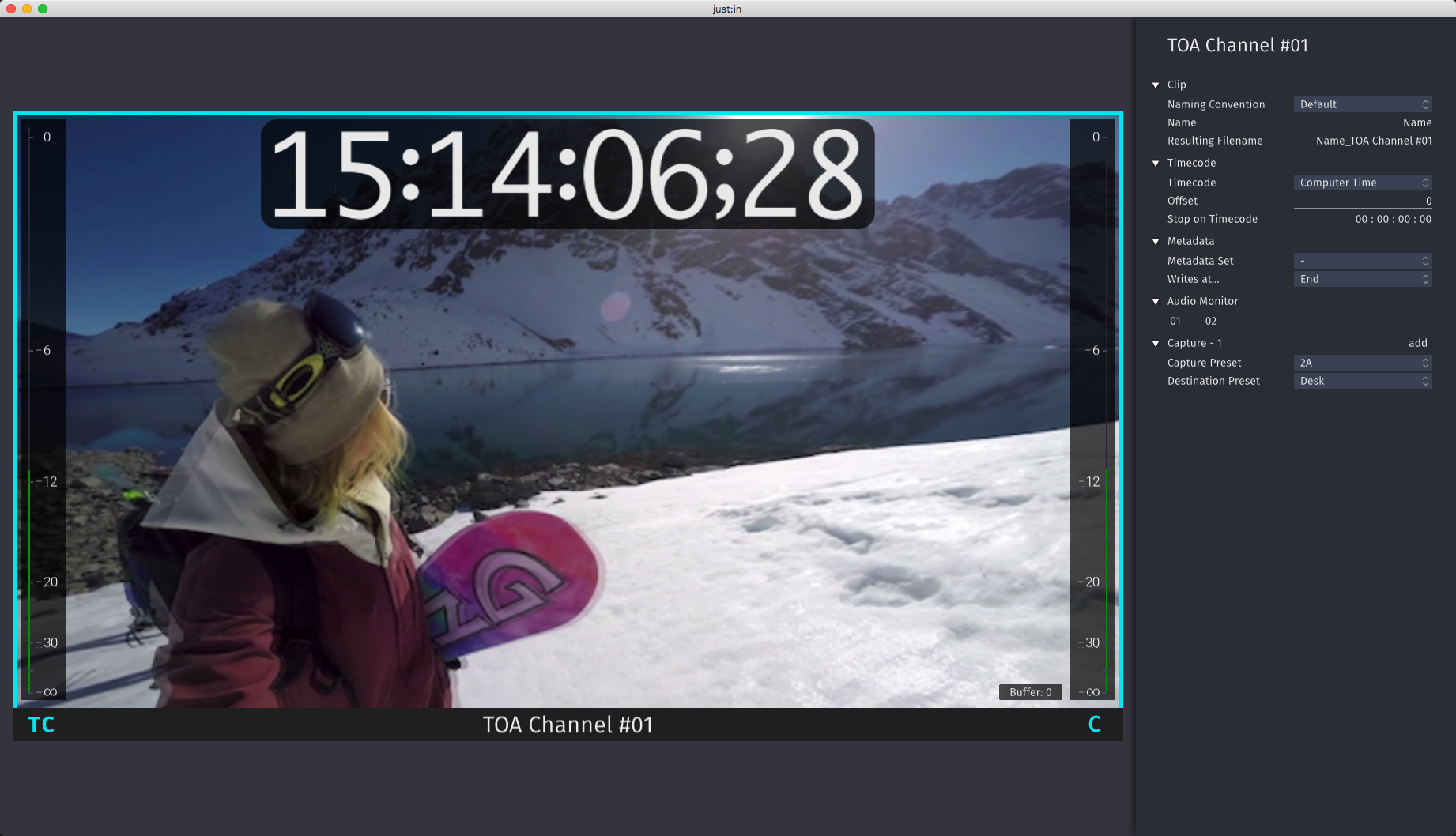
Mode 3: Single Channel Mode
It does not matter how many Channels you control with the User Interface and which kind of Channel View you are using, you can easily switch to the Single Channel Mode which offers a maximum view of the currently selected Channel.
Switching between the Channel/Inspector View and the Single Channel View
Select one Channel and double click on it or press the space bar to switch between the Single Channel View and back to the previously selected View Mode. This method does not work if no Channel, or if more than one Channel is selected.
