
Table of Contents
Description
Just Store can be used as your DaVinci Resolve Project Server, thus allowing you to work on your projects on different workstations.
The DaVinci Resolve Project Server feature requires the Davinci Resolve Studio version.
Adding a DaVinci Resolve Client to your Network
Please see Network Topologies (Just Store v4.0)
Mounting a Sharepoint on your DaVinci Resolve Workstation
Please see Mounting Sharepoints (Just Store v4.0)
DaVinci Resolve Compatibility list
DaVinci Resolve | Operating System | Protocol |
|---|---|---|
17.1.1 | macOS 11.4 | AFP |
17.1.1 | macOS 11.4 | SMB |
17.1.1 | macOS 10.15.7 | AFP |
17.1.1 | macOS 10.15.7 | SMB |
16.2.7.010 | macOS 10.15.7 | SMB |
16.2.7.010 | macOS 10.15.7 | AFP |
16.2.7.010 | Windows 20H3 | SMB |
16.2.5.015 | macOS 10.15.7 | SMB |
16.2.5.015 | macOS 10.15.7 | AFP |
16.2.5.015 | macOS 10.15.6 | SMB |
16.2.5.015 | macOS 10.15.6 | AFP |
16.2.5.015 | macOS 10.14.6 | SMB |
16.2.5.015 | macOS 10.14.6 | AFP |
To avoid issues, please use only the tested versions above.
Supported Protocols
AFP
Data throughput of up to 10 Gbit.
Only macOS clients can connect via AFP.
Extended Attributes are supported.
SMB
Data throughput of up to 10 Gbit.
Any current operating system can connect via SMB.
Extended Attributes are supported.
DaVinci Resolve Project Server Shared Libraries
With Just Store version 4.0 you can easily manage your DaVinci Resolve projects in one central location. You have to use a DaVinci Resolve Studio version to use this feature. With DaVinci Resolve, you no longer have to wait for the editor to lock picture before color, effects and sound work can begin. Best of all, you no longer have to deal with importing and exporting files, translating projects, losing work, or conforming and managing changes.
Creating a Shared Library on a DaVinci Resolve Project Server
Open DaVinci Resolve.
Click the New Database button.

Click on the Create tab and enter the required data.
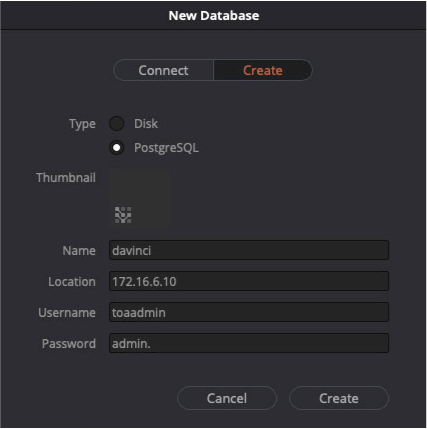
Name: name of the Library (default: davinci)
Location: the IP address of the Just Store. Indirect connections should use the IP Address 172.16.x.10.
Username: username of the user for the server access (default: toaadmin)
Password: password of the user for the server access (default: admin.)
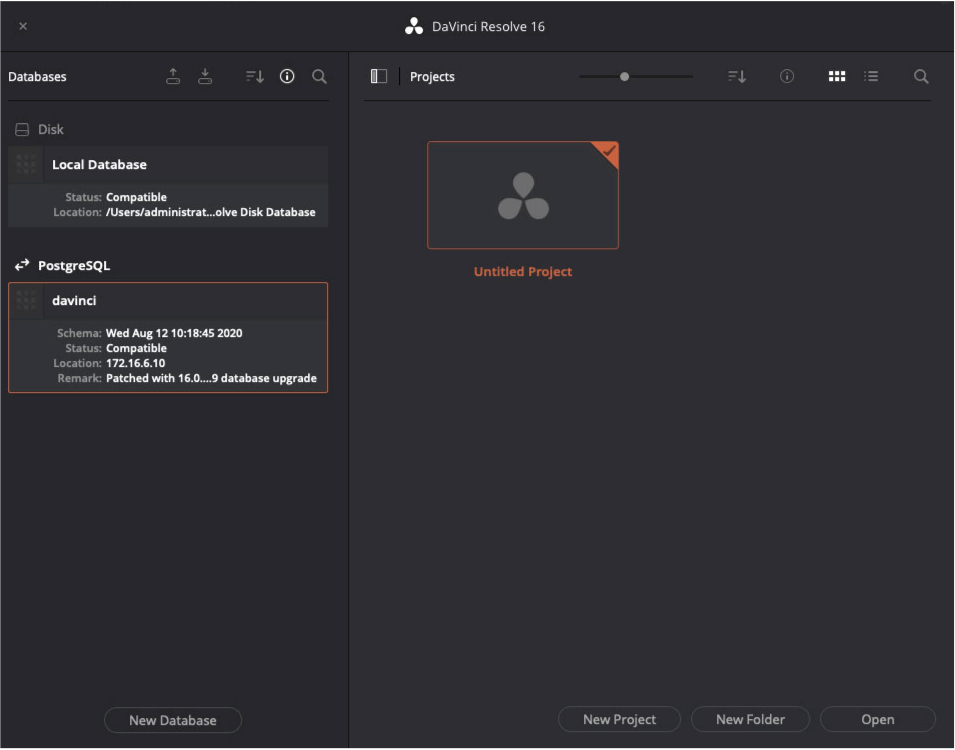
Press the Add button. If the entered data is correct, the DaVinci Resolve startup view will be shown.
Connecting to a Shared Library on a DaVinci Resolve Project Server
Open DaVinci Resolve.
Click the New Database button.
Click on the Connect tab and enter the required data.
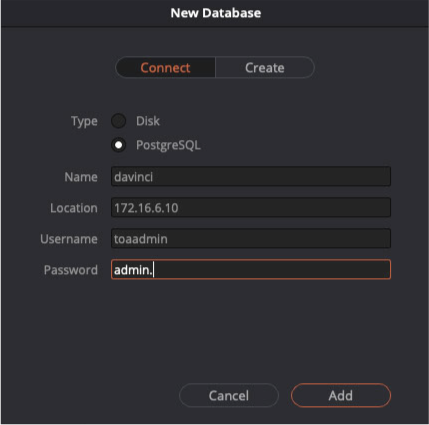
Name: name of the Library (default: davinci)
Location: the IP address of the Just Store. Indirect connections should use the IP Address 172.16.x.10.
Username: username of the user for the server access (default: toaadmin)
Password: password of the user for the server access (default: admin.)
Press the Add button. If the entered data is correct, the DaVinci Resolve startup view will be shown.