Table of contents
Enable AutoStart through System Preferences
Click on the left top on the icon and select System Preferences.
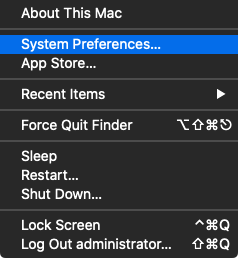
Select the Users & Groups to see the login items of the users.

Now you will see your current user and select the “Login Items” tab.

Click on the “+” button to add the AutoMounter to the startup applications.
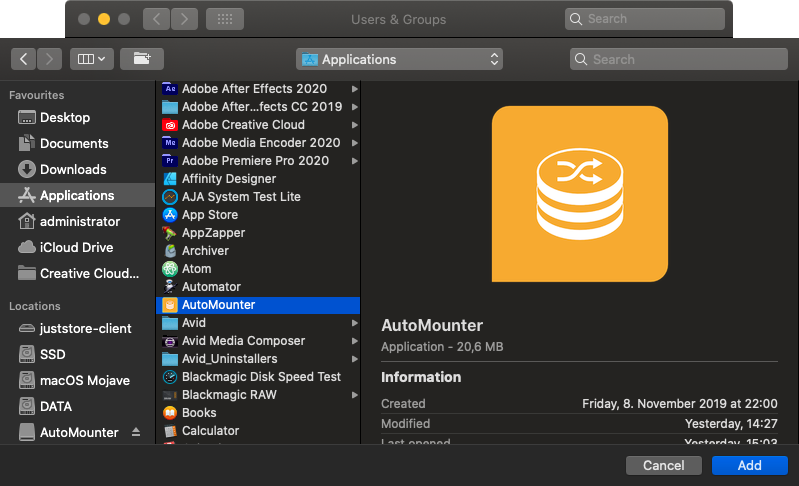
Click on the “Add” button to enable the automatic start of the AutoMounter at startup.
Now you will see the AutoMounter in the startup objects.

Enable AutoStart through AutoMounter
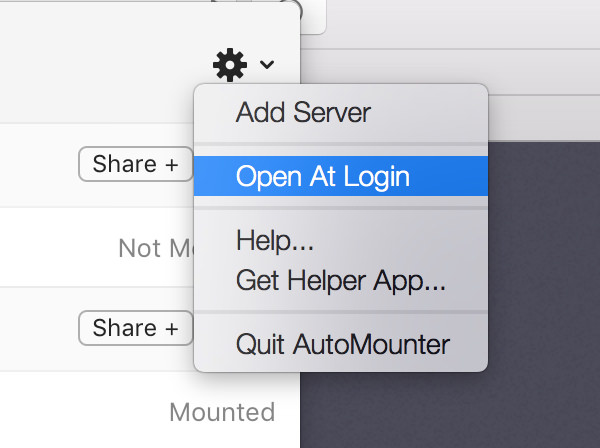
Simply press the Settings Button (cogwheel) to open the Dropdown and click “Open At Login” to enable an automatic startup when booting the system.