
Table of Contents
Before continuing make sure to read the article Connecting to the Just Store Web-based Administration Interface
Click on Logs in the sidebar.
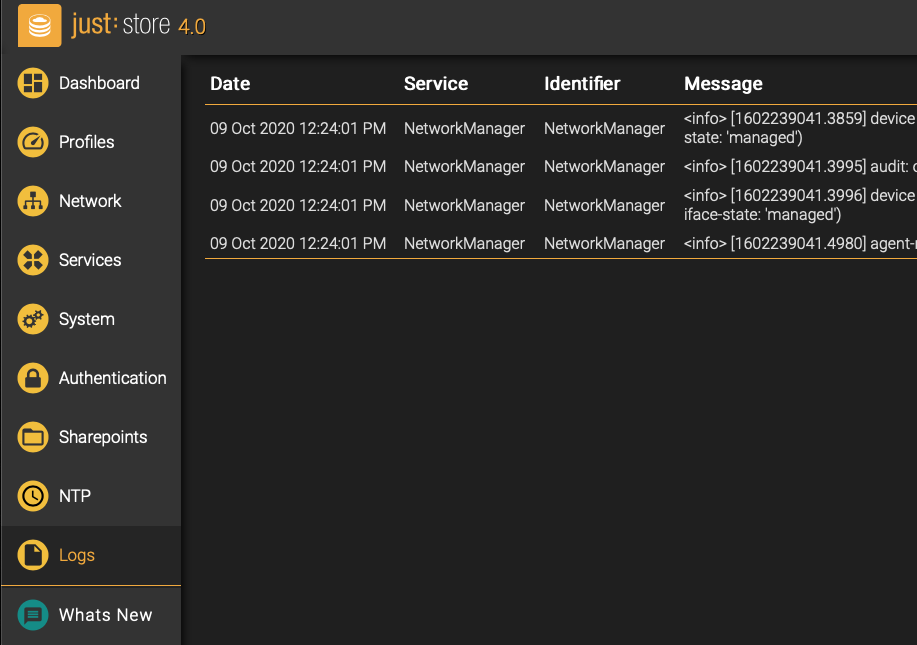
The Logs Overview will be shown.
Logging View
The logging view allows for showing all logging activities for easier maintainability.
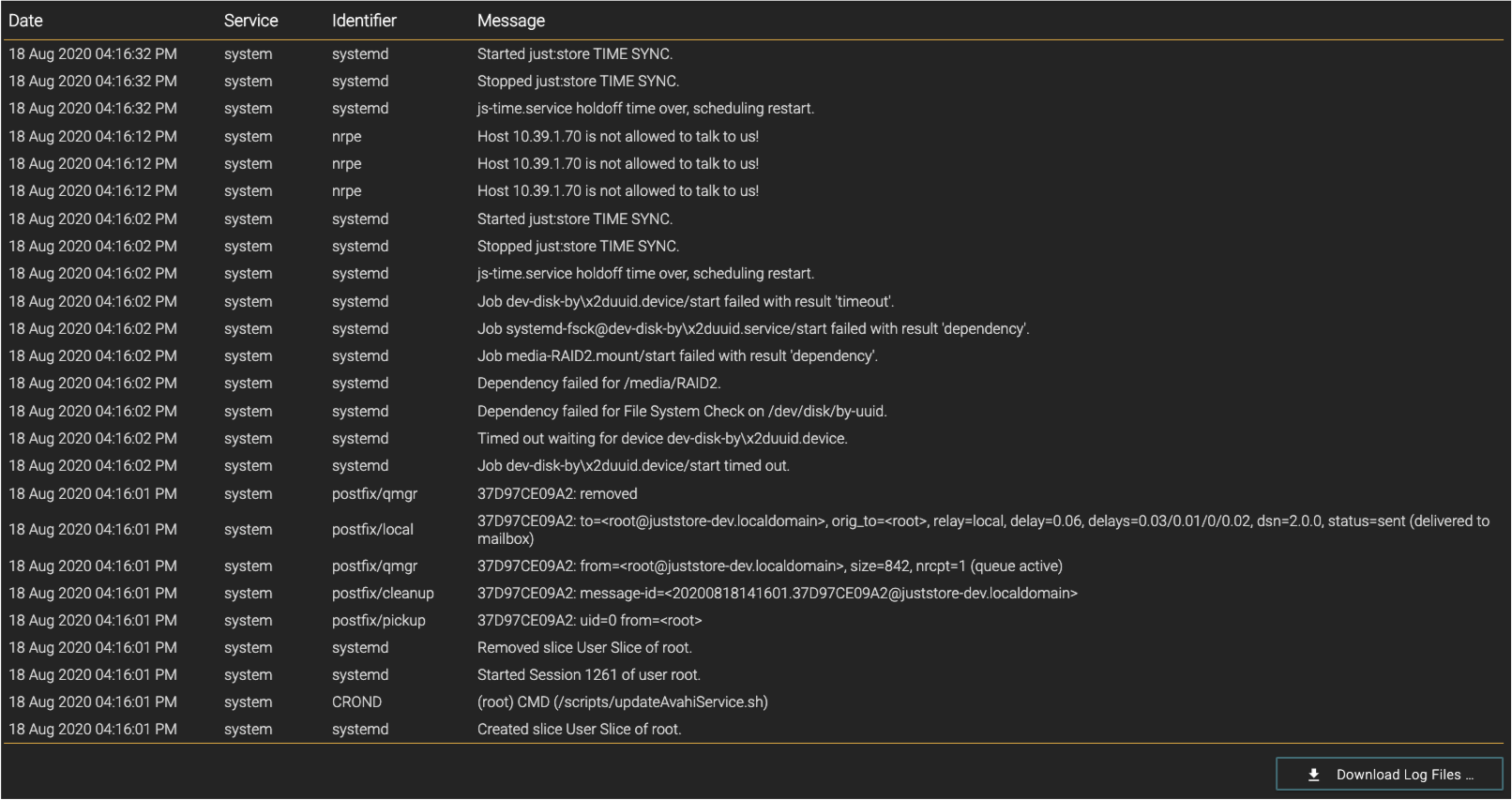
Date: date of the log entry.
Service: shows the depending service.
Identifier: shows which part of the system produces the log entry.
Message: shows the logged message.
Downloading Logs
Just Store allows you to download the logs to a client PC so they can be sent to ToolsOnAir for further investigation.
Press the Download Log Files button.
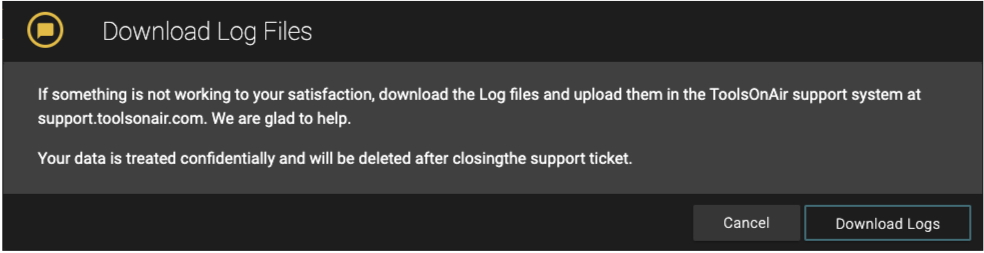
Press the Download Logs button to open a download dialog to store the files on your PC.
Open a ticket at support.toolsonair.com and attach the downloaded log files to your ticket.
Preparing the download may take some time. Please be patient and stay on the Logs page until your web browser starts the actual download.