
Table of Contents
Accessing the Sharepoint Settings
Before continuing make sure to read the article Connecting to the Just Store Web-based Administration Interface
Click on Sharepoints in the sidebar.
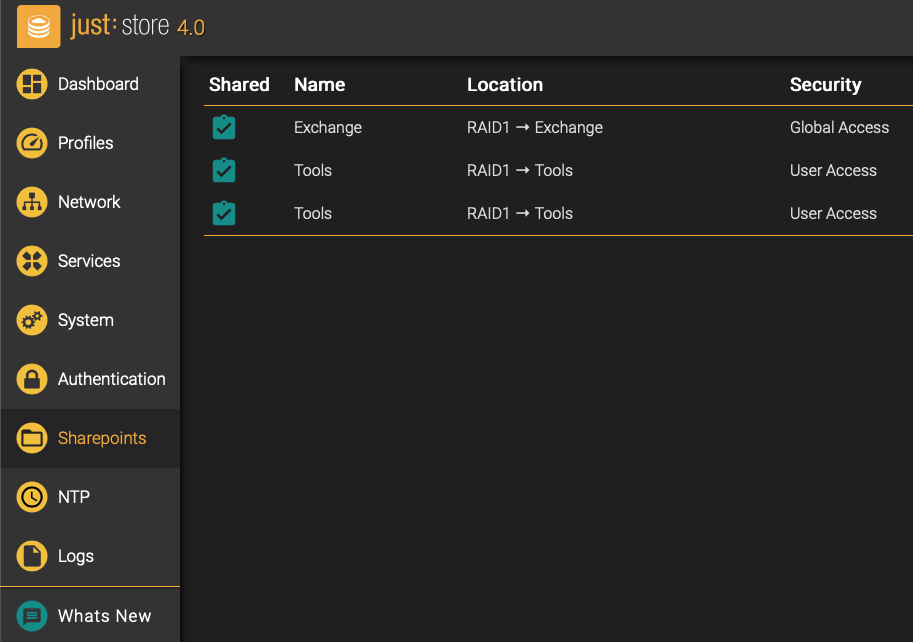
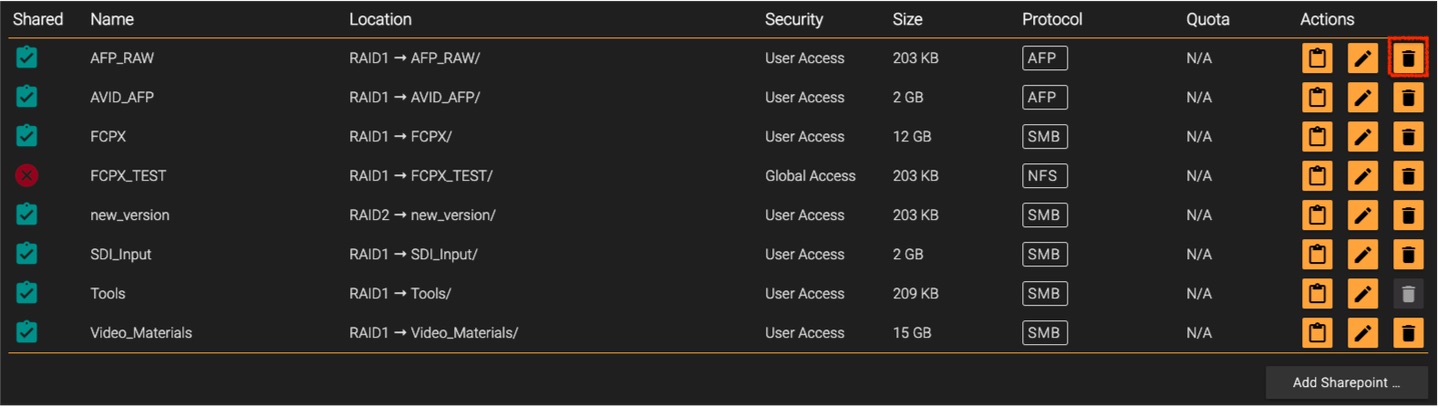
The Sharepoints Overview will be shown, allowing you to configure the sharepoints.
Overview
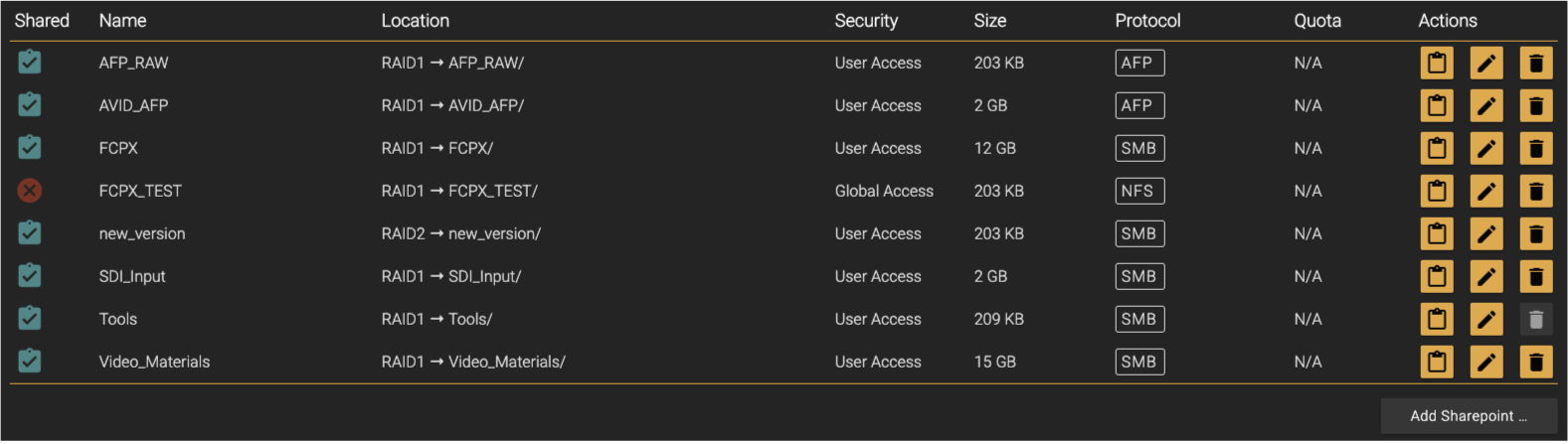
Shared: shows the state of a sharepoint which can be enabled or disabled.
Name: name of the sharepoint.
Location: location where the sharepoint is placed on the storage. A sharepoint name can only be set once per location.
Security: shows if the sharepoint needs credentials.
Restricted Access: means that the Authentication is enabled.
Global Access: means that no authentication is required.
Size: shows the actual size of the sharepoint
Protocol: displays the used protocol for a sharepoint.
Quota: displays whether a space limitation has been set.
Actions (from left to right):
Add a sharpoint with the same authentication details.
Edit a sharepoint.
Delete a sharepoint.
Adding a Sharepoint
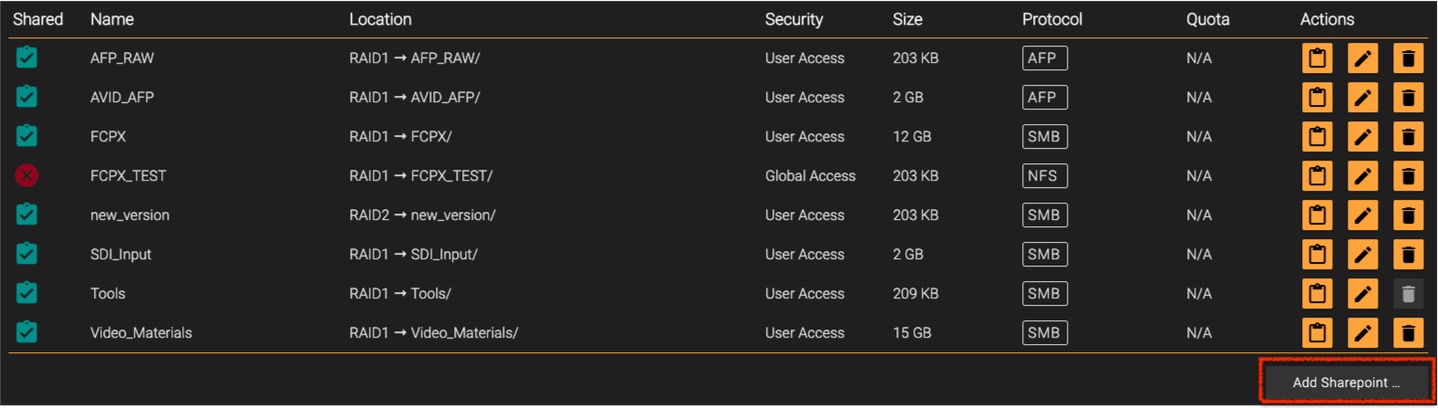
Press the Add Sharepoint button.
Configure the sharepoint to your needs. The available options are documented below.
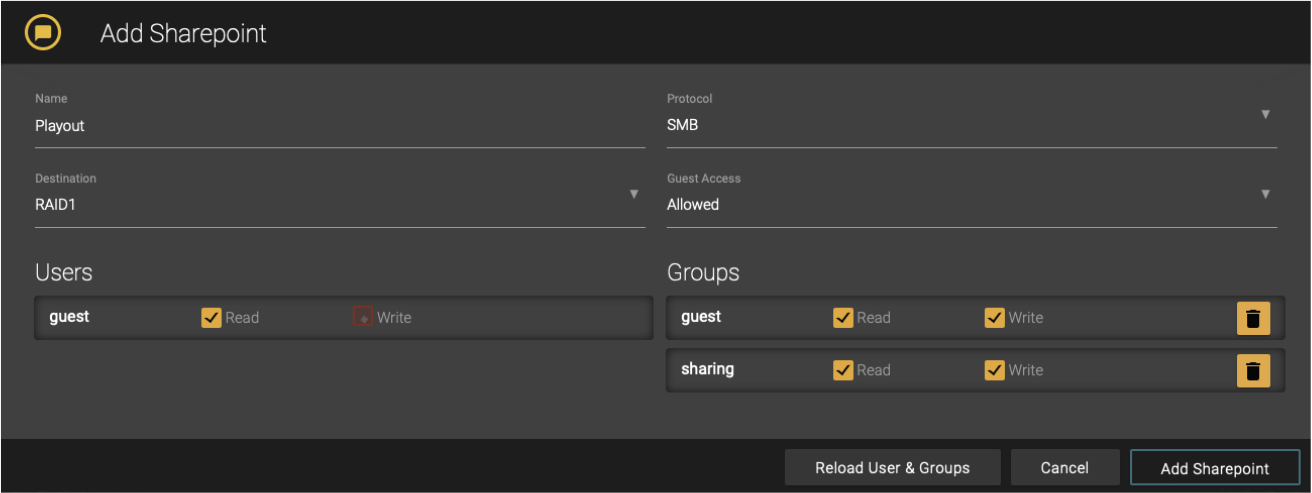
If you want to exclude a group or a user just click on the trash icon next to the read and write permissions.
Press the Add Sharepoint button when you’re done.
Available Options
Name: name of the sharepoint.
Protocol: protocol of the sharepoint.
Destination: location where the sharepoint will be created.
Guest Access: allows unauthorized sharepoint access.
Users: choose users which are allowed to access the sharepoint.*
Groups: select the group you want.*
* only available if you select AFP or SMB
Disabling read and write permissions of a user automatically removes the user from the Users list.
Editing a Sharepoint
Press the Edit button of the sharepoint you want to edit.
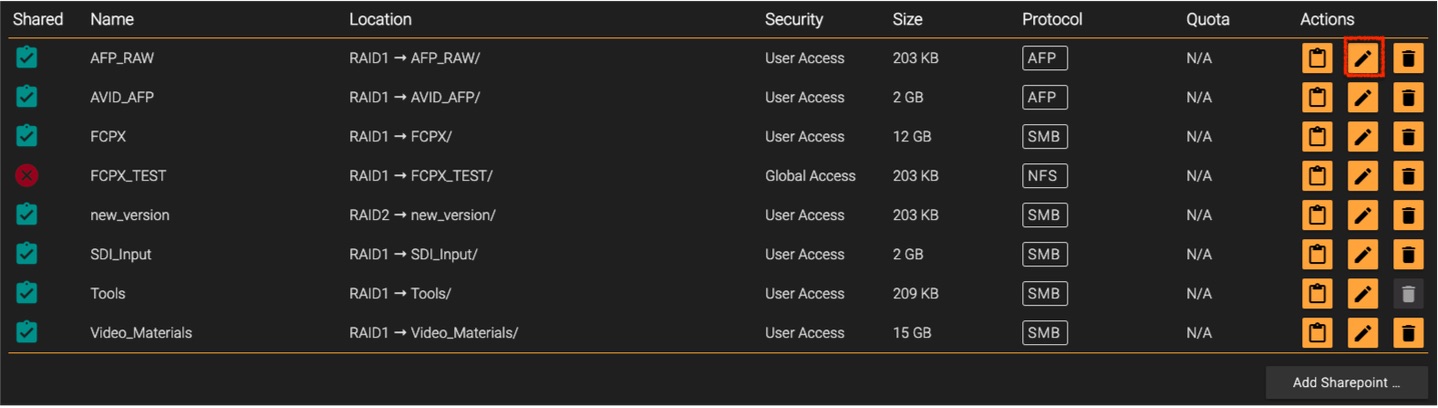
Configure the sharepoint to your needs. The available options are documented below.
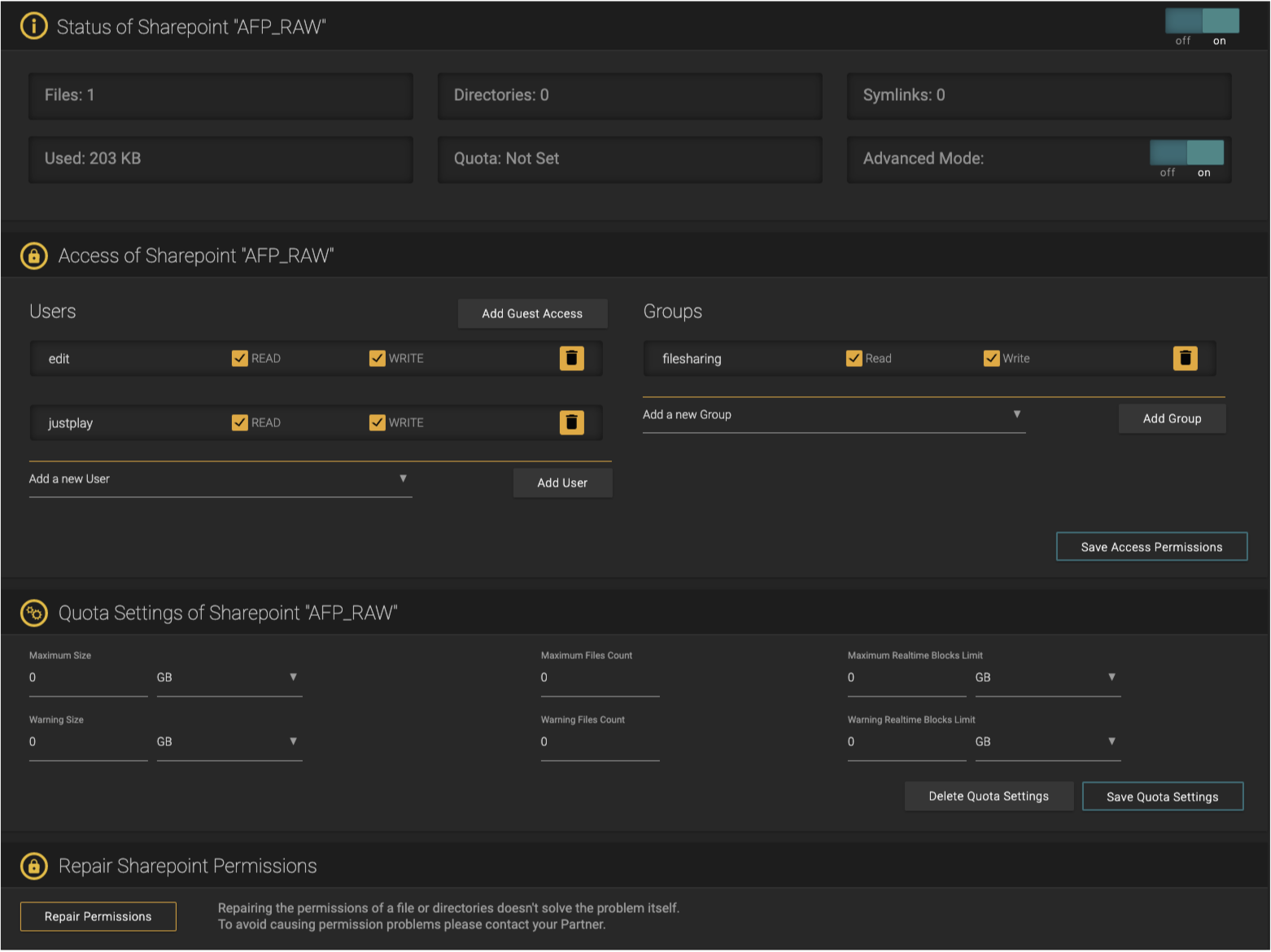
The sharepoint configuration has separate sub configurations like Access and Quota. They are explained in detail below.
Status of Sharepoint

Files: number of files on the sharepoint.
Directories: number of directories on the sharepoint.
Symlinks: number of symlinks on the sharepoint.
Used: used space on the sharepoint.
Quota: shows if a space limitation is set.
Advanced Mode: enable or disable advanced mode, allowing you to repair permissions if required.
Access of Sharepoint (User-based)
AFP and SMB sharepoints are user-based.
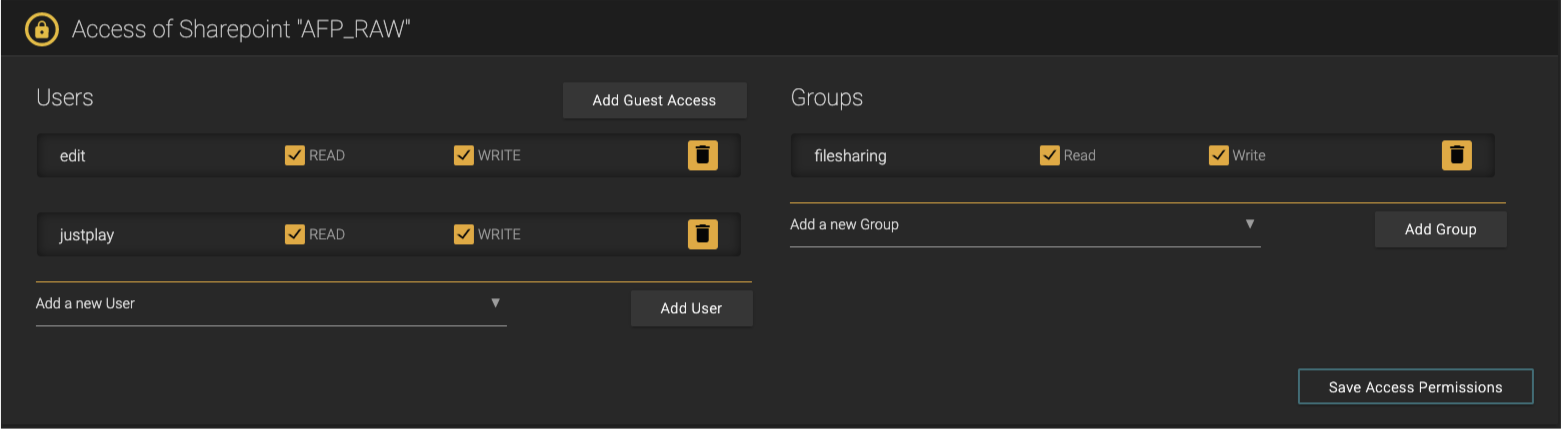
Users: allows you to add users and define their permissions.
Groups: allows you to add groups and define their permissions.
Press the Save Access Permissions when you’re done.
Access of Sharepoint (Network-based)
NFS sharepoints are network-based.

Type: can be an IP address, a hostname, a subnet, or just “Global”. This means that the permission is set for all clients, excluding specific user-defined IP addresses, hostnames or subnets.
Client Address/Subnet: displays the address and subnet of a client.
Permissions: displays the permissions.
Action: allows you to delete the entry.
Addin an IP Address/Subnet
Hostname/IP: enter a hostname or IP address and subnet.
Subnet: choose the type of subnet.
Access: choose between read-only or read & write access.
Quota Settings of a Sharepoint

Maximum Size: sets the maximum allowed size for the sharepoint. A value of zero means there is no size limit.
Maximum Files Count: sets how many files the sharepoint can contain. A value of zero means there is no file limit.
Maximum Realtime Blocks Limit: sets the maximum realtime blocks size for the sharepoint. A value of zero means there is no realtime blocks limit.
Repair Sharepoint Permissions
Requires Advanced Mode to be enabled, as described above in Status of Sharepoint.

In case there are issues opening, saving or deleting files or directories, this section allows you to repair permissions.
Please open a ticket at support.toolsonair.com if permission issues persist.
Duplicating a Sharepoint
Press the Duplicate button of the sharepoint you want to duplicate.
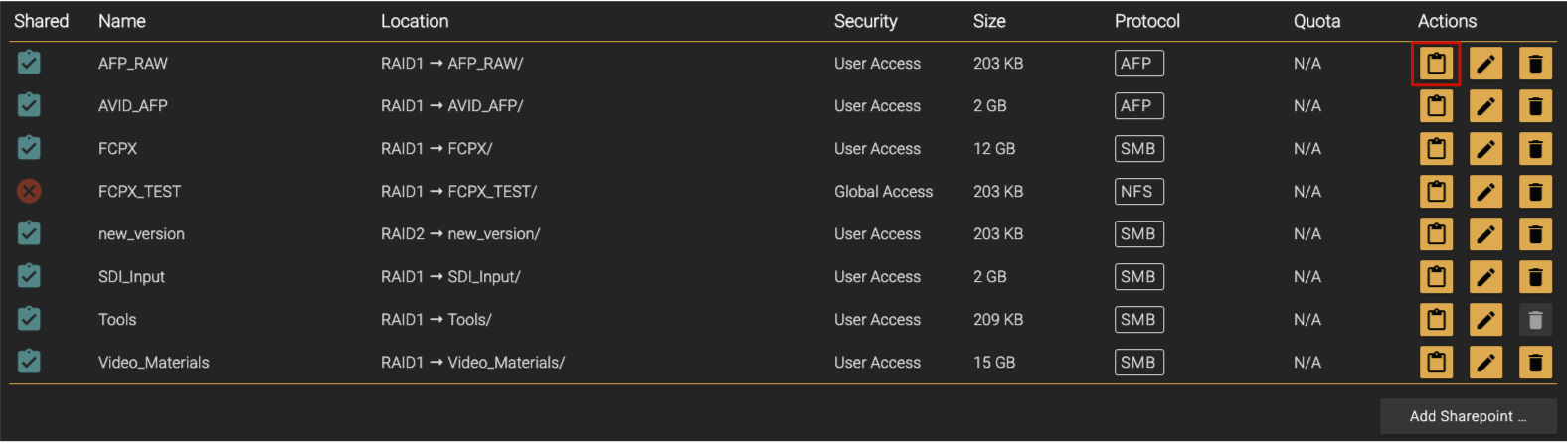
Enter the Name, Destination and Protocol of the duplicate sharepoint.

Removing a Sharepoint
Press the Delete button of the sharepoint you want to delete.
Accept the dialog to delete the sharepoint. The deletion cannot be undone.
Removing a sharepoint removes all data which is stored on this sharepoint. This data cannot be restored afterwards.