
Just In linux/mac is not activated by default and therefore a ToolOnAir watermark will be added to all Recordings.
Activation is not required to test the Just In linux/mac engine or just:control.
Activate a Device
Open the Configuration Panel, select a Device and switch to the Activation Tab.
To make any changes you have unlock the Configuration Panel.
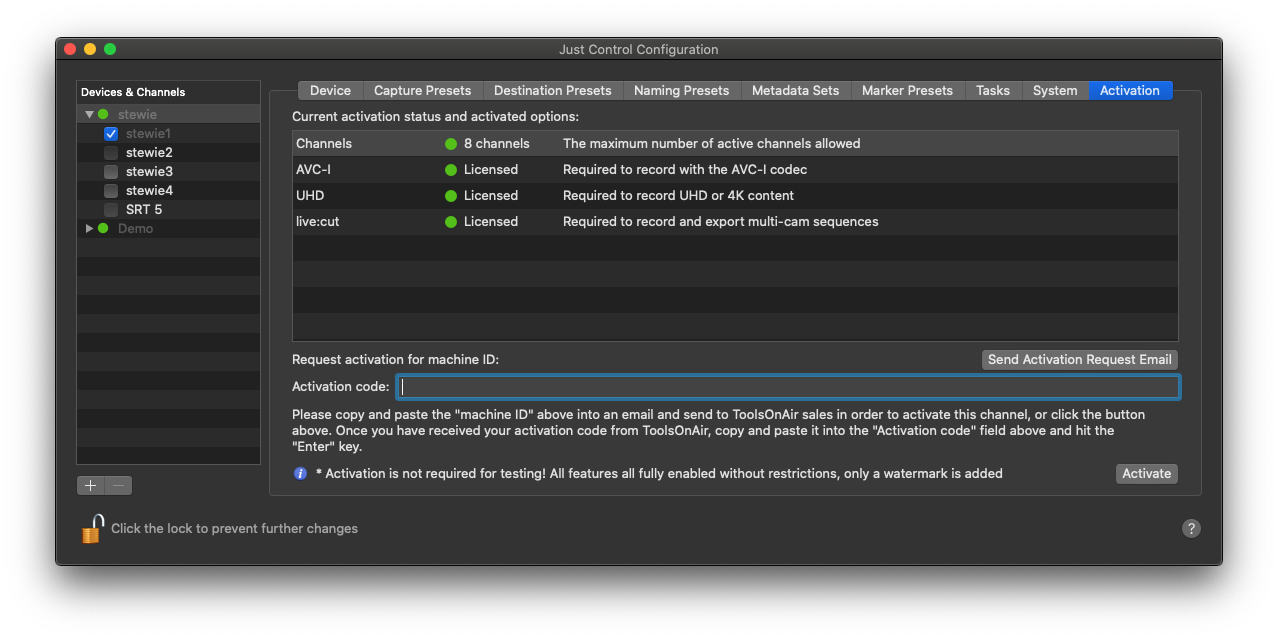
Copy and Paste the Activation Key into the Activation Code field and press the "Enter"-key or press the "Activate"-button. When the Activation was successful the Activation status in the Activation Status and Option List changes from yellow to green.
Please make sure that the Just In linux/mac engine gets restarted after adding the Activation Key.
Switch Activation between Channels
If you are working with changing setups, like for instance at some point you are using four SDI channels (like a AJA Kona 4), and sometimes you only use three of these SDI channels and additionally you are working with a NDI channel as well, then please make sure that you are only enabling the channels in use and not all of them, when you are only having a four channel license on this particular machine.
Please make sure that you restart the Just In linux/mac engine, after you are changing the enabled channels.
Please contact us if you have further questions regarding Activation.
Transfer license (JIM only)
If you want to change the license to another machine, please contact us via our Support Helpdesk and will guide you through that process. Machines with a valid maintenance contract can move licenses.