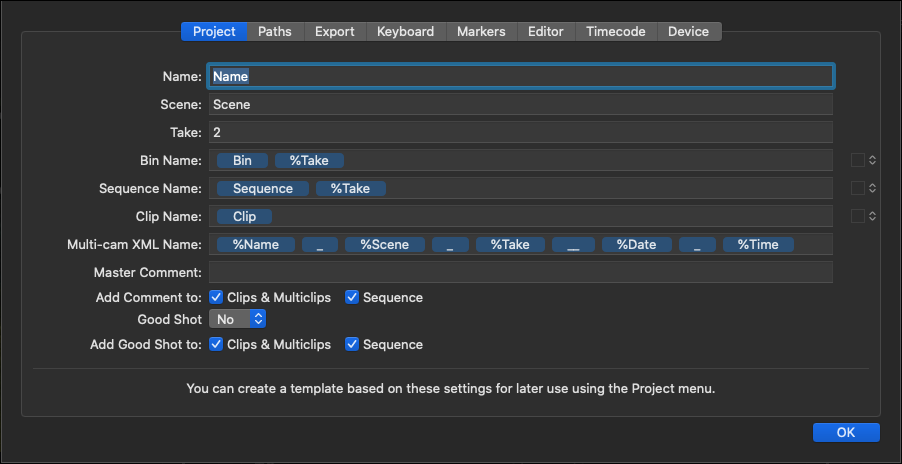
Name, Scene, Take: used to identify and organize the Project.
Bin Name, Sequence Name, Clip Name: you may use Variables in these fields (see below).
Multi-cam XML Name: Set the Multi-cam XML name here. You max use Variables here as well.
Master Comment (only available in Final Cut Pro 7): enter your comments for the specific Take. This information shows up in the Final Cut Pro Master Comment column. Usually this is entered in the main window, or after the recording in the stop-record window.
Do not change these settings after your recording has started as it effects the generation of QuickTime file names and other Metadata. Doing so will result in errors in the XML structure and your media will be showing up offline in the Final Cut Pro or Adobe Premiere Pro project.
Variables
A Variable is indicated by a leading "%" and a colored background. Variables can be rearranged using drag-and- drop. Fixed variables can be used by entering them without a leading "%".
%Name: corresponds to the "Name" field in the Live Cut main window.
%Scene: corresponds to the "Scene" field in the Live Cut main window.
%Take: corresponds to the "Take" field in the Live Cut main window.
%Date: corresponds to the current date (updated whenever a change is made in any field).
%Time: corresponds to the current time (updated whenever a change is made in any field) .
%Angle: corresponds to the "Angle" field in the Live Cut main window.
%Reel: corresponds to the "Reel" field in the Live Cut main window.
%Counter: corresponds to the "Counter" field in the Live Cut main window.
%StartTimecode: the starting Timecode.
%Channel: the Channel name.
Date & Time Format
Changing the format of these Calendar Event Variables is very easy and straightforward as well. In order to make this as flexible as possible, we are using the default system settings for that. To change that, open the custom format settings for “Dates” and “Times”, which can be found here:
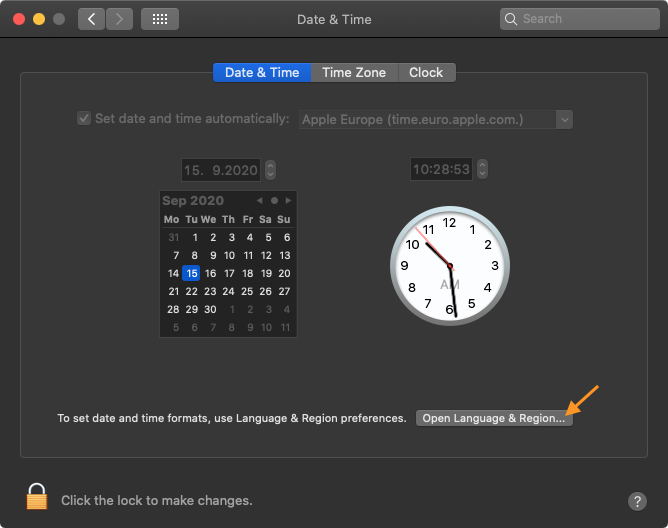
Open the macOS System Preferences and open the Date & Time Preferences Panel.

Open Language & Region Settings.
Switch to the Advanced Settings.
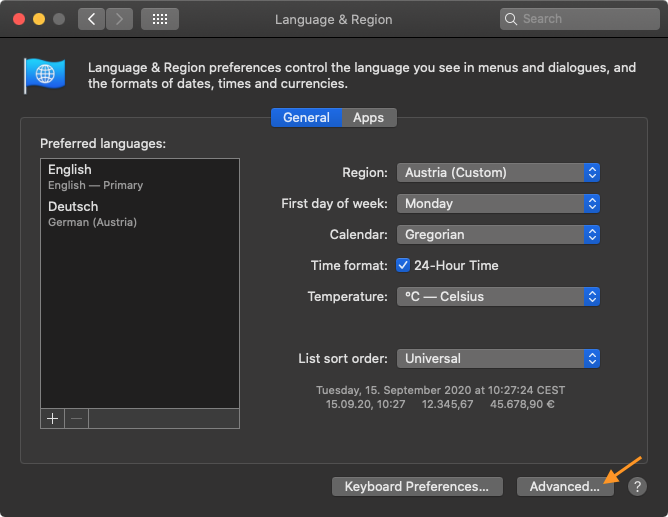
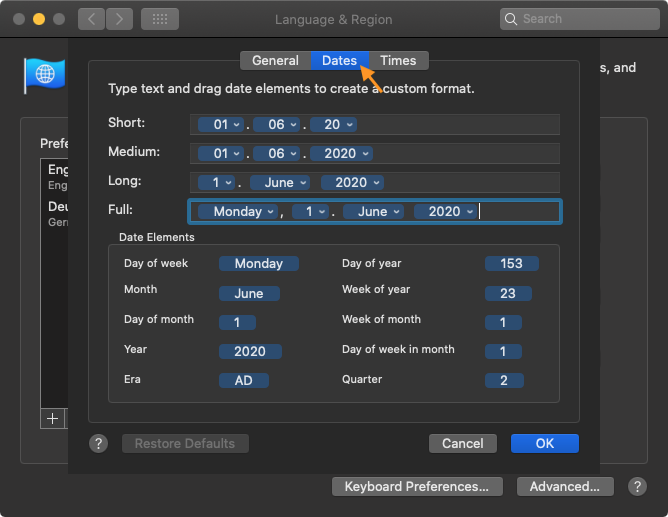
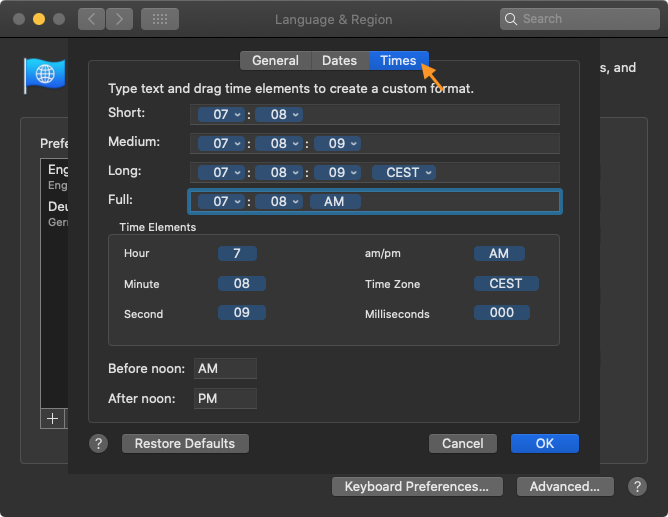
Change Dates and/or Times Format Settings here ("Full:").