
Just In linux Configuration Templates can be saved within the just:control Configuration Panel (System Tab). Within that Panel, the current state of the Channel Settings and the created Presets can be saved and restored.
Save Configuration
In order to save the current configuration as a Template, open the Configuration Panel, select the Device within the Devices and Channels list and switch to the System Tab.

Then click on the Save Button and choose Save Configuration.

In the next step save the configuration file at your location of choice.
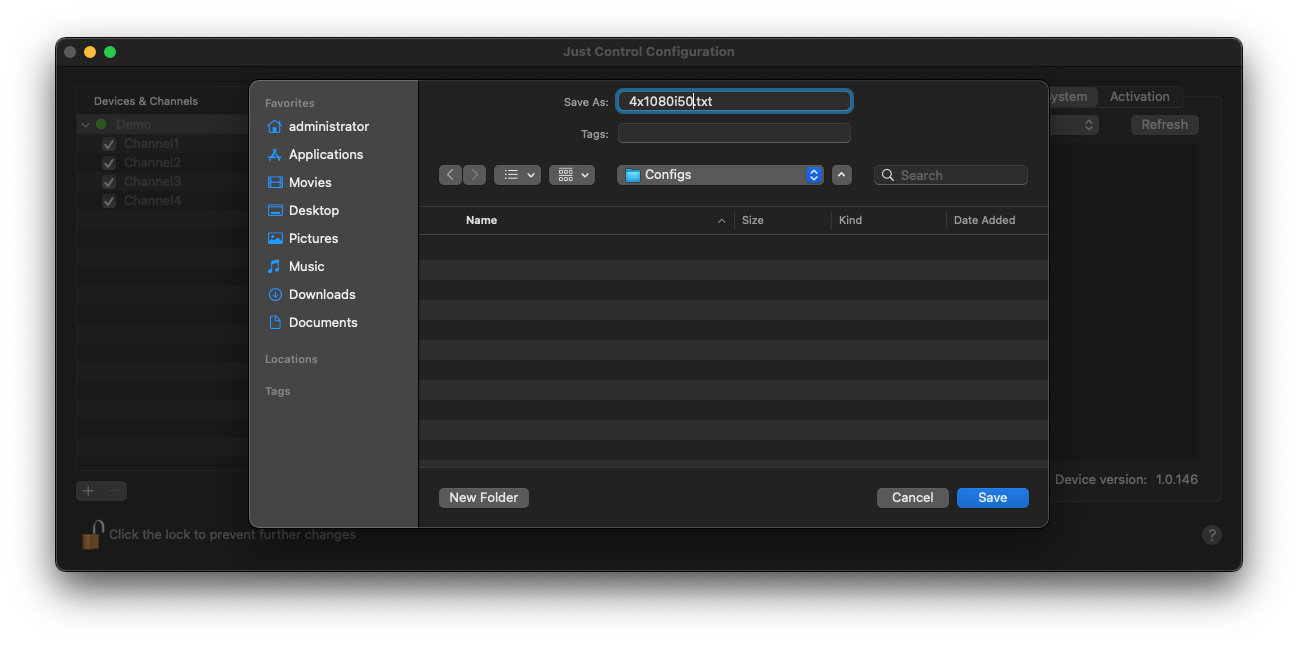
Now you can change your configuration and use the steps from above to create another Configuration Template.
Restore Configuration
In order to restore a previously created Configuration Template, open the Configuration Panel, select the Device within the Devices and Channels list and switch to the System Tab.
Please beware that you have to disable all running Channels first, before you can restore to a different configuration template.
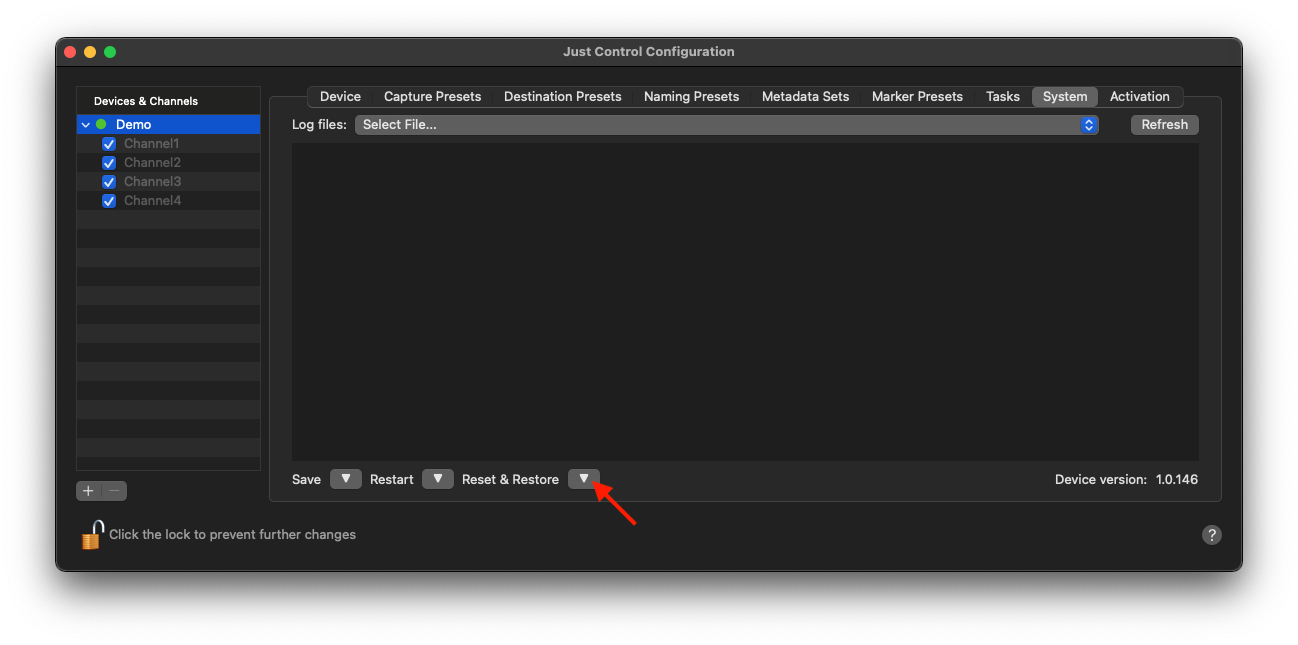
Then click on the Reset & Restore Button and choose Restore just:connect.
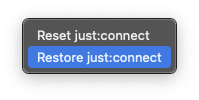
Please make sure that you do not select “Reset just:connect”, as you will erase the current configuration.
Select the Configuration File and use the Restore Button to move on.
