
The channel ordering in Live Cut depends on which channels were selected for the Live Cut project in the first place. For instance, when you have four channels selected in just:control, then you will have four channels in your Live Cut project. Channel ordering goes from top left to bottom right, as can be seen in following screenshot.
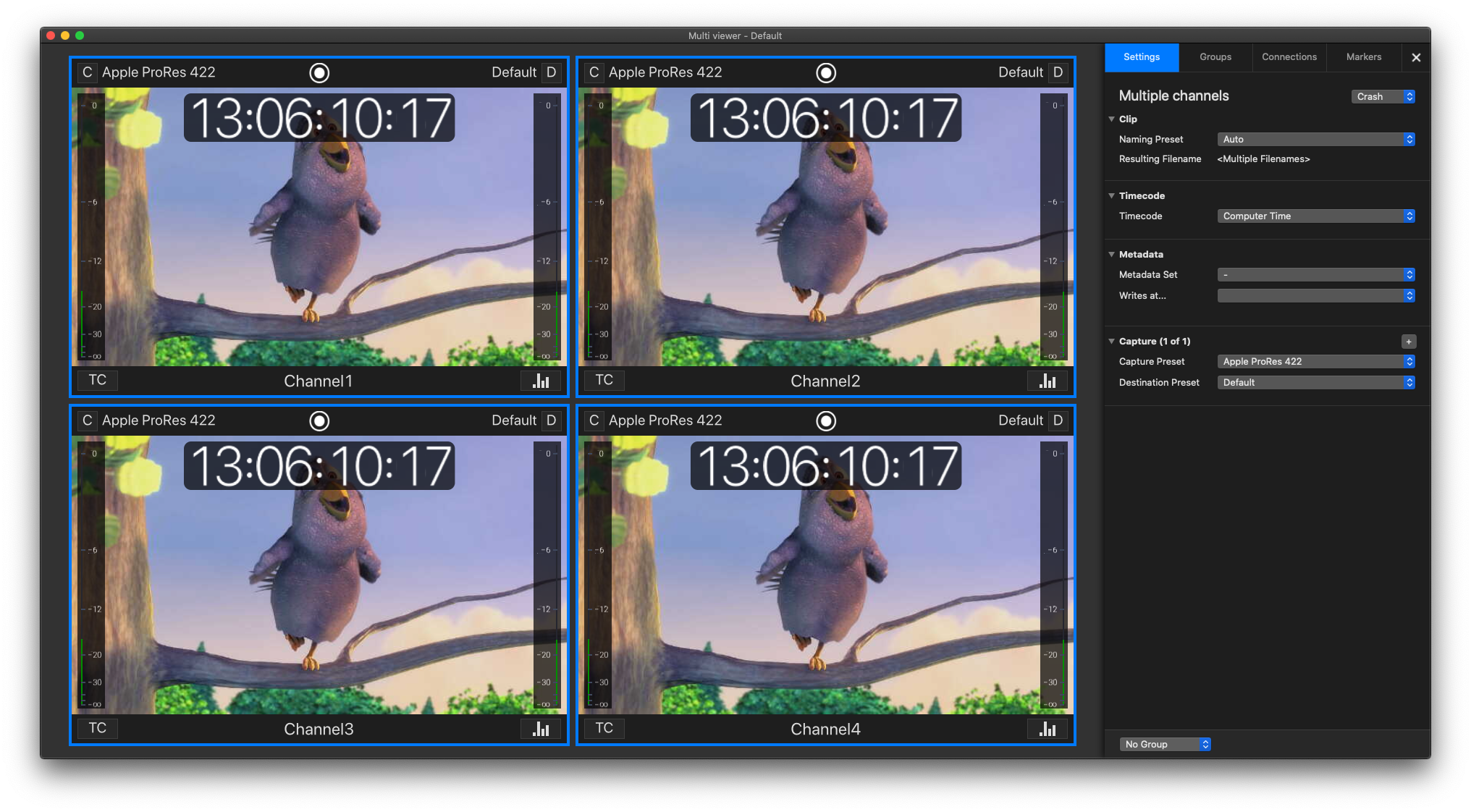

In case you have four channels connected in just:control and you are only using two channels (in this case, Channel1 and Channel4) for Live Cut, then the channel ordering changes accordingly. Please see screenshots below (Channel2 and Channel4 are connected but not active in Live Cut mode).


If you are working with a different set of channels for different scenes and you want that CAM4 always stays as CH4 in Live Cut, then you can do that with different Live Cut templates and channel mappings. That means that you will have to create a Live Cut template for each scene. So you will have a Live Cut project for a three camera scene, a five camera scene and so on.