
All of the following chapters assume that you are running a properly configured Just In setup. If this is not the case, please refer to the particular Just In documentation.
Live Cut Projects
Create a Live Cut Project
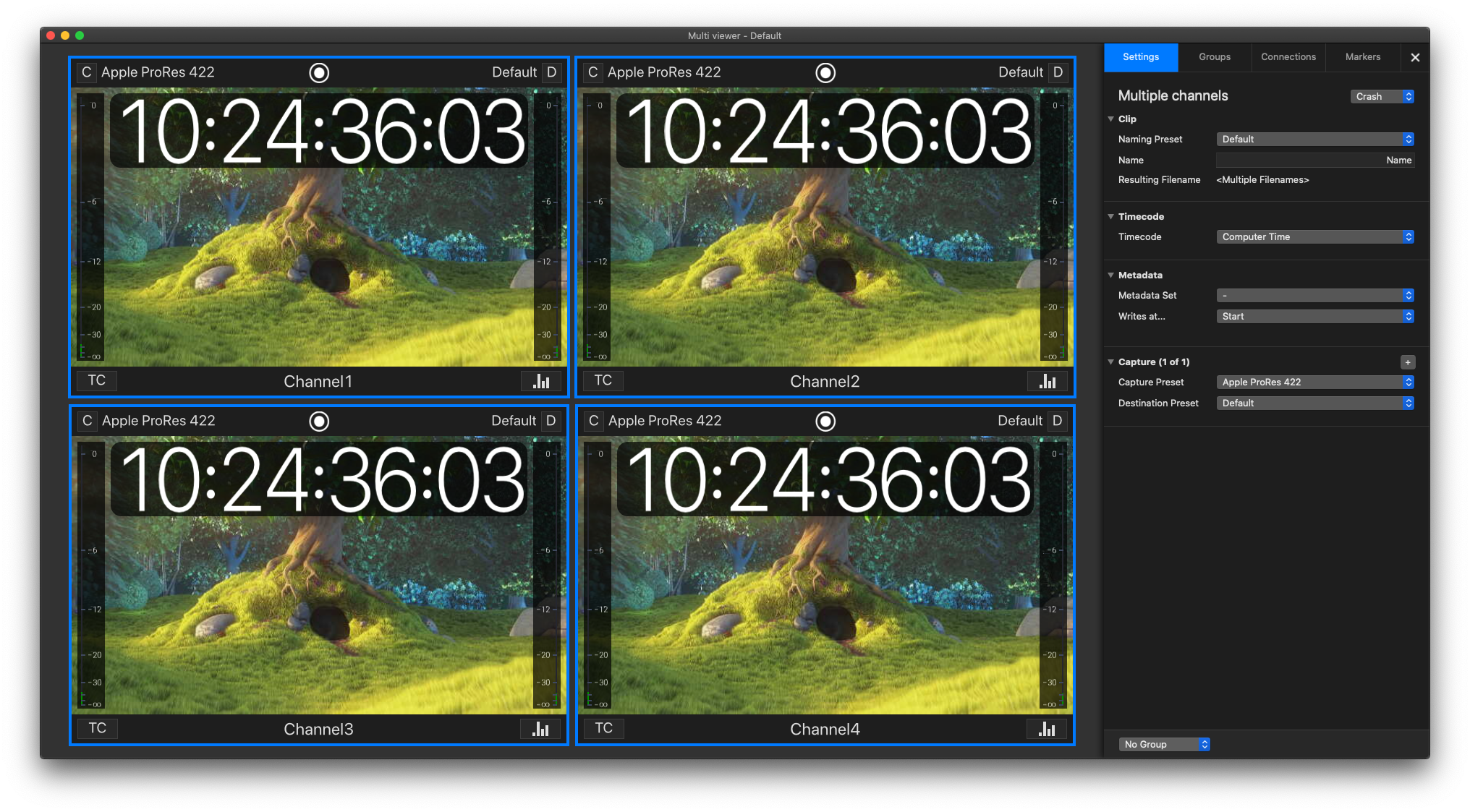
Open just:control and select the desired Channels for your Live Cut Project and open the Inspector. You need to select at least two Channels. Select a Timecode Source and a Capture- and Destination-Preset. It is mandatory that these attributes are synchronized for all Channels used with Live Cut.
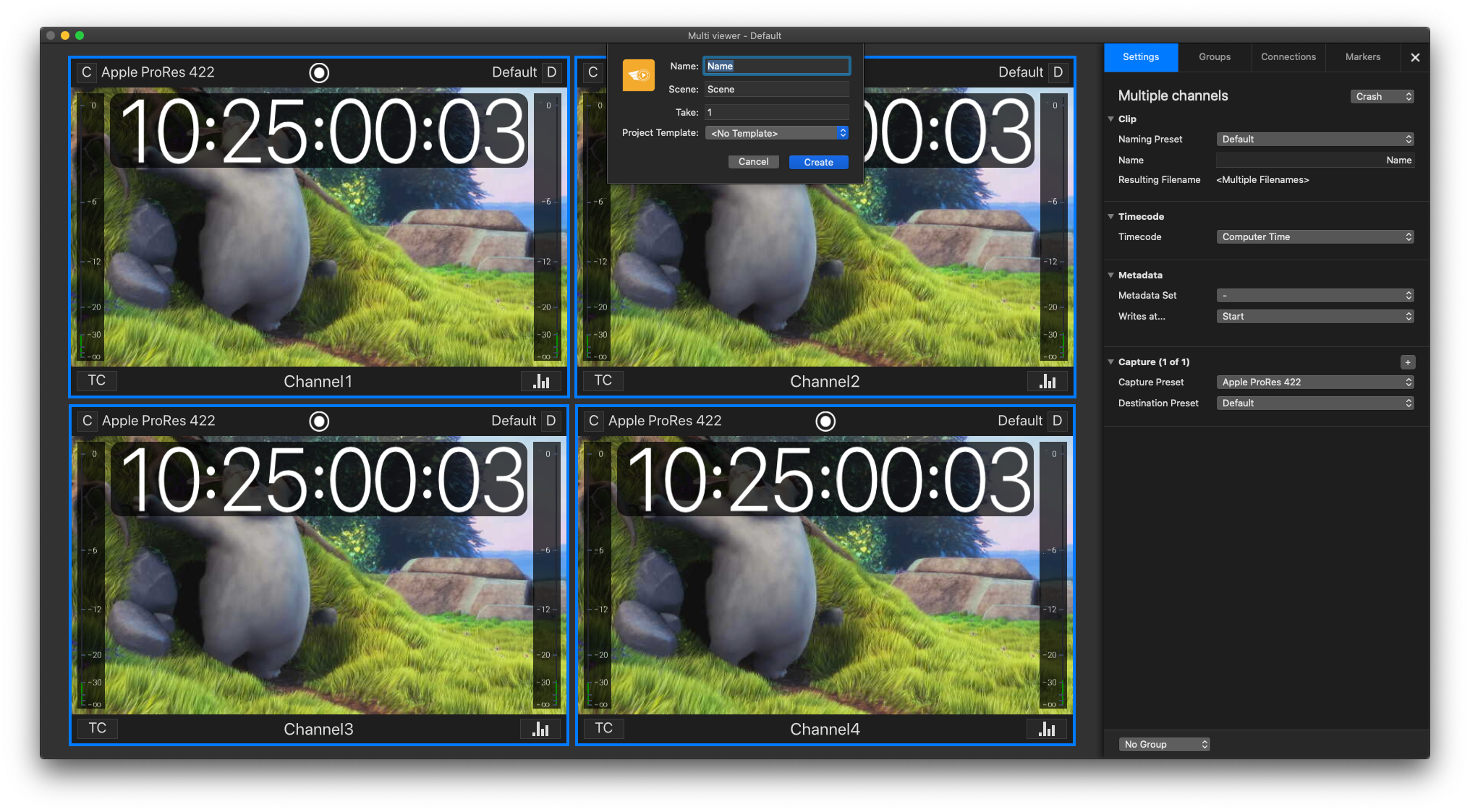
Go to the menu Channel → New Live Cut Project. Enter a Name, Scene and Take value for the Live Cut Project. A Project Template is not required at this time. Press the Create button when you are done.
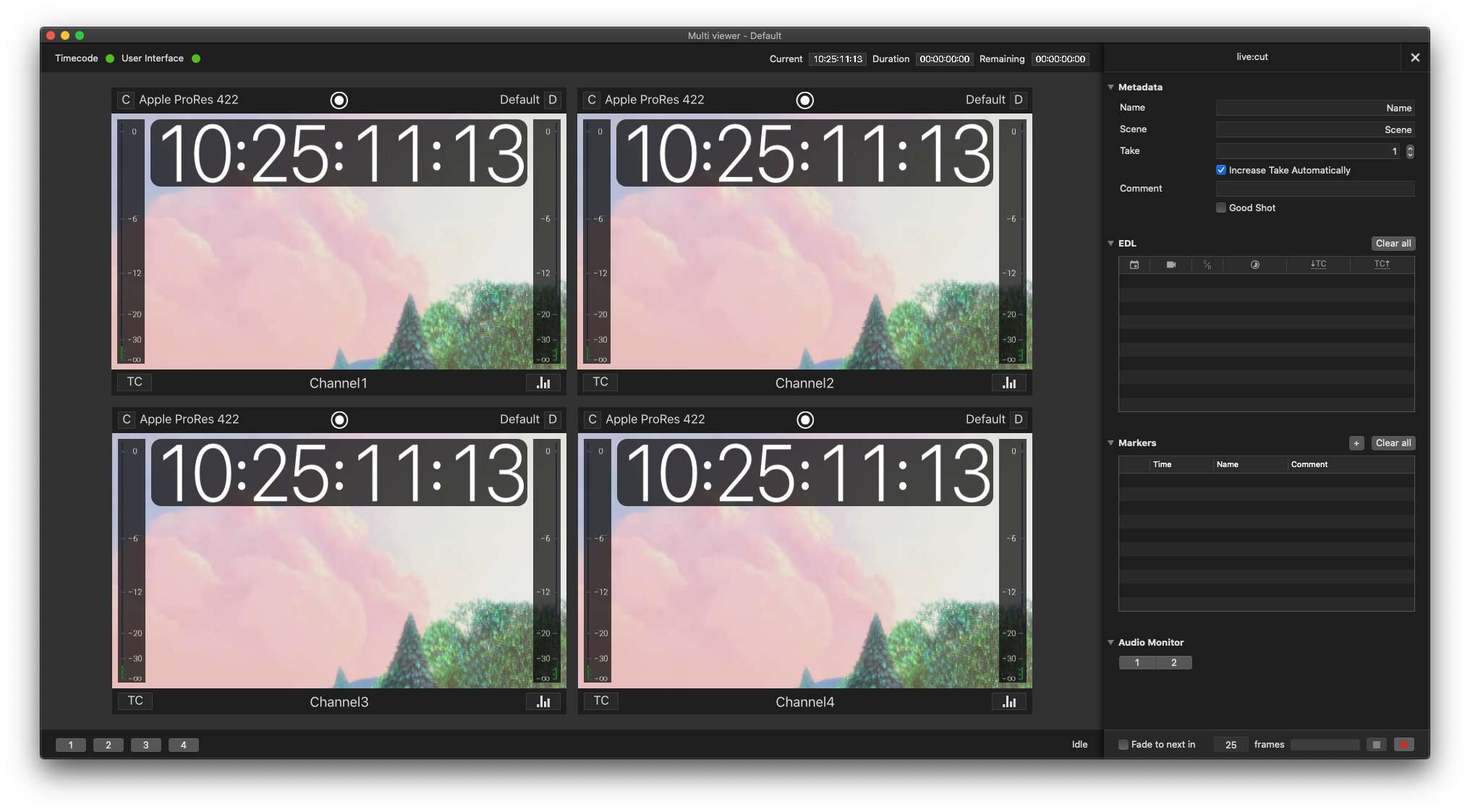
If everything went okay the Live Cut Interface will be shown and you can start working with your Live Cut Project.
Close a Live Cut Project
Go to the menu File → Close Project. The Live Cut Project will be closed and the just:control interface will be displayed again.
Open an existing Live Cut Project
Open the folder ~/Documents/LiveCut Documents/Projects and double click the Project file (*.lcproj) you want to open.

Live Cut opens the Project and displays an already filled EDL. You may export the Project again by using the menu Project → Export to …
Live Cut Project Templates
Create a Live Cut Project Template
Make sure your are in a Live Cut Project. To open a previously saved Live Cut Project refer to the instructions above. Go to the menu Project → Create Template.
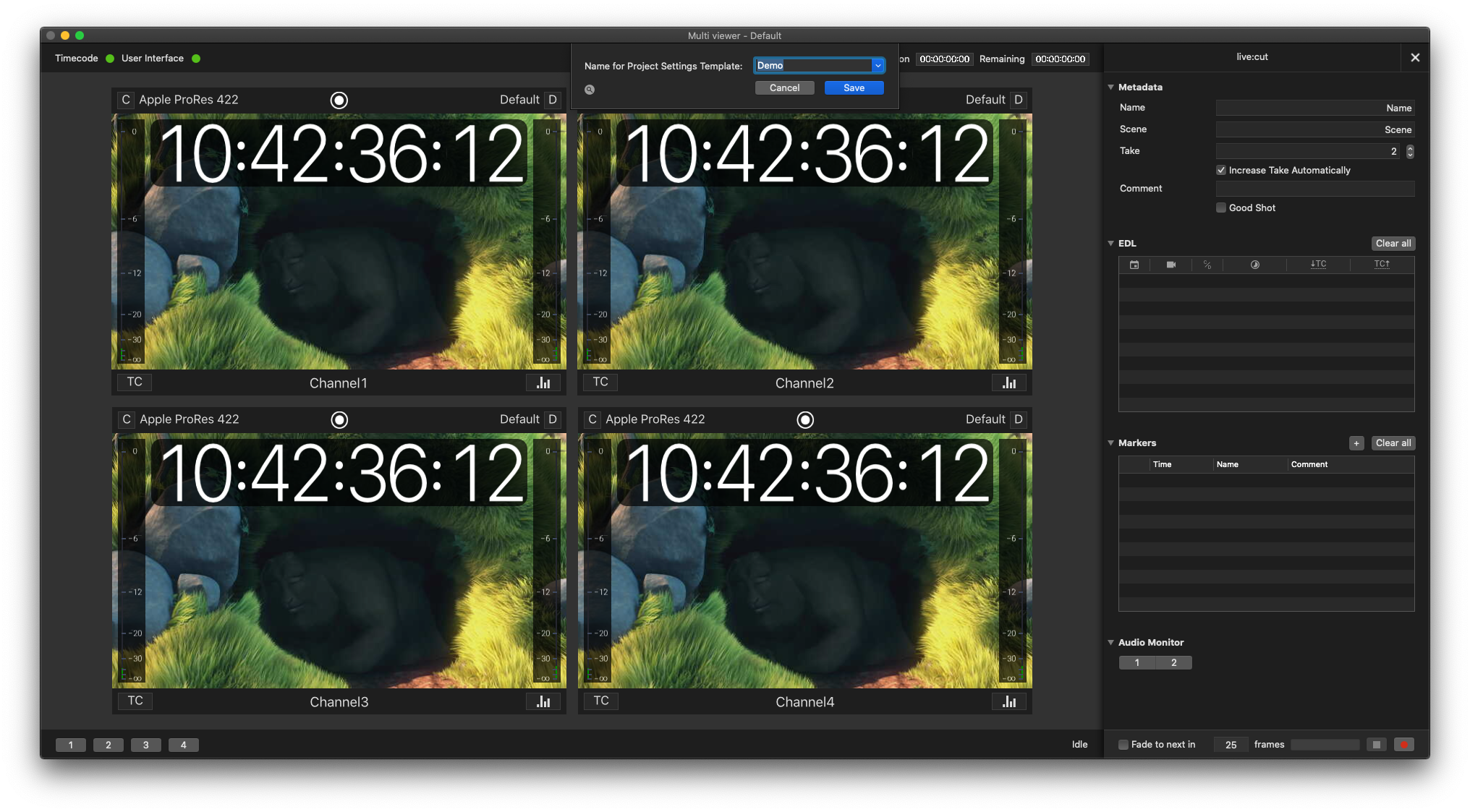
Enter a Template name and press the Save button. Such Project Templates can be used with every Live Cut Project start.
Use a Live Cut Project Template
Open just:control, select the Channels, you want to use for your Live Cut Project and and start a new Live Cut Project (Go to the menu File → New Live Cut Project).
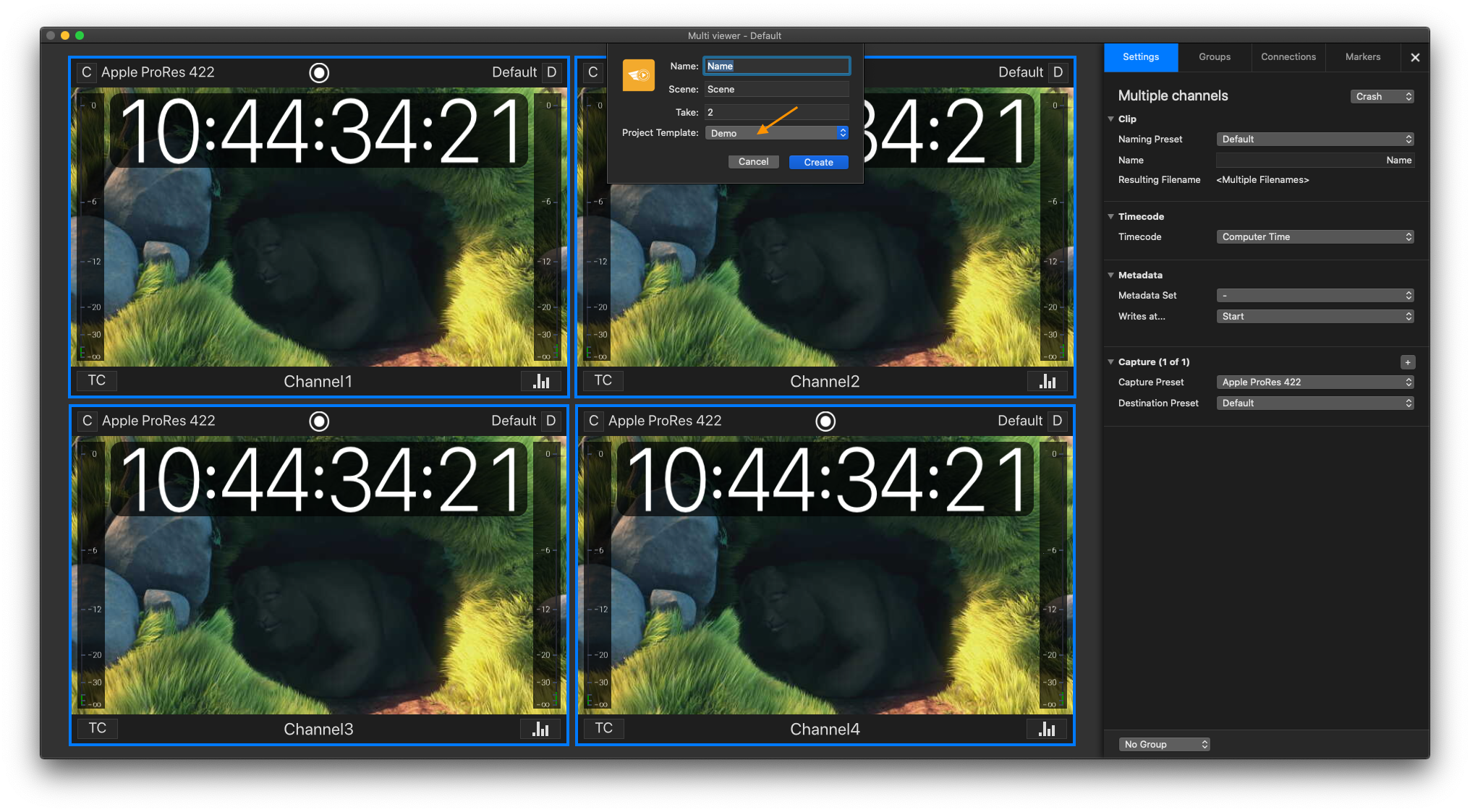
Select your Project Template from the drop-down menu and use the Create button to start the Live Cut Project.
Remove a Live Cut Project Template
Make sure that just:control is currently not running. In the Finder Window go to your User folder. Open the folder ~/Documents/LiveCut Documents/Project Templates and Delete the desired Project Template.
Start a Multicam Recording
Before starting a Multicam Recording you have to ensure that your Live Cut Project Settings are configured properly. Refer to the chapter Project Settings.
If you have already configured the Project Settings you can head straight to the chapter Start a Multicam Recording.