
Preface
You can record SDI, HDMI signals, or NDI® sources on the fly in Crash Mode (i.e. you start and stop each Capture/Recording process manually).
Start a Recording
Make sure to have a valid Capture- and Destination Preset configured and that at least one Channel is connected successfully. Select a Channel, open the Inspector, and make sure that the Channel is in Crash Mode.
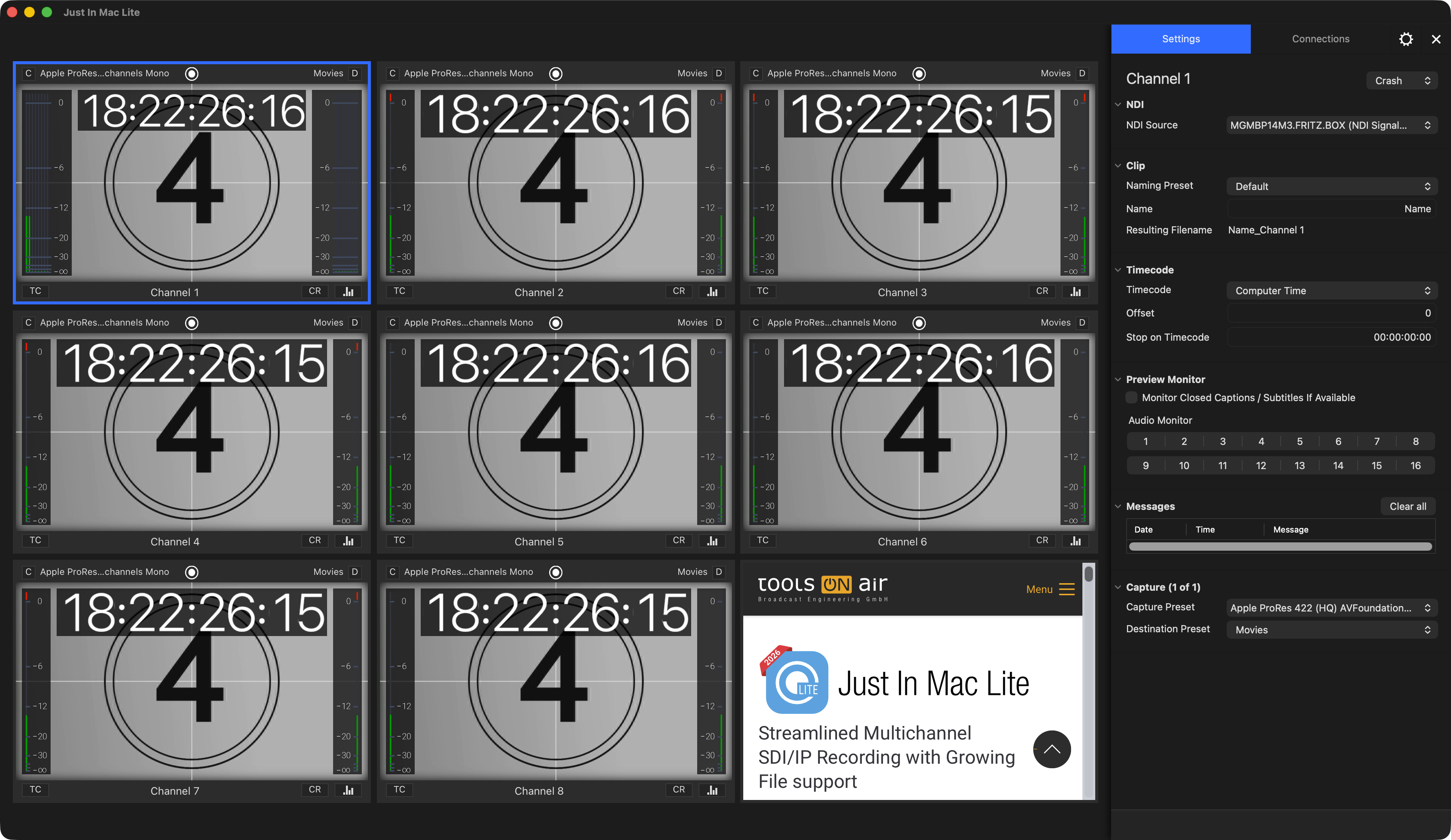
Now hover over the Channel Viewer and the “Record” button will show up. Press this button to start the recording.
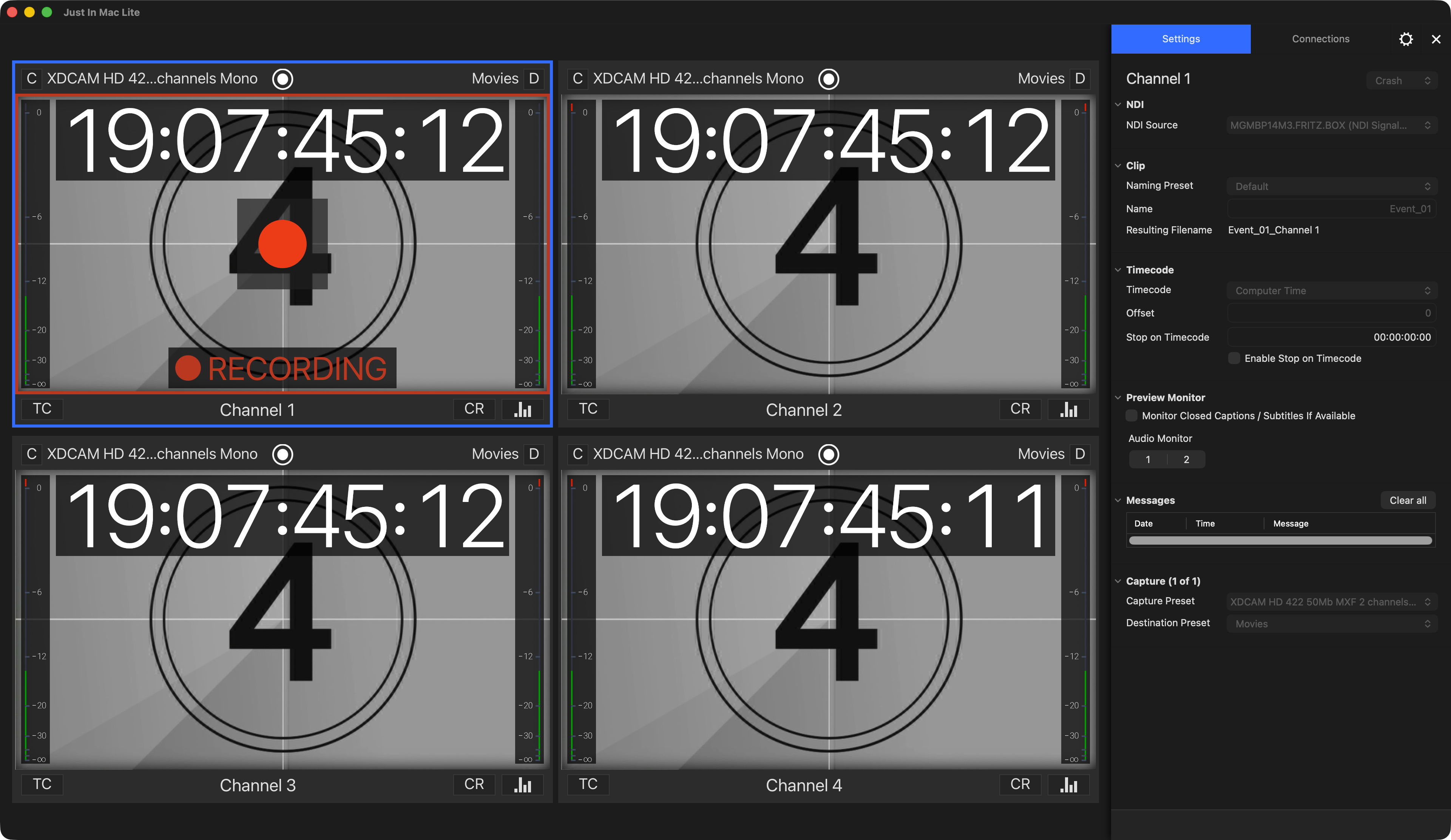
You can use the keyboard shortcut “Command-R” to Start/Stop a recording.
An ongoing recording is indicated by a red border around the inner area of the Channel Viewer and a “RECORDING” message overlay.
Stop a Recording
Click the “Record” button again to stop recording. The recorded clip will be available at the appropriate path in the file system (defined in the Destination Preset).