
General
The Inspector is used:
to select the Capture Mode and Channel Settings such as Naming Presets, Capture- and Destination-Preset (“Settings” tab)
to connect Channels to the Channel Viewer Area (“Connections” tab)
This chapter explains all Inspector options and shows how the Inspector changes depending on the currently selected Capture Mode.
Before using the Inspector, it is mandatory that one of the Channel Viewers in the Just In Mac Lite application is connected to a Channel.
Overview
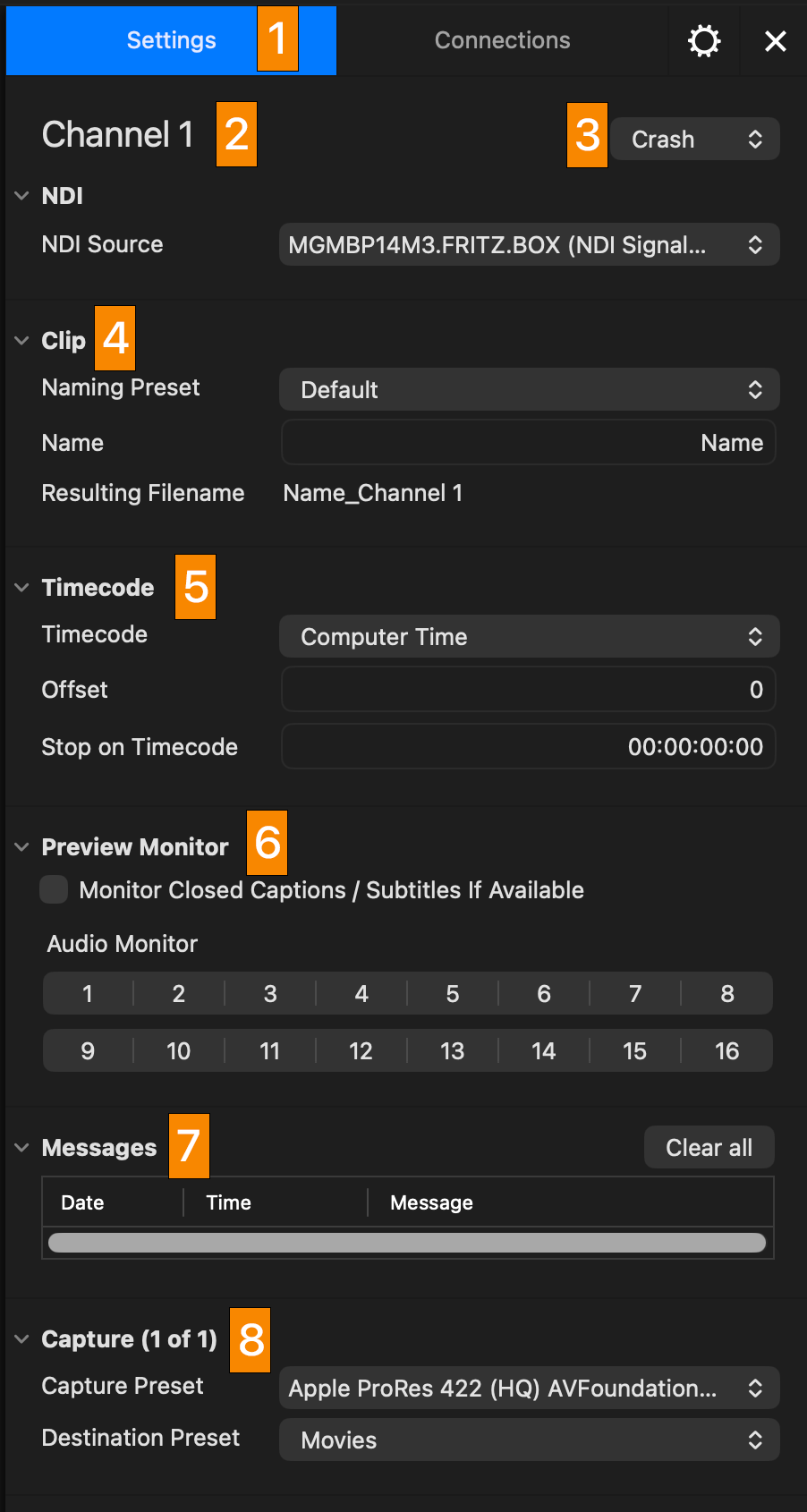
The “Settings” tab of the Inspector changes depending on the Capture Mode. The following screenshot shows the “Settings” tab of the Inspector when using the Crash Capture Mode. Most of the settings are the same for other Capture Modes.
 |
|
Schedule Mode
Some sections of the Inspector change depending on the selected Capture Mode. Please have a look at the screenshot below, which shows the Inspector in Schedule Mode.
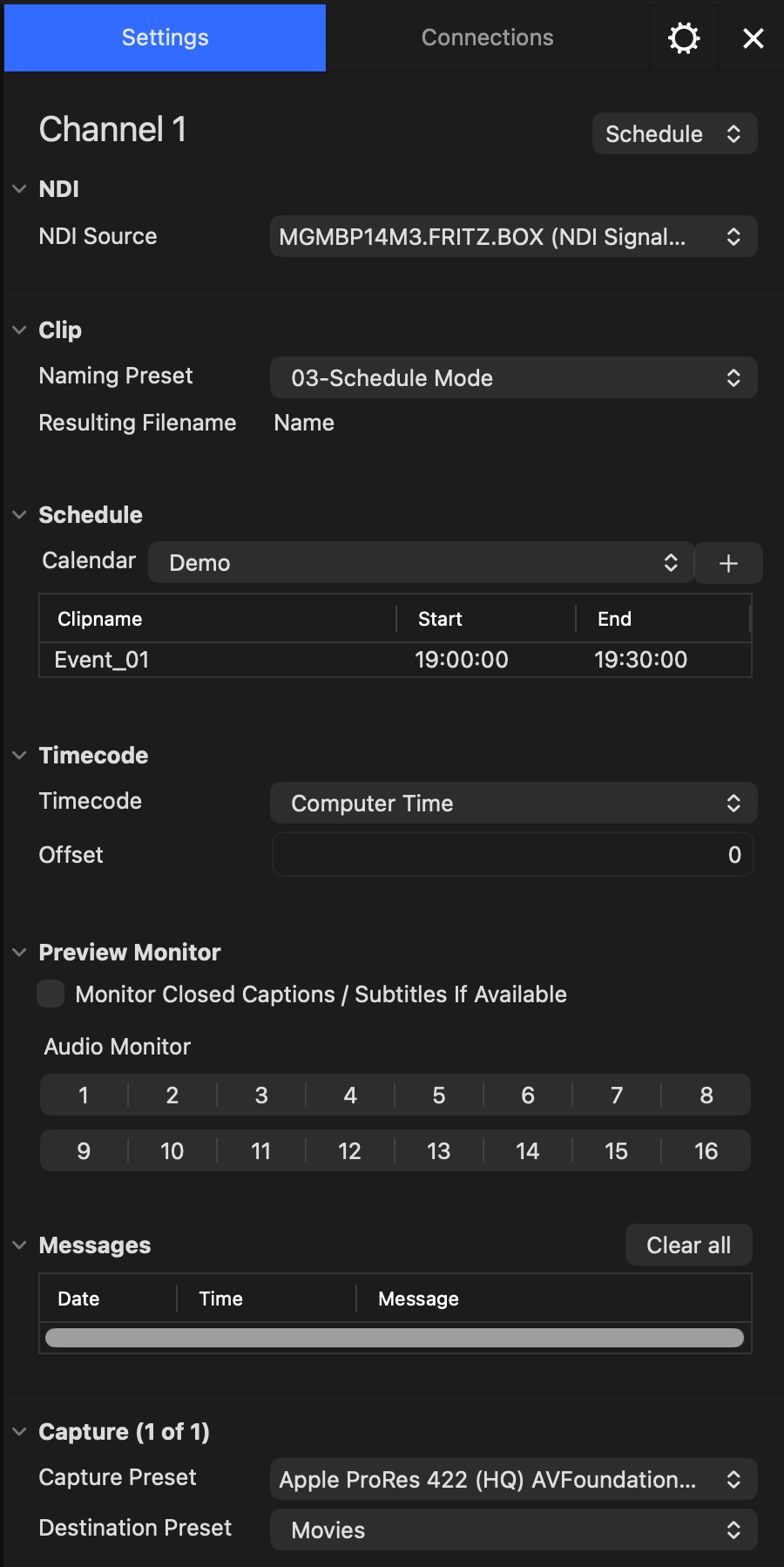 | When a Channel is in Schedule Mode, you will see a “Schedule” section, instead of the “Clip” section in Crash Mode. The examples show some recording events (in the example above “Demo”) scheduled for the next 24 hours. In Schedule Mode there is no “Record” button available as Recordings will start and stop automatically according to the Start- and End-time of Calendar events. The Just In Mac Lite 2026 application lets you select and use any Calendar, which can be imported into the Apple Calendar application. This can be a local Calendar, an iCloud, Gmail, or an Exchange Calendar. |
You cannot start a recording manually in Schedule Mode, as recordings will start and stop automatically according to the scheduled events.