
The Just In Mac Lite 2026 application communicates with the macOS Calendar application and therefore the application must have access to the macOS Calendar application. Upon its first launch, the Just In Mac Lite 2026 application requests access to the macOS Calendar application.
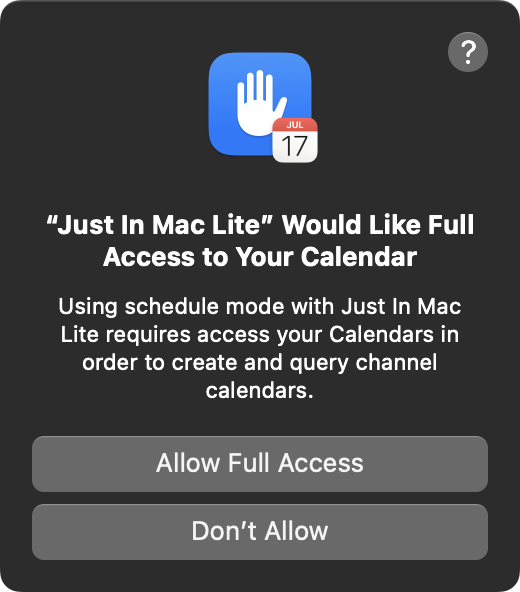
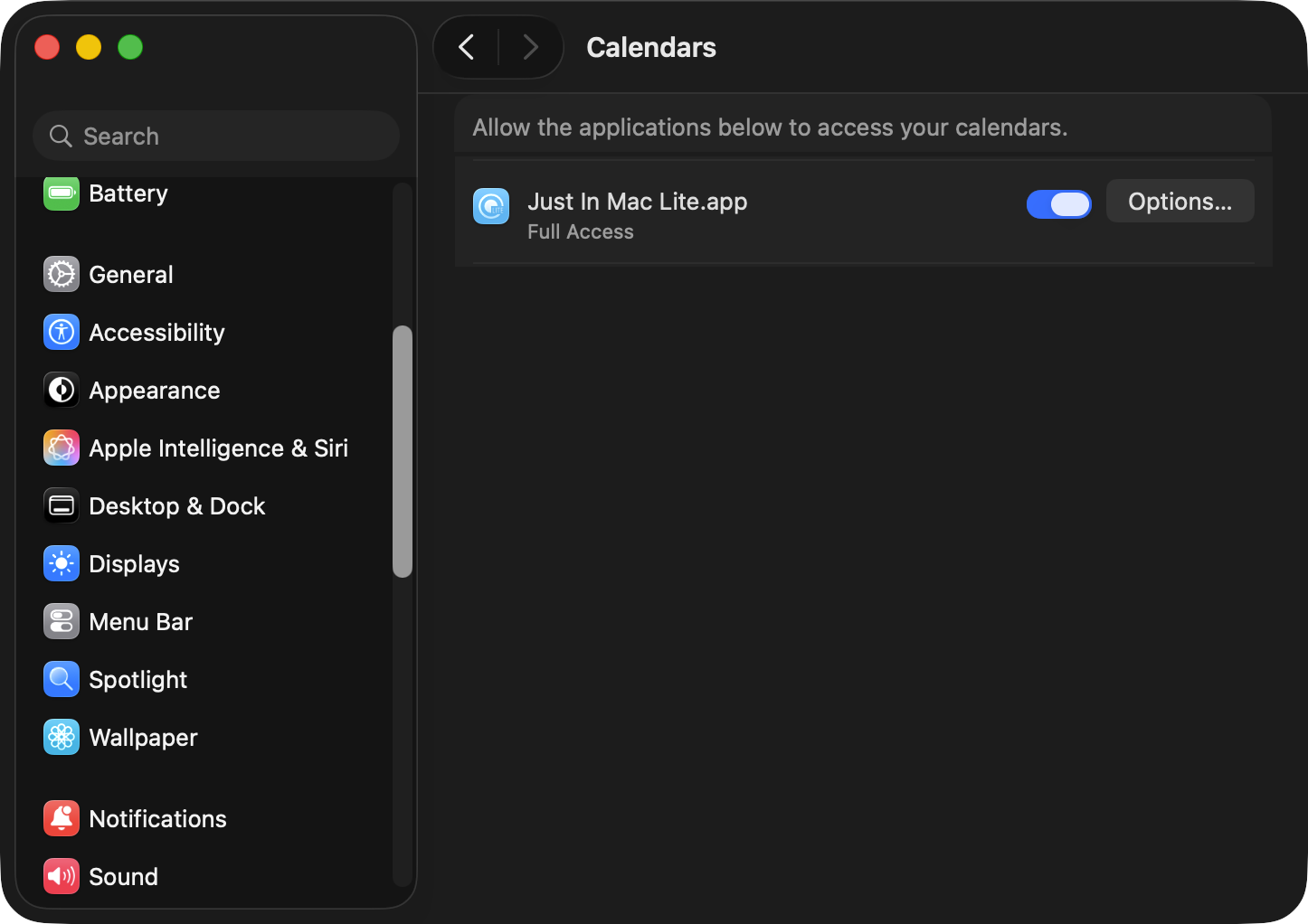
If Calendar access hasn't been granted, follow these steps to enable Calendar access:
Open the macOS “System Settings”.
Select “Privacy & Security”
Look for the Calendars option and click on it
Look for Just In Mac Lite.app and verify that “Full Access” to Calendars is enabled.
Date and Time Format
Please verify that your macOS Date & Time settings are compatible with the Gregorian Calendar format (Gregorian date formats include the following: ddmonyy, ddmonyyyy, mm/dd/yy, or mm/dd/yyyy). Using the Gregorian calendar ensures consistency and accuracy in the Date header, avoiding misinterpretation, synchronisation, and activation errors. This is crucial for the Schedule mode to fetch the correct Start/Stop Date and Time information.
Preface
In Schedule Mode a Channel records files based on Calendar Events from the macOS Calendar application of the machine running Just In Mac Lite. You may use any Calendar that can be added to the macOS Calendar app, such as iCloud or Gmail Accounts or from other Mail/Calendar servers. Events scheduled in the corresponding/selected Calendar will automatically switch the Channel to Schedule Mode and start a Recording. When stopping a Schedule Recording manually, the corresponding Event will be deleted automatically.
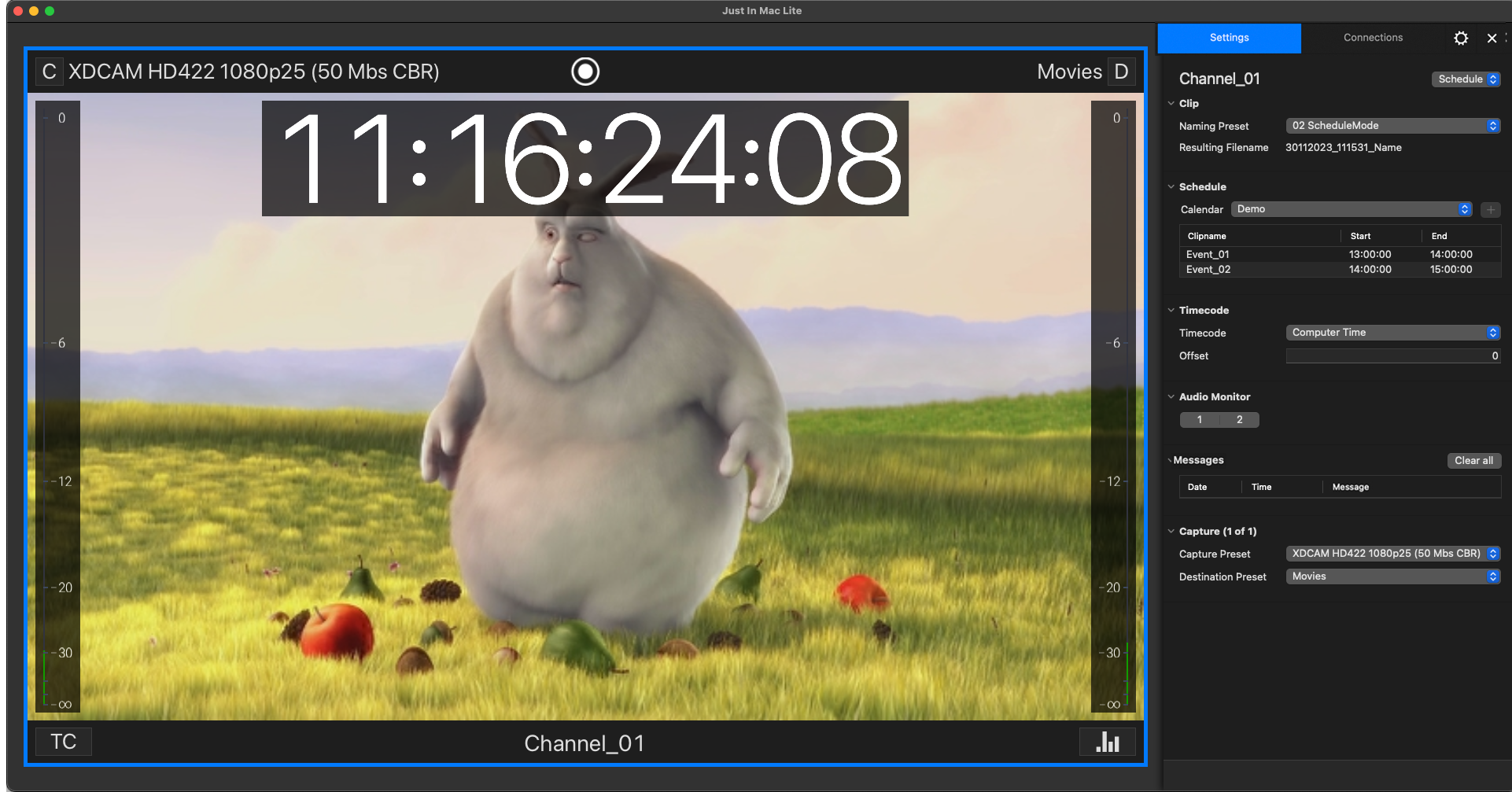
When working in Schedule Mode, ensure that Just In Mac Lite is running at all times. New Events or changes to existing Events can only be received when Just In Mac Lite 2026 is open and connected to the appropriate Channel.
Choose a Calendar for a Recording Channel
Run Just In Mac Lite 2026 and select a Channel. Switch the Channel Mode to “Schedule” and select the appropriate Calendar from the Calendar selection box at the very top. Additionally, verify that the correct Naming Preset for Schedule Mode is selected as well.
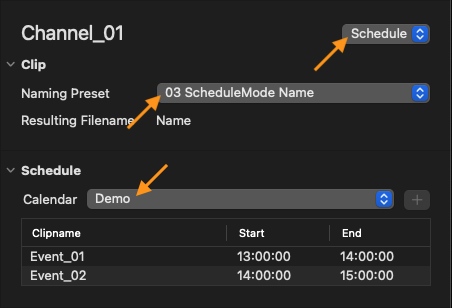
You can either use the Channel Calendar (will be created automatically when using the Plus (“+”) button next to the Calendar selection box) or any other available Calendar on that machine.
Please note that Just In Mac Lite can only create a channel-specific calendar (using the Plus (“+”) button) when new calendars can be created locally. Please let us know if you need help in this regard.
Add Calendar Events for Schedule Mode
Open the macOS Calendar application and select the desired Calendar for this Channel. Add Events to the Calendar (the max. duration of an Event is 12 hours).
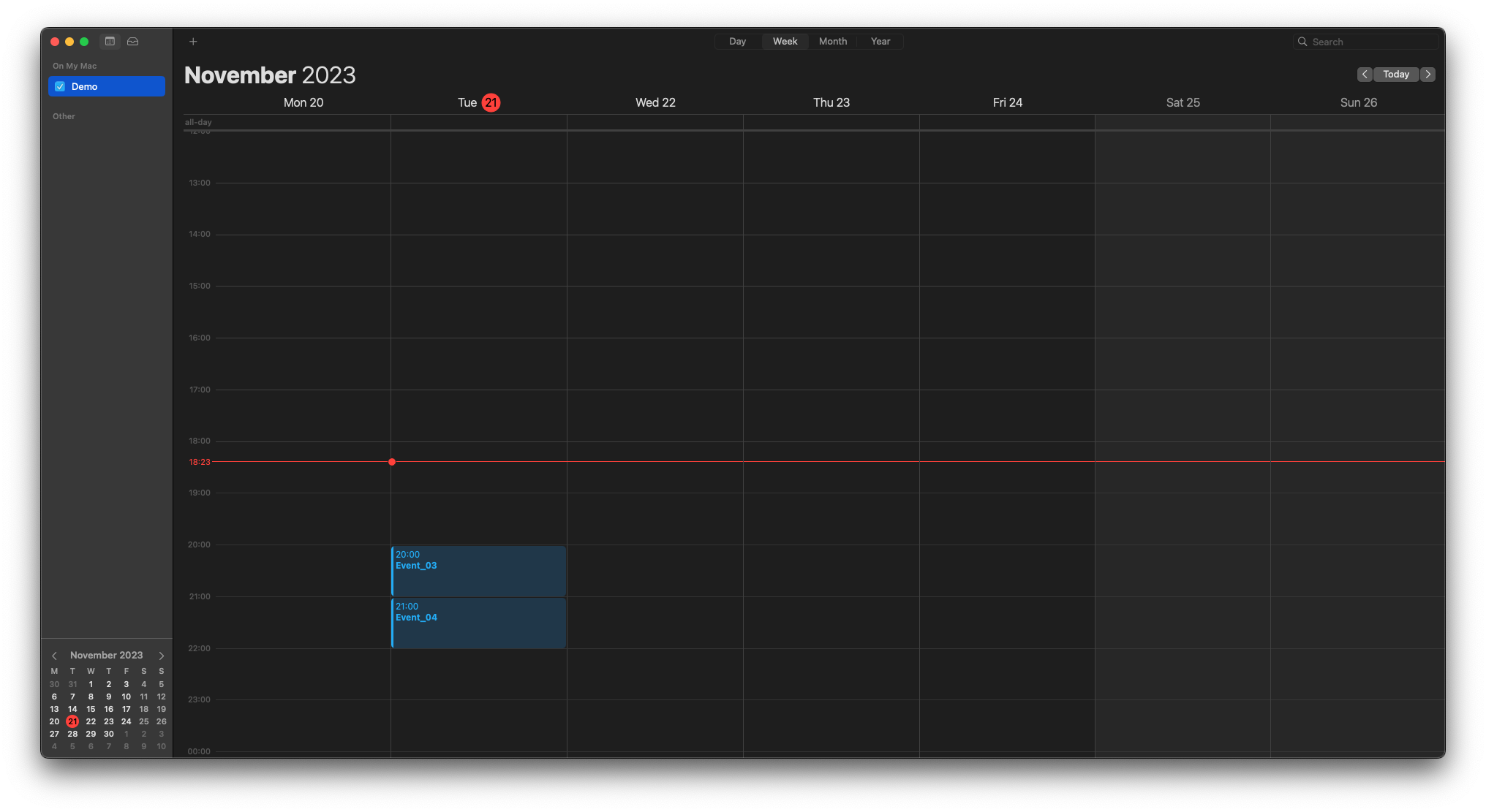
The Events will show up in the Inspector of Just In Mac Lite 2026. Each Event will result in one Recording and the event name can be part of the actual file name. Please refer to the next chapter for more information regarding file naming in Schedule Mode.
It is possible to add Events back-to-back without losing any frames.
File Naming
As of version 6.1 of our capture products, we have improved the file naming functionality specifically for Schedule Mode. Notably, we have introduced a new Clip Section within the Channel Inspector, a familiar feature from Crash and Batch Mode (available for Just In Mac Pro 2026 only).
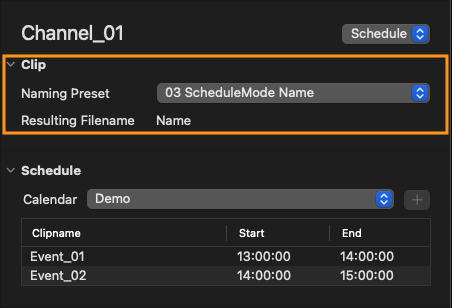
Additionally, Naming Presets are now integrated into Schedule Mode, providing operators with increased flexibility in defining file names. This version also introduces new “Date” and “Time” formatting options, expanding customisation possibilities.
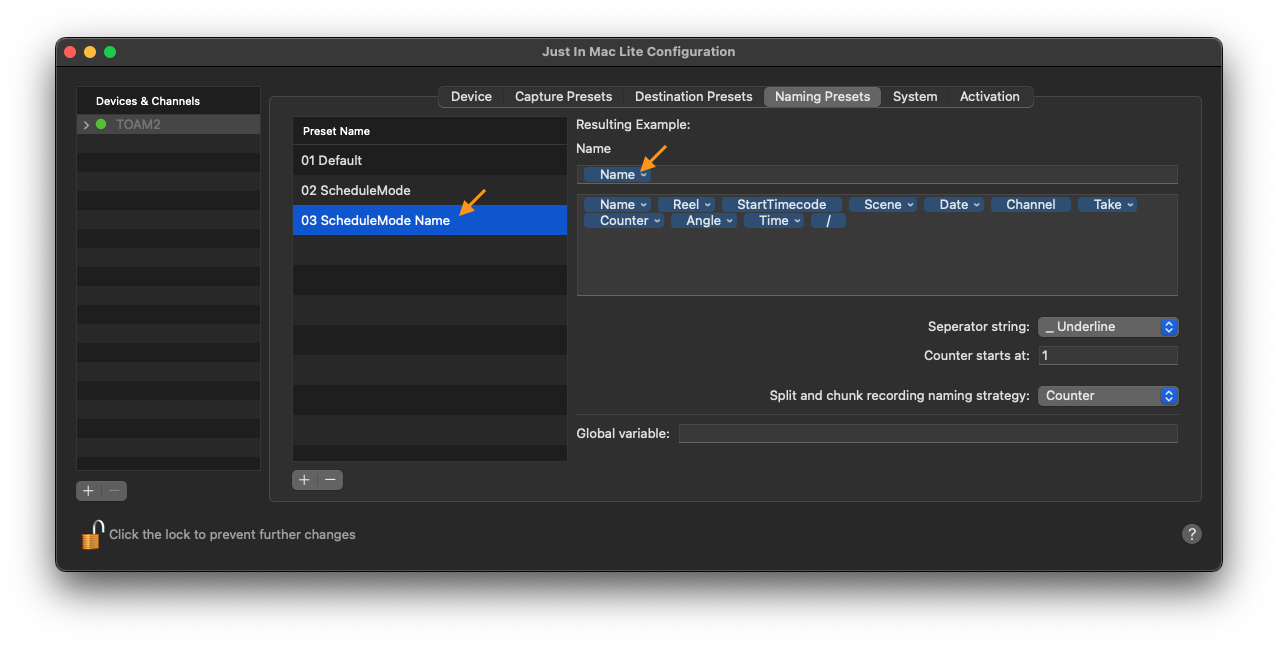
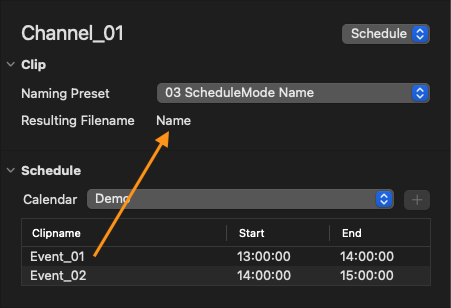
To elucidate the process of creating file names in Schedule Mode, let's break it down. The first component is the Naming Preset section, where operators can leverage standard presets to configure file names for scheduled recordings. It is crucial to note that the “Name” token within the available Naming Preset tokens corresponds to the actual event name. Consequently, if a Naming Preset solely incorporates the “Name” token, the resulting file names will precisely mirror the names of the Calendar Events, as illustrated below.
This particular Naming Preset exclusively utilises the “Name” token. As a result, it reproduces the scheduled Event Name identically.
Within the provided Calendar, users can create a new Event. When employing the previously mentioned Naming Preset, the file name for this particular Event will be automatically set to match the corresponding Event Name.
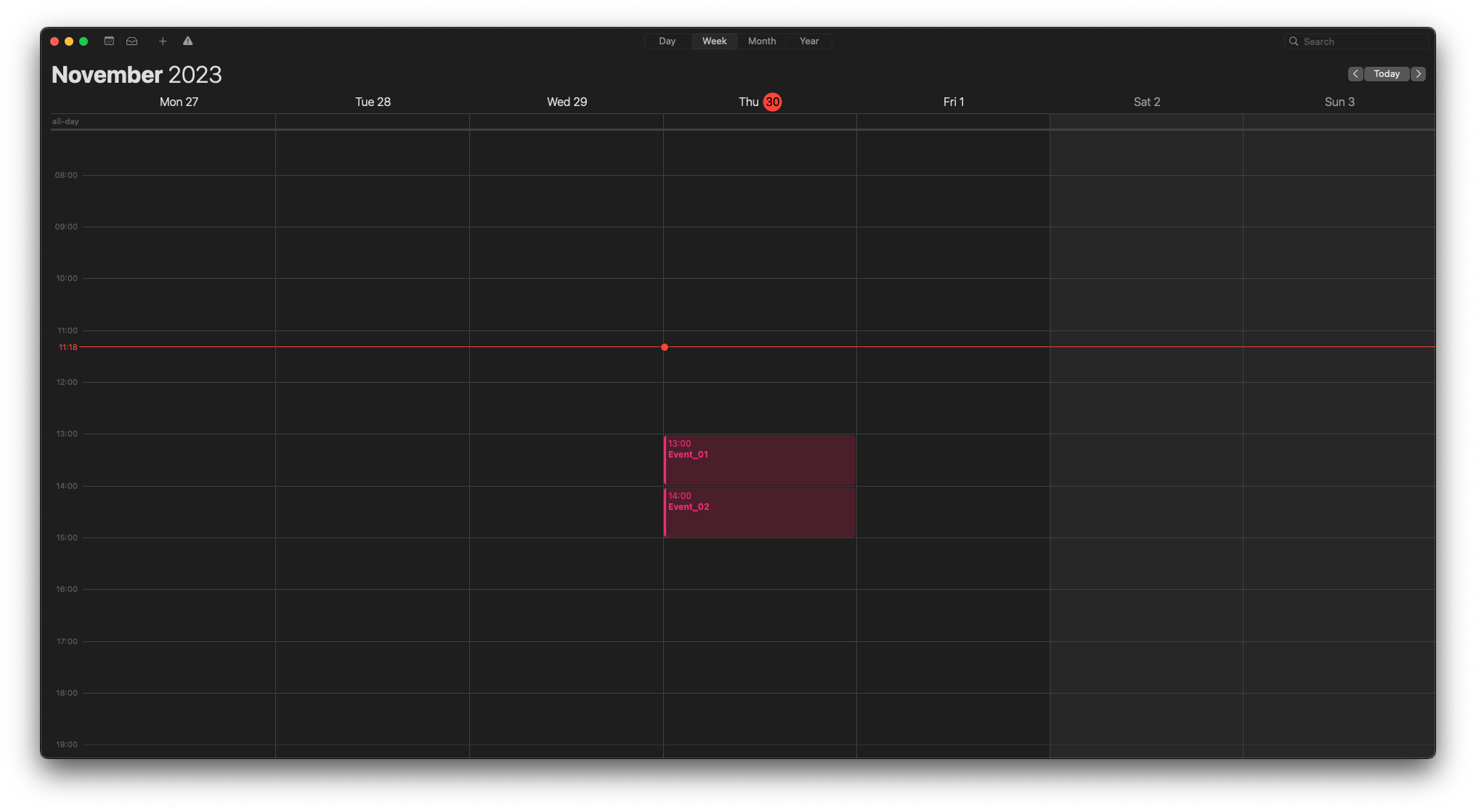
Upon returning to the Channel Inspector, operators will find the newly created scheduled Event listed in the Schedule list. The Event Name will be visible in this section. It is important to note that the “Resulting Filename” label currently displays “Name” because the recording has not commenced. Once the scheduled Event undergoes recording, the accurate file name will be showcased in this field.
Certainly, users still have the option to incorporate “Date” and “Time” tokens for Event names, akin to the functionality in previous versions. However, instead of directly using variables within the Event names such as “<Date>”, “<Time>”, and “<Channel>”, the current version introduces the capability to seamlessly integrate actual Event names with Naming Preset tokens. This integration enables users to leverage the new “Date” and “Time” formatting options, as explained below.
Once again, the foundation is a Naming Preset, which now comprises both a “Date” and “Time” token along with the “Name” token. This combination facilitates the generation of a file name incorporating the specified date and time format options, seamlessly blended with the event name.
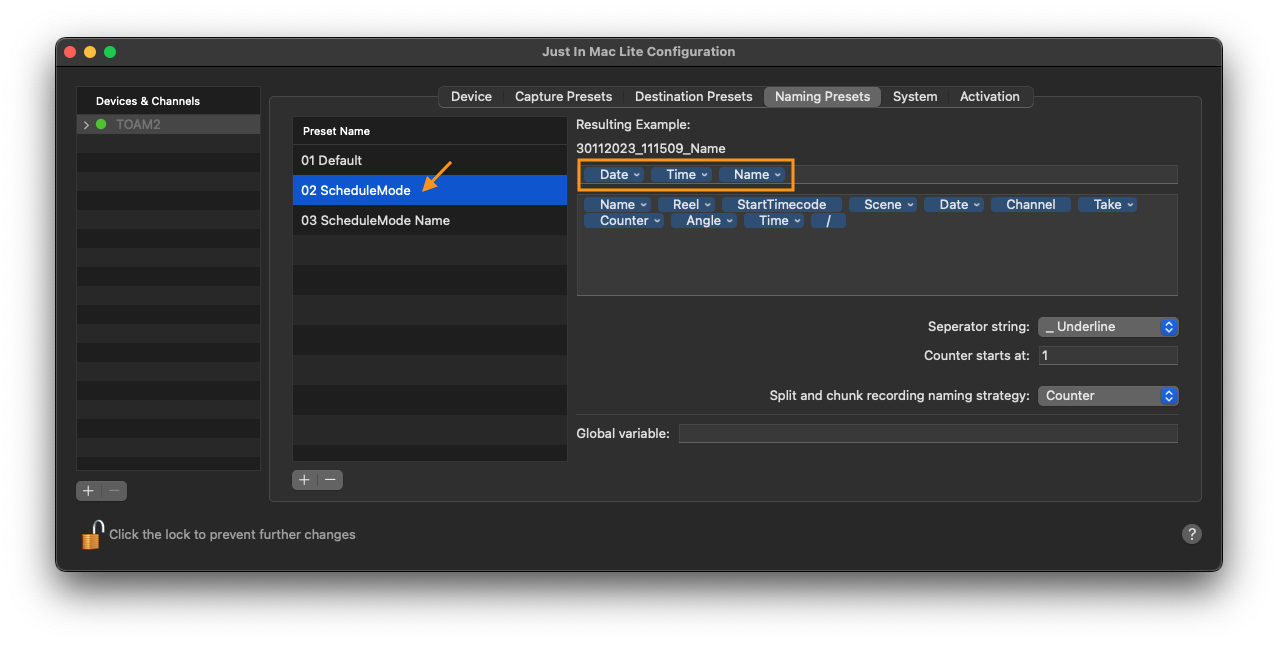
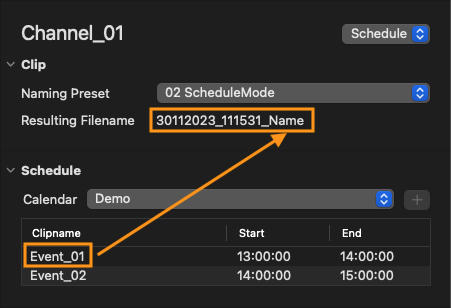
Within the provided Calendar, users can create a new Event. When employing the previously mentioned Naming Preset, the file name for this particular Event will be automatically set to match the corresponding Event Name, including the “Date” and “Time” tokens.
Upon returning to the Channel Inspector, operators will find the newly created scheduled Event listed in the Schedule list. The Event Name will be visible in this section. It is important to note that the “Resulting Filename” label currently displays “Name” because the recording has not commenced. Once the scheduled Event undergoes recording, the accurate file name will be showcased in this field.
Please note that the “Name” token will be replaced by the actual Event name, once recording has started.
Additional Functionality
Below, we elaborate on additional information and functionality.
Repeating Calendar Events
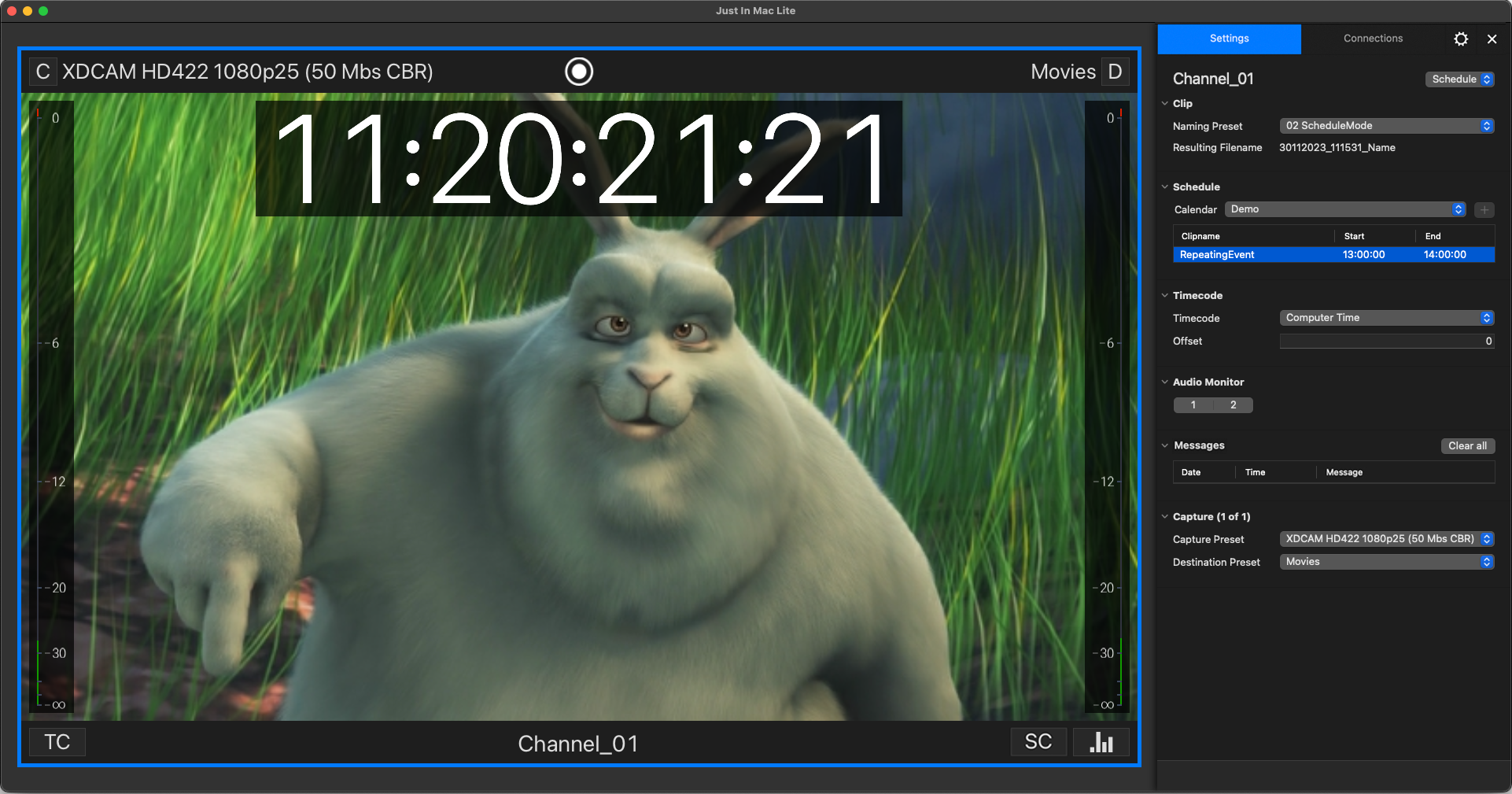
Repeating Calendar Events can be utilised in Schedule Mode. However, it is crucial to ensure the use of unique file names to prevent any unforeseen behaviour (Date and Time Naming Preset tokens).
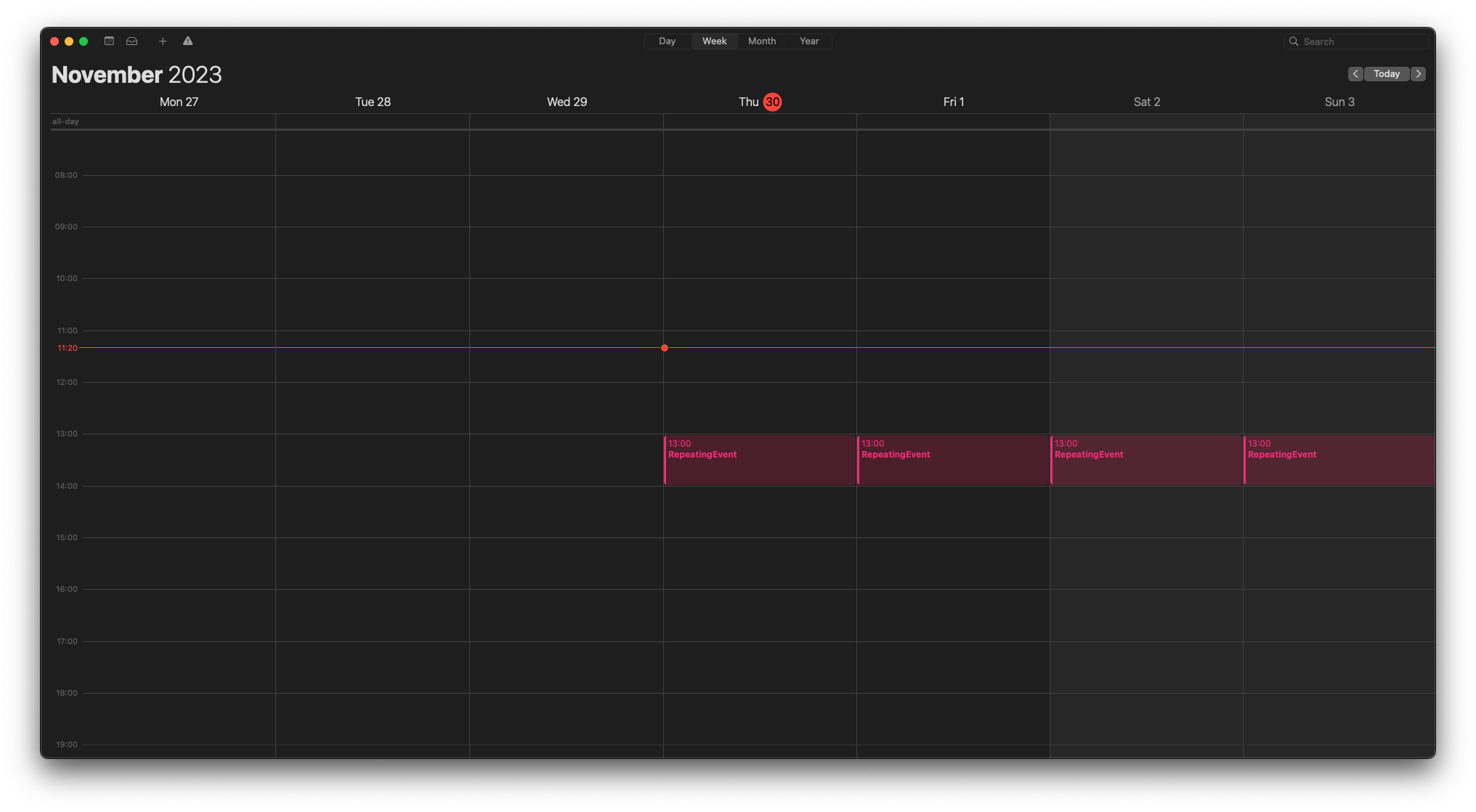
Utilising a Naming Preset that incorporates “Date” and “Time” tokens ensures the generation of unique file names.
Maximum Event Length
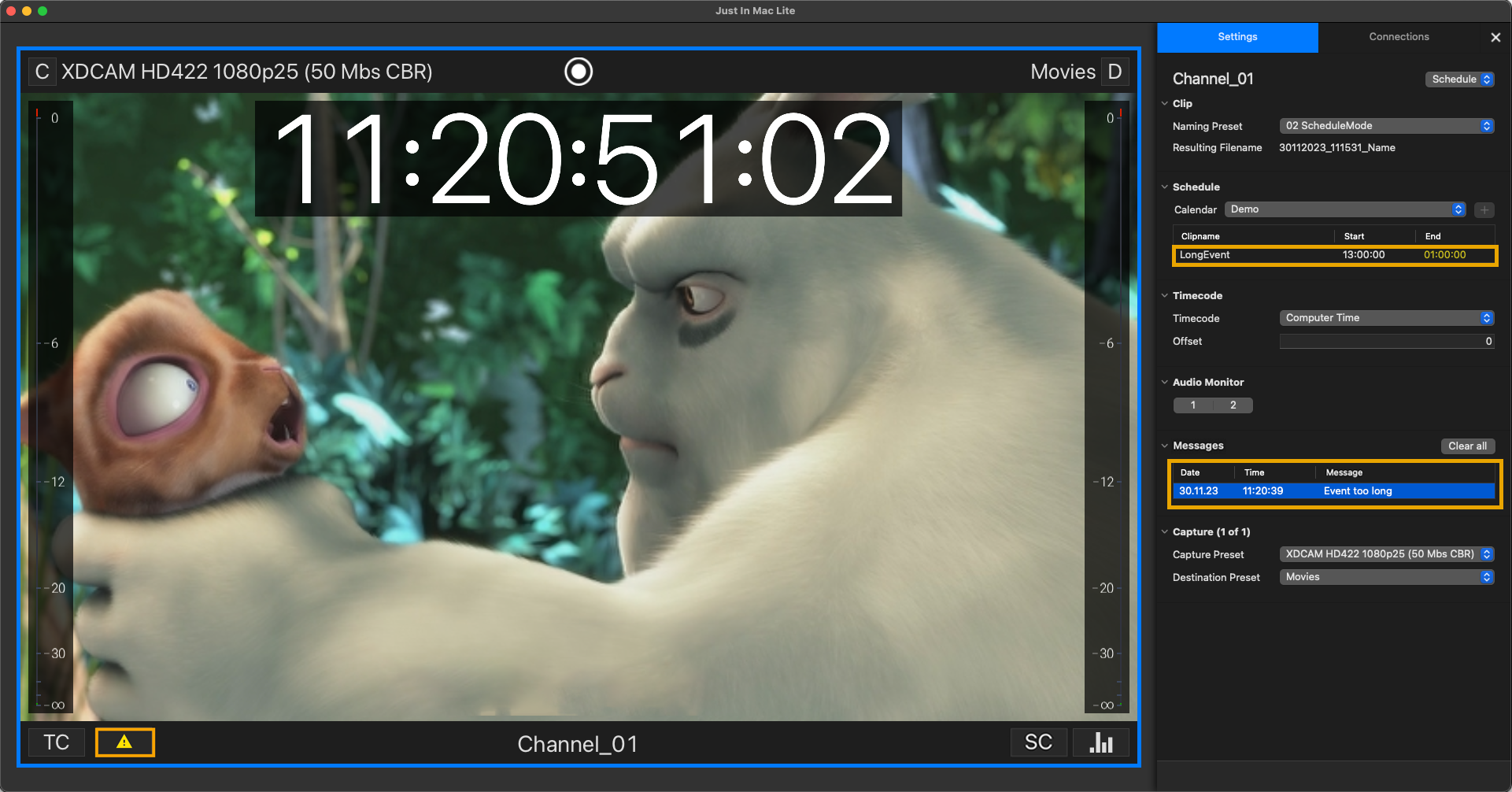
It is not possible to use Calendar Events, that exceed a length of 12 hours. The Just In Mac Lite 2026 application will truncate the Recording length automatically if required.
Adjustable Event End Time while Recording
The Recording Event End Time can be changed during recording. This is especially useful if you have to make changes during an ongoing recording. Simply adapt the Event End Time in the Calendar application, and the Just In Mac Lite 2026 application will recognise the change.
Manually stopping a Scheduled Recording
You can manually stop a Scheduled Recording by simply pressing the “Record” button within the Channel Viewer. Doing so will delete the Calendar Event in the macOS Calendar application.
List of Scheduled Events in the Inspector
The Scheduled Event list only shows the upcoming ten (10) events scheduled in the chosen Schedule Calendar, provided that these Events are within the next 24 hours. All further Events are only visible in the Calendar itself and get displayed within the Just In Mac Lite 2026 application as soon as one of the previous recording Events has been completed.
Working with shared Calendars in Schedule Mode
As mentioned above, you can also work with shared Calendars (such as Gmail, iCloud, or any other Mail/Calendar server that can be added to the macOS Calendar application) in Schedule Mode. This enables you to use two or more machines for adding recording events to the appropriate Calendar. You need to make sure though that the machine running the Just In Mac Lite 2026 application has access to the Calendar and that the Just In Mac Lite 2026 application is running.
Importance of the Timecode Source in Schedule Mode
When using the Schedule Mode, the Timecode Source is an important setting that should be chosen correctly to ensure a smooth operation.
Generally, all available Timecode Sources can be used for Schedule Mode. System administrators need to ensure that the Just In Mac Lite 2026 application is provided with the same Timecode Source as the macOS machine (NTP).
It is also possible to use an LTC source (AJA Capture Card LTC) for scheduling. The Just In Mac Lite 2026 application can receive the required signal via the Timecode In (LTC) of the video device card, and the machine running the Just In Mac Lite 2026 application can be configured with NTP.