
Destination Presets contain settings about the recording locations of the Recordings.
Just In Mc Lite 2026 comes with a predefined Destination Preset set to the “Movies” folder of macOS. This accelerates the setup as well as the initial Recording process and helps to keep things organized.
Overview
Open the Configuration panel, select the Device, and switch to the “Destination Presets” tab.
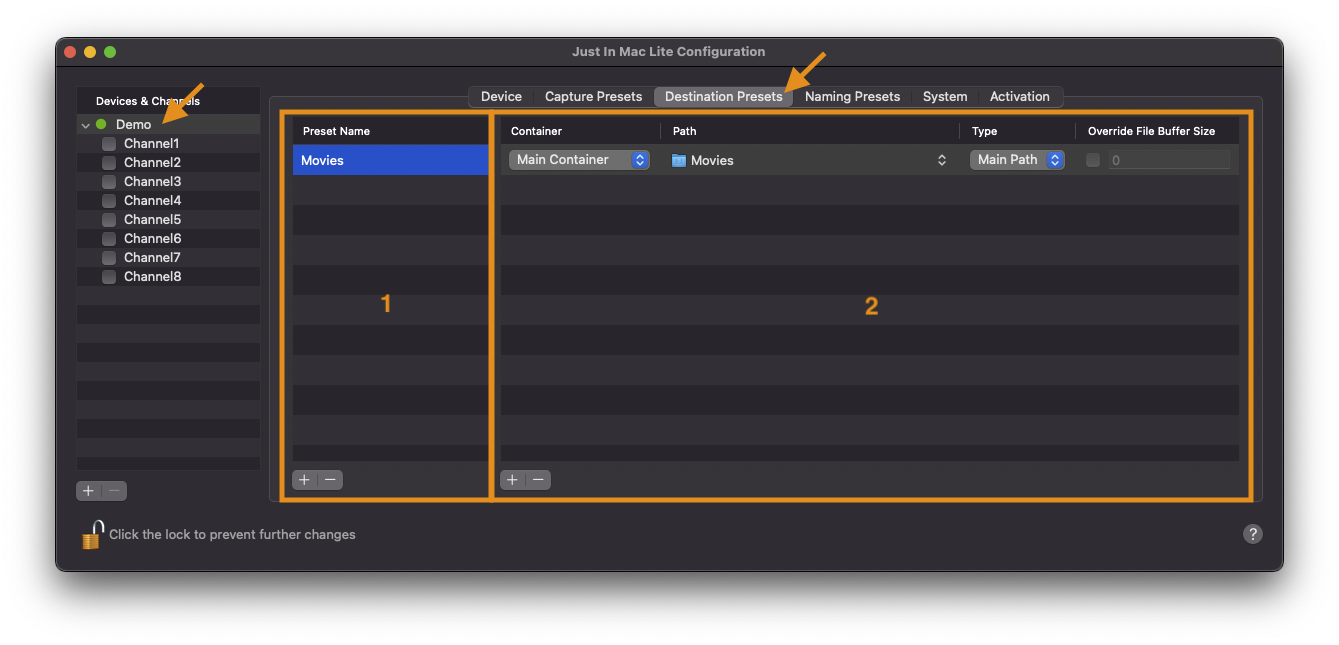
Destination Preset List: shows all available “Destination Presets” for the selected Device. Use the buttons below to add and remove “Destination Presets”.
Destination Preset Configuration Options: add a new container here, by using the Add + and Delete − buttons below.
Container:
Main Container: Sets the main recording path for a recording.
Path: Select the Container Path here.
Type:
Main Path: Main recording location.
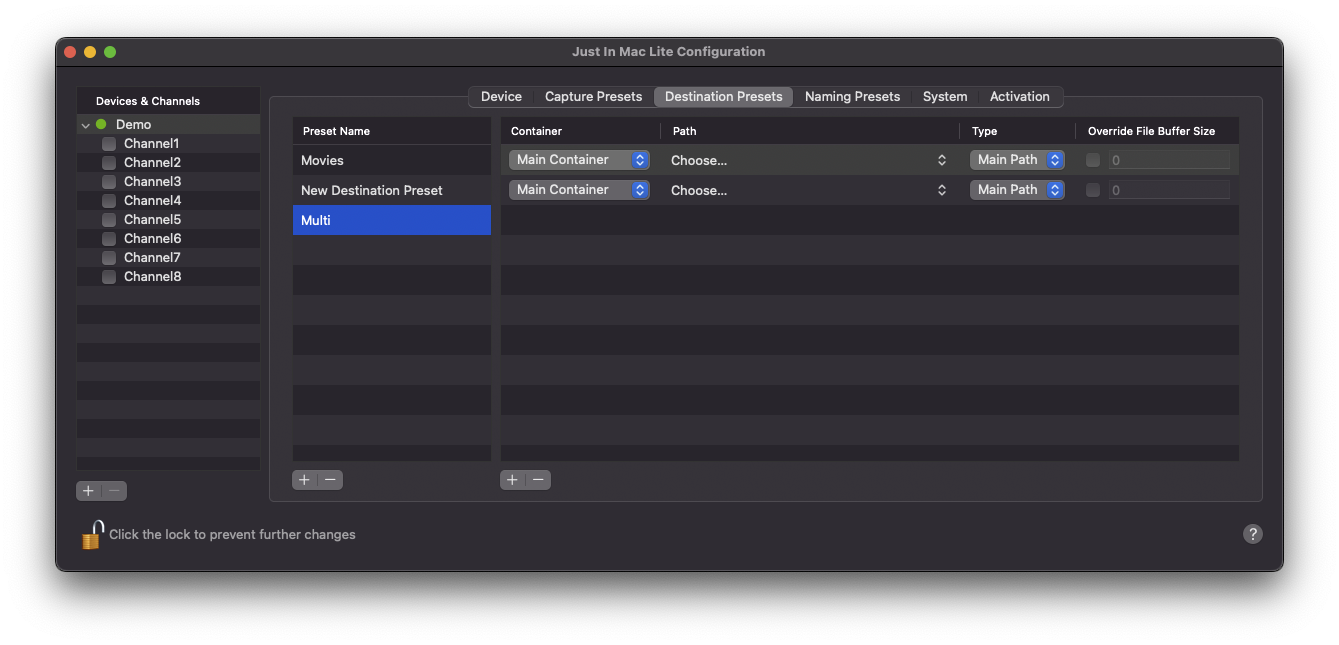
Note that you can set multiple Main Container paths to record to multiple locations (Destinations) at the same time, please refer to the screenshot below:
Add a Destination Preset
In the “Device & Channel” List select a Device. Click on the “Destination Presets” tab. Underneath the “Destination Preset List” press the Plus + button to add a “Destination Preset”.
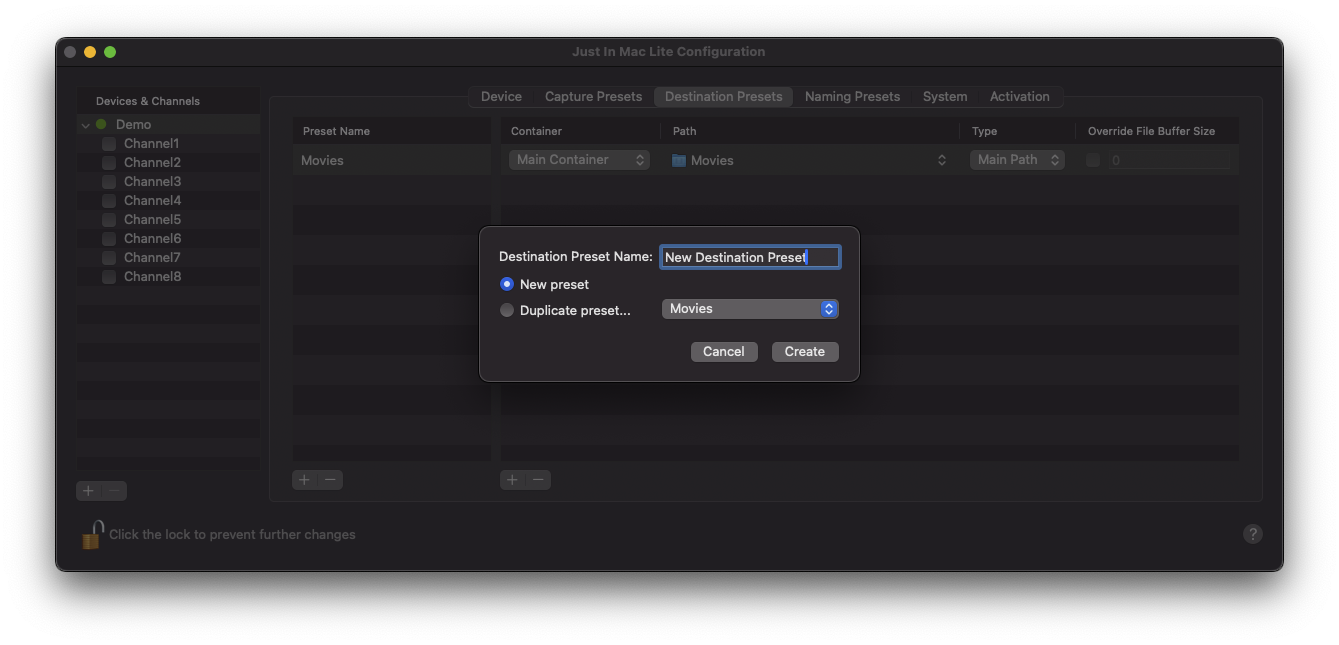
A new window appears, where you can add the “Destination Preset Name”. Press the “Create” button to go back to the Destination Preset options. Configure the Destination Preset according to your needs. It will be saved automatically after all attributes have been defined. You may change the settings of a Destination Preset at any time.
Edit an existing Destination Preset
Select an existing Destination Preset and change the options on the right side. The changes will be saved automatically.
You can change the Name of the Destination Preset by double-clicking on the Preset name.
Remove a Destination Preset
Select an existing Destination Preset and use the Minus − button underneath the Destination Preset list to remove the selected Destination Preset.