
H.264 Settings
When creating an H.264 Capture Preset, you have to select “H.264” specific settings.
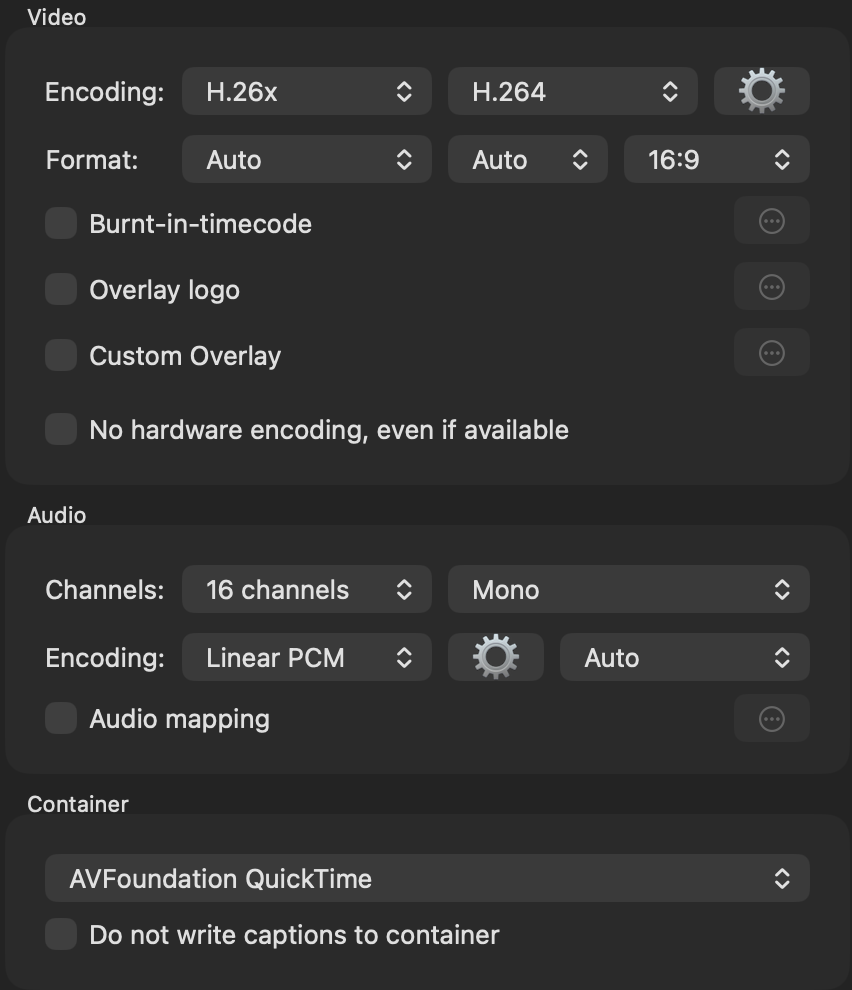
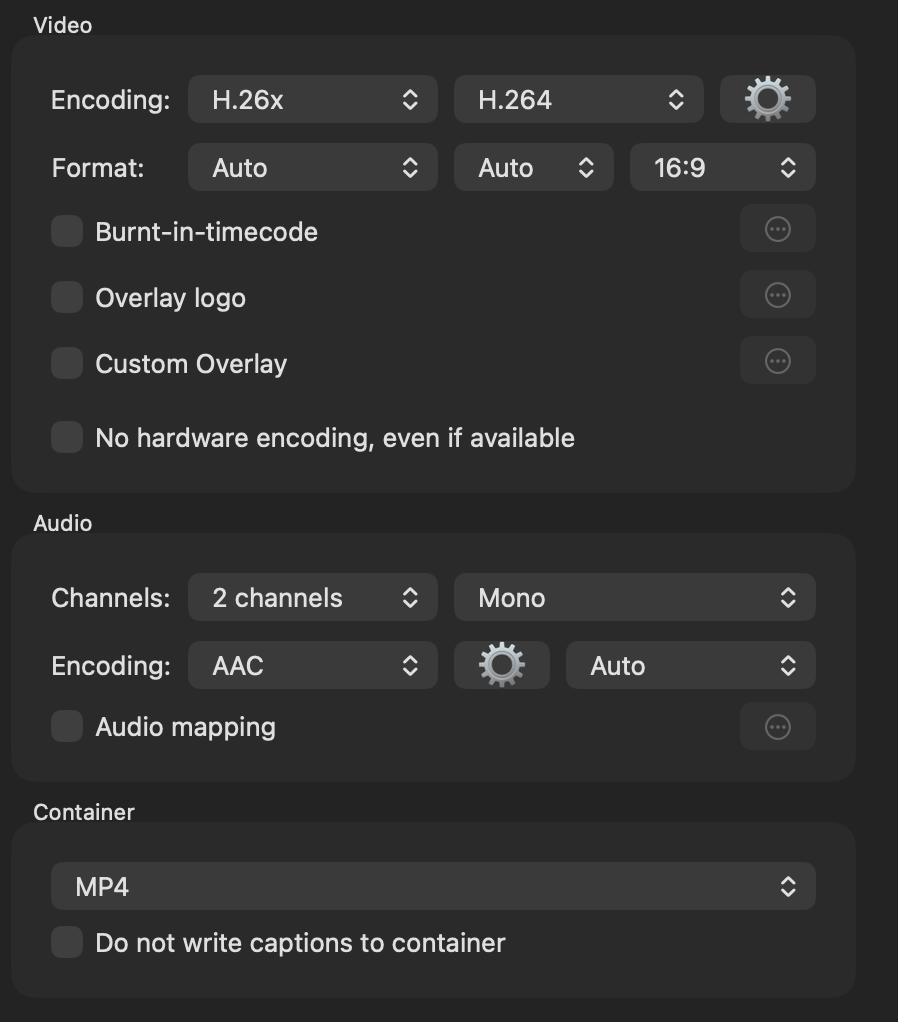
There are different values and settings that can be customised within an “H.264 Capture” preset. Initially, the container type must be selected. There are two options available:
AVFoundation QuickTime (with Timecode Track)
MP4 (no Timecode Track)
H.264 is a complex codec standard and is a bit more tedious to set up. Therefore, Just In Mac 2026 provides various options, that can be modified within an “H.264 preset”. This is where the “Auto” mode comes to your aid. Unless you need to specify dedicated resolution of frame rate, leaving the capture preset in “Auto” mode will use the right resolution and frame rate settings based on the incoming signal (SDI or IP).
The H.264 Profile is set to “High Auto Level” by default. You can change the profile according to your needs. We recommend using either “Main Auto Level” or the default “High Auto Level” for best results.
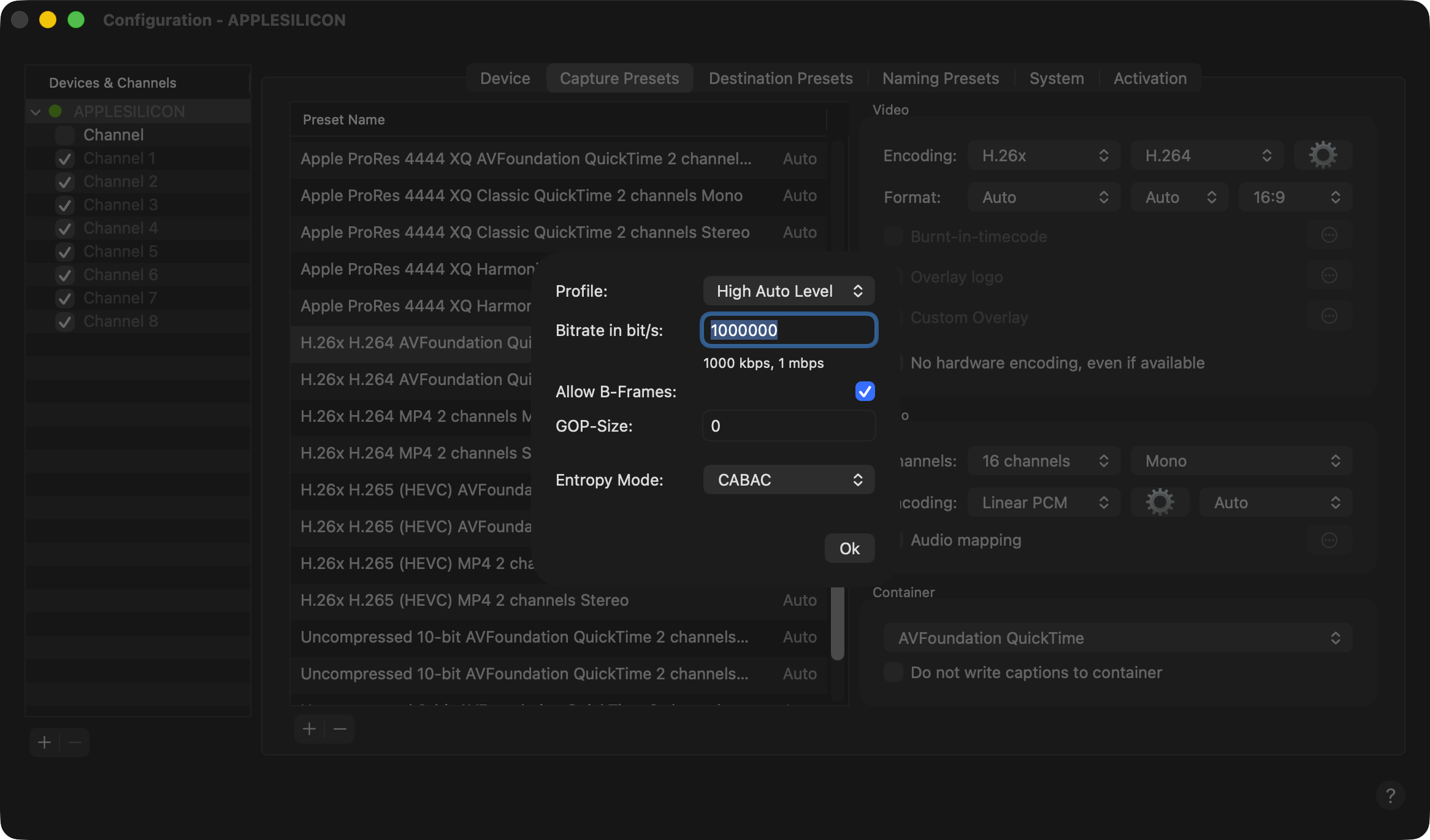
Encoding profiles and other options summary:
“Baseline” - Baseline encodes are the most basic form of encoding. While decoding is much easier, it may also require much higher bit rates to maintain the same level of quality.
“Main” - The middle ground. Most modern/current devices will support this profile.
“High Profile” - For best quality and file size at the expense of CPU time in both decoding and encoding.
“Iconik Proxy” - Please use this for Iconik workflows. This profile sets all H.264 related settings required for an Iconik Proxy.
B-Frame - Short for bidirectional frame, or bidirectional predictive frame. As the name suggests, B-frames rely on the frames preceding and following them. B-frames contain only the data that has changed from the preceding frame or is different from the data in the very next frame. B-frames increase compression efficiency, particularly at lower bitrates. We recommend having this option enabled.
The GOP-Size determines the maximum distance between I-frames. Very high GOP lengths will result in a slightly more efficient compression but will make seeking/scratching in the video somewhat more difficult. The recommended default is 0, which sets the encoder to Auto-GOP.
Lastly, you can define the Entropy Mode. When you select the “Main “or “High Profile” (“Baseline” is “CAVLC” only), you have two options:
“CAVLC”: Context-based adaptive variable-length coding
“CABAC”: Context-based adaptive binary arithmetic coding
“CAVLC” is the lower-quality, easier-to-decode option, “CABAC” is the higher-quality, harder-to-decode option.
Recommended settings for HD presets:
Resolution: Auto
Frame rate: Auto
Profile: “Main” or “High”
Bitrate: custom
Allow B-Frames: Activated
GOP-Size: “0”
Entropy Mode: “CABAC”
When using the AAC audio encoding in an MP4 container, then you can choose between “44100 Hz” and “48000 Hz” as your preferred sample rate, as well as the AAC audio bitrate.
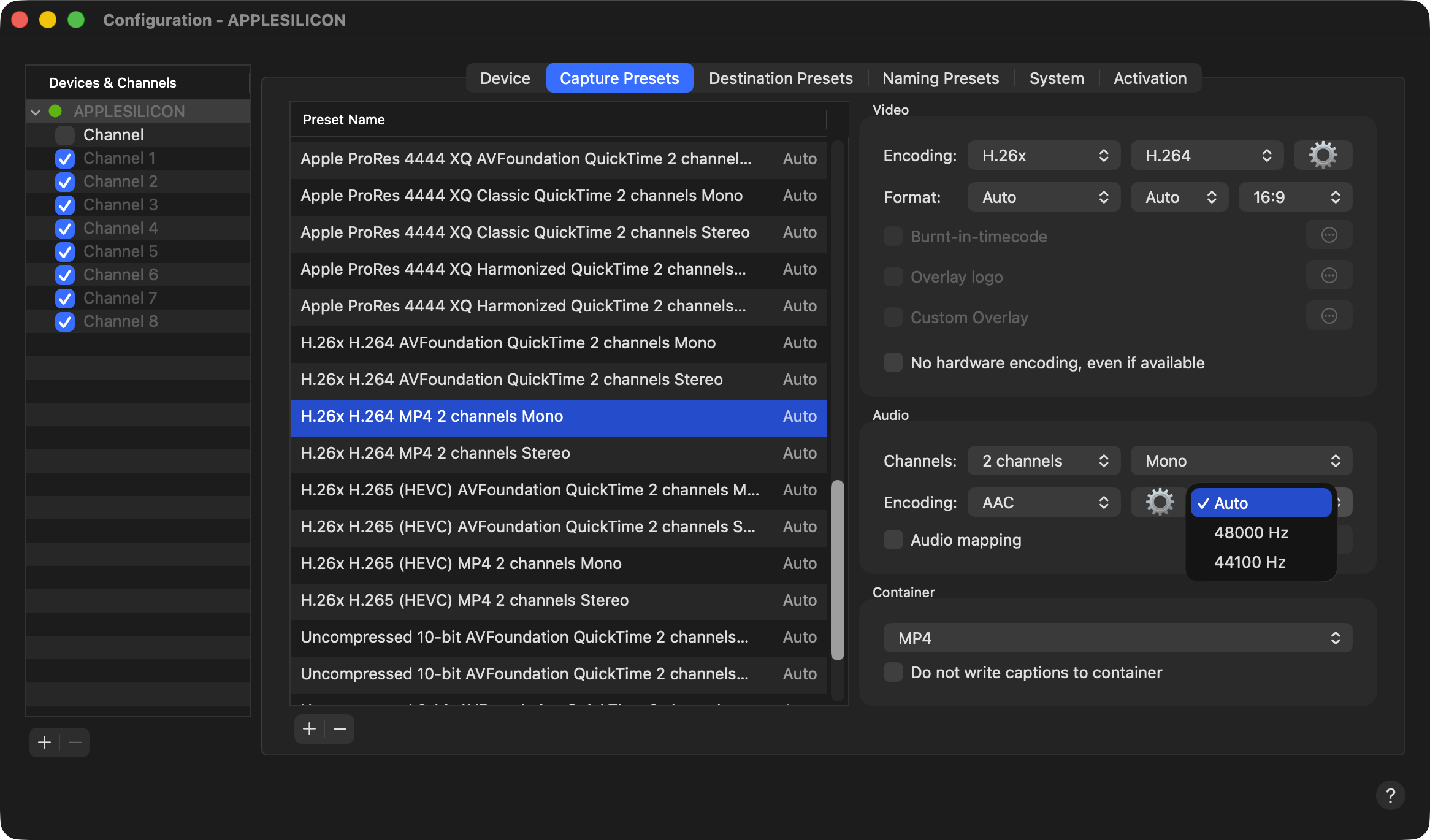
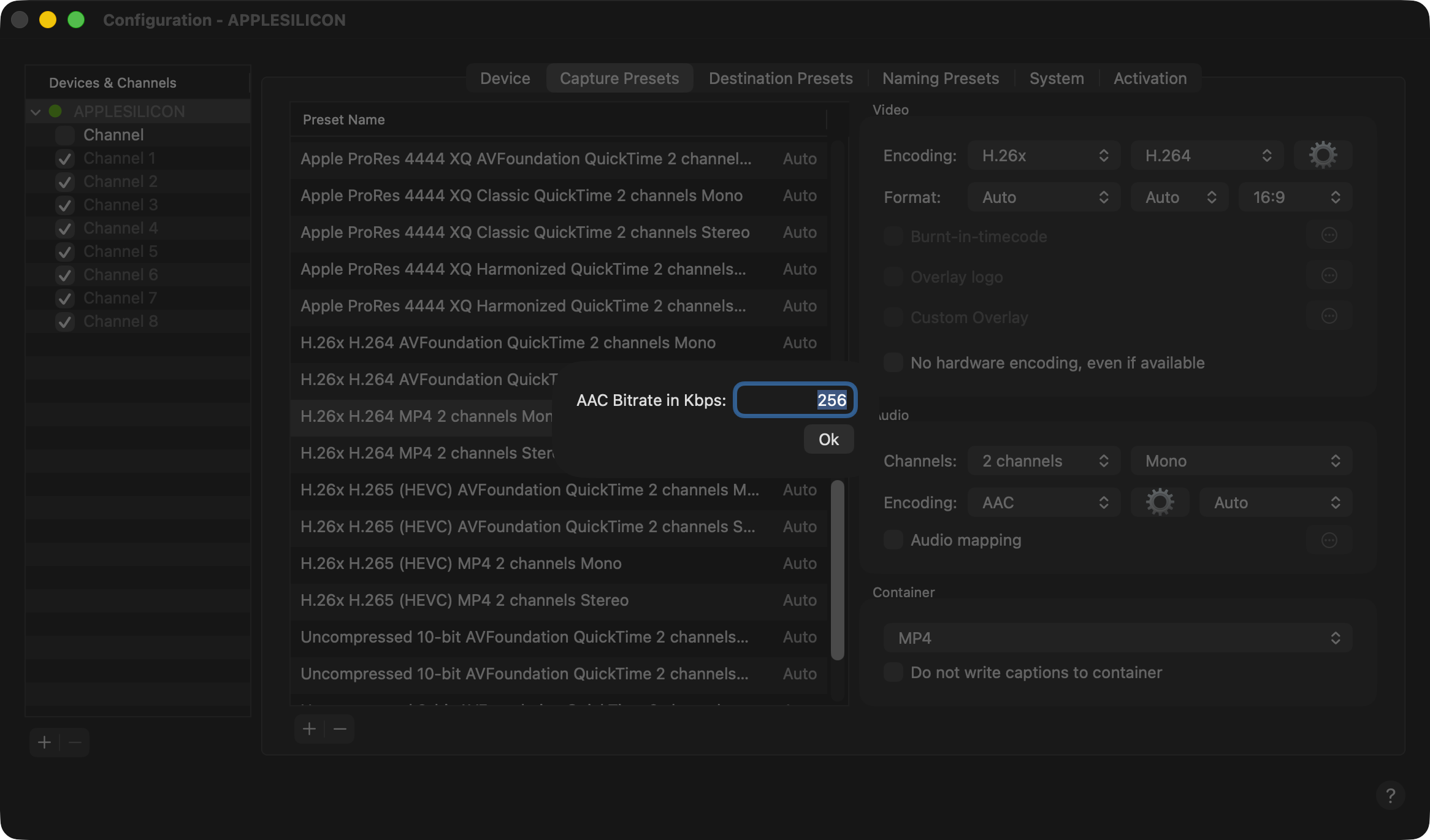
When using the H.264 codec in a MOV container, you can select the audio sample rate to be “16 bit”, “24 bit” or “32 bit”.
