
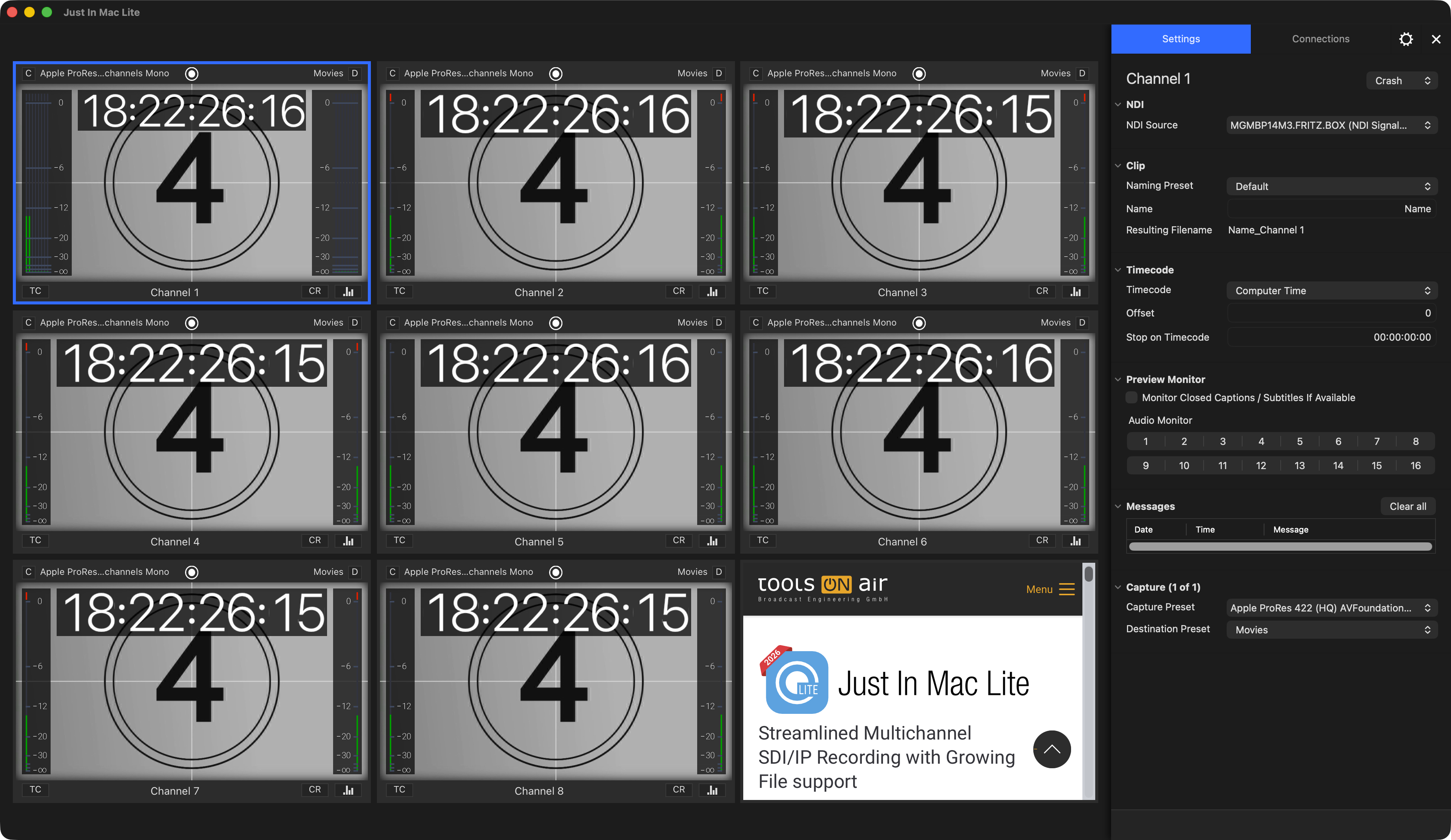
The following chapters explain the user interface of the Just In Mac Lite 2026 application. You will learn how to:
Connect to Devices/Channels.
Work with Channels.
Customize the User Interface.
Use the Inspector to adjust Channel Settings and to start/stop Recordings.
The Just In Mac Lite User Interface
The User Interface controls and manages the recording Channels.
It enables you to you create, modify and manage various device settings, capture, and destination presets.
The Just In Mac Lite 2026 user interface provides a Real-time Video, Audio, and Timecode Preview of the Channel and allows selecting Capture- and Destination-Presets for the selected Channel(s).
It is used to execute Recordings, using one of the available Capture Modes (Crash or Schedule).
The application has access (if granted) to the macOS Calendar application and can therefore receive scheduled recording events in Schedule Mode.
Please continue reading here:
- User Interface Settings v.2026.x
- Diagnostics Window ("Just In Mac Lite Status") v.2026.x
- Overview v.2026.x
- Adjust the Channel Viewer Area v.2026.x
- Managing Channels v.2026.x
- Channel Viewer v.2026.x
- Inspector – Overview v.2026.x
- Channel Viewer Modes v.2026.x
- Capture Modes v.2026.x
- ToolsOnAir Error Codes/Messages Capture v.2026.x